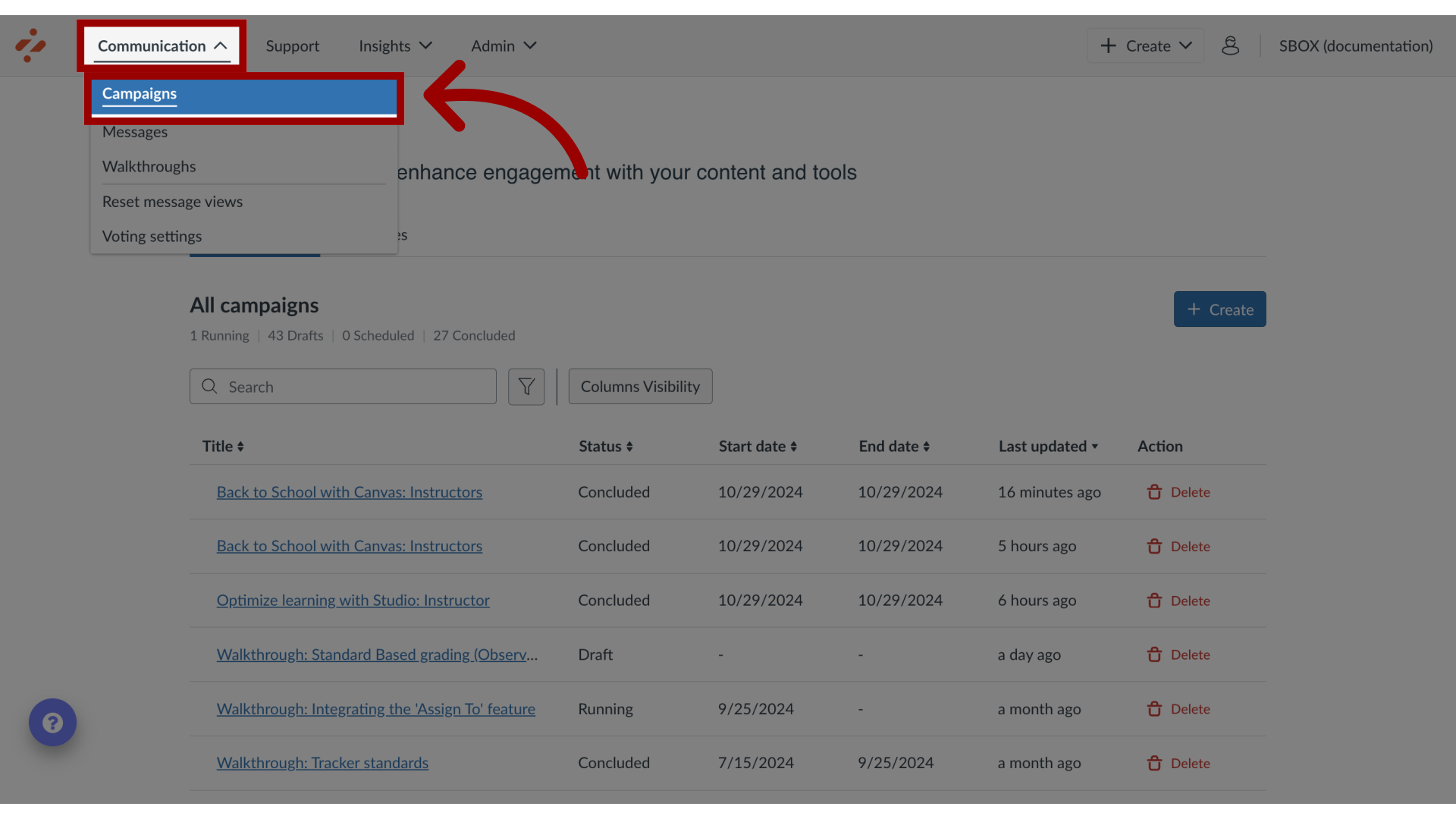
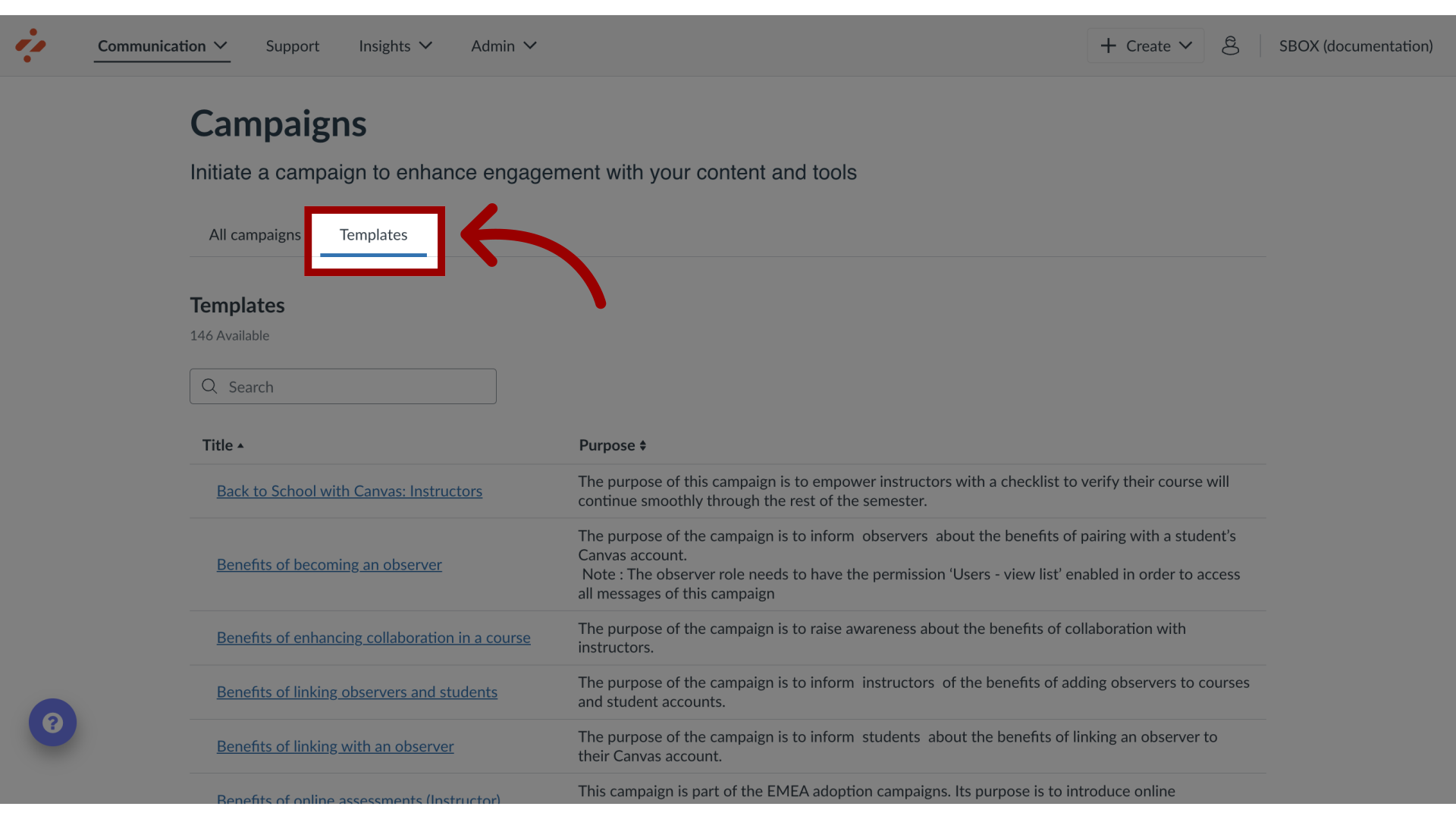
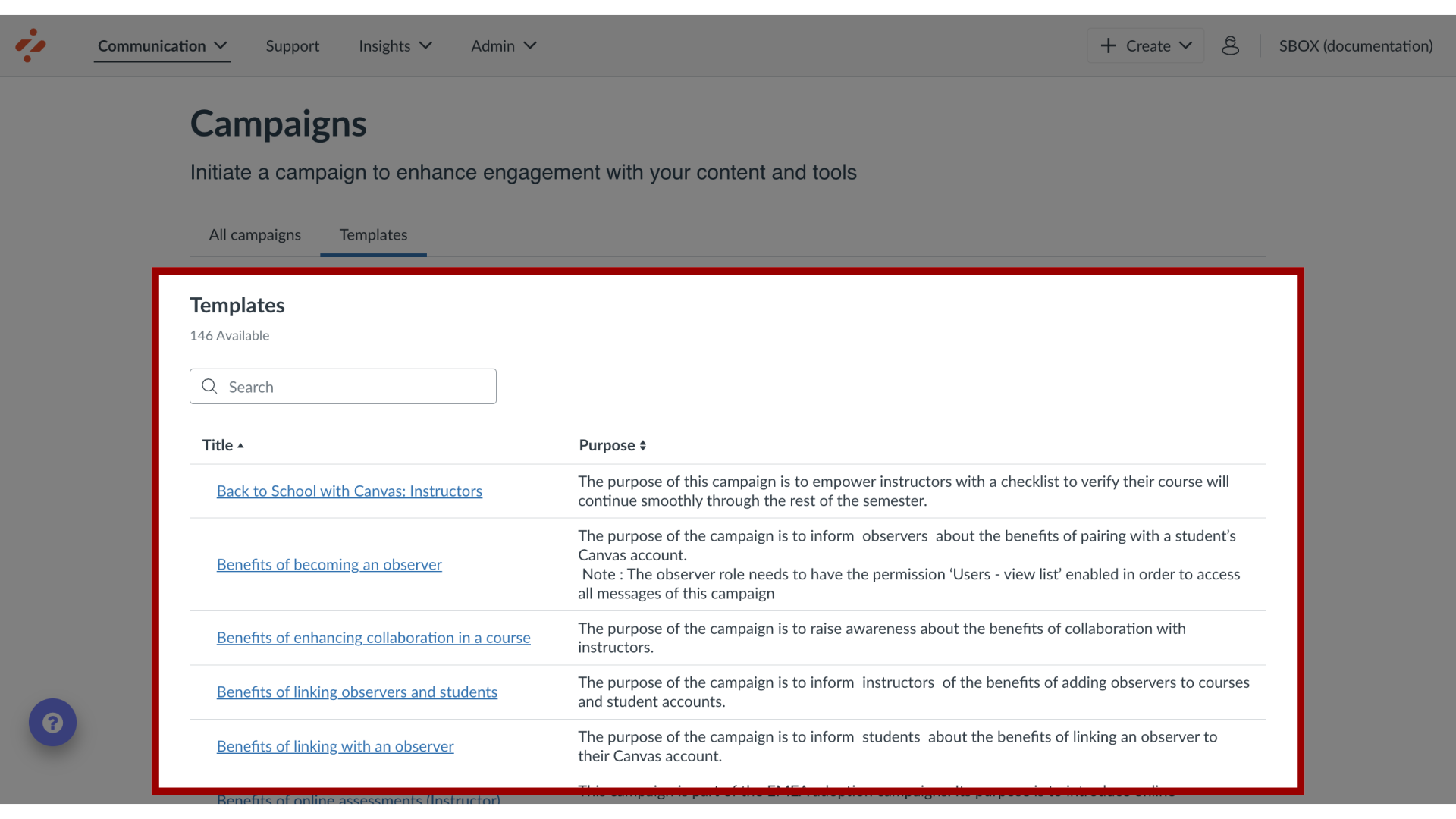
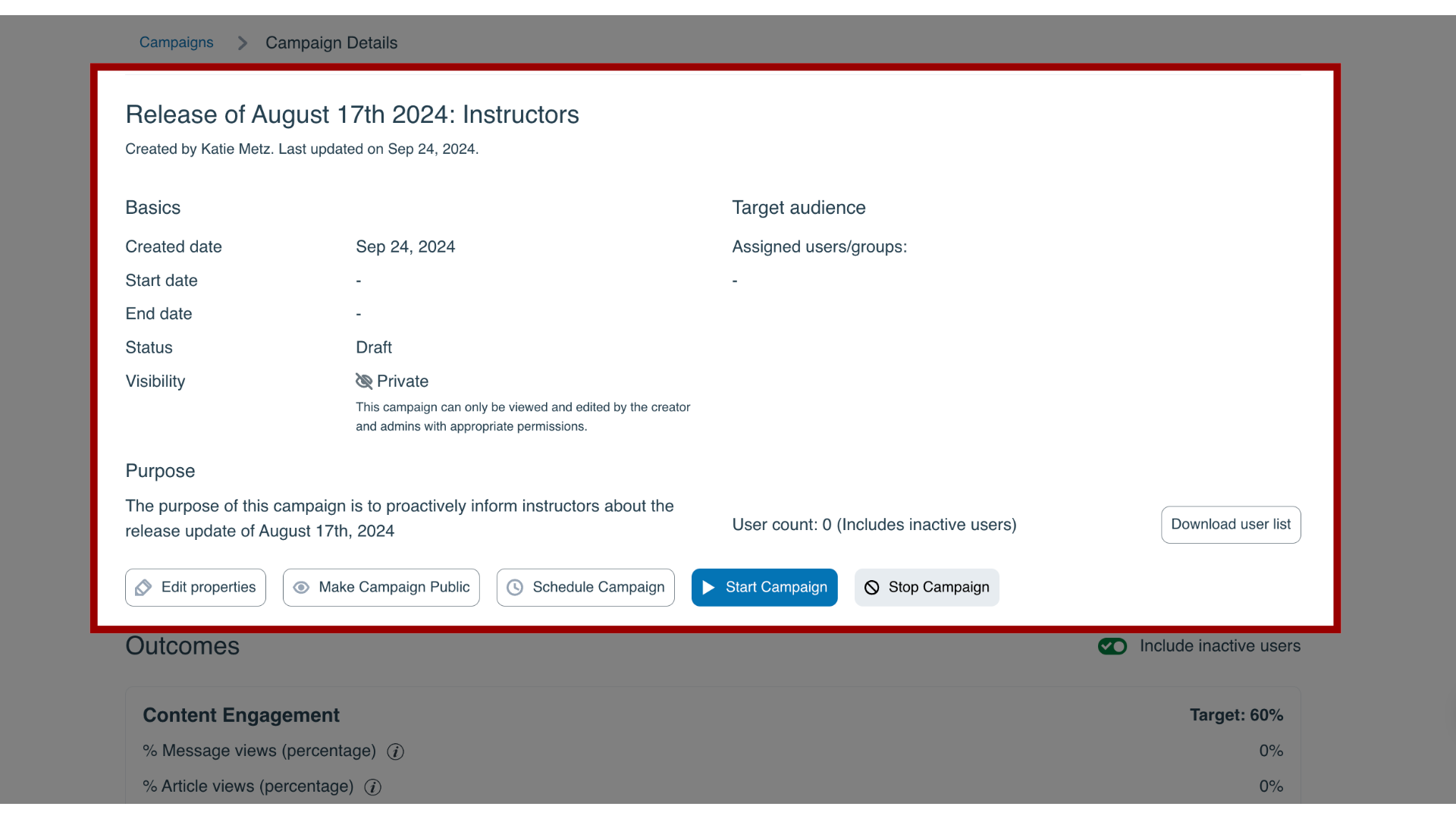
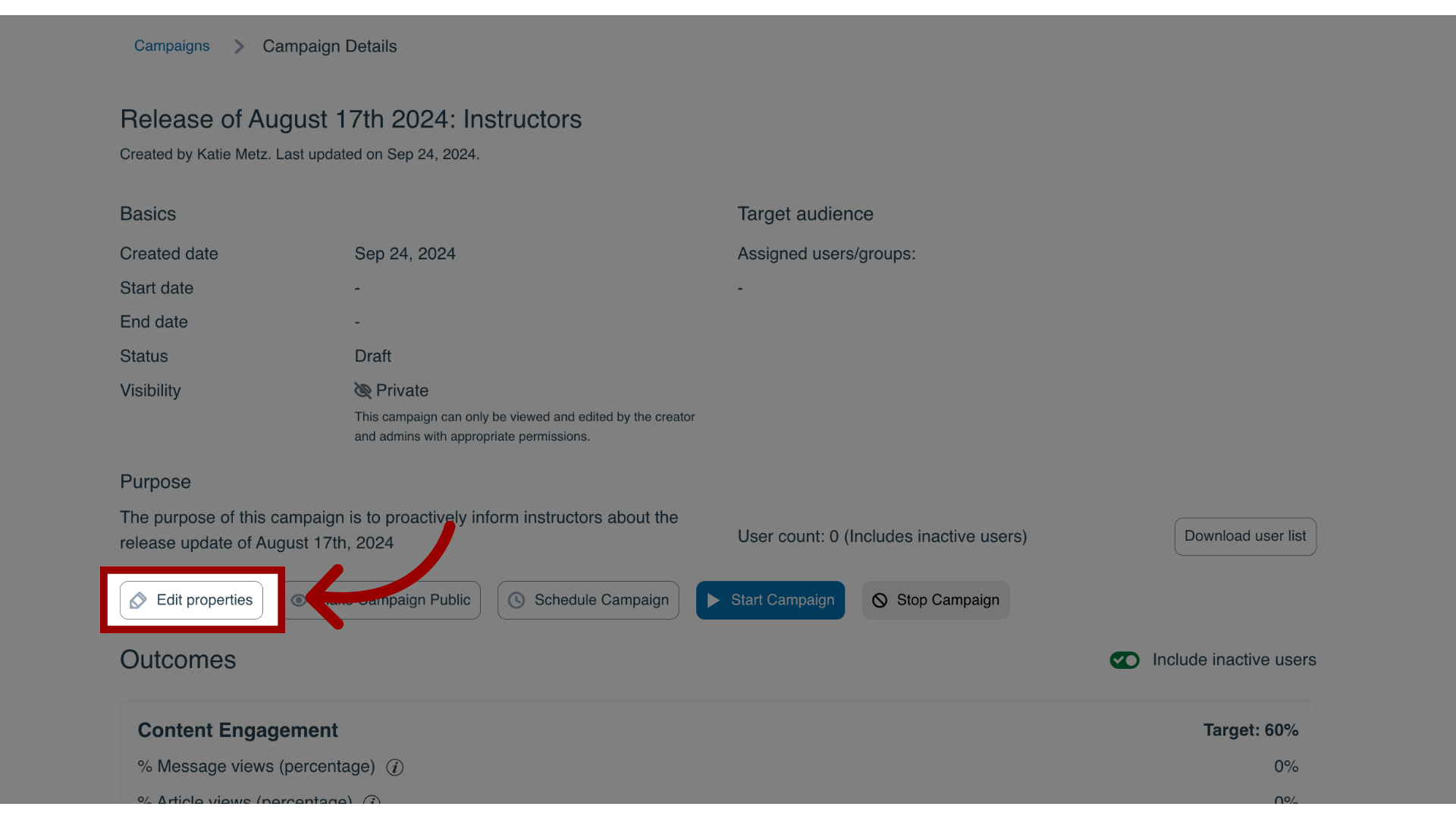
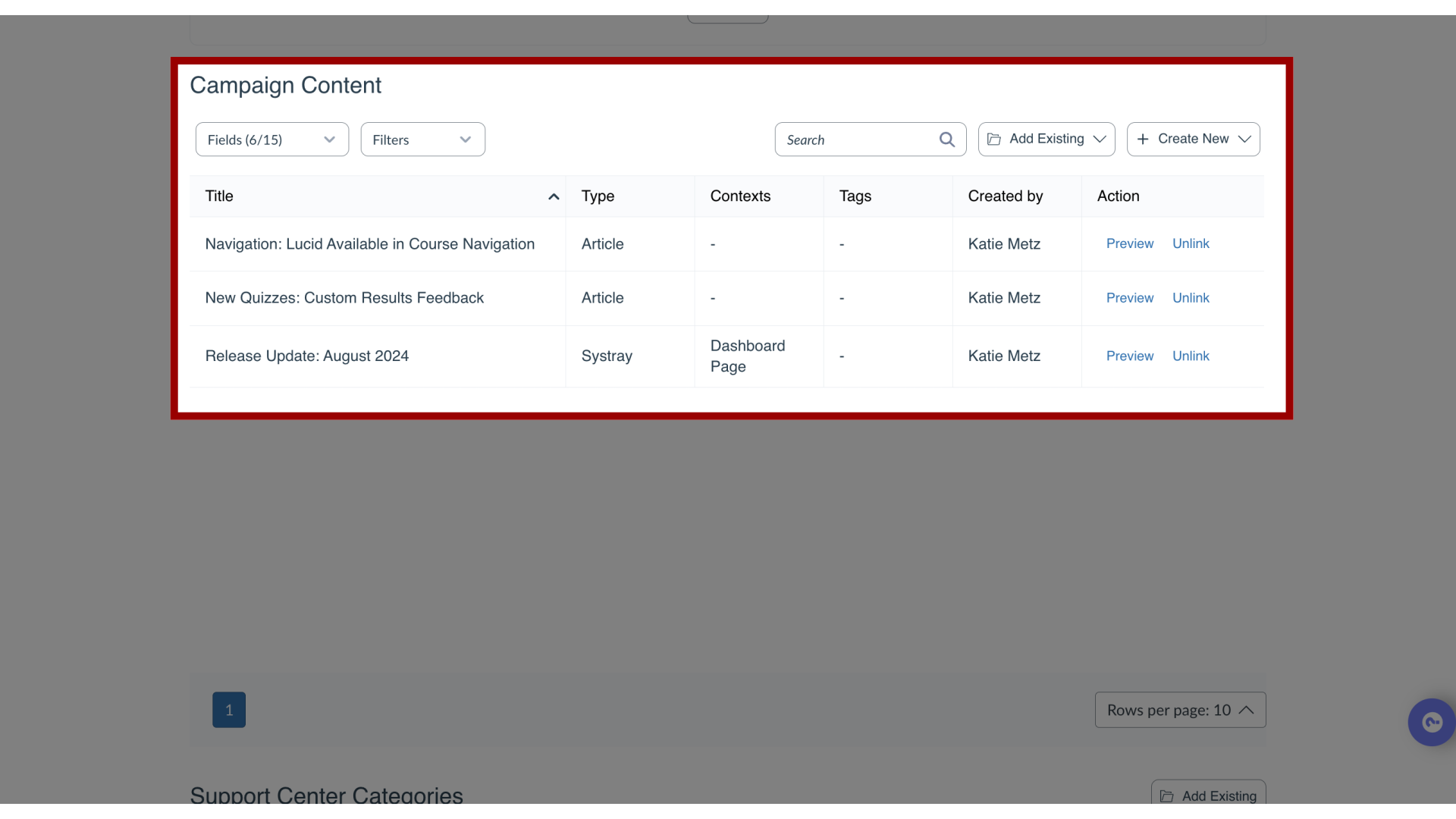
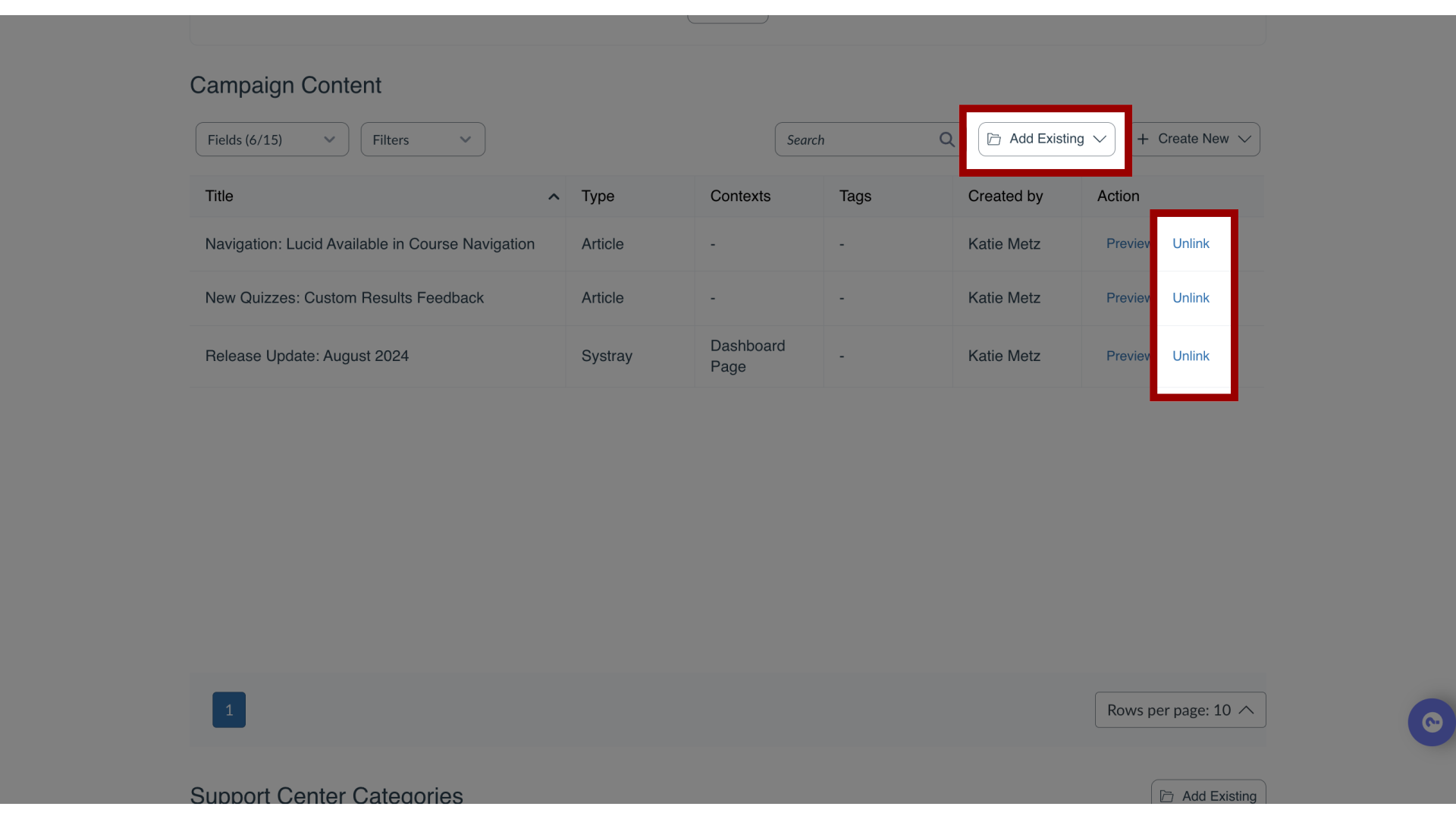
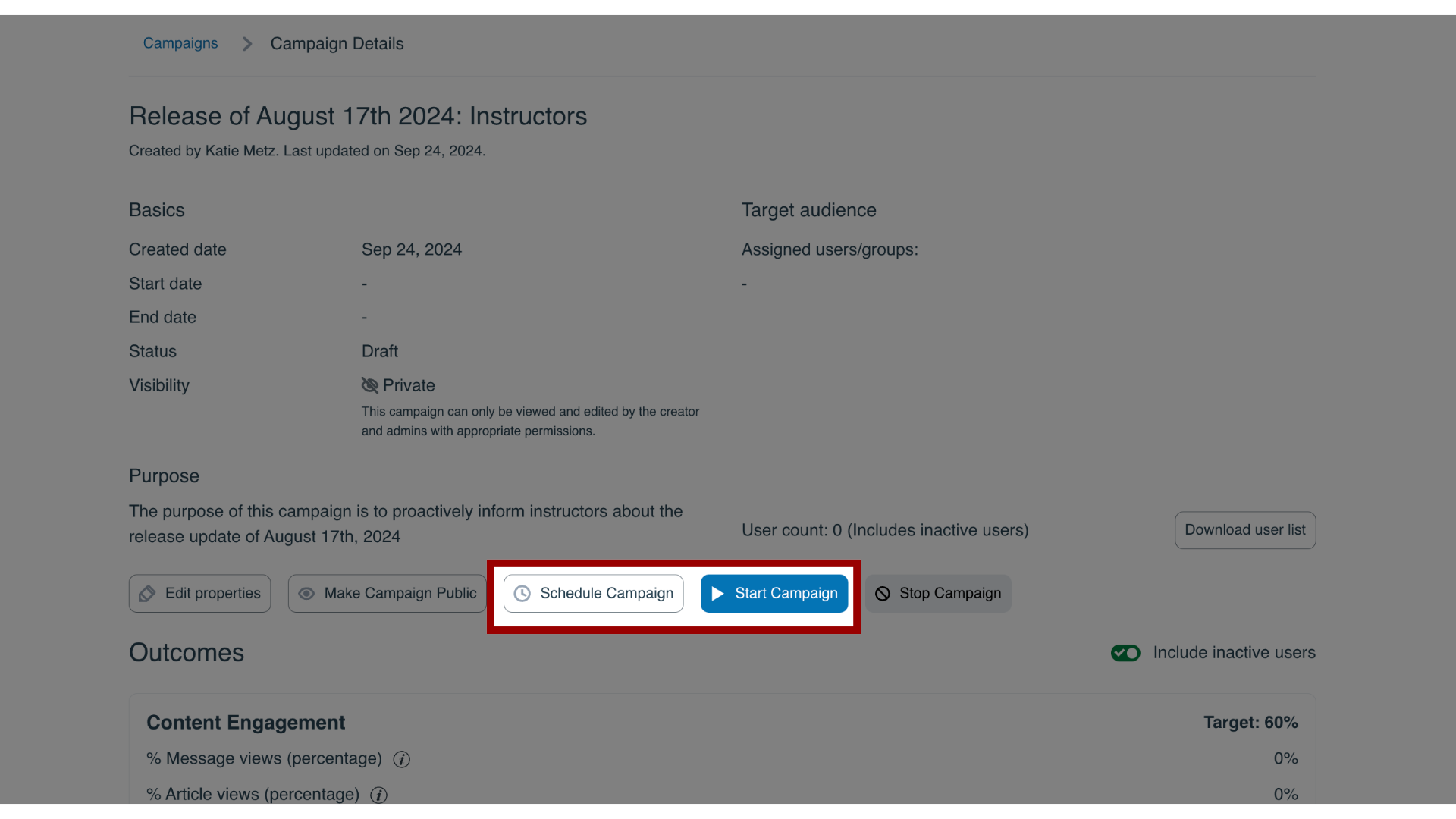
You can import a campaign template and use it within your own environment. Templates use premade articles, messages, and reports offered by Impact's in-house education specialists.How do I create a campaign from a template in the Impact Dashboard?1. Open CampaignsIn the Global Navigation, click the Communication dropdown menu. Then click the Campaigns link.2. Open TemplatesClick the Templates tab.3. Select Campaign TemplateReview available campaign templates by examining the title and description. Then select the template you would like to use.4. View Campaign DetailsOn the Campaign Details page, review the campaign information, target audience, and outcomes.5. Edit Campaign DetailsTo edit any campaign property, click the Edit Properties button.6. Review Campaign Content In the Campaign Content and Support Center Category sections, you are able to preview all of the associated messages, walkthroughs, articles, and support center categories.7. Add or Remove Campaign ContentTo add campaign content, click the Add Existing dropdown. To remove campaign content, click the Unlink button. Existing campaign content can be edited from the Message, Walkthrough, or Support page.8. Start or Schedule Campaign Once your campaign is ready, you can start it right away or schedule it for a later date.For more information on the following referenced topics:Target audiences: Visit How do I edit the target audience of a campaign in the Impact Dashboard?Outcomes: Visit How do I add tool adoption statistics to a campaign in the Impact Dashboard?Add or remove campaign content: Visit How do I add or remove content within a campaign in the Impact Dashboard?Start, schedule, or end a campaign: Visit How do I start, schedule, or end a campaign in the Impact Dashboard?