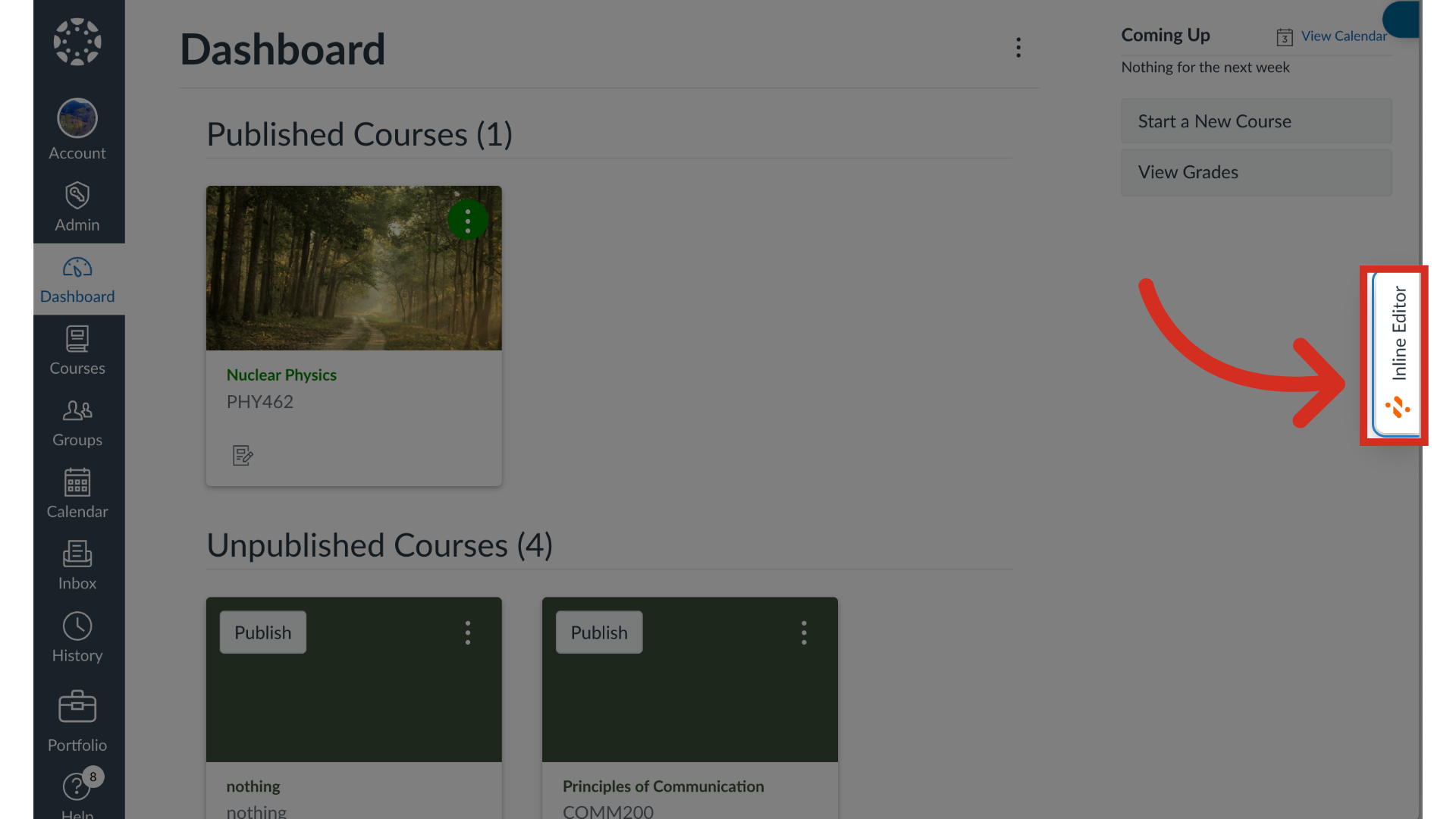
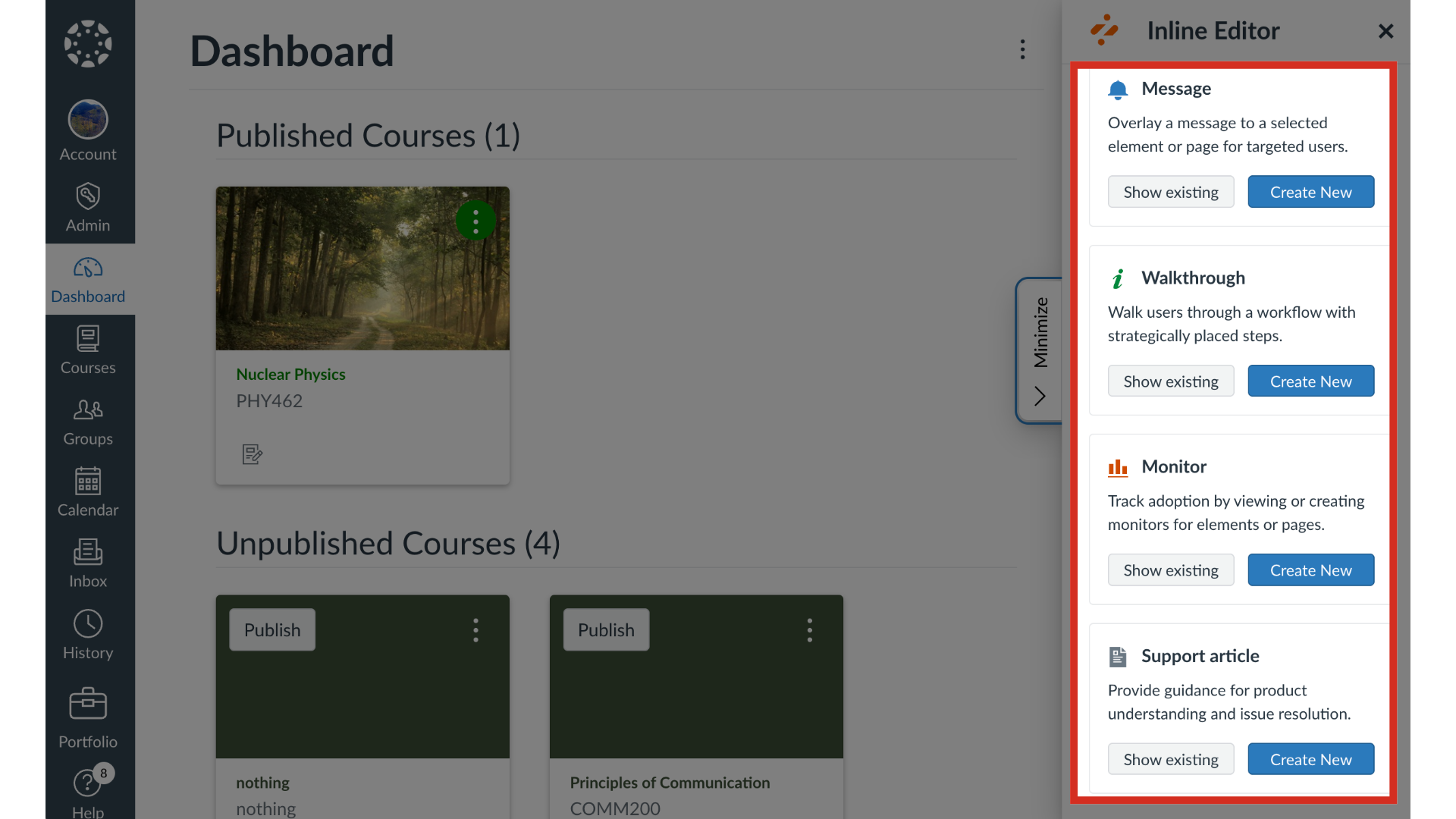
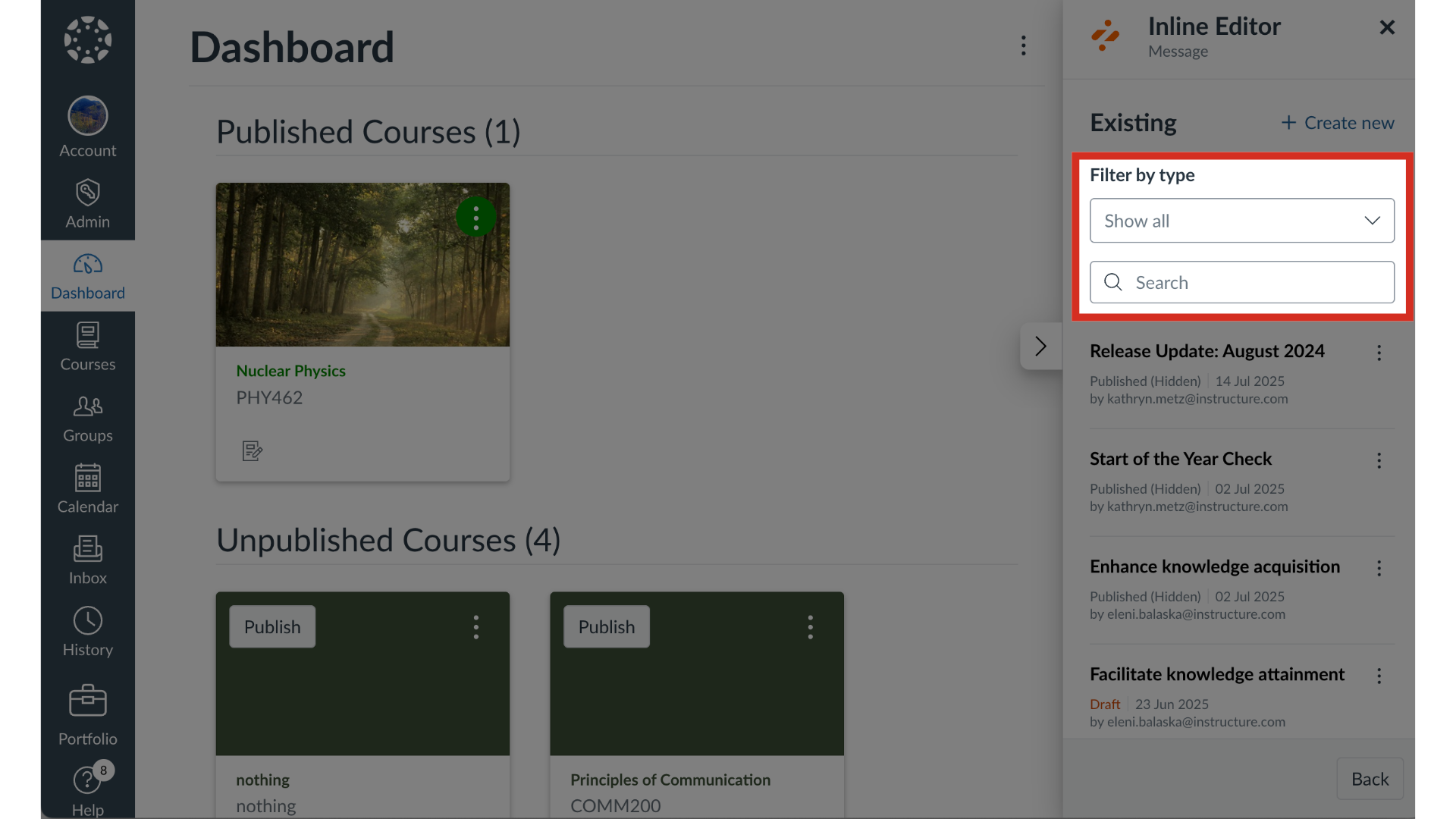
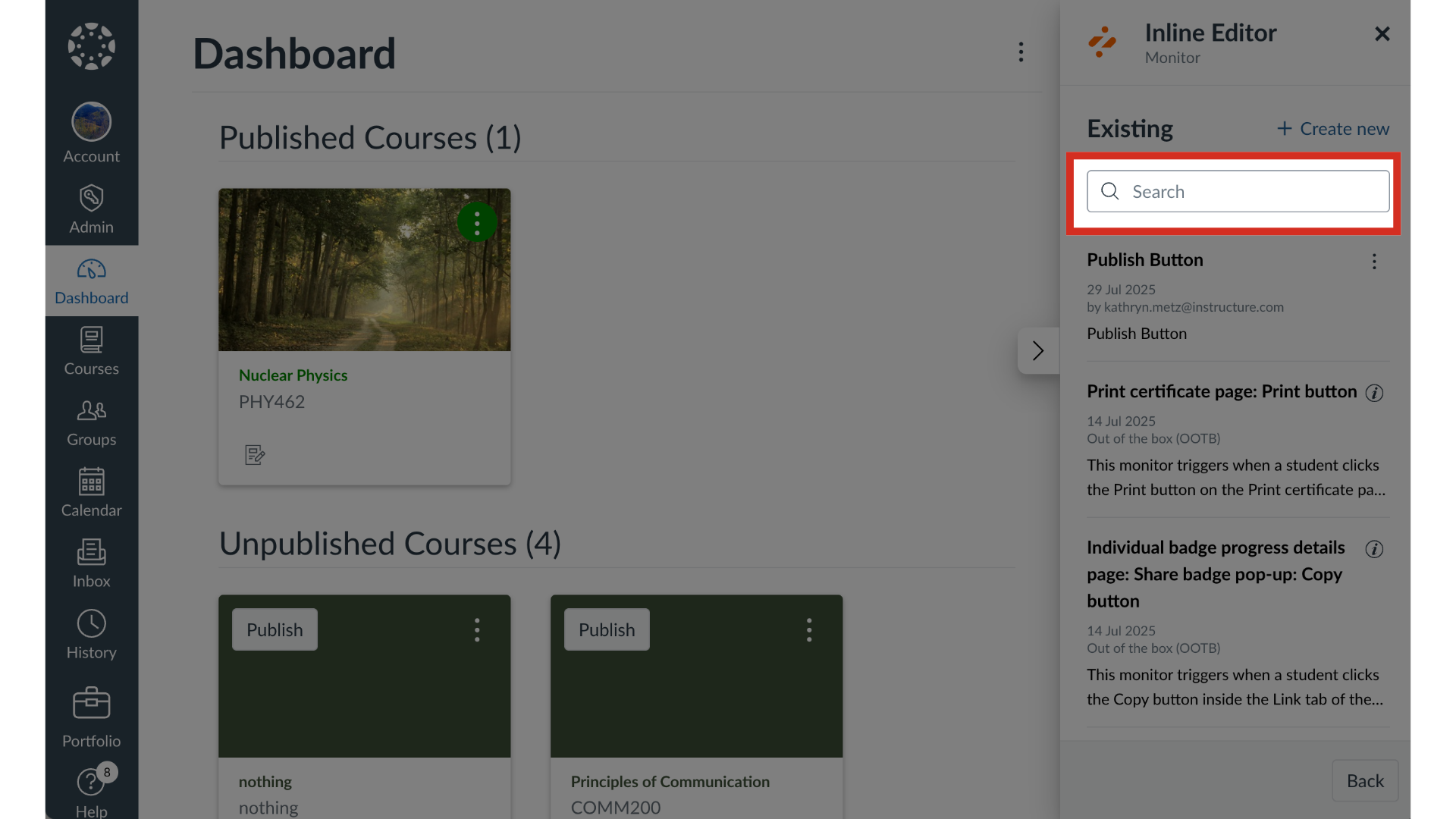
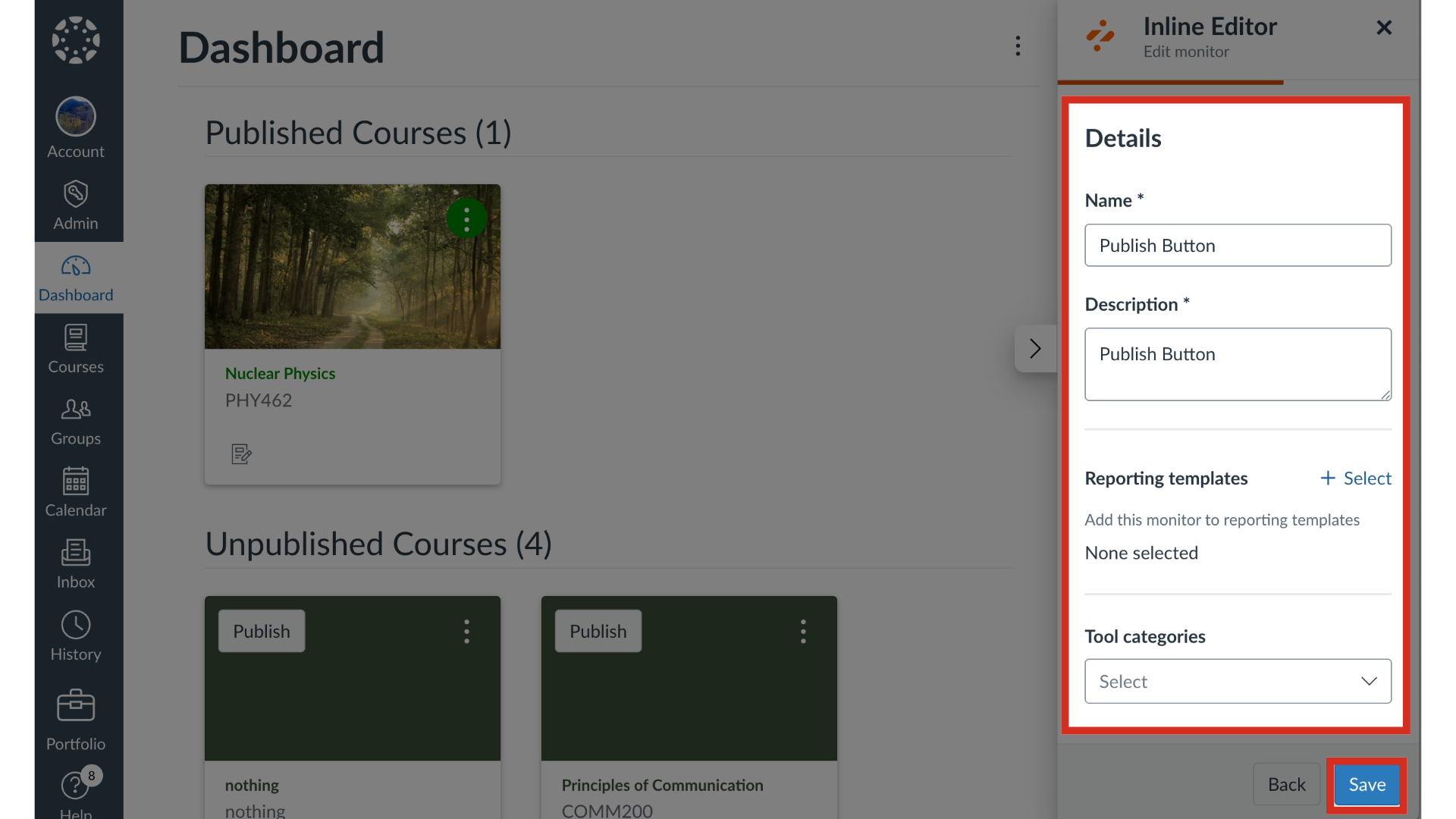
You can edit a message, article, or monitor from your learning application using the Impact Inline Content Library.How do I edit existing messages, support articles, or monitors in the Impact Inline Editor?1. Open Inline EditorTo open the Inline Editor, click the Impact icon.2. Open Existing Message, Monitor, or Support Article To edit an existing message, monitor, or support article, click the Show Existing button for the item you want to edit.3. Filter and Search MessagesTo filter messages, click the Filter by type dropdown menu. To search for a message, enter search terms in the Search field.4. Search Support ArticlesTo search for a support article, enter search terms in the Search field.5. Search MonitorsTo search for a monitor, enter search terms in the Search field.6. Open Message, Support Article, or MonitorTo edit a message, support article, or monitor, click the Options icon. Then click the Edit link.7. Edit Message or Support Article DesignEdit the message or support article design. Then click the Next button.Note: For more information on message and support article details, visit How do I create a message with the Impact Inline Editor? or How do I create a support article with the Impact Inline Editor?8. Edit Message or Support Article ConfigurationThen edit the message or support article configuration.9. Save Message or Support ArticleWhen you are finished editing, click the Save button. Then select the And Publish or As Draft option.10. Edit Monitor DetailsEdit the monitor details. Then click the Save button.