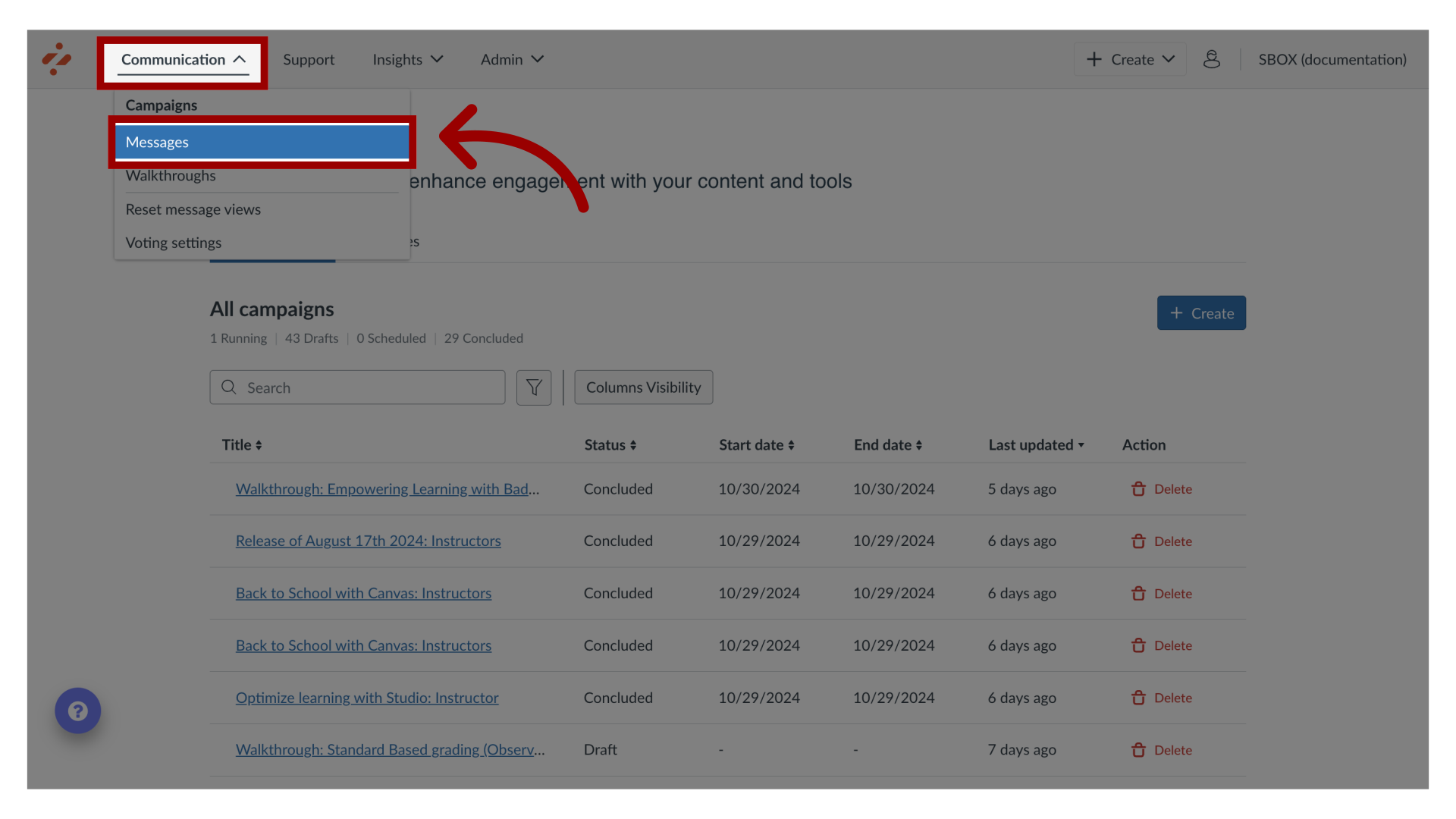
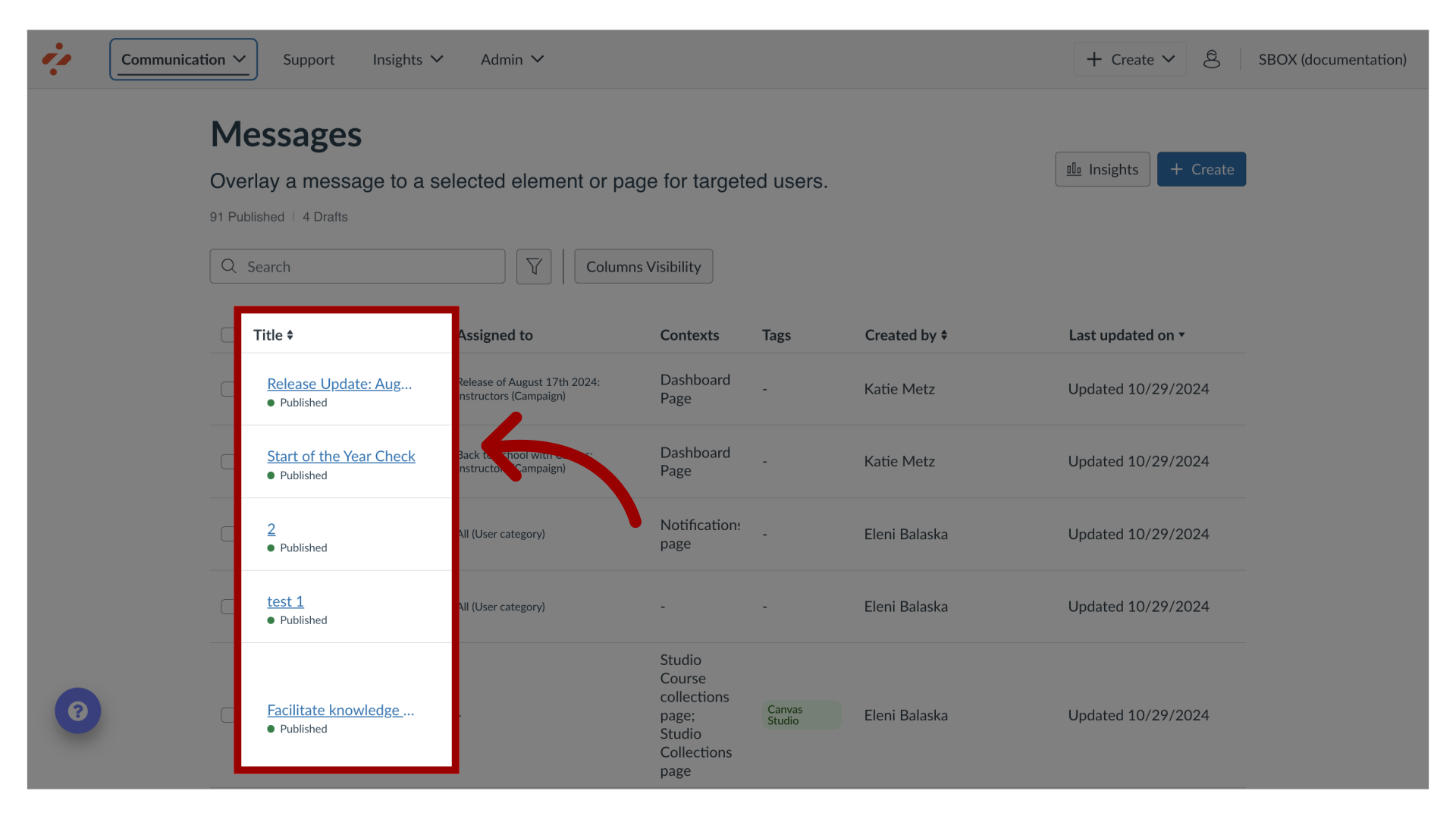
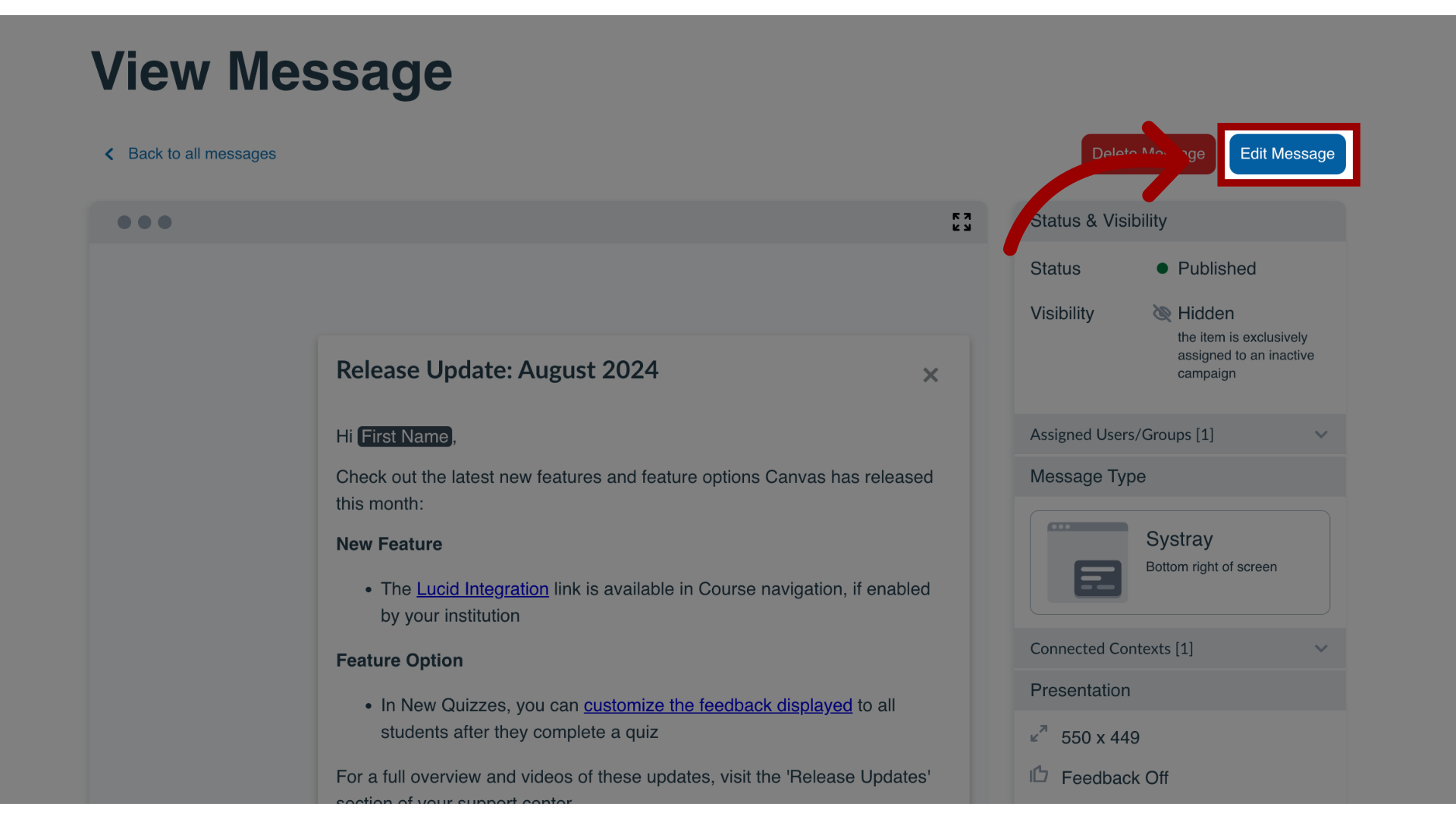
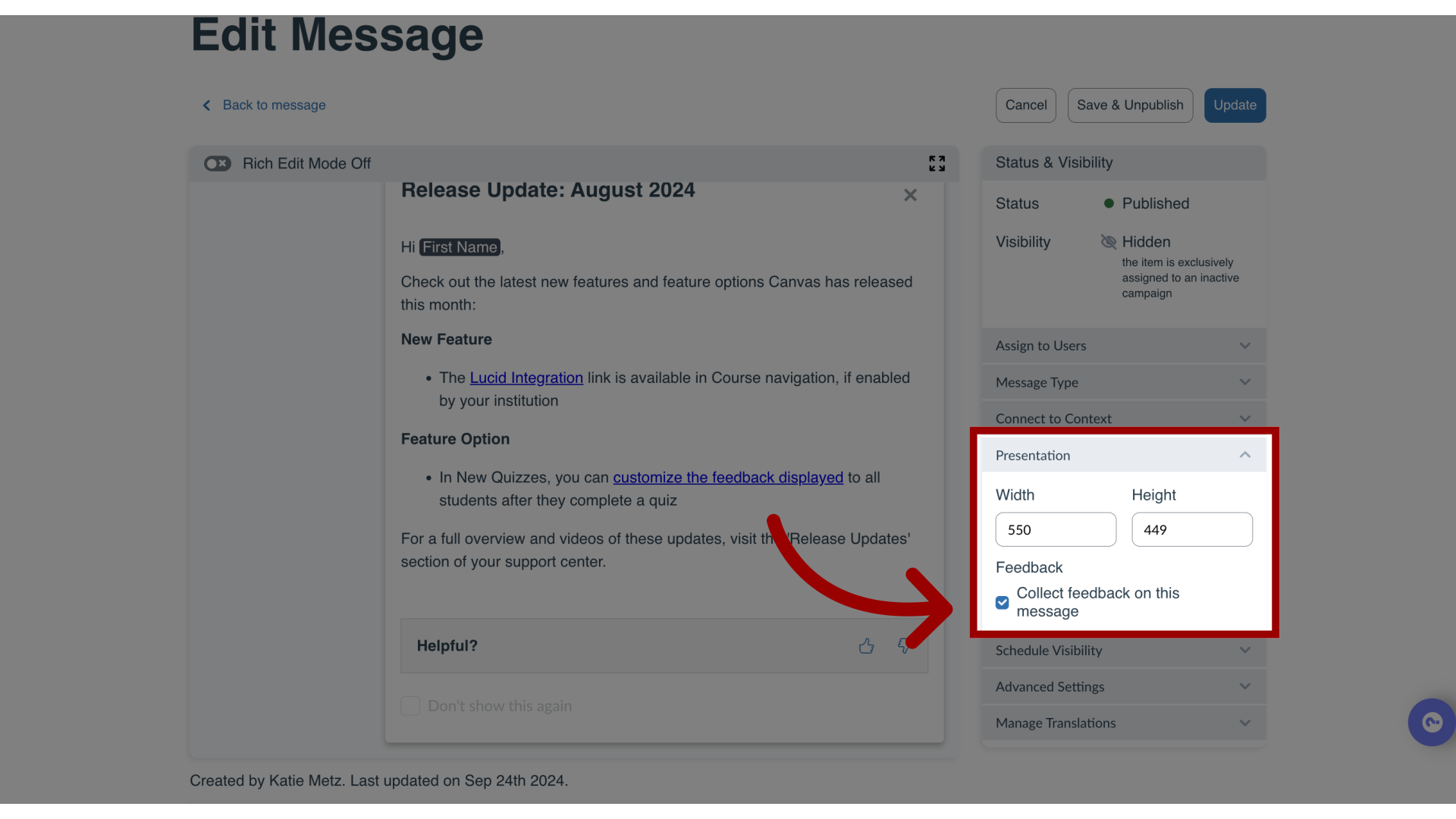
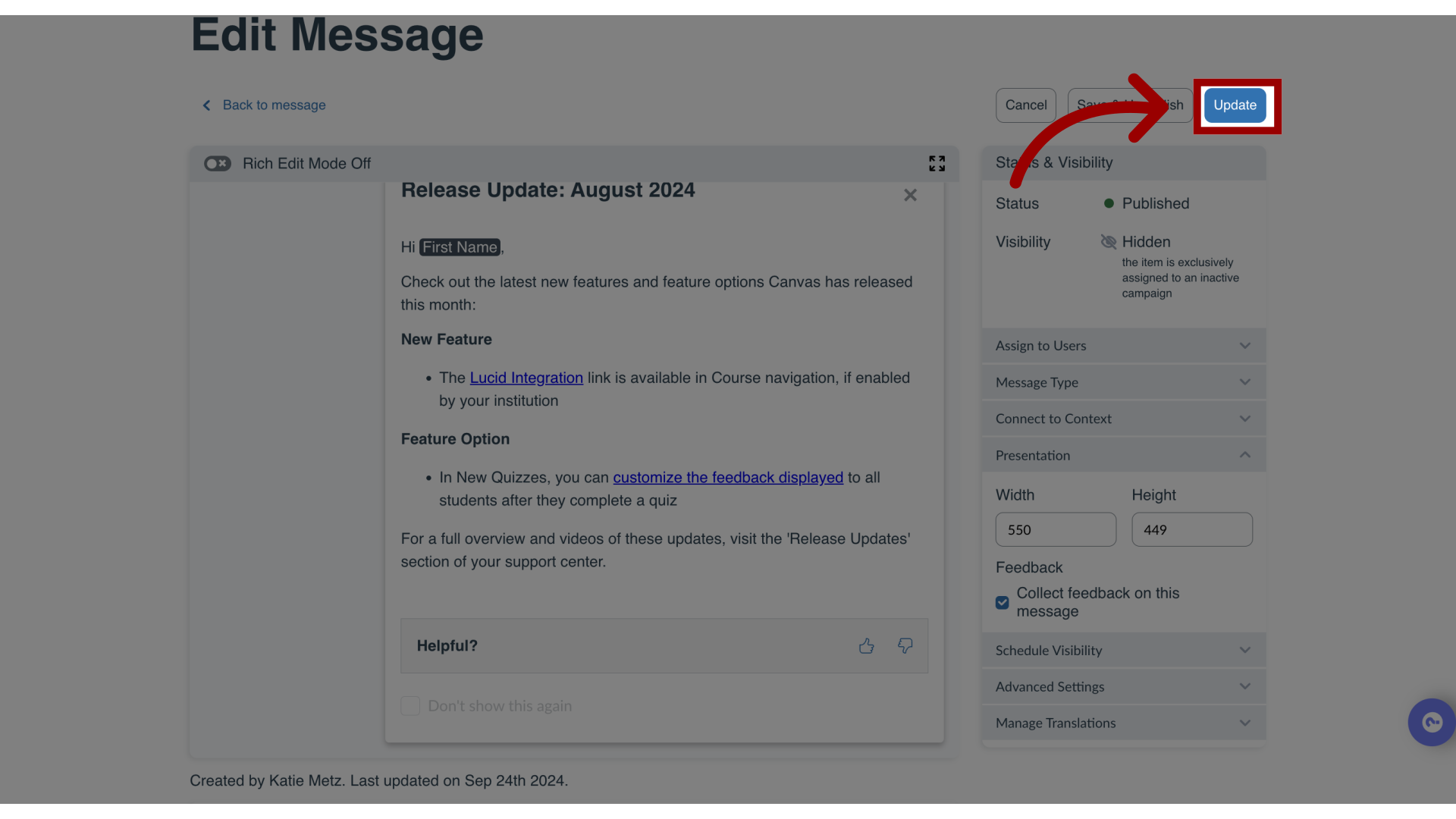
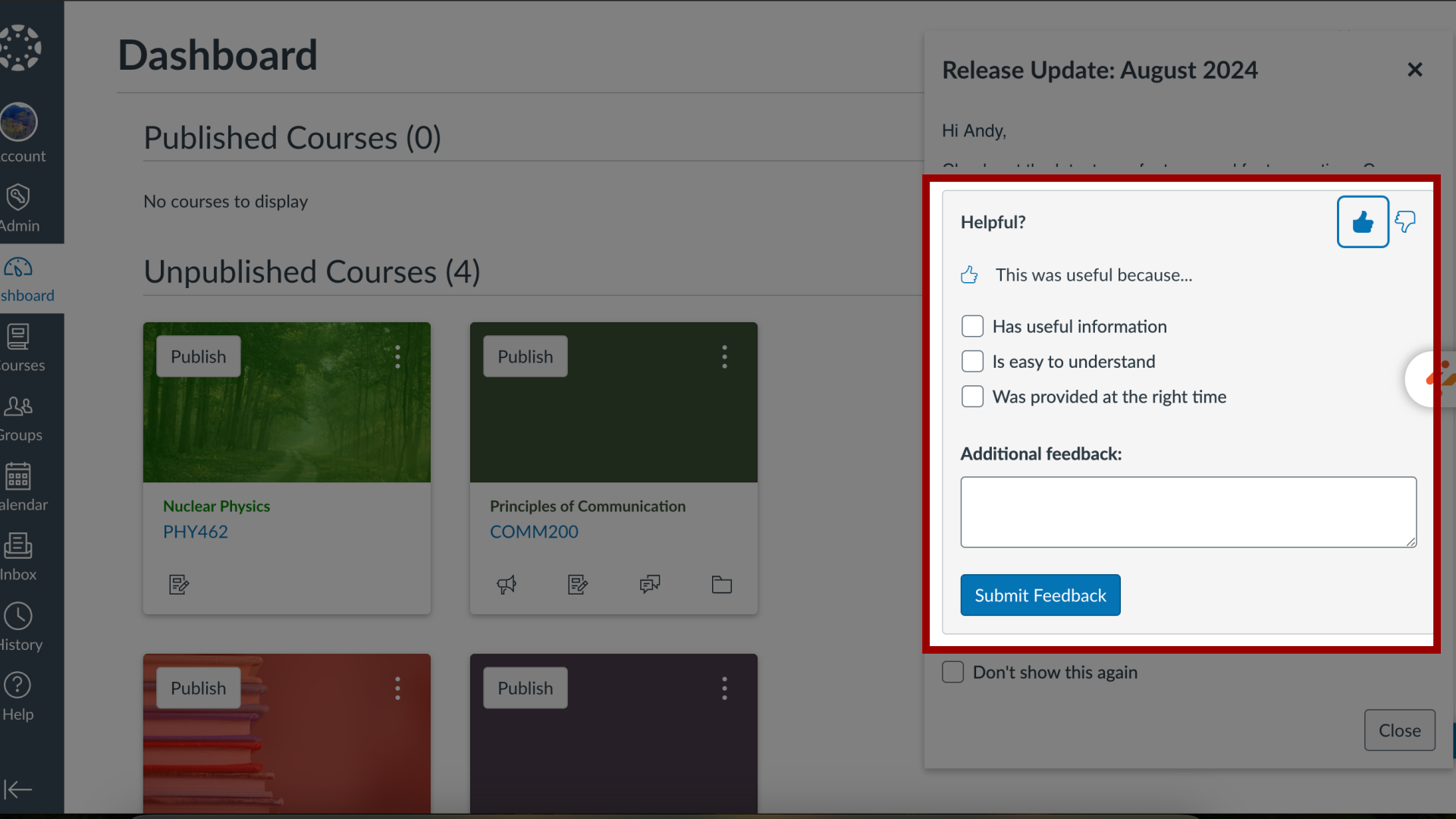
You can enable or disable feedback options on any particular message. How do I enable or disable feedback on a message in the Impact Dashboard?1. Open MessagesIn Global Navigation, click the Communication dropdown menu. Then click the Messages link.2. Manage MessagesIn the Manage Messages tab, click an existing message to edit.3. Edit MessageIn the View Message page, click the Edit Message button.4. Collect FeedbackIn the sidebar, in the Presentation section, click the Collect feedback on this message checkbox. To disable collecting feedback, deselect the Collect feedback on this message checkbox.5. Update MessageTo save your changes, click the Update button.6. View Feedback Options on MessagesMessage feedback is displayed as Thumbs Up and Thumbs Down icons. When an upvote or downvote is made, the message expands downwards and allows users to leave comments with their vote.