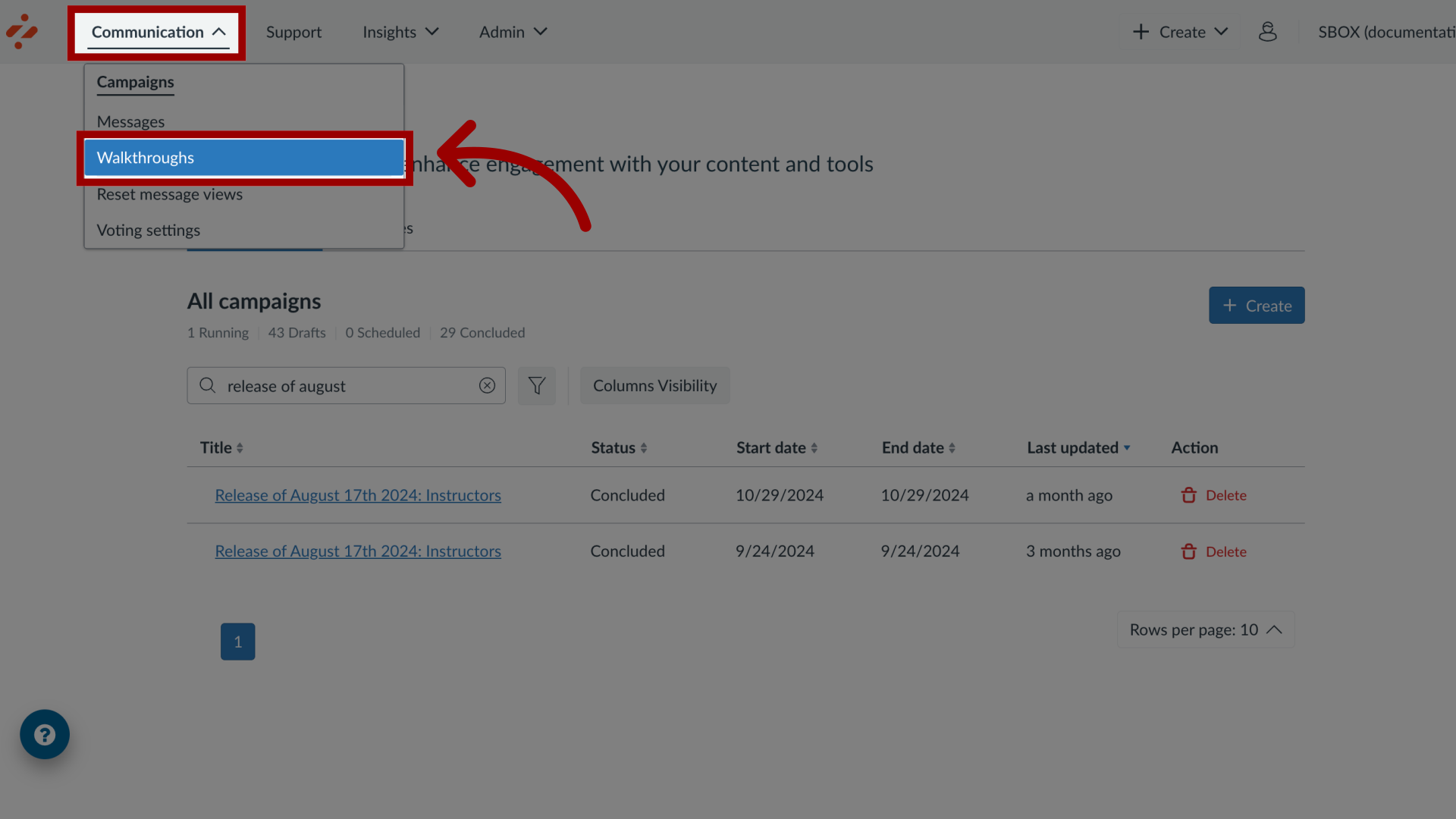
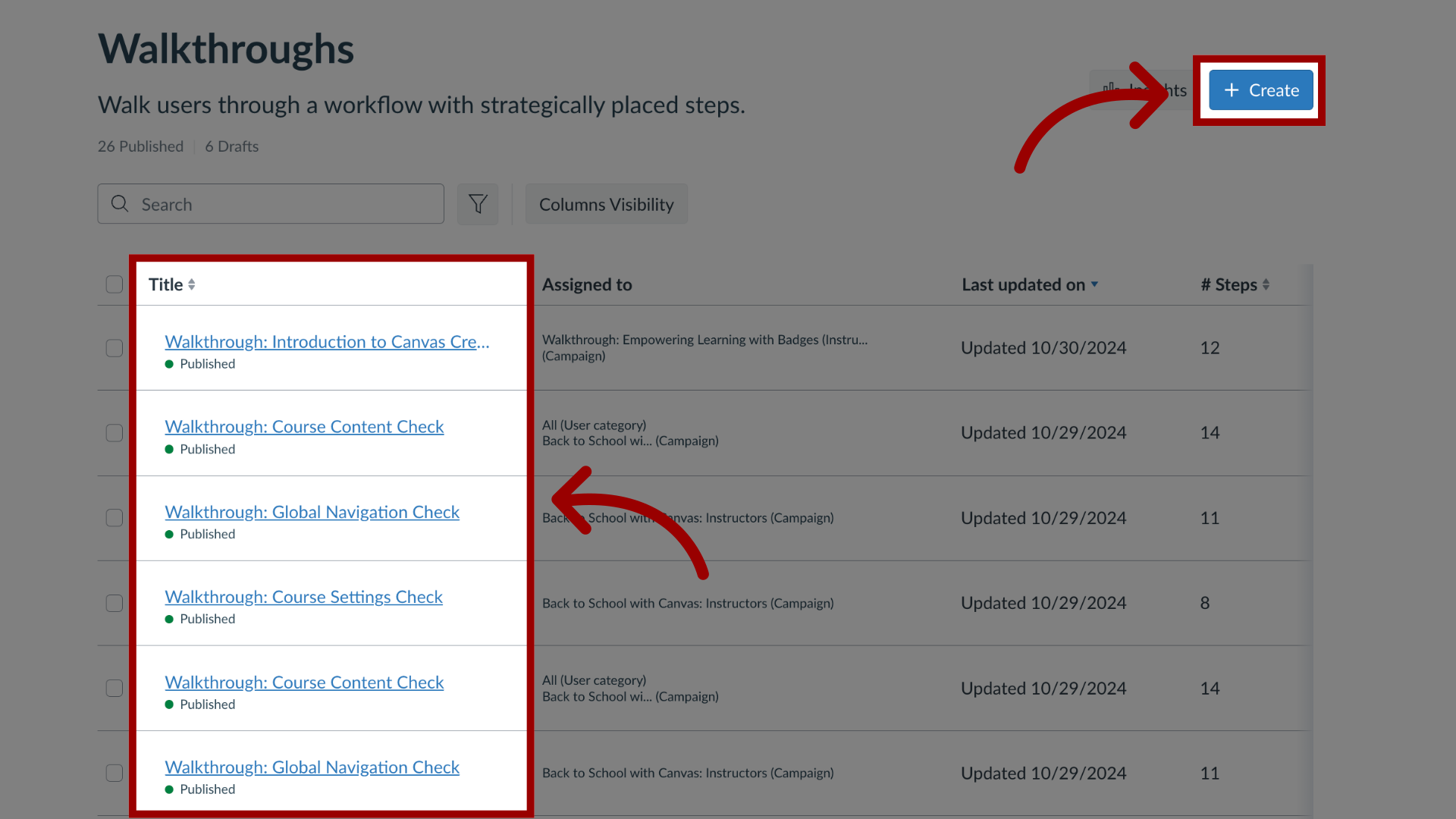
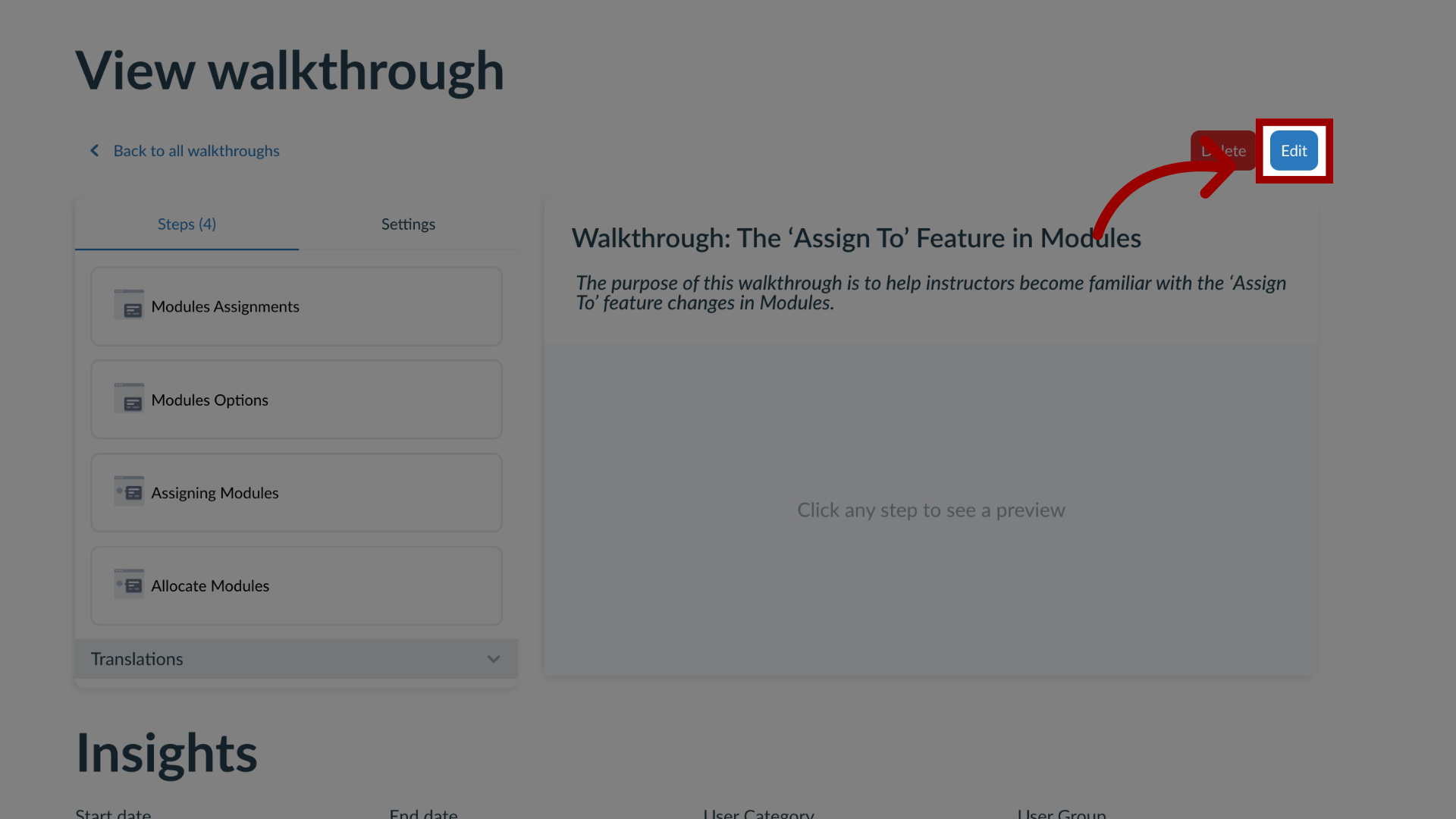
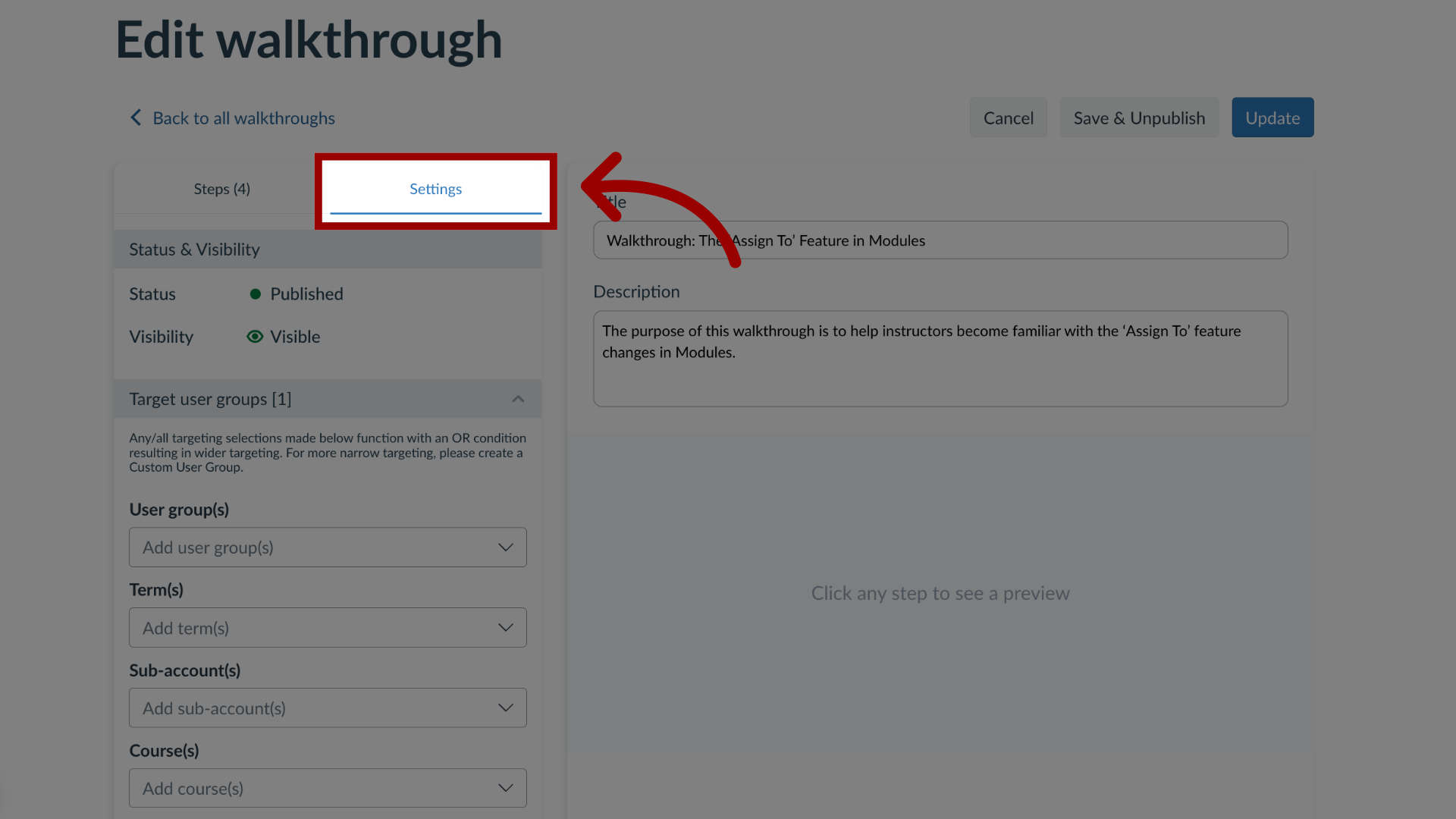
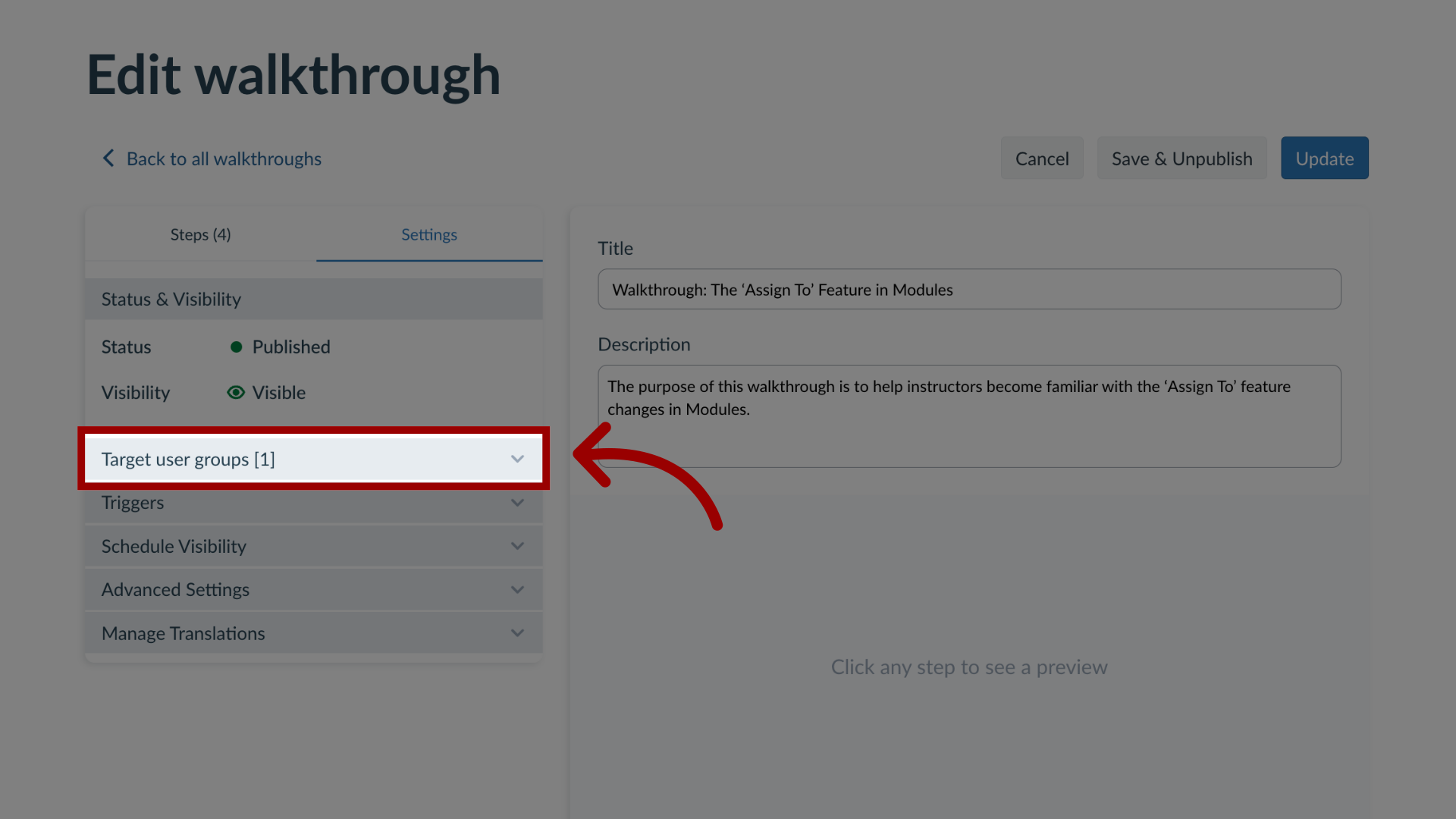
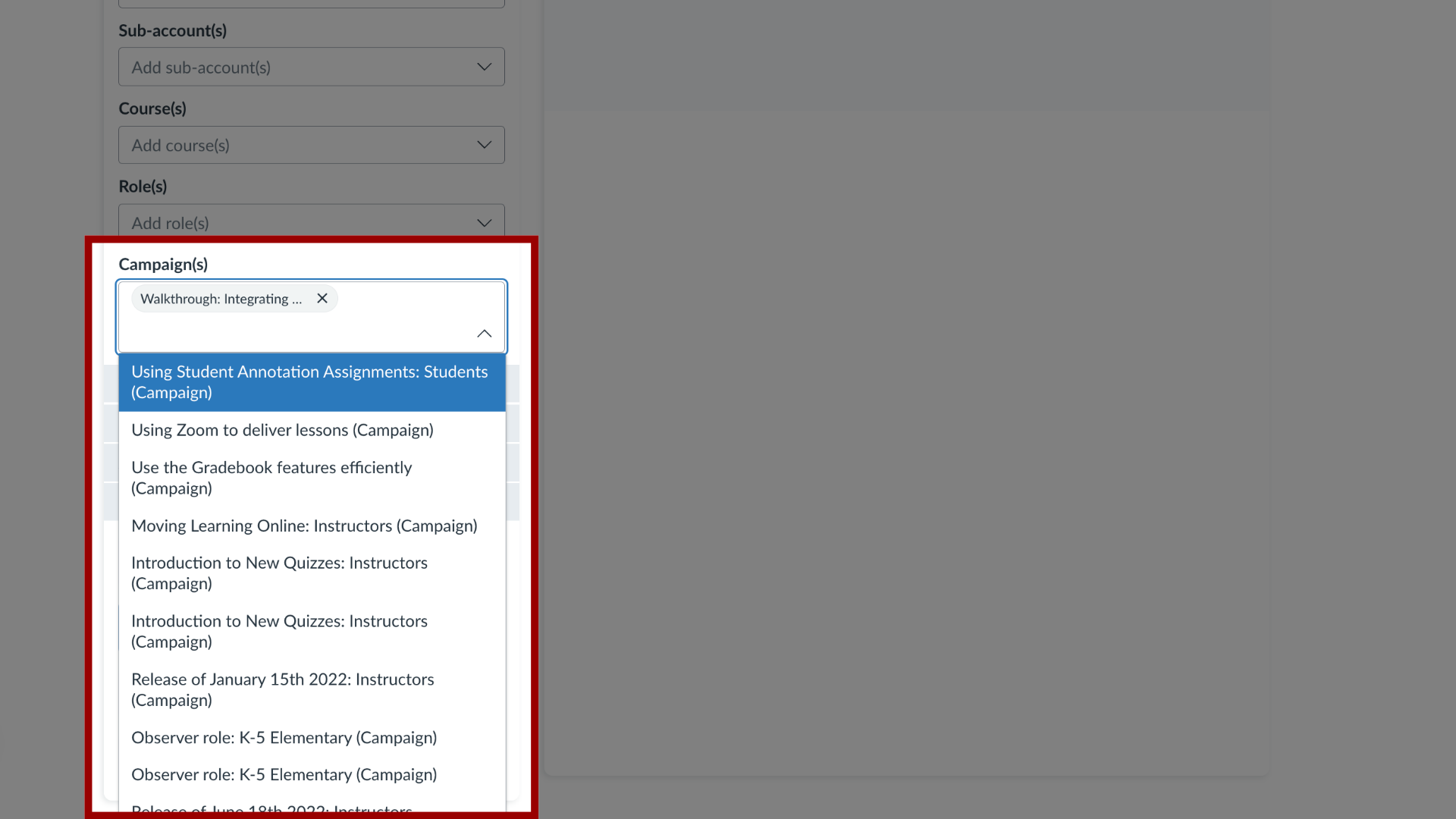
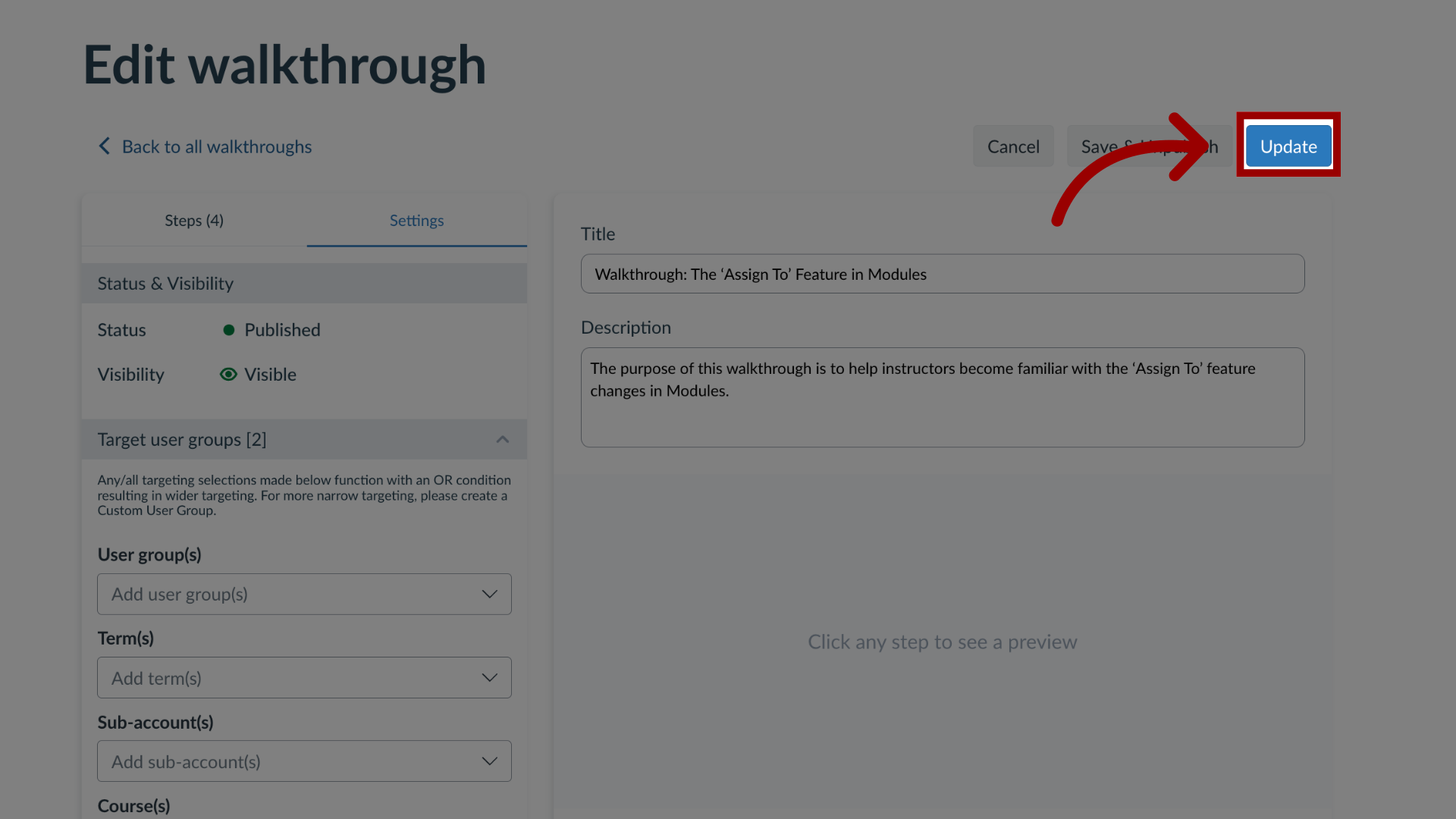
Impact allows you to assign a walkthrough to an existing campaign to apply the user targeting rules (as defined for the campaign) to your walkthrough.How do I add a Walkthrough to an existing campaign in the Impact Dashboard?1. Open WalkthroughsIn the Global Navigation, click the Communication dropdown menu. Then click the Walkthroughs link.2. Manage WalkthroughsTo associate a walkthrough to an existing campaign, locate and click the walkthrough you want to use. To create a new walkthrough, click the Create button.3. Edit WalkthroughIn the View Walkthrough page, click the Edit button.4. Edit SettingsTo add an existing campaign, click the Settings tab.5. Open Target User GroupsIn the sidebar, click the Assign to Users section.6. Add CampaignTo add a walkthrough to an existing campaign, click the Campaign(s) drop-down menu. Enter the terms in the Filter field or select the name(s) of the relevant campaign. You can also select multiple campaigns.7. Update WalkthroughOnce you have selected the relevant campaign, you can continue to edit the existing walkthrough and click the Update button. If you created a new walkthrough click the Publish button.For more information on the following referenced topics:Creating a new walkthrough: Visit How do I create a Walkthrough in the Impact Dashboard?