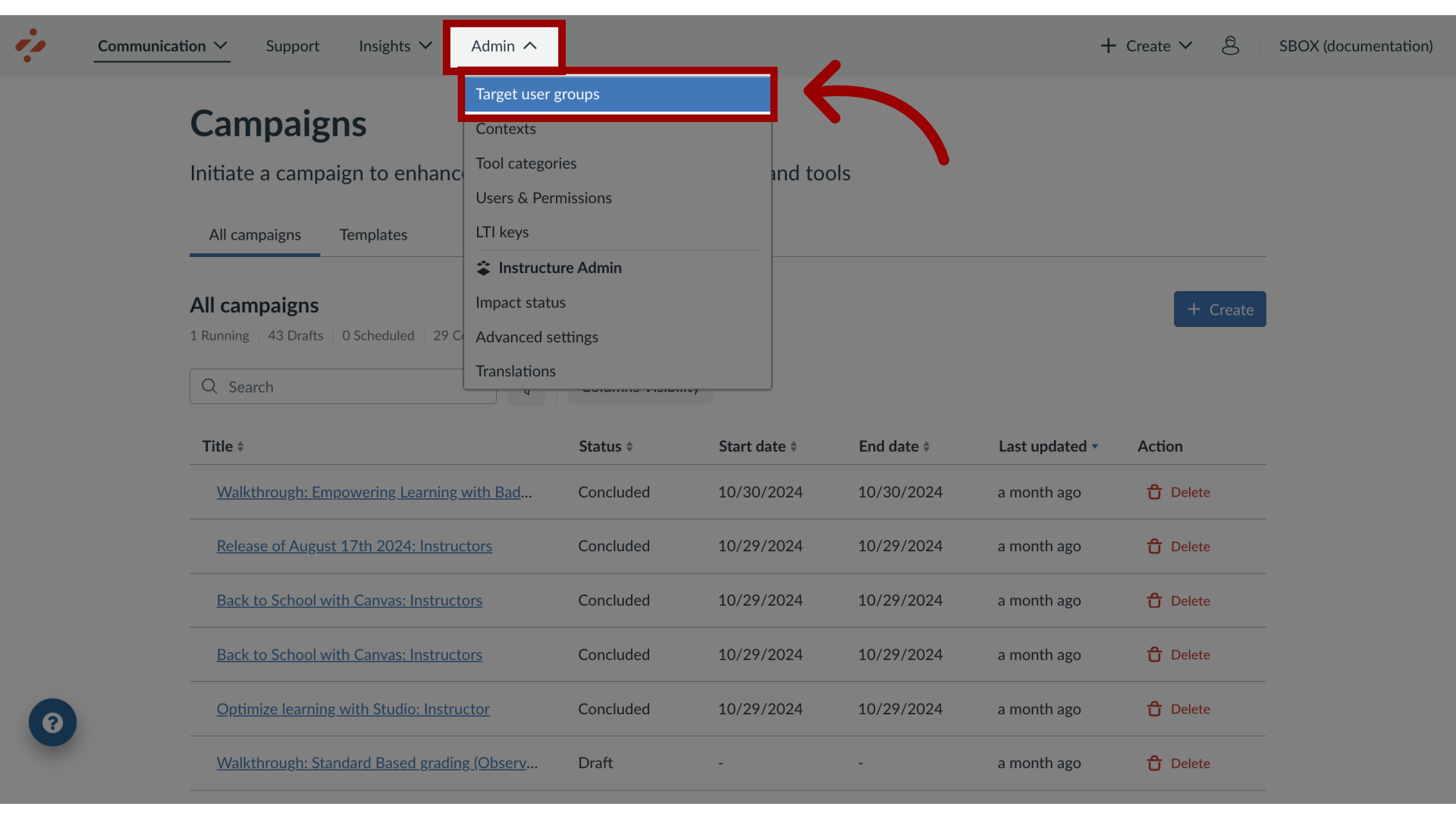
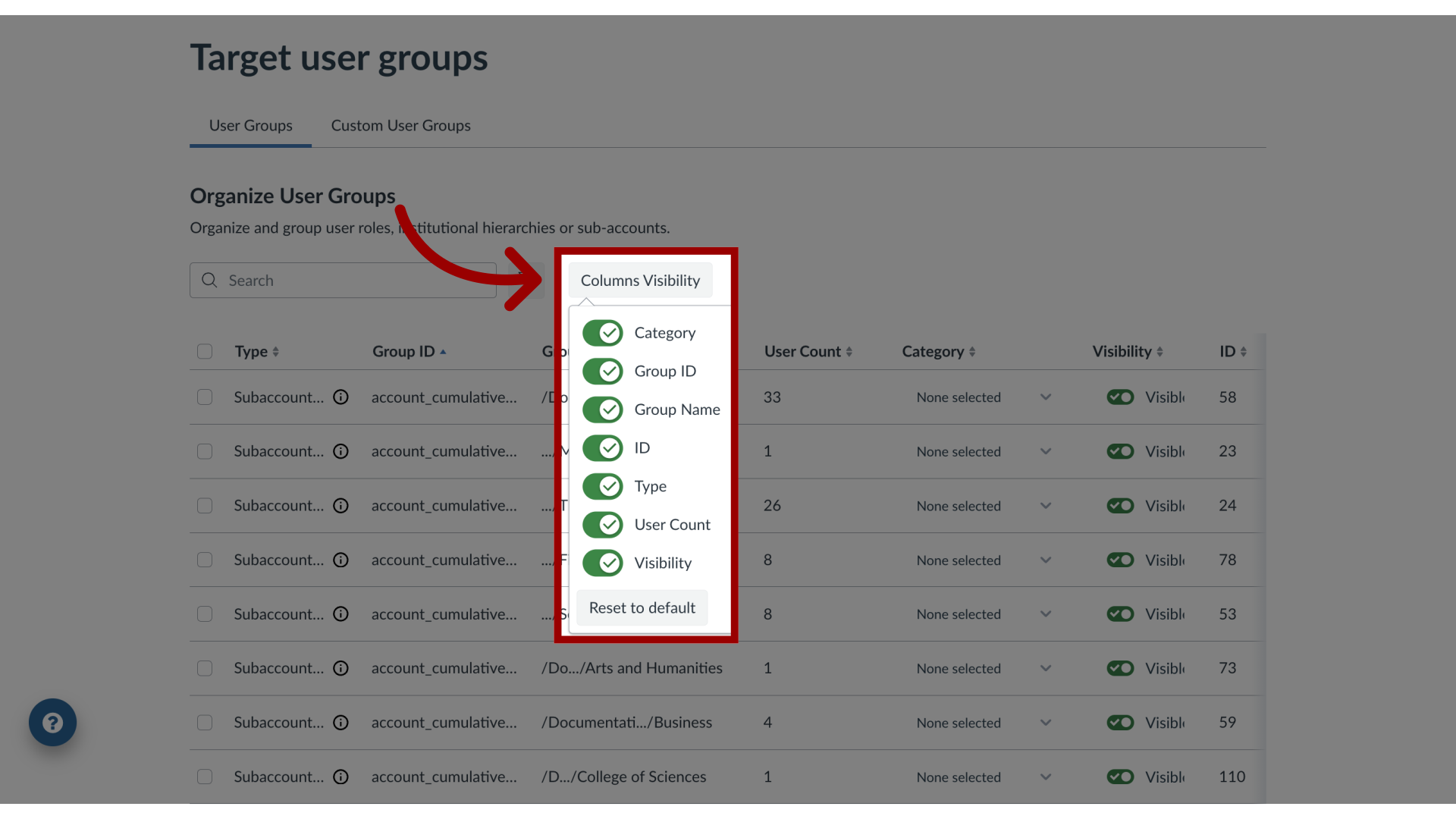
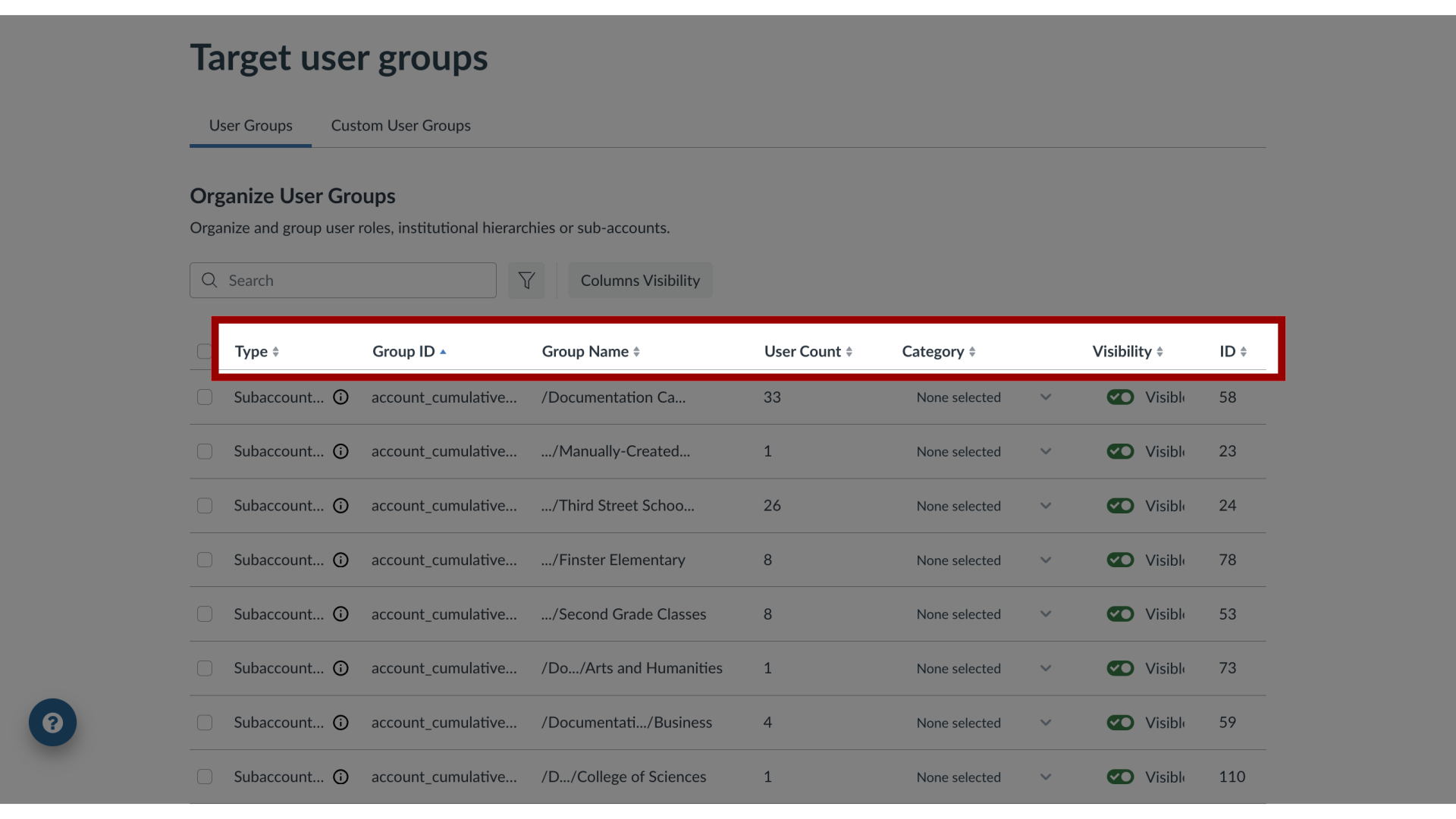
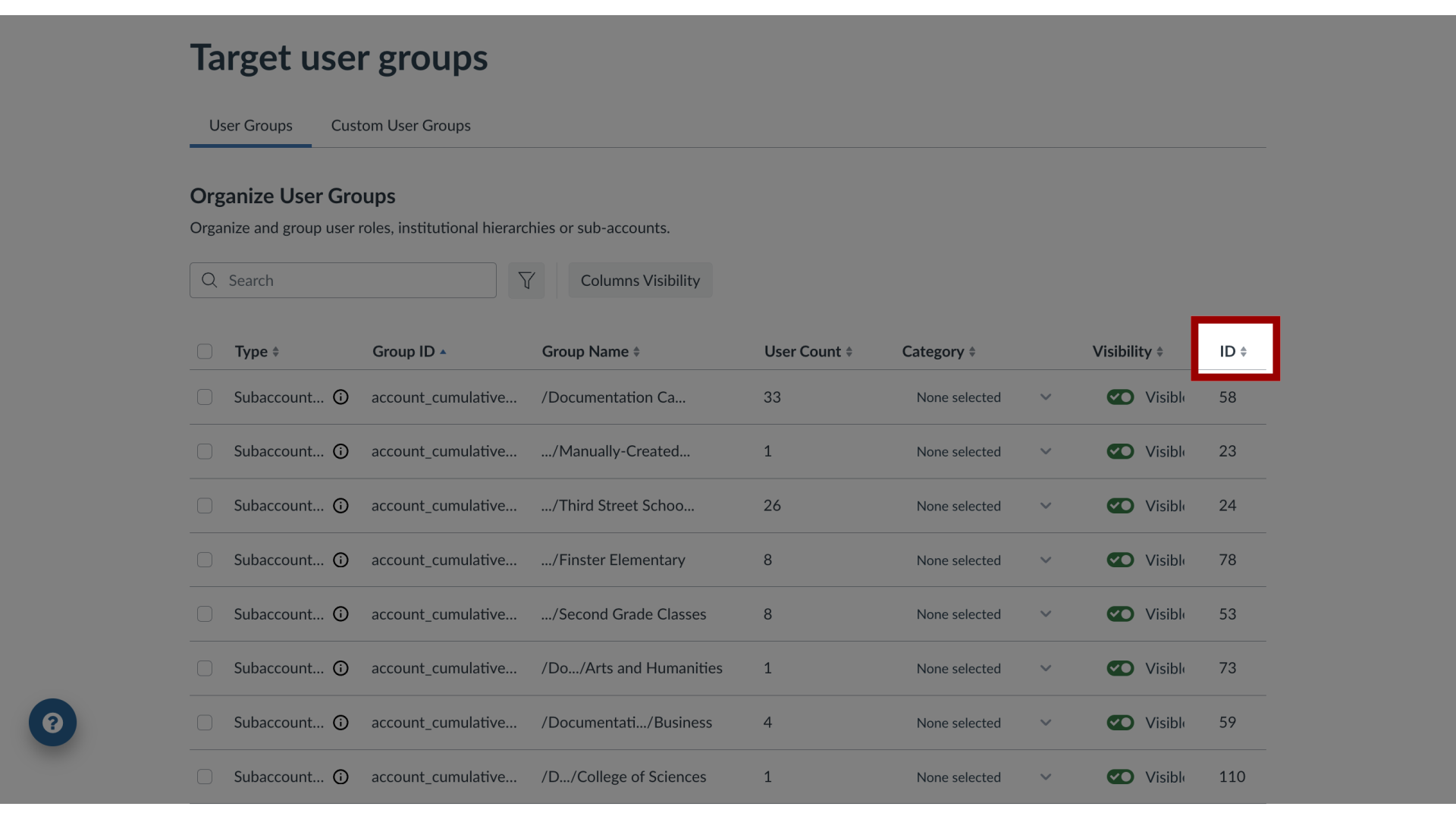
You can use the User Groups page to view all relevant roles and groupings that Impact has registered from your learning application.What are the User Groups fields?1. Open User GroupsIn Global Navigation, click the Admin dropdown menu. Then click the Target User Groups link. The User Groups tab displays a list of all of the roles registered within the Impact system.2. Open Columns VisibilityTo select the fields to display, click the Columns Visibility button. You can enable and disable different fields to view. The ID field is toggled off by default.3. View User Groups Overview User groups are listed with fields:4. Type FieldType: the role of the account associated with a user group5. Group ID FieldGroup ID: the Canvas ID of the role and/or subaccount of the specified User Group6. Group Name FieldGroup Name: the name or breadcrumbs containing the location of the specified User Group in order to best identify it7. User Count FieldUser Count: the number of users in the specified User Group8. Category FieldCategory: a drop-down menu allowing selection of a core account role that can be assigned to the entire User Group if desired9. Visibility FieldVisibility: whether this User Group is able to be seen and used for targeting in messages, campaigns, walkthroughs, support center routing, etc10. ID FieldID: the ID for the specified user group