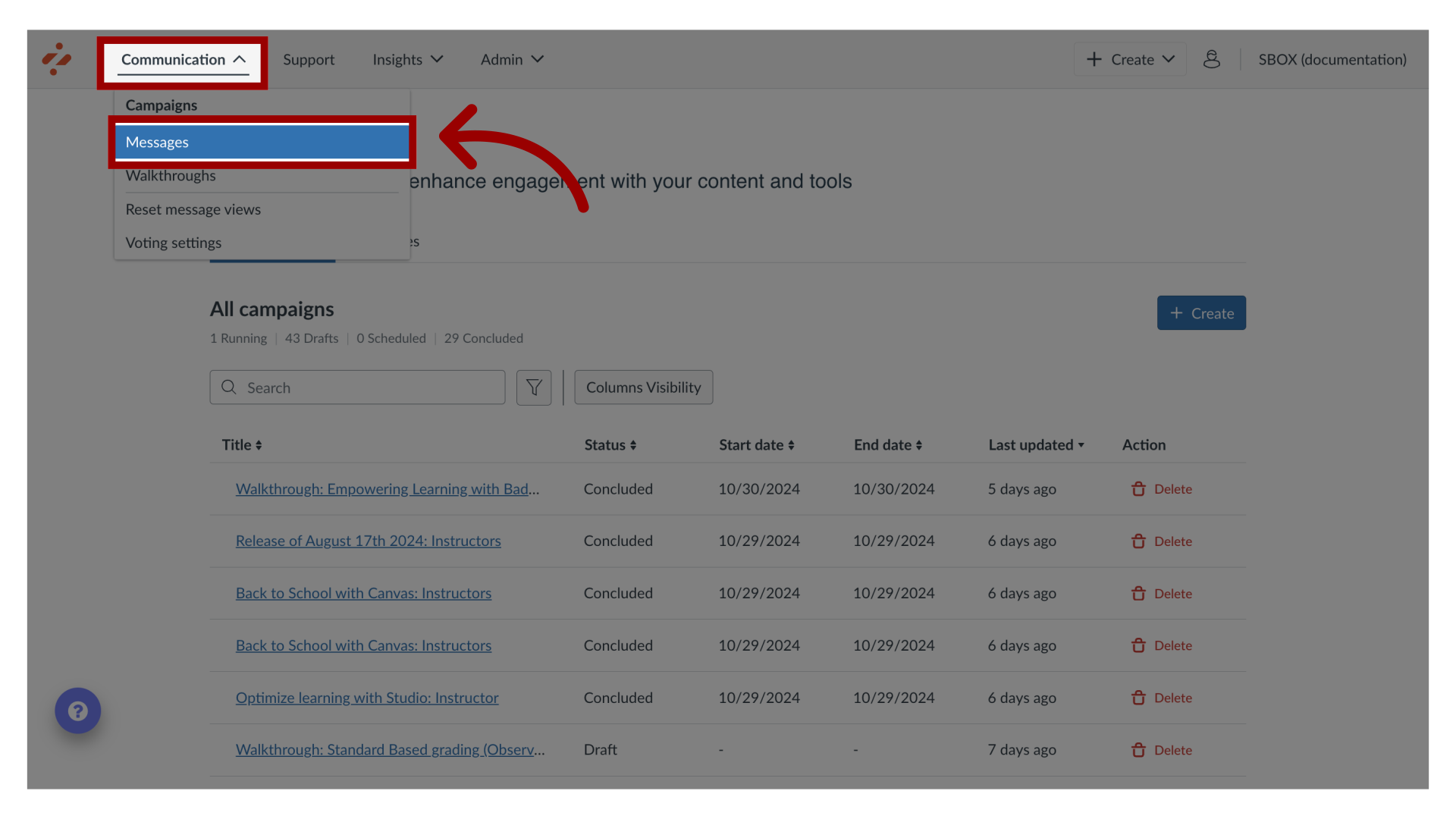
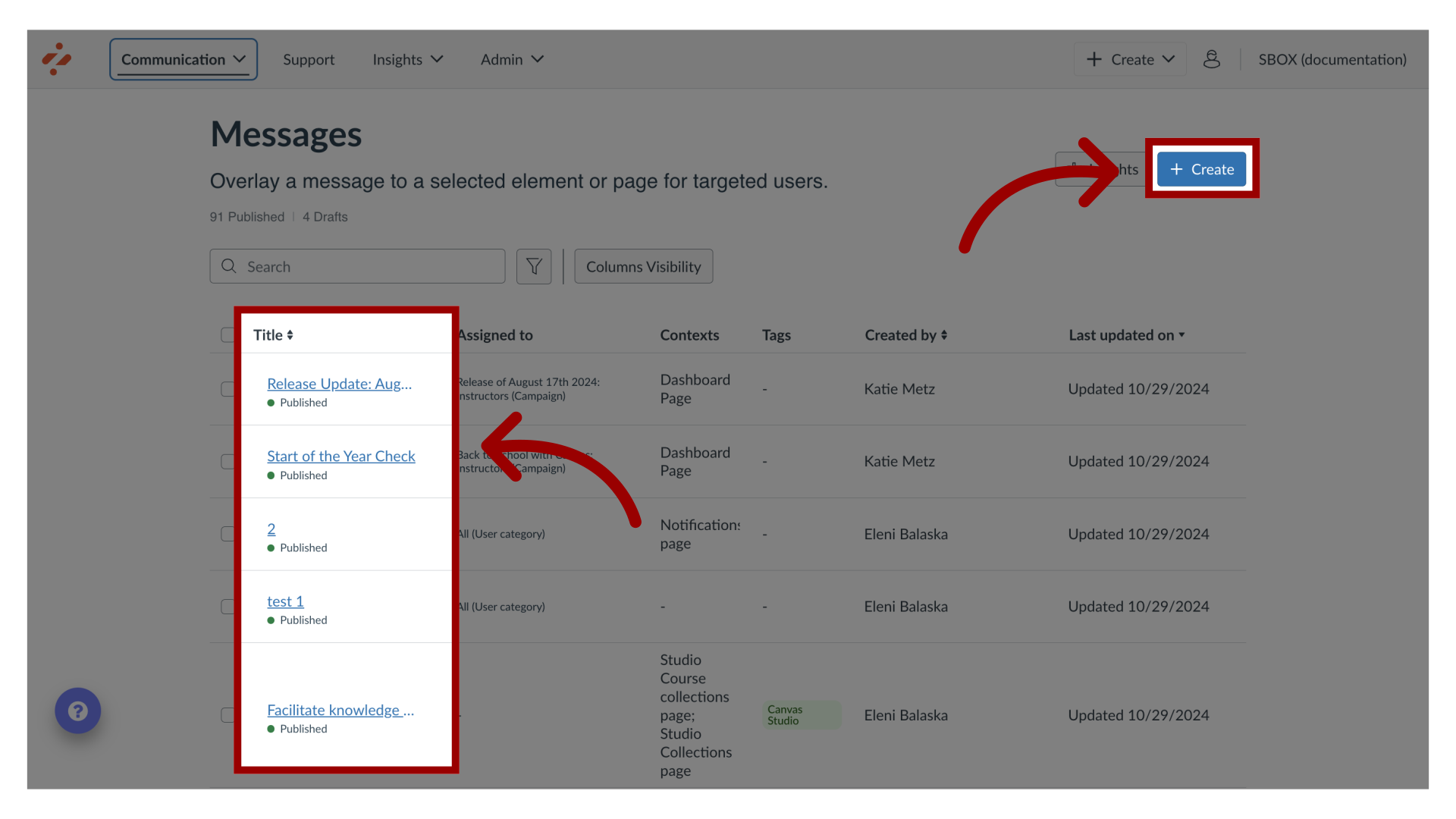
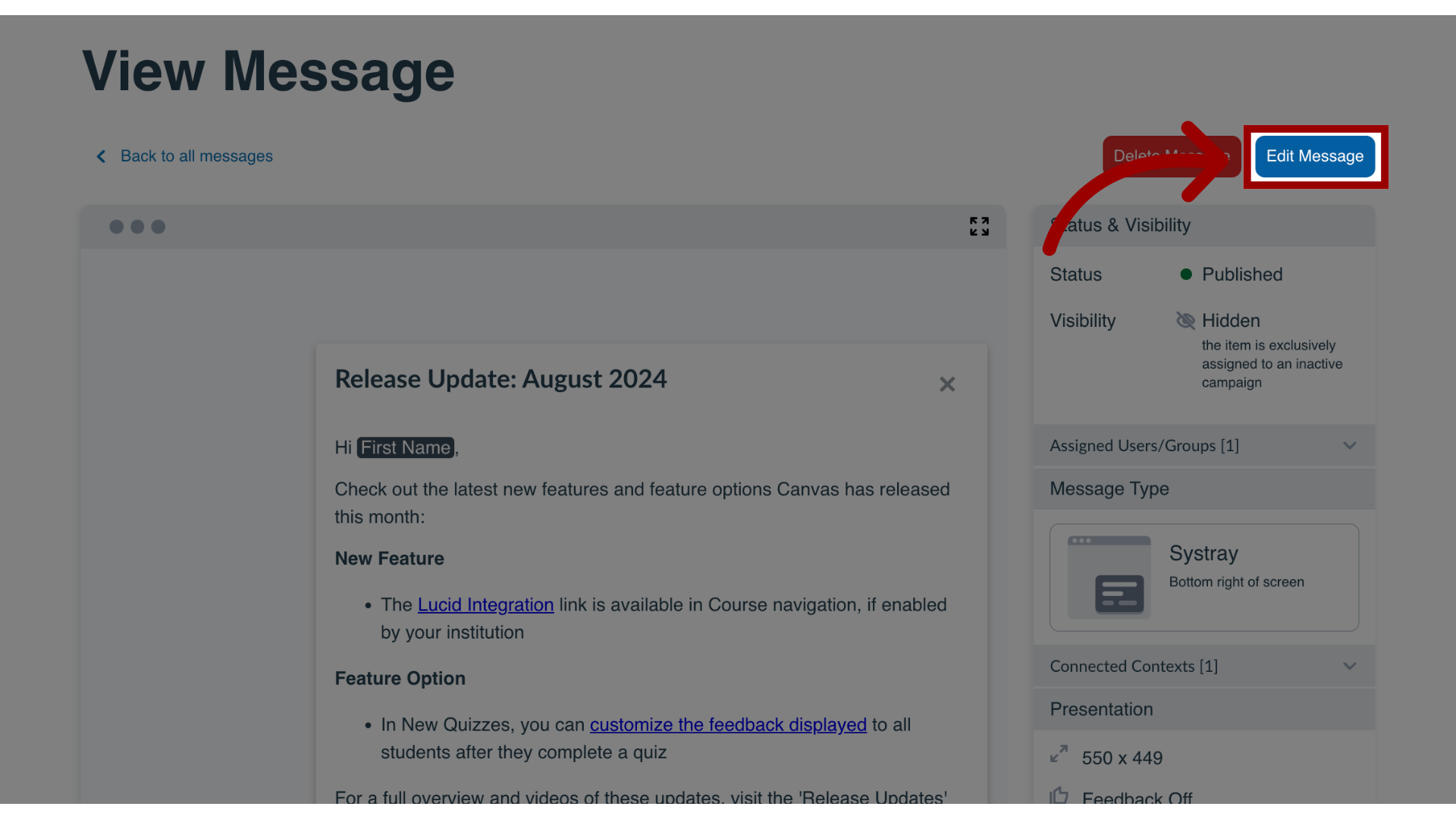
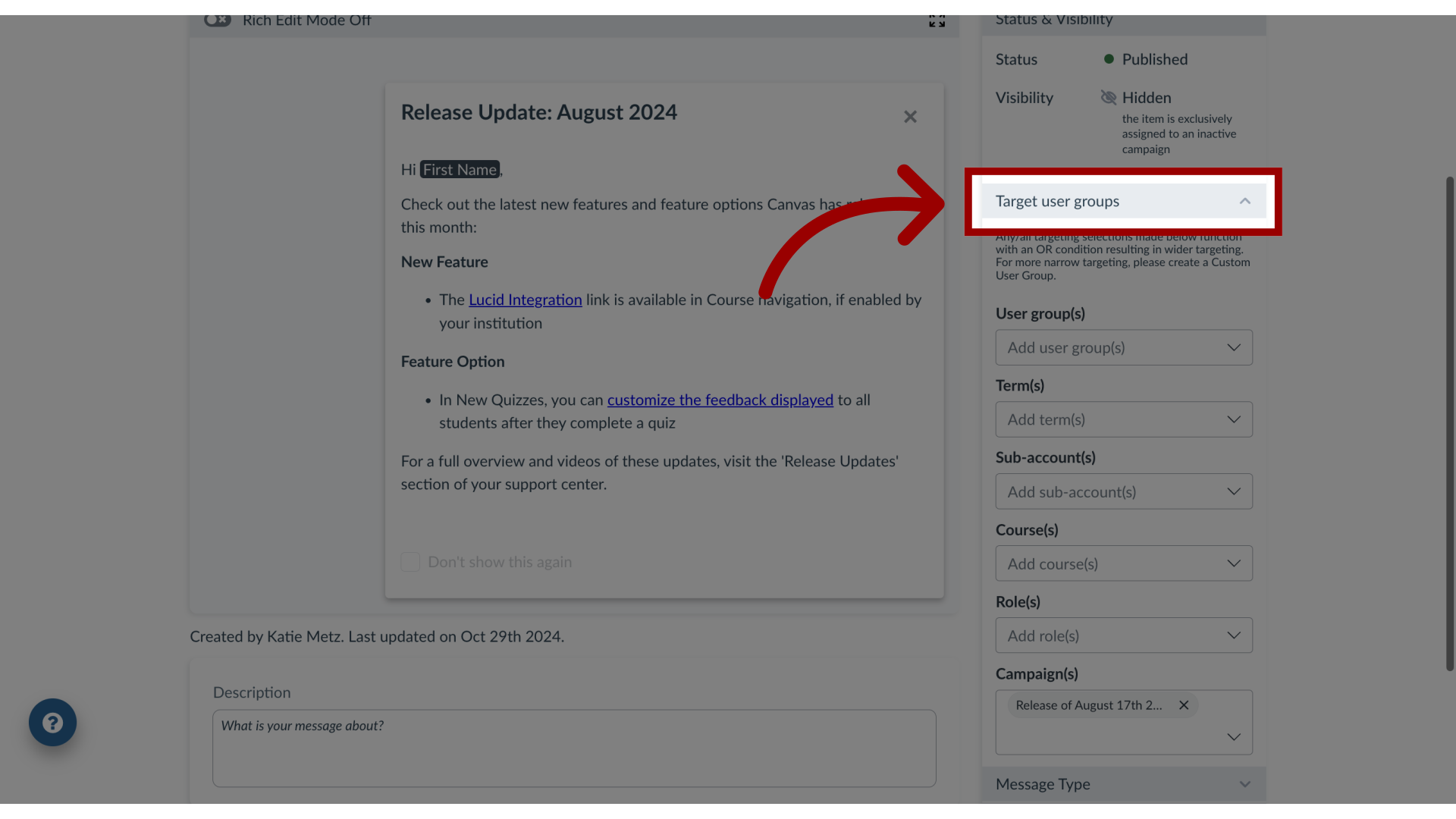
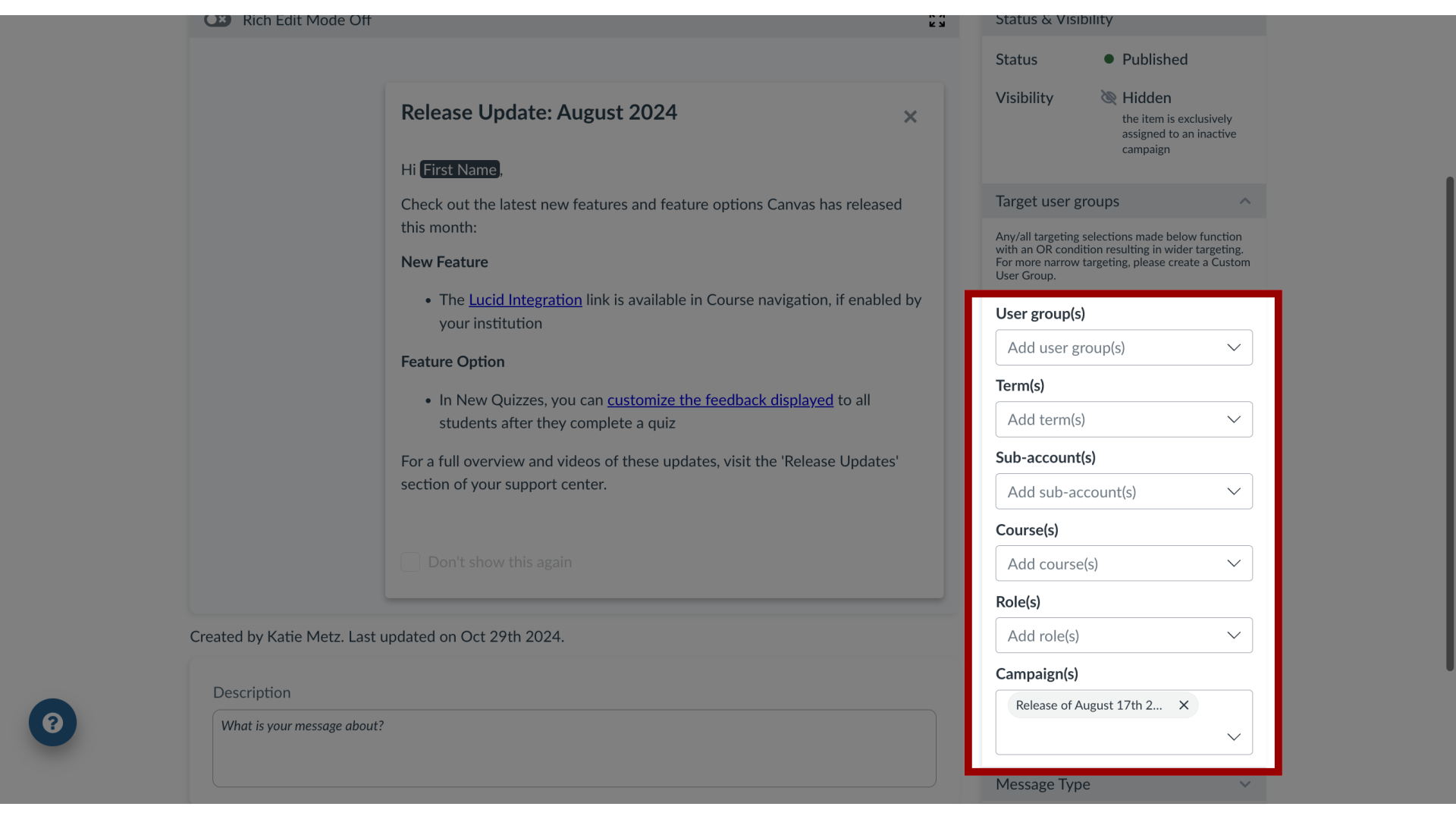
Impact messages can be assigned to various groups of users in your learning application. By assigning users to a message, you control which users, groups, or campaign audiences see your message.How do I assign a message to specific groups of users in the Impact Dashboard?1. Open MessagesIn Global Navigation, click the Communication dropdown menu. Then click the Messages link.2. Manage MessagesTo edit an existing message, click the name of the message. To create a new item, click the Create button.3. Edit MessageIn the View Message page, click the Edit Message button. If you are creating a new message, the Edit Message button does not display.4. Open Target User GroupsIn the sidebar, locate and open the Target User Groups section.5. Select Target User GroupsUse the drop-down menus to select among the following types of users: Users groupsTerm(s)Sub-Account(s) Course(s)Role(s)Campaign(s)