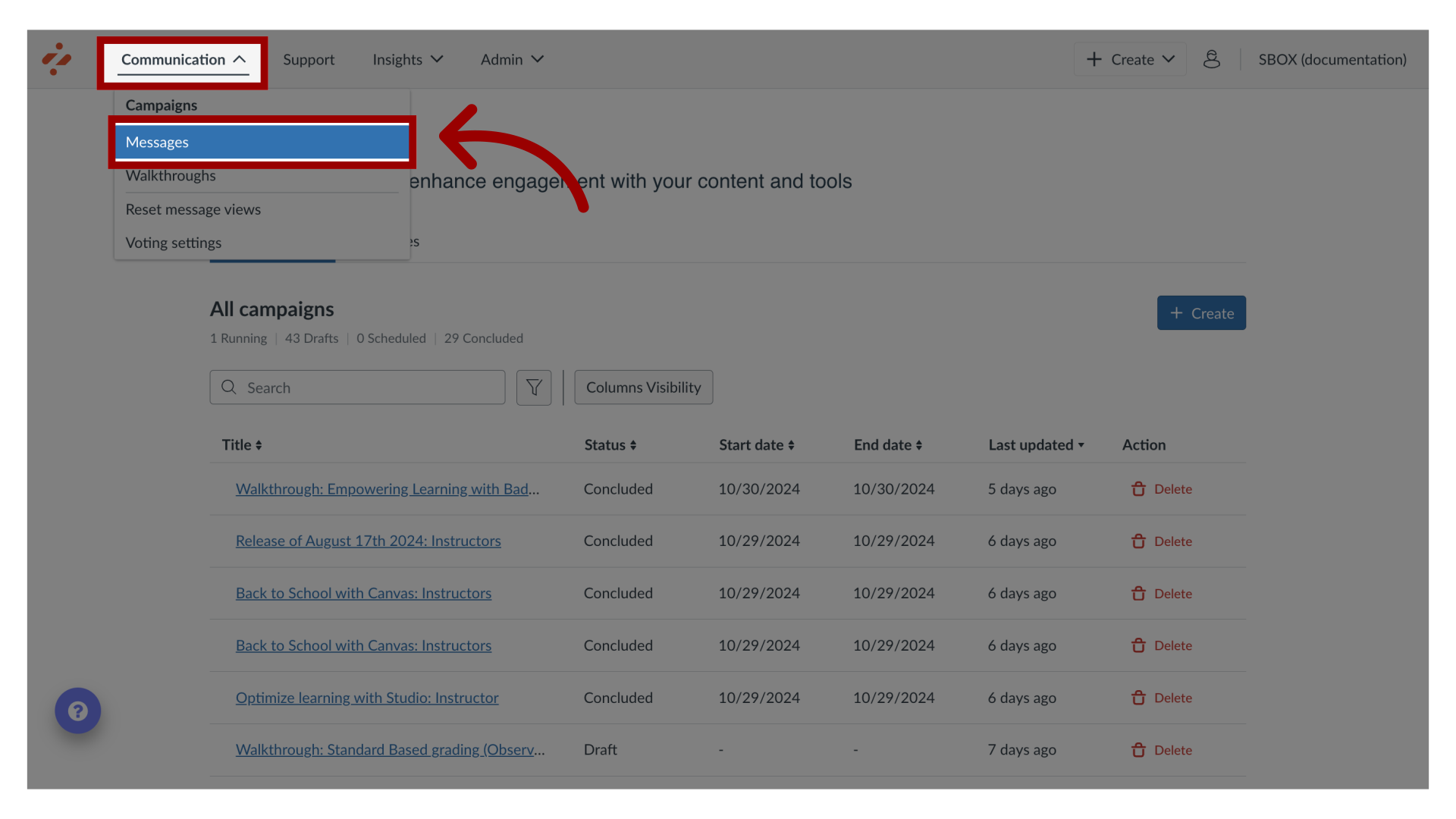
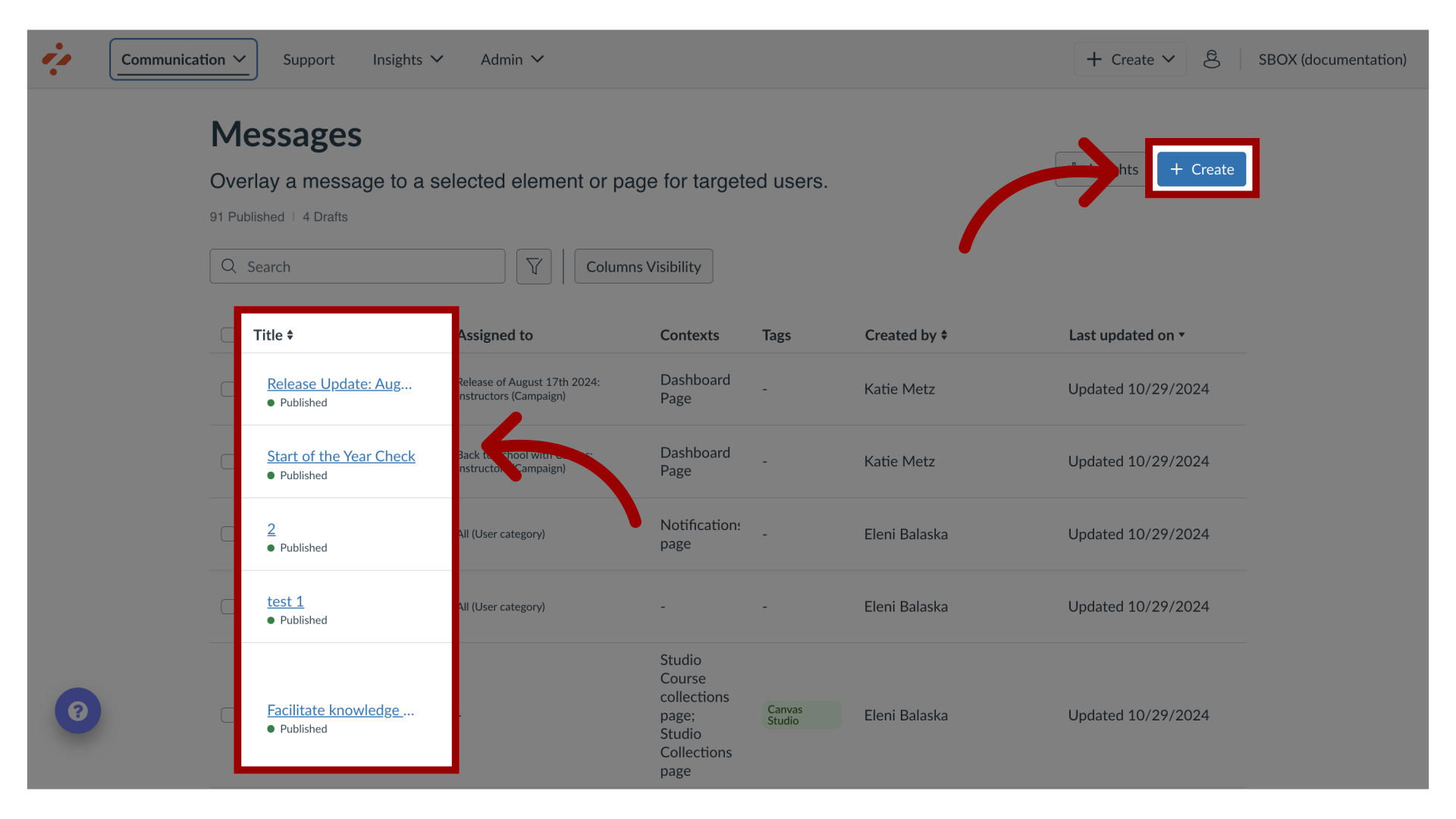
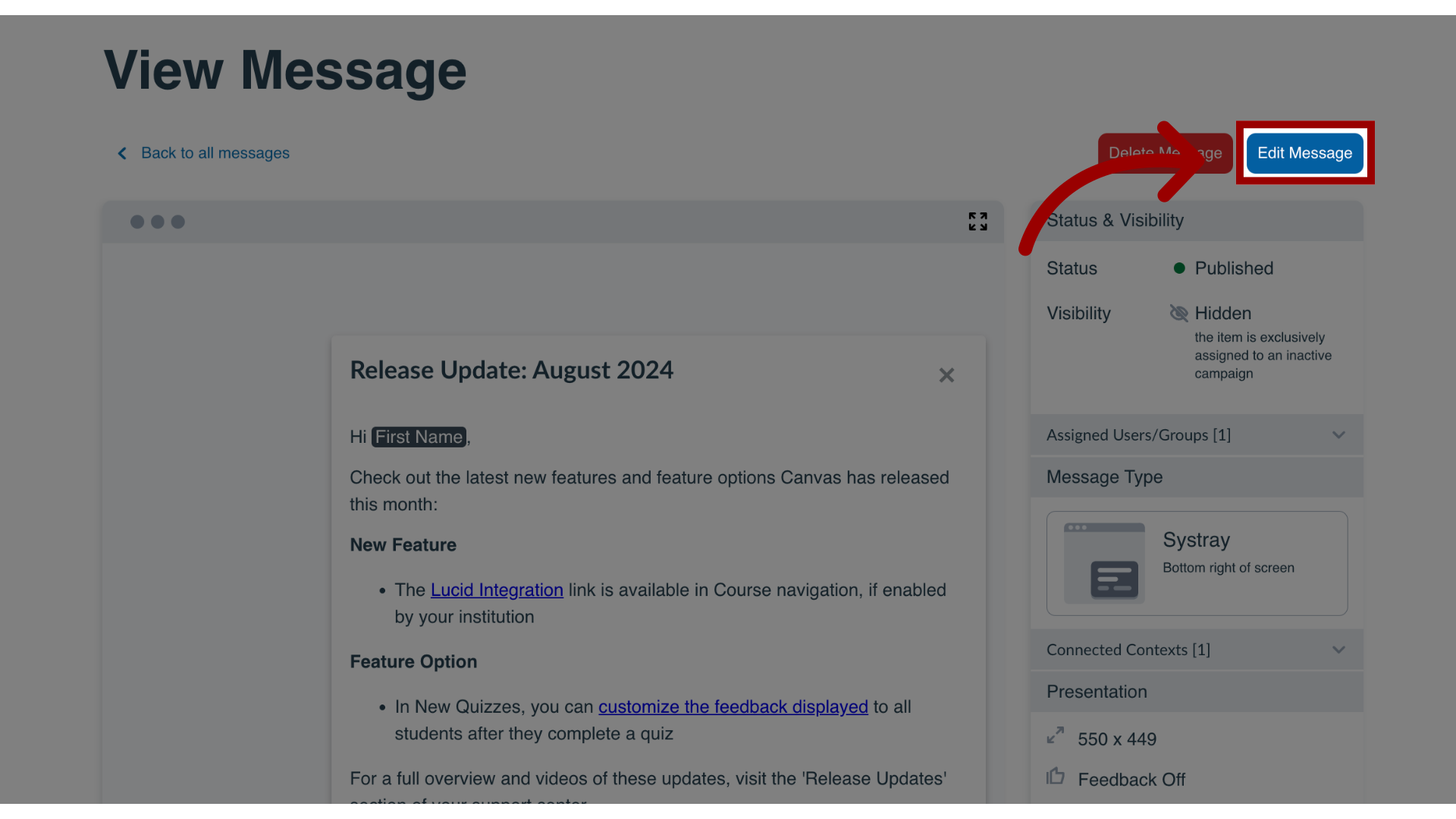
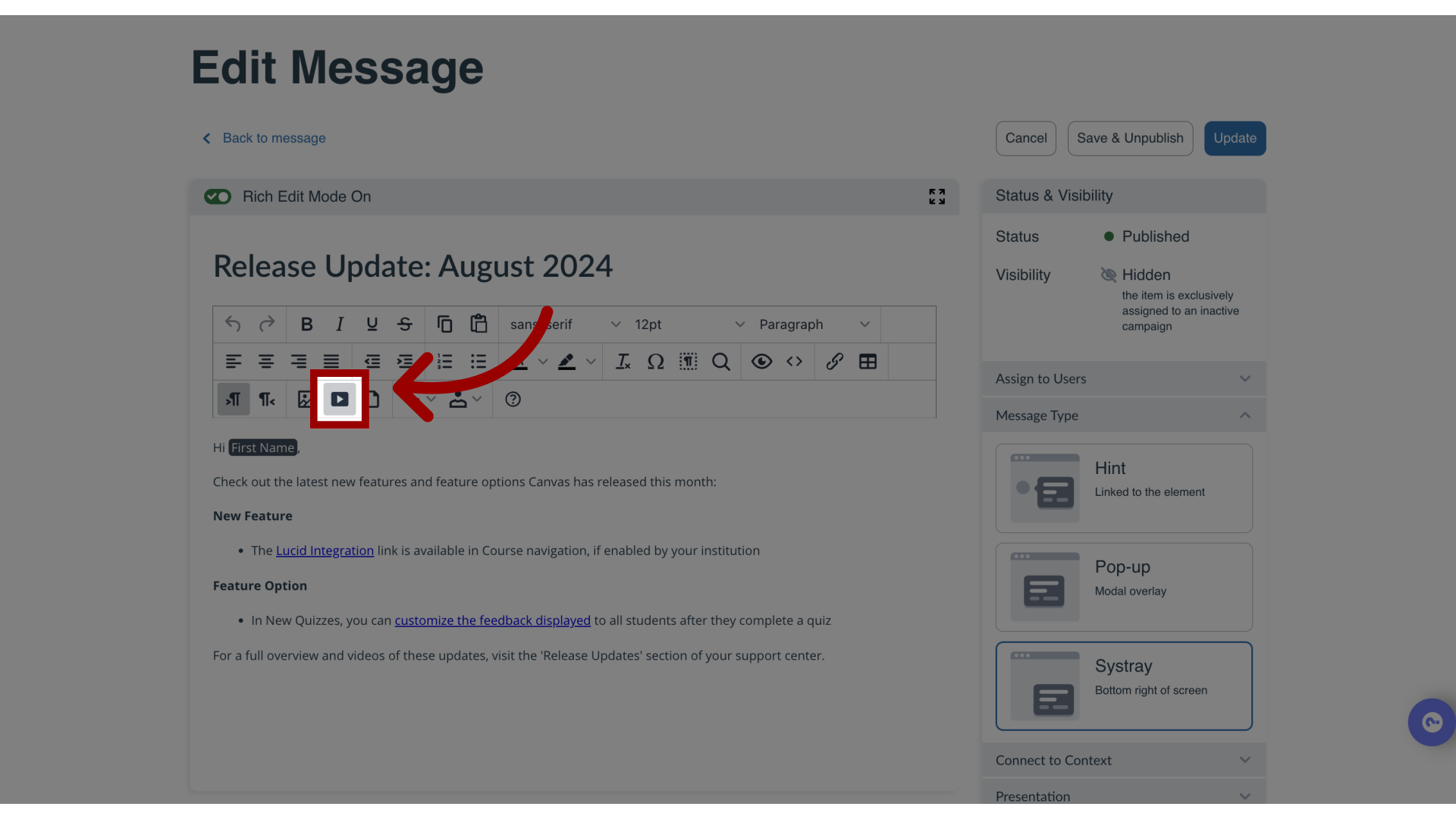
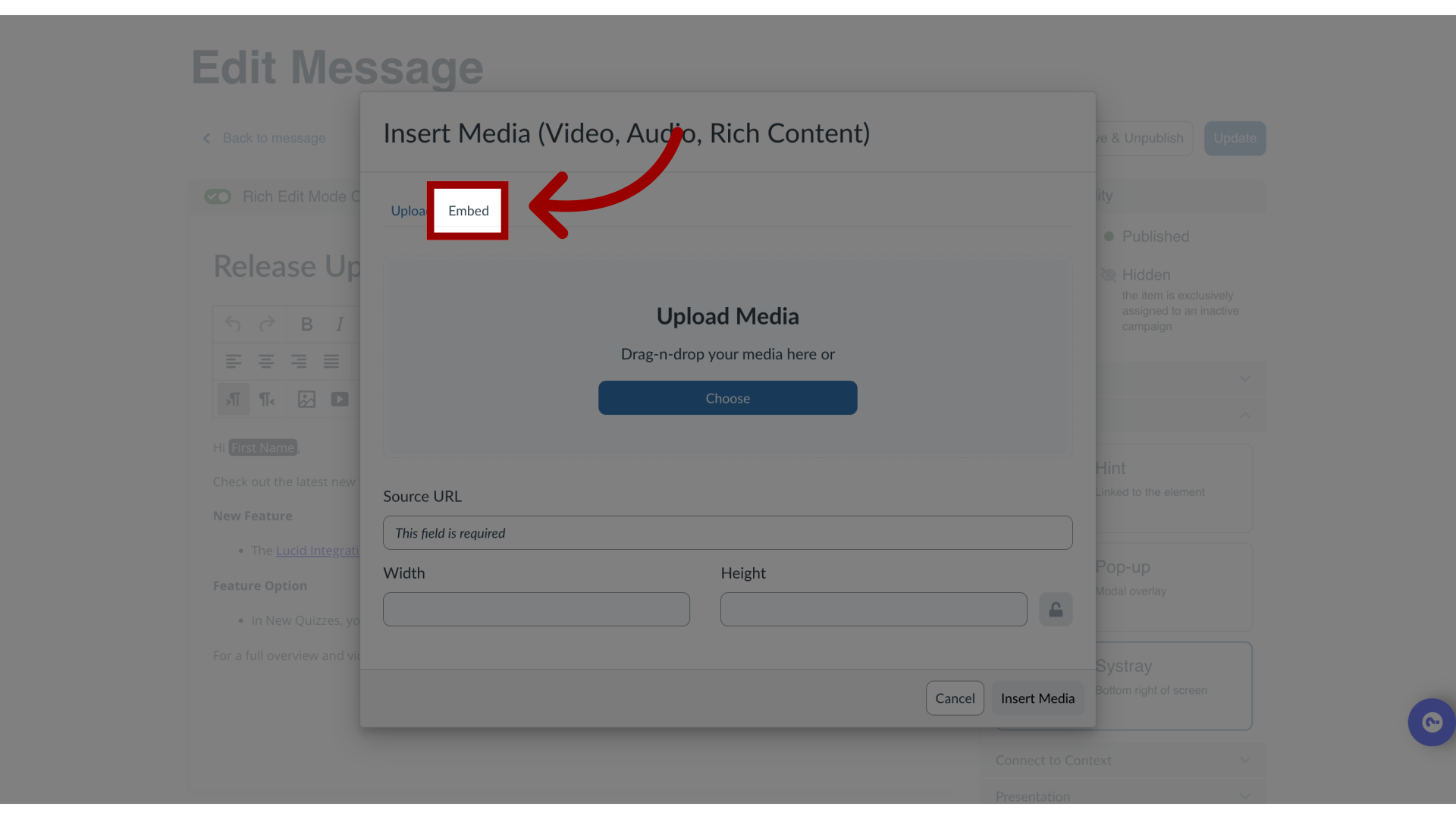
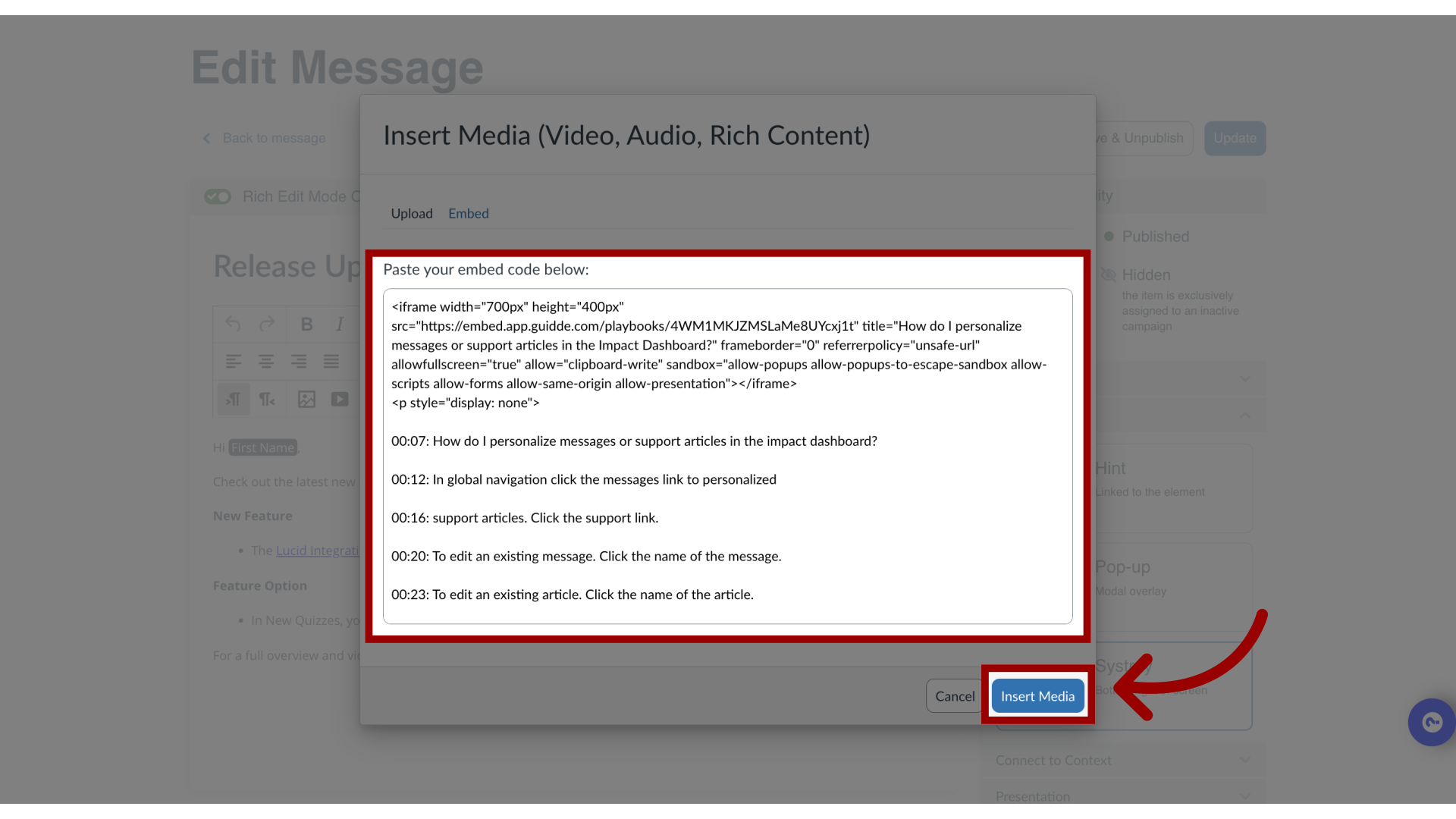
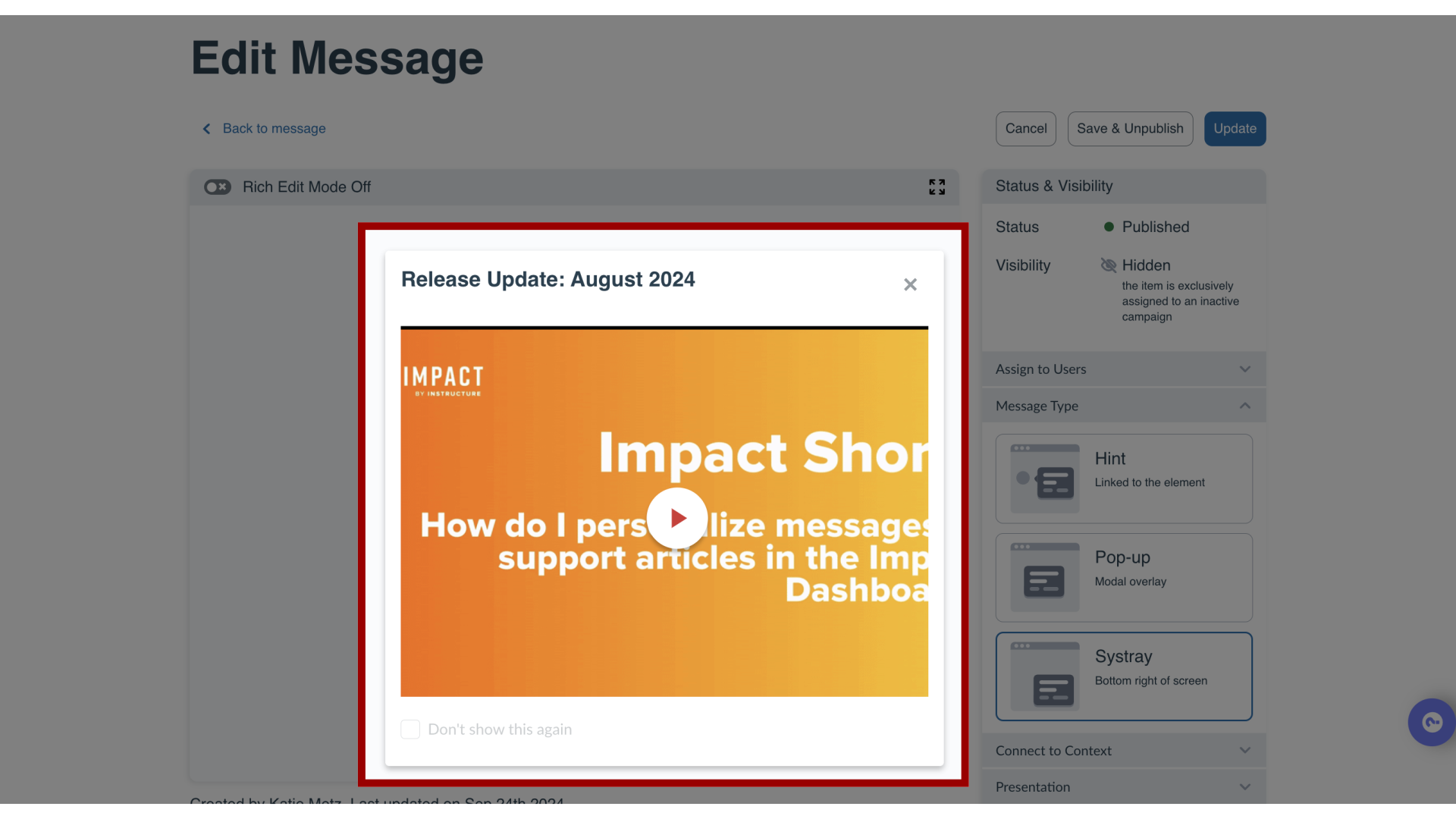
You can embed media and add custom code to your messages and support articles.Examples of media and custom code:Any iFrameExternal forms (Google forms, Typeform, and more!)External videos (if your video is hosted on YouTube or is downloaded locally you can also insert it via the YouTube URL or upload it directly to Impact)Kaltura VideosPanopto VideosHP5 content (https://h5p.org/) like interactive videos, course presentations, charts quizzes, and more!How do I embed media or an iFrame into a message or support article in the Impact Dashboard?1. Open MessagesIn Global Navigation, click the Communication dropdown menu. Then click the Messages link.2. Manage MessagesTo edit an existing message or article, click the name of the message or article. To create a new message or article, click the Create button.3. Edit MessageClick the Edit Message or Edit Article button.4. Insert MediaClick the body of the message or press enter if editing text to see the in-line insert options then click the Media icon.5. Embed MediaIn the modal, click the Embed tab.6. Paste Embed CodeIn the code field, paste your iFrame code. Click the Insert Media button.7. View Embedded MediaYou have successfully added an embedded external iFrame into your message or article you can continue to edit your content, targeting assignments, settings, or publish it to your learning environment.