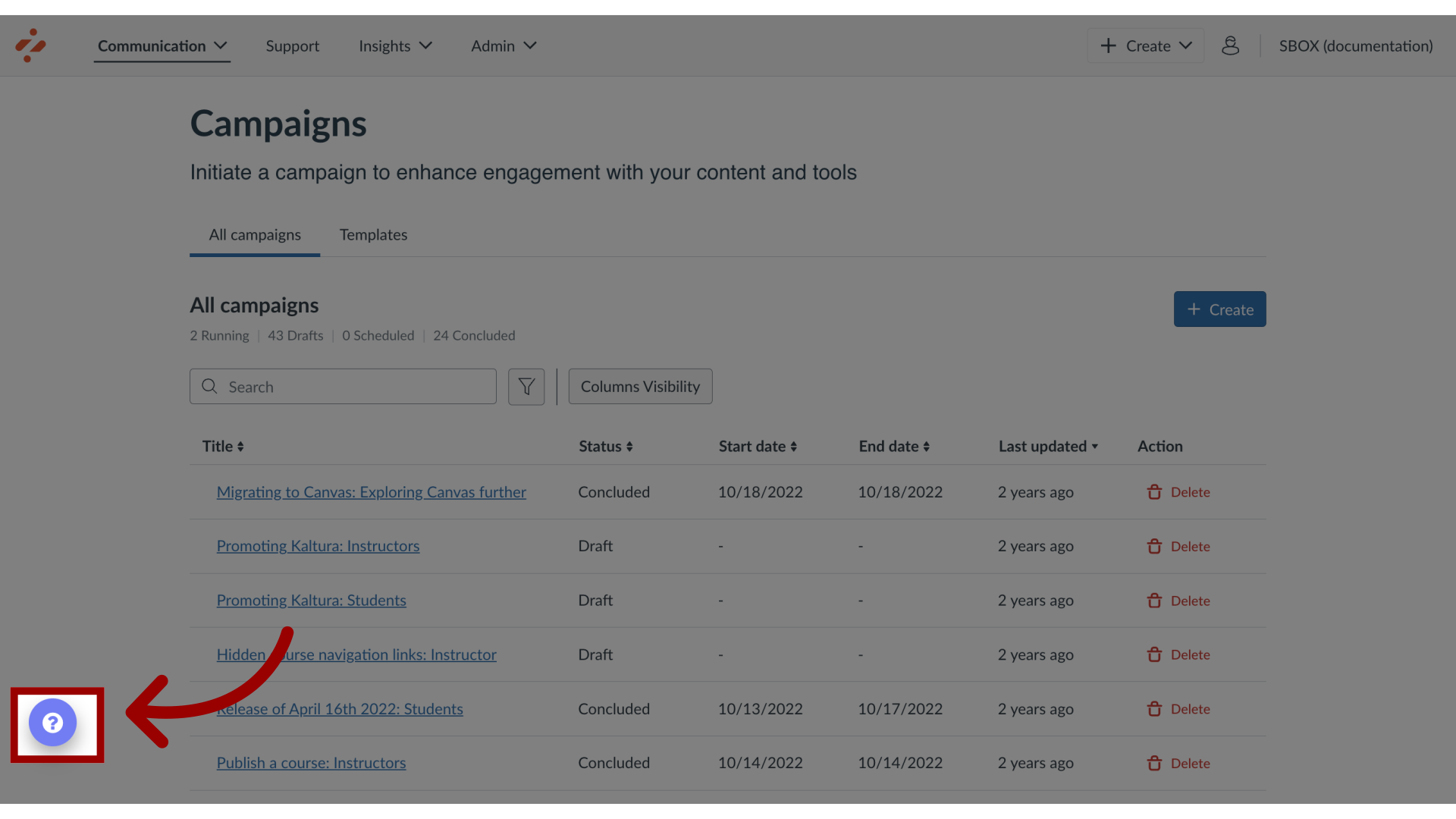
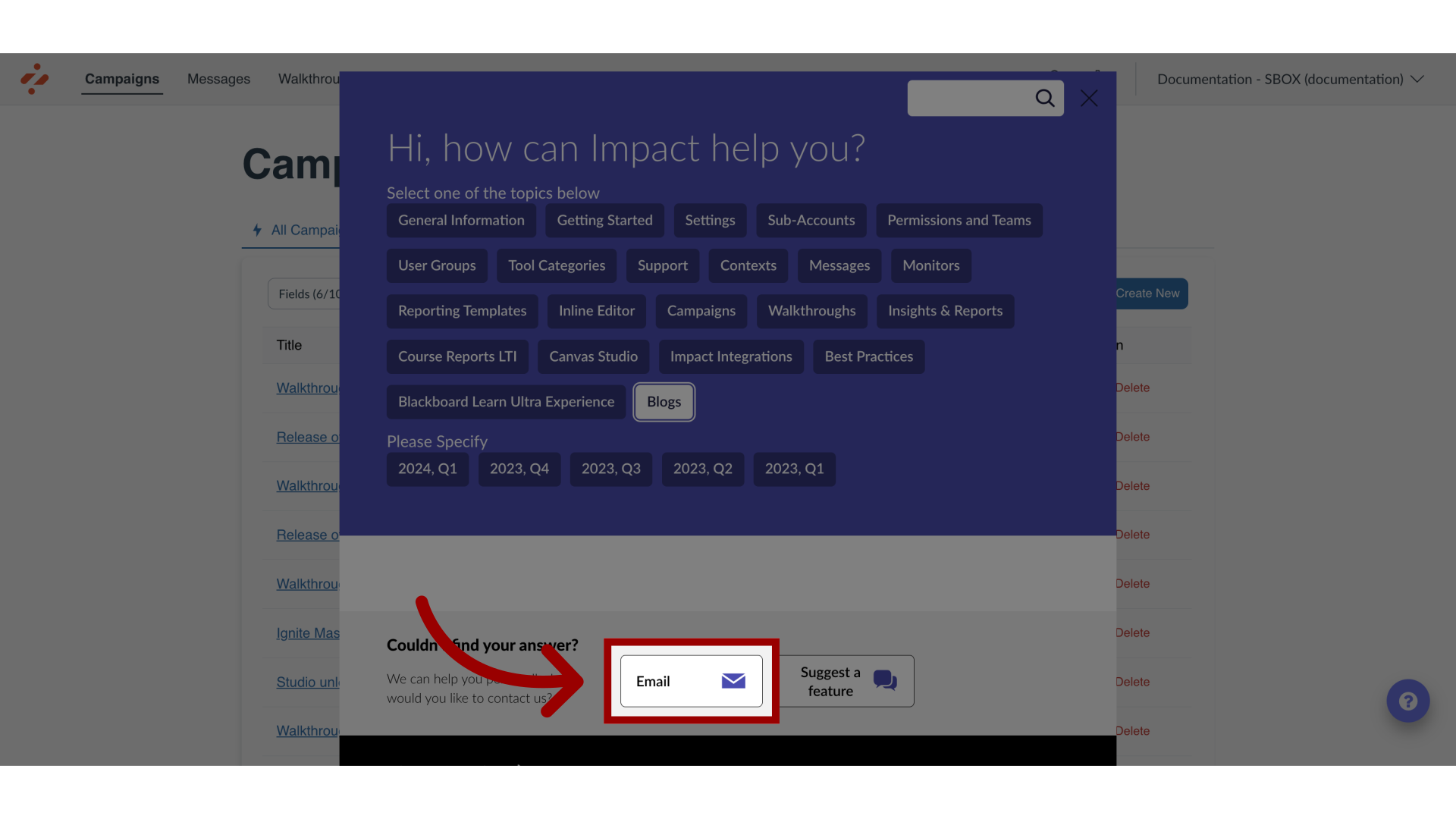
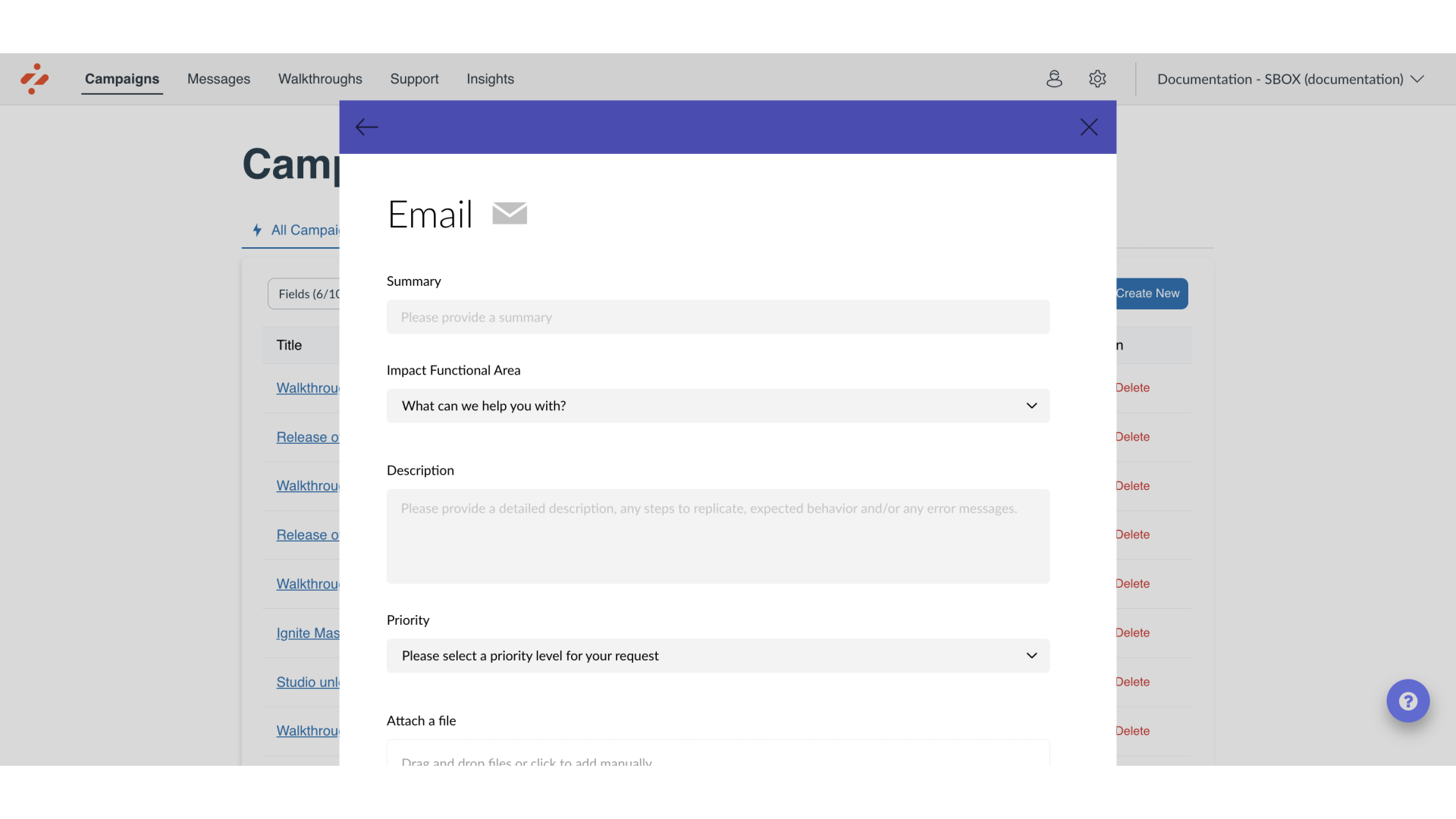
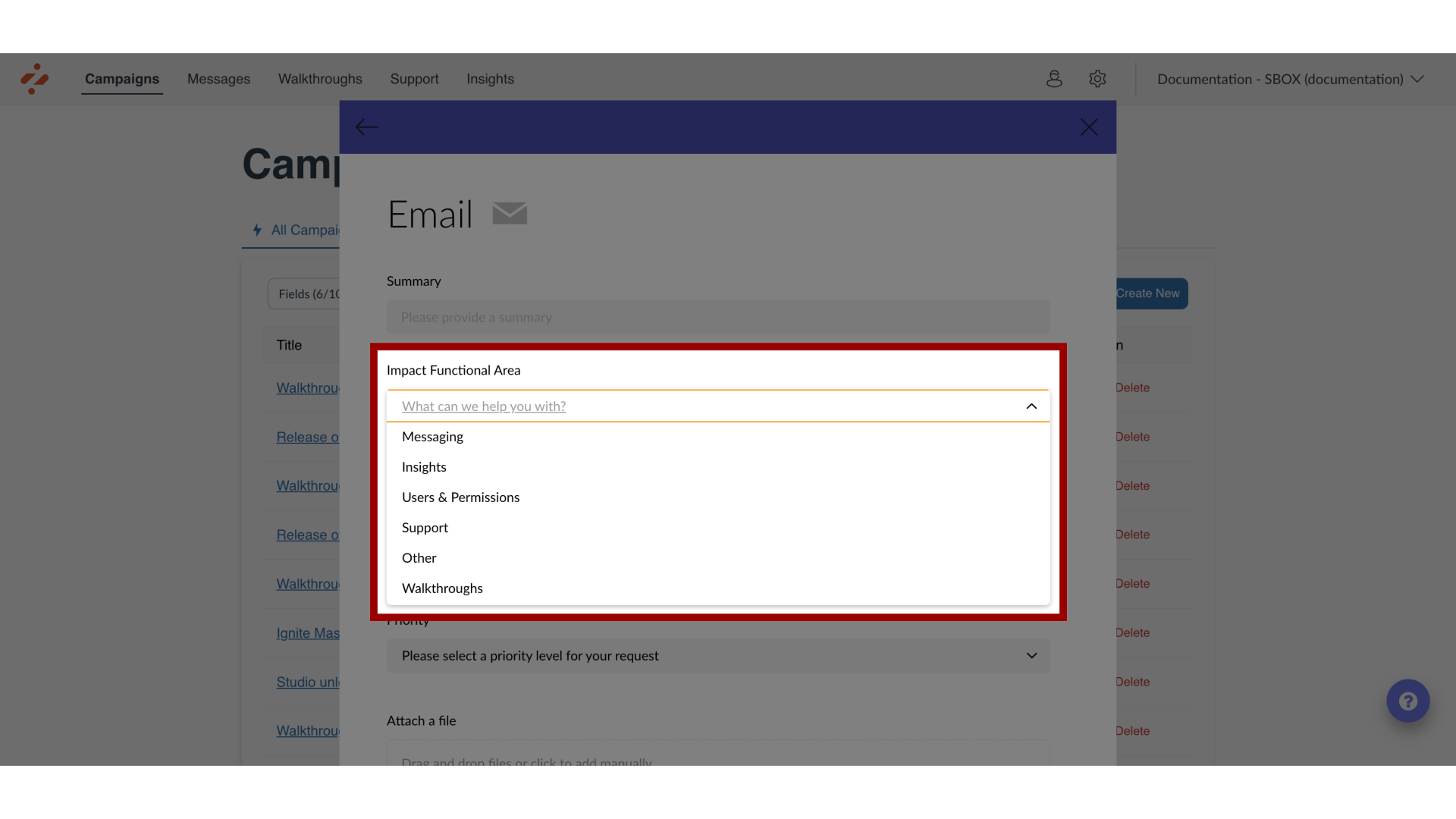
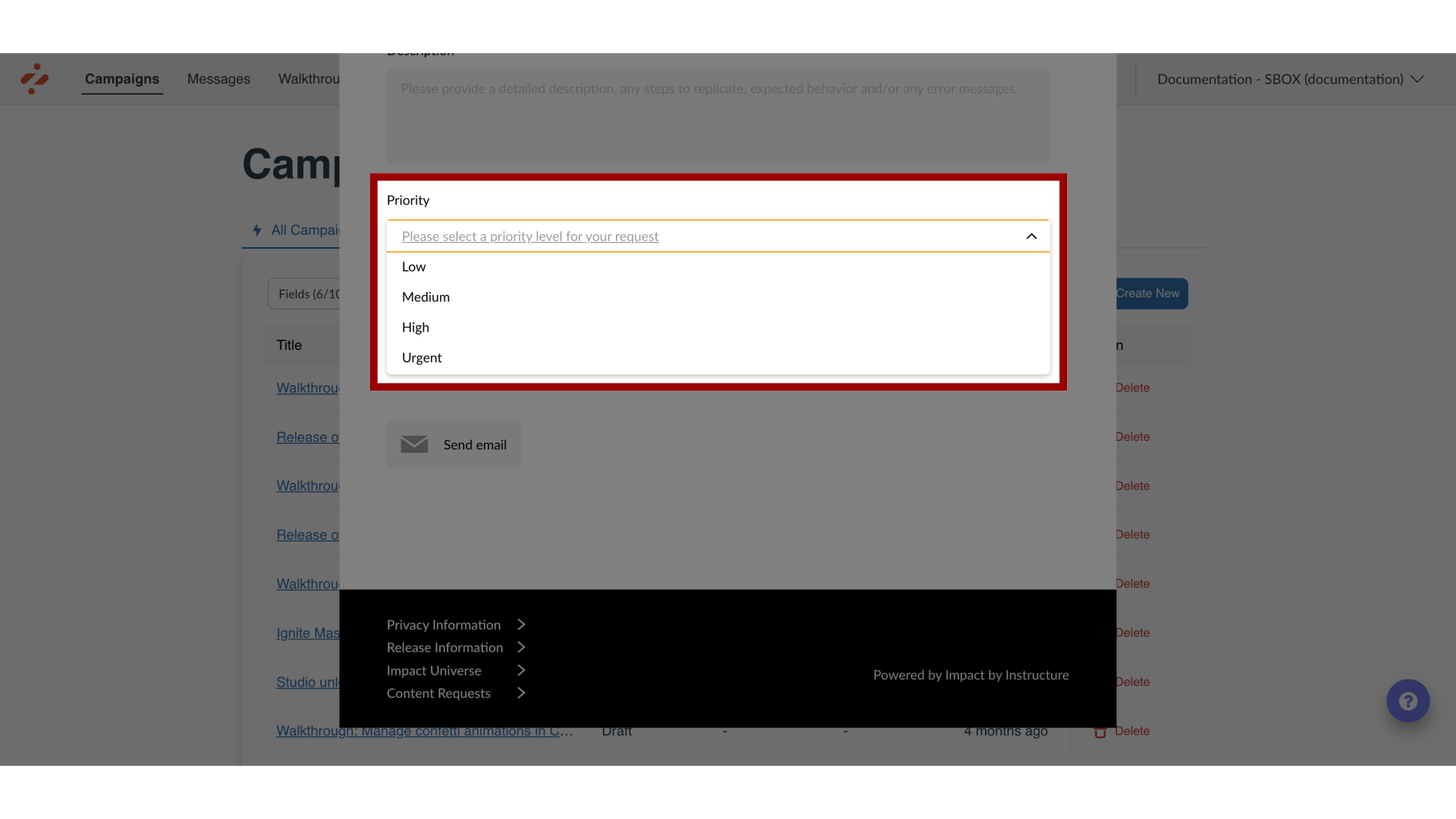
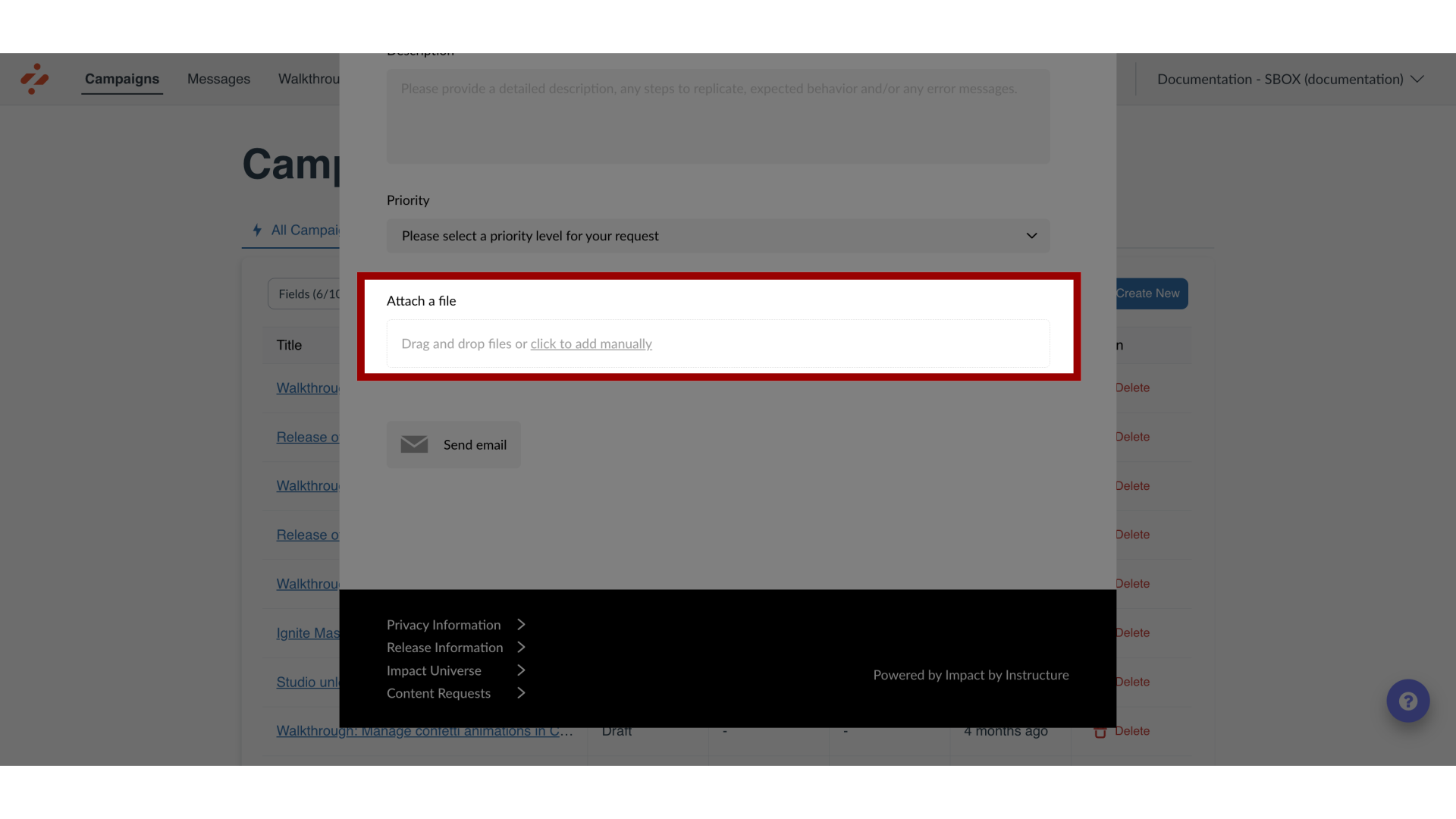
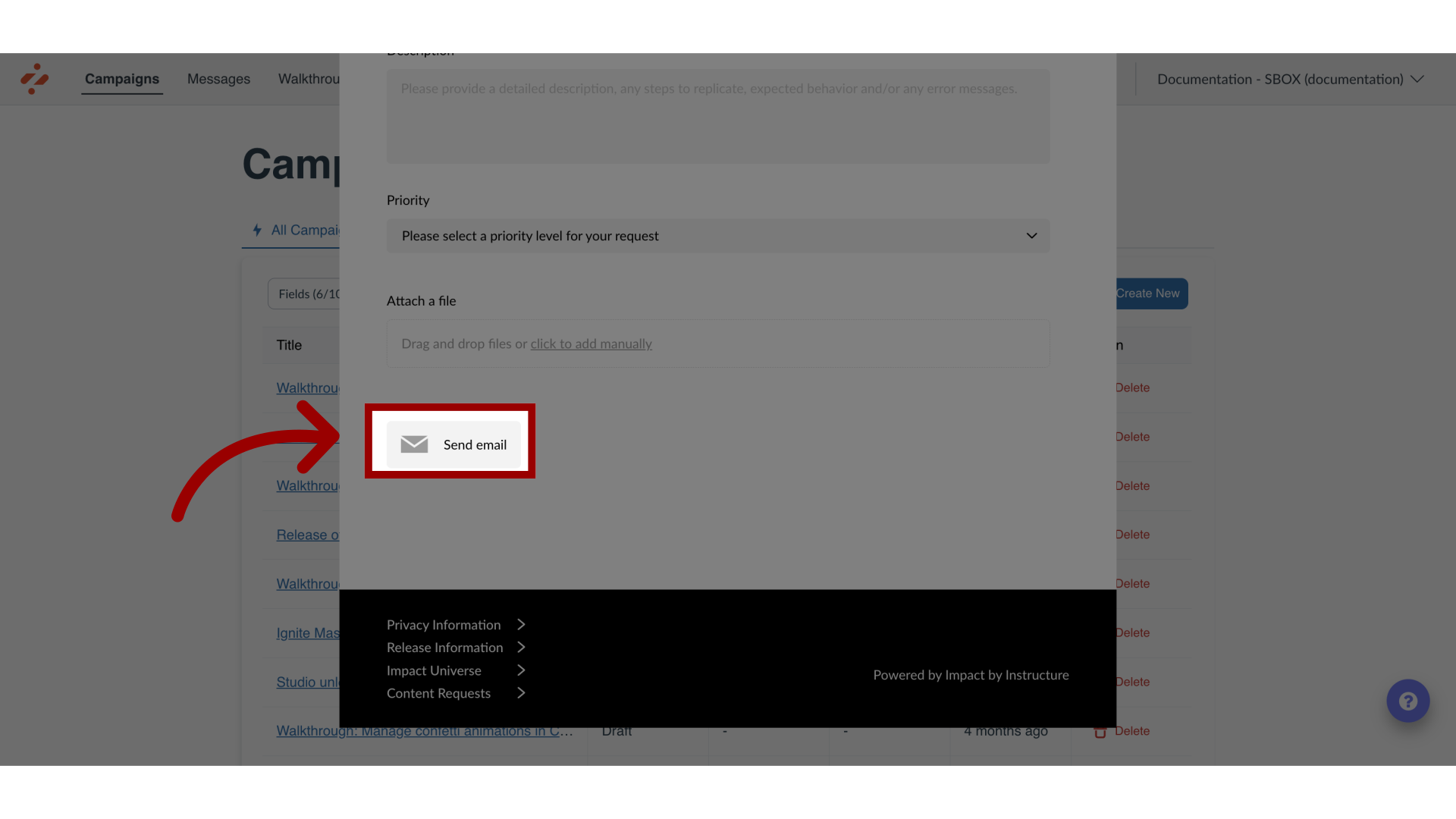
Follow the instructions below to submit a support ticket through our Impact Help Center.Note: The steps in this lesson describe how to submit a support ticket related to Impact. To submit a ticket for Canvas, use the Help menu in the Global Navigation Menu.How do I submit a support ticket in the Impact Help Center?1. Submit a Support Ticket for ImpactIn the Impact Dashboard, click the Support icon.Note: The Support icon style and location may differ between institutions based on customization styles.2. Open Email FormTo submit a help request email, click the Email button.3. Choose Support Ticket OptionsChoose the option that best describes your issue. Complete the short questionnaire to help Impact Support better understand the actions you have already taken. To improve the quality and timeliness of the response to support tickets, please include the information that follows when possible.4. Add SummaryIn the summary, briefly describe the issue.5. Select Impact Functional AreaIn the Impact Functional Area drop-down, select an Impact Functional Area that describes your issue.6. Add DescriptionIn the description textbox, please provide a detailed description of the issue.7. Select PriorityIn the Priority drop-down, select a priority level for your request.8. Attach FilesFinally, attach any files, screencasts, or screenshots of the problem.9. Send EmailTo submit the ticket, click the Send email button. The support team will respond to your request as soon as they can.