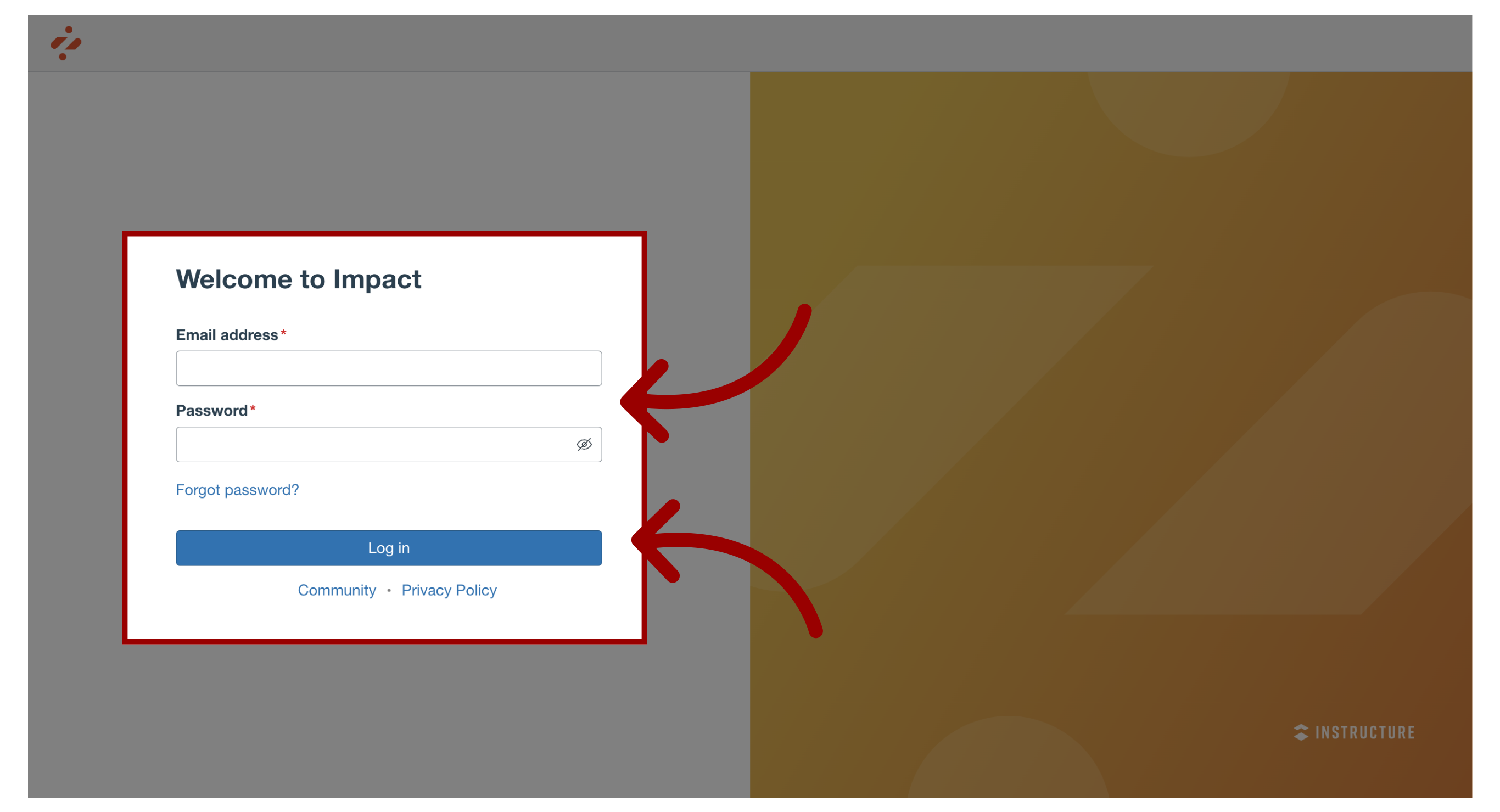
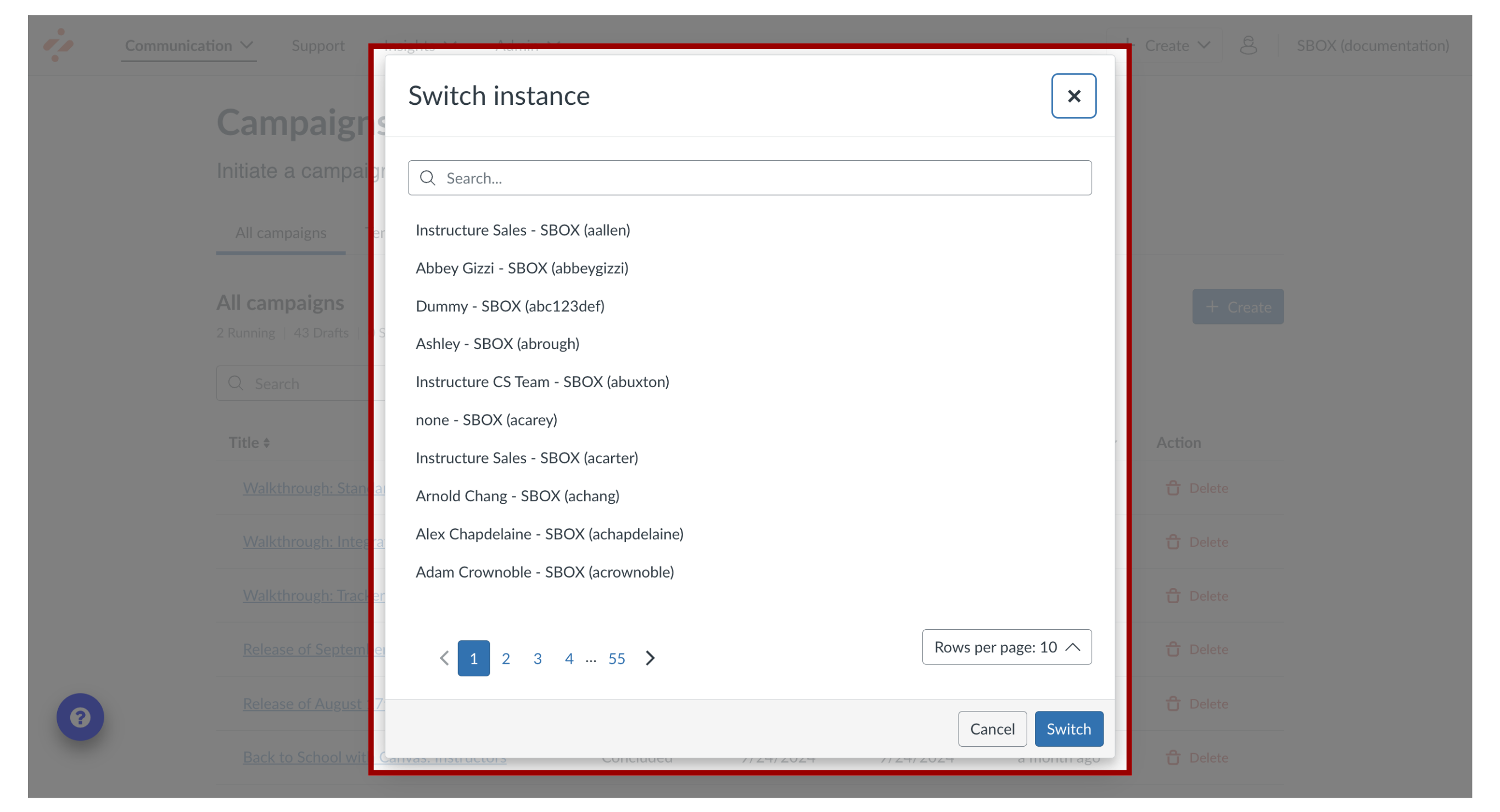
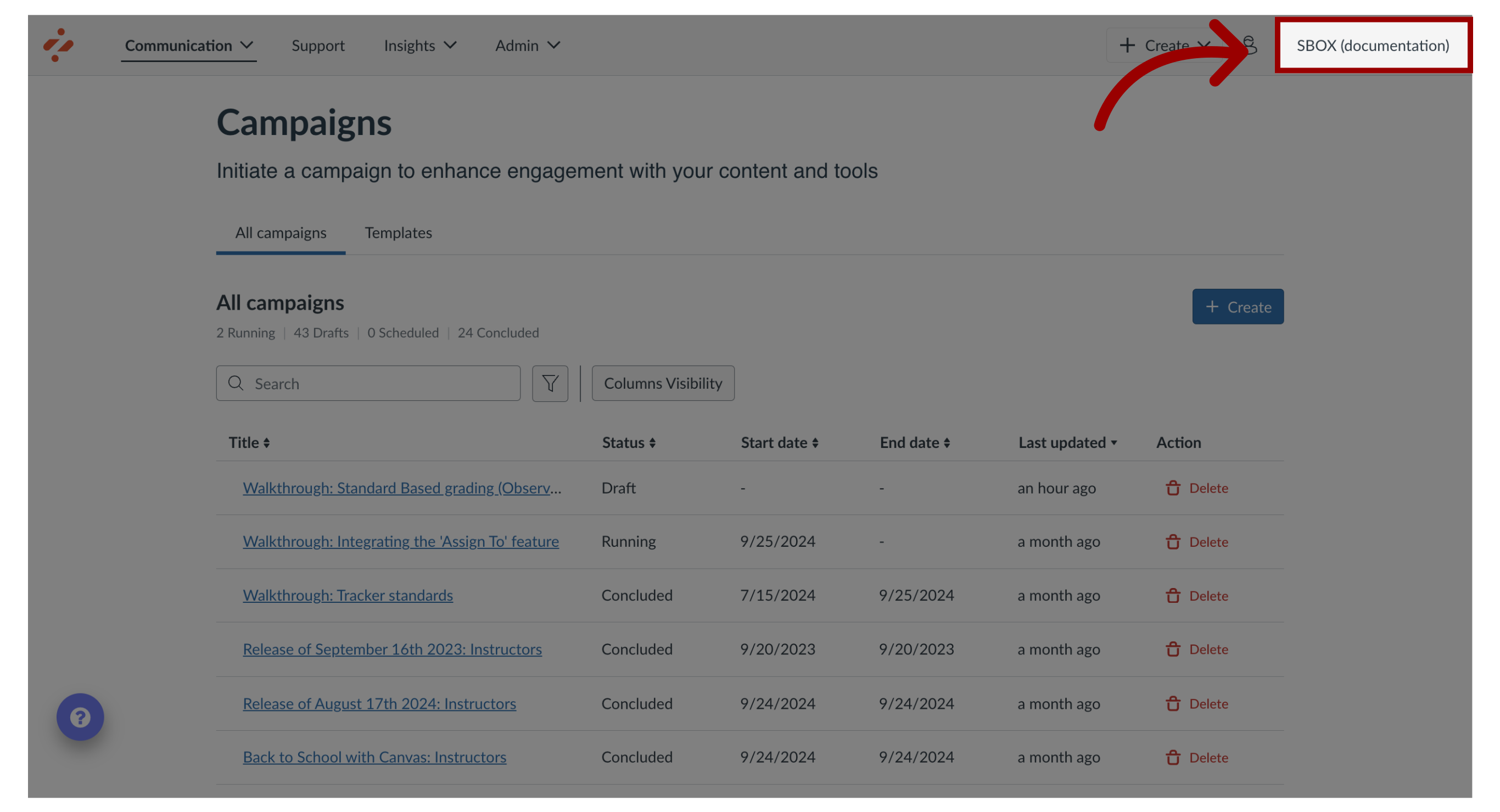
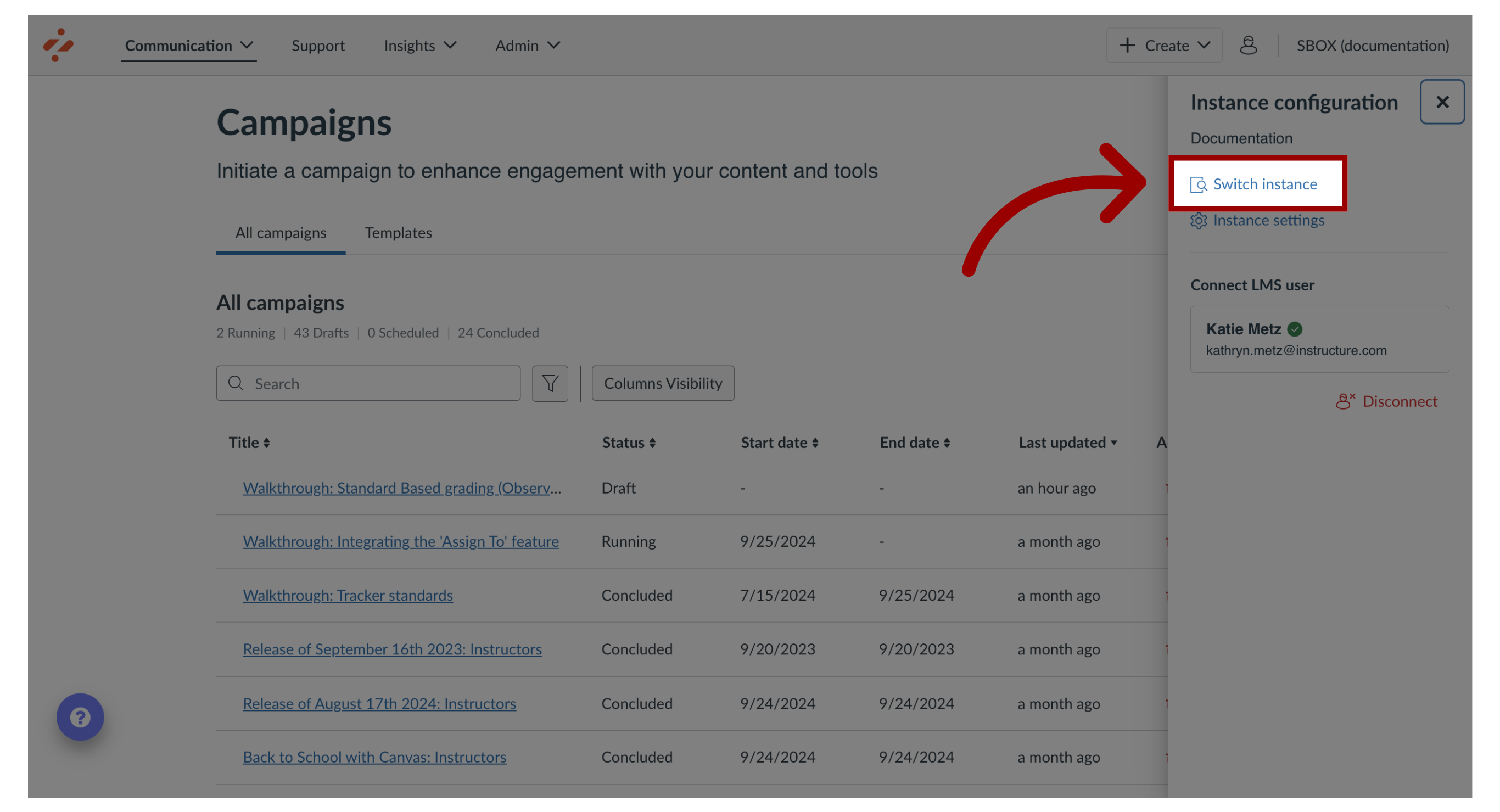
You can access the Impact dashboard from any browser.How do I access my Impact Dashboard?1. Log into ImpactTo log into Impact, navigate to app.eesysoft.com. Enter your email address and password. Click the Login button.2. Select an InstanceTo open the Impact dashboard, click the instance name.3. Select an Instance via Instance ConfigurationYou can switch to a different instance at any time using the Instance Configuration link.4. Open Instance OptionsClick the Switch Instance link.5. Search InstancesIn the Instance modal, to search for a different instance, enter a search term in the Search instances field.6. Switch Impact InstanceTo open a different instance, click the name of the instance. Then click the Switch button.7. Connect LMS UserIn the Instance Configuration menu, click the Connect your LMS User button.8. Search or Select LMS UserFind your LMS user by searching for your username, email address, or name. Click your LMS user account and click the Save button. This guide covered how to access your Impact Dashboard.