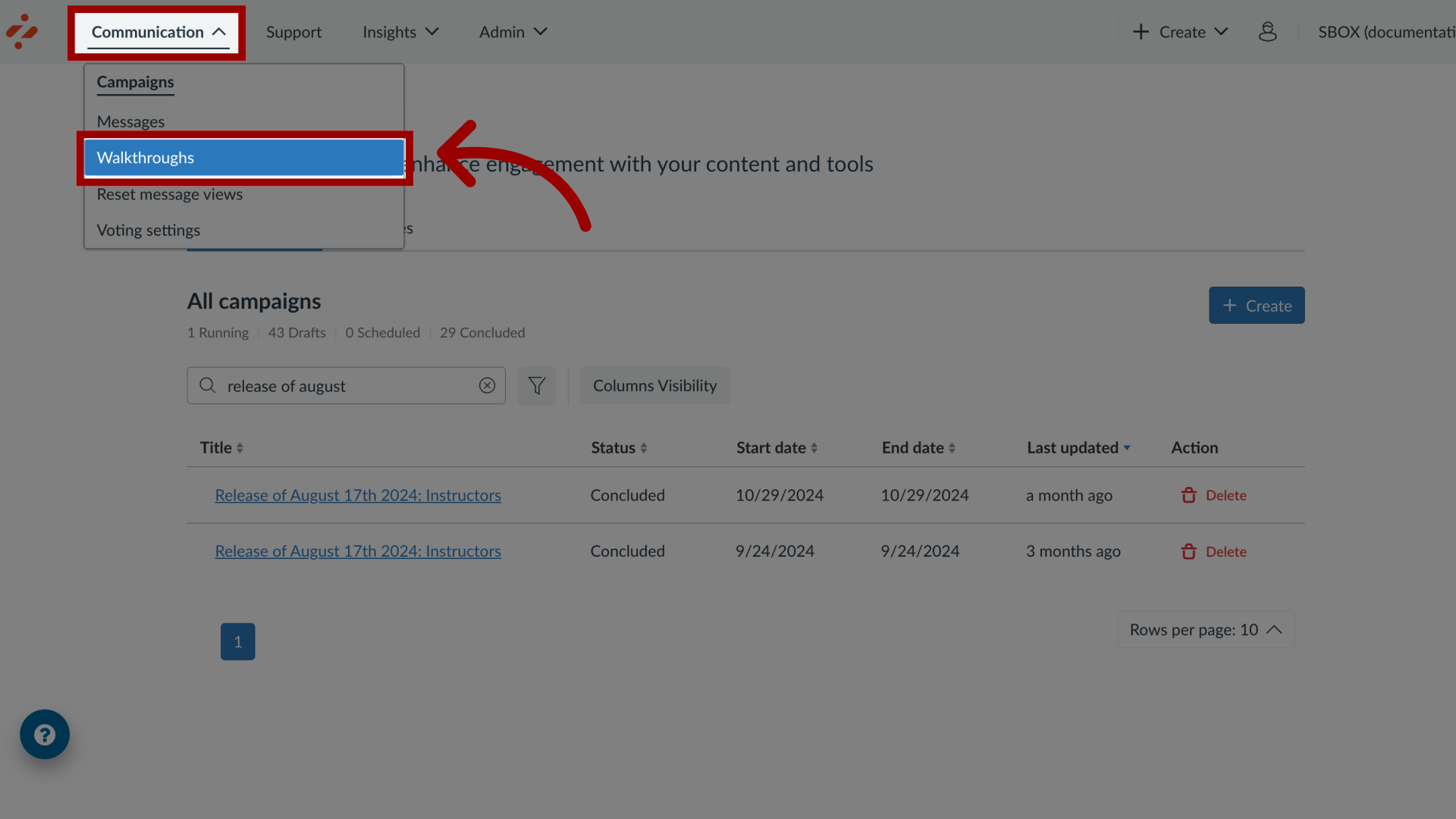
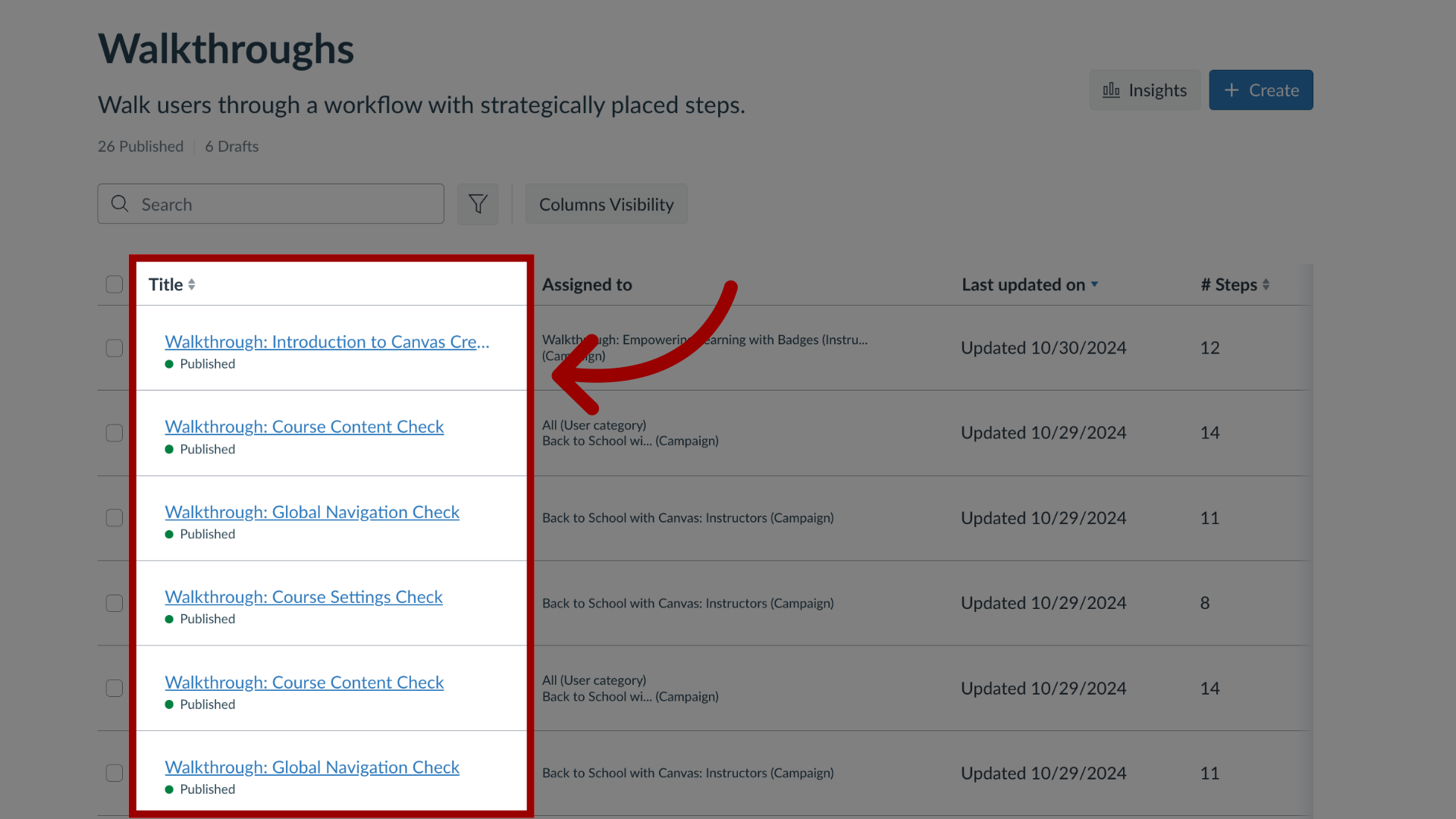
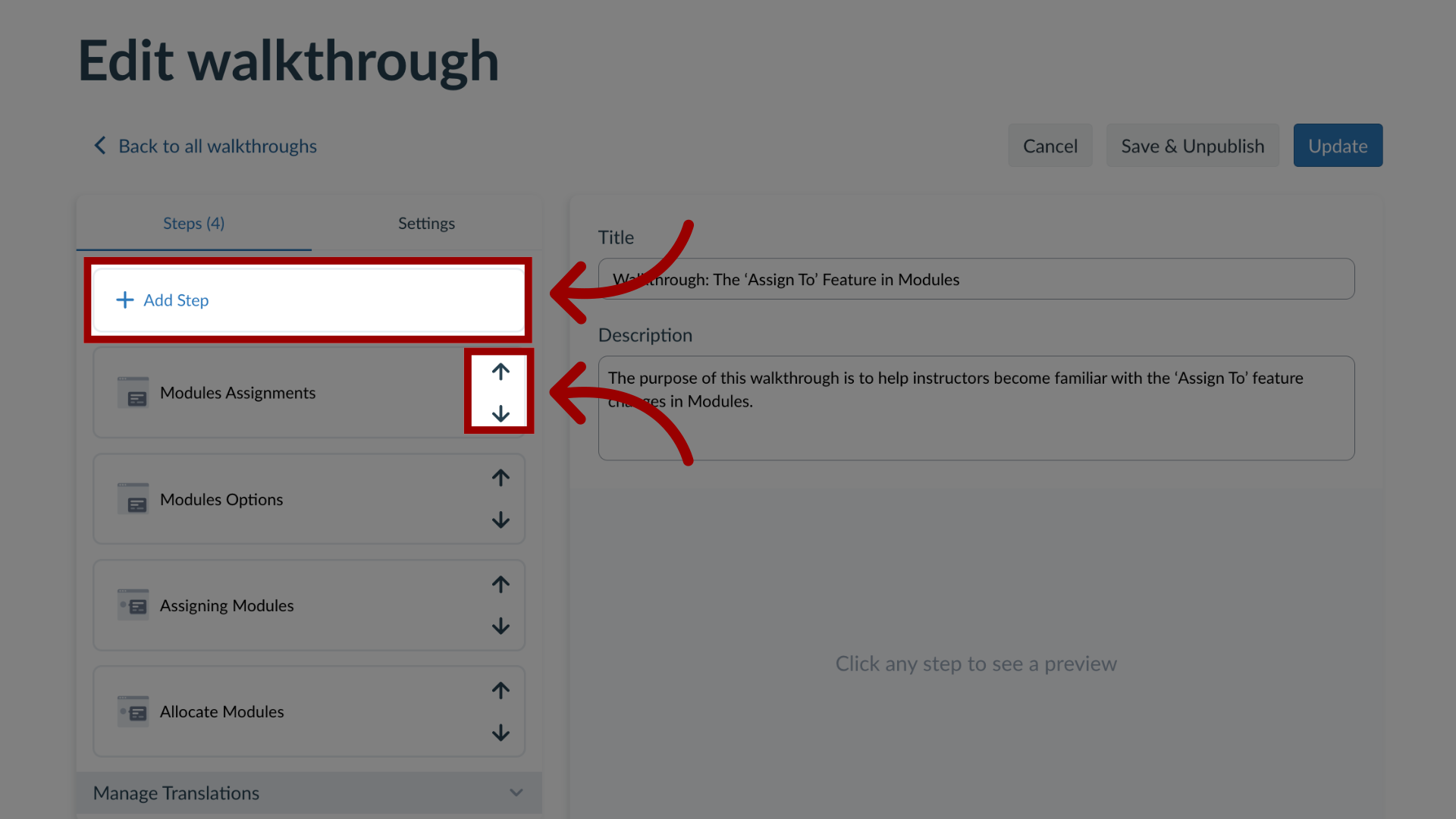
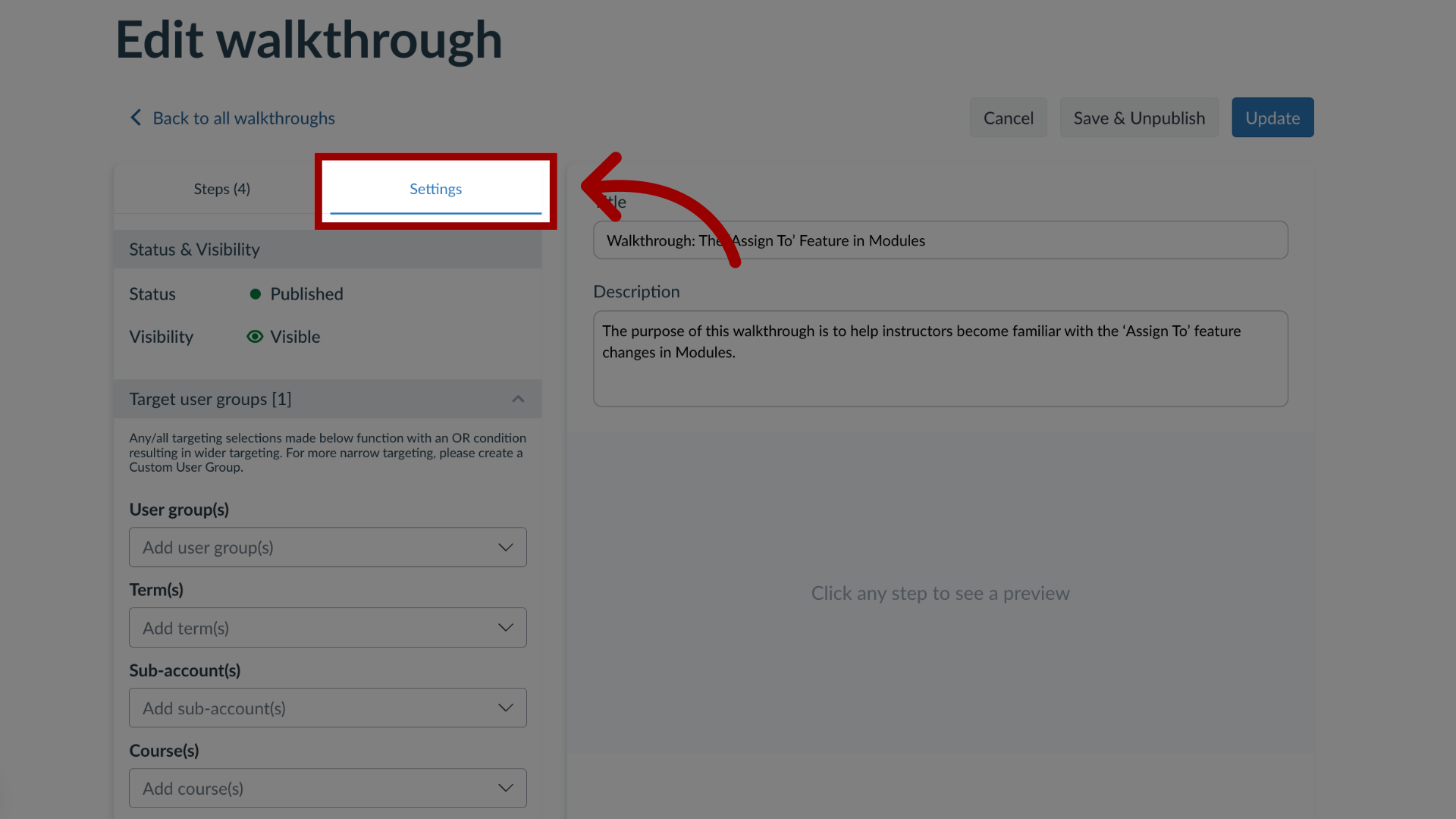
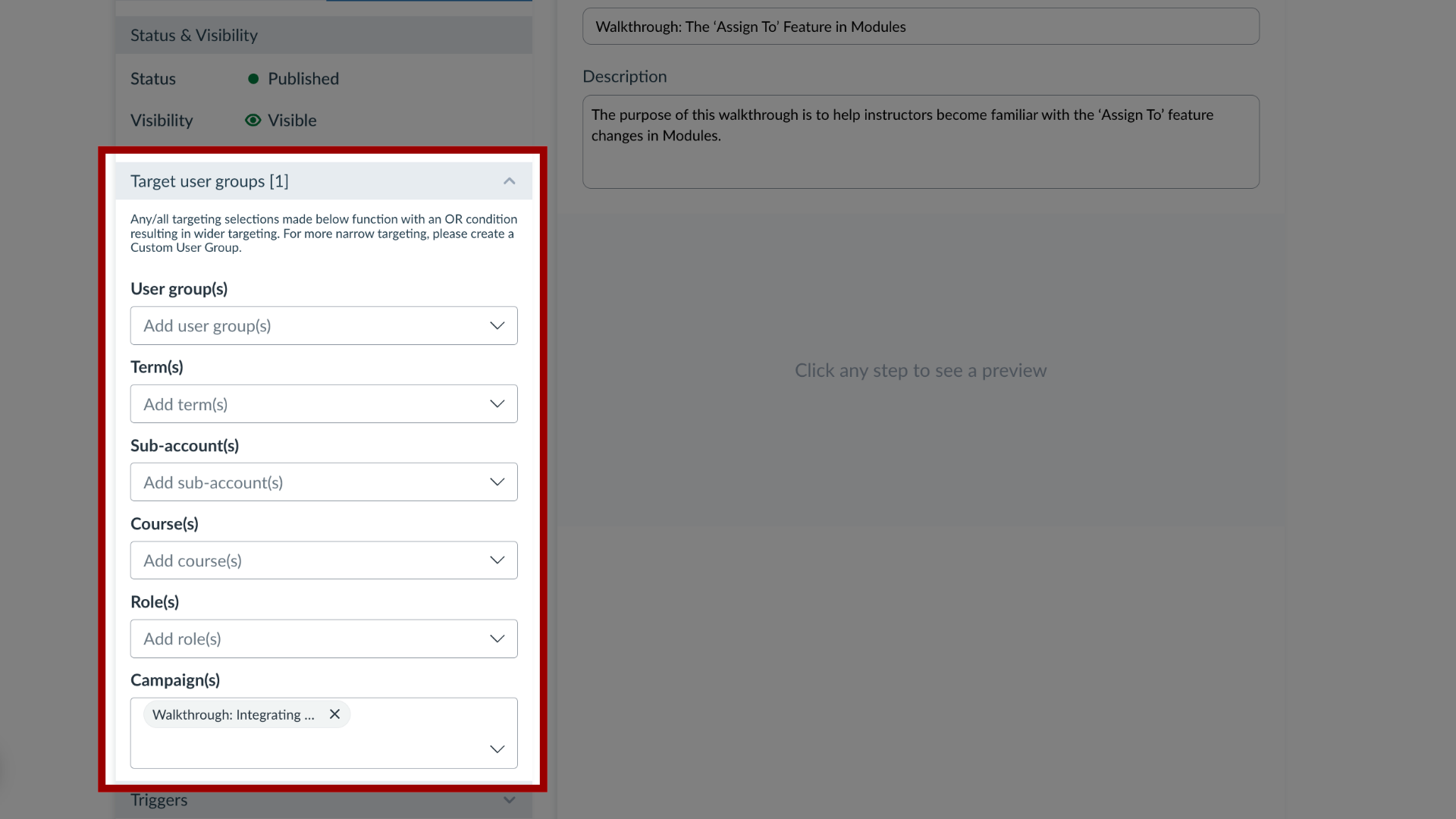
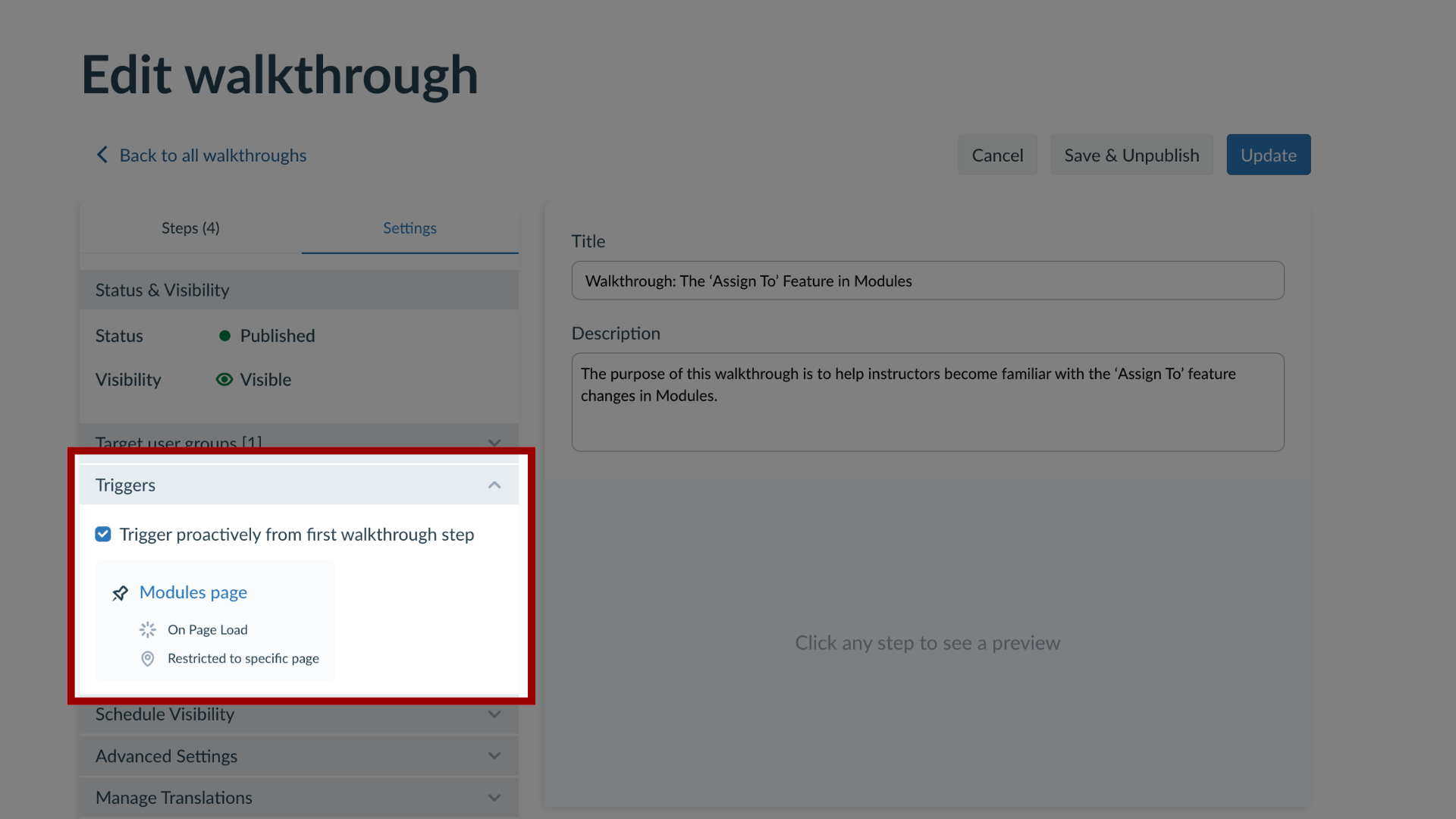
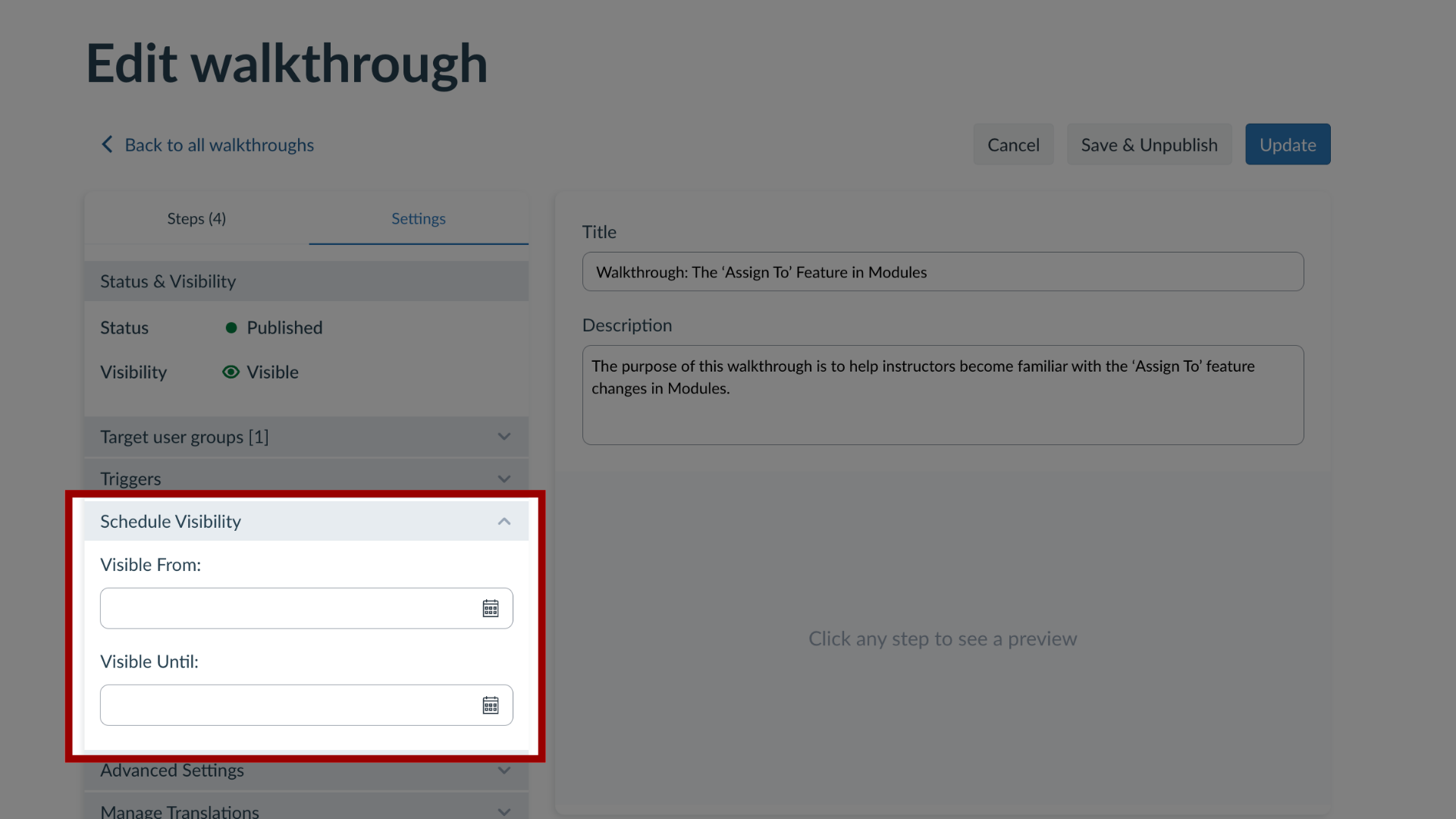
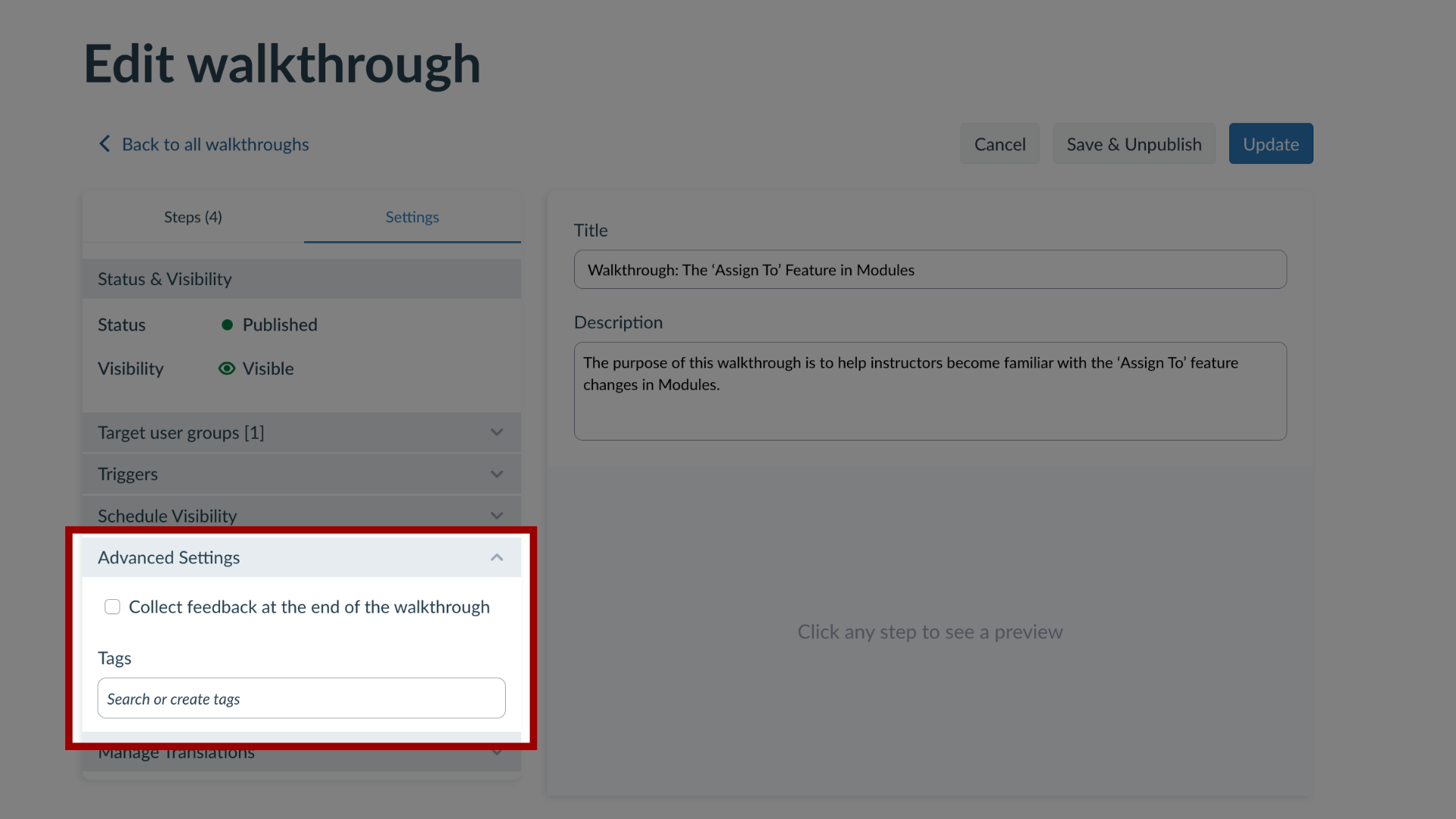
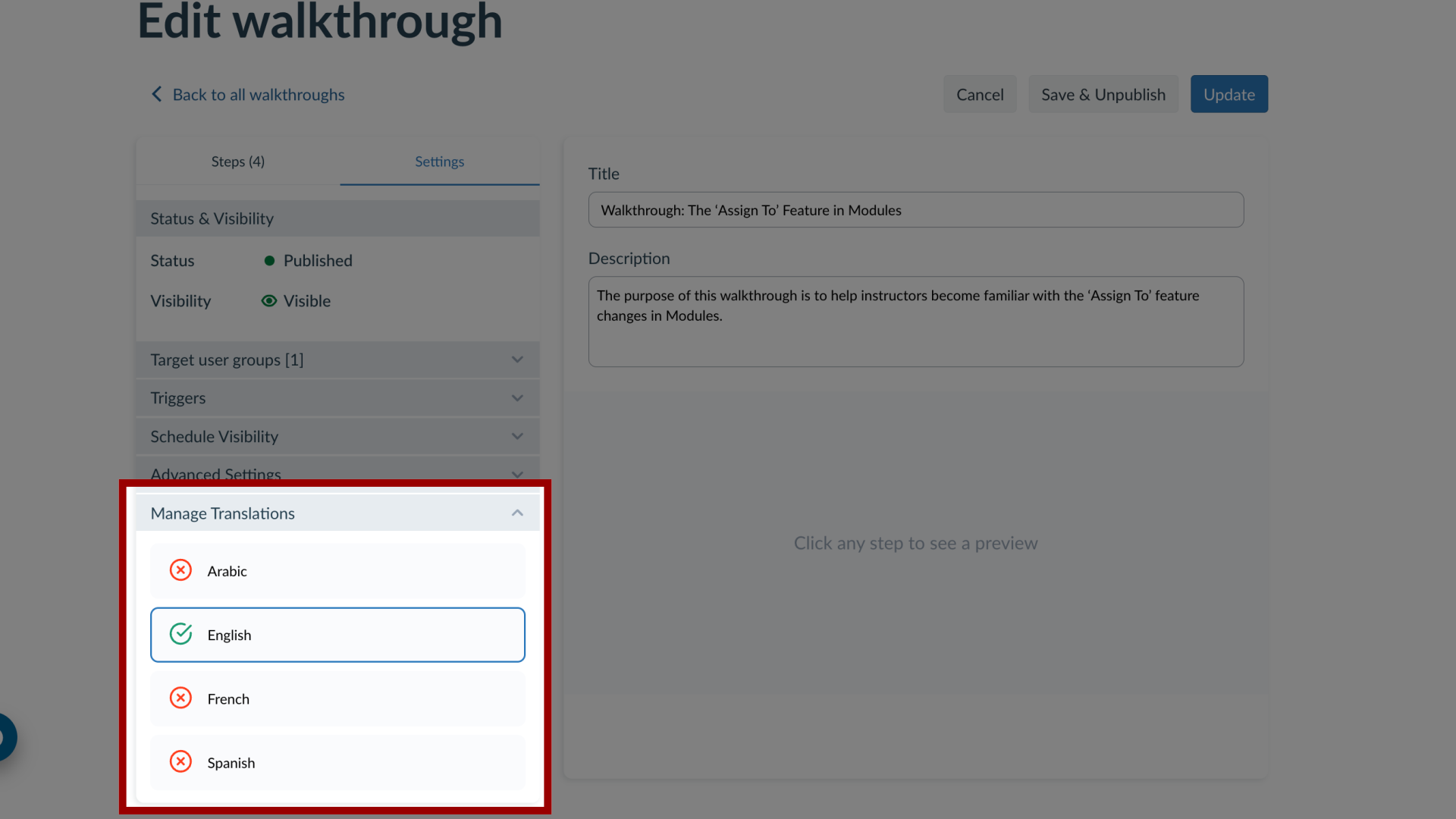
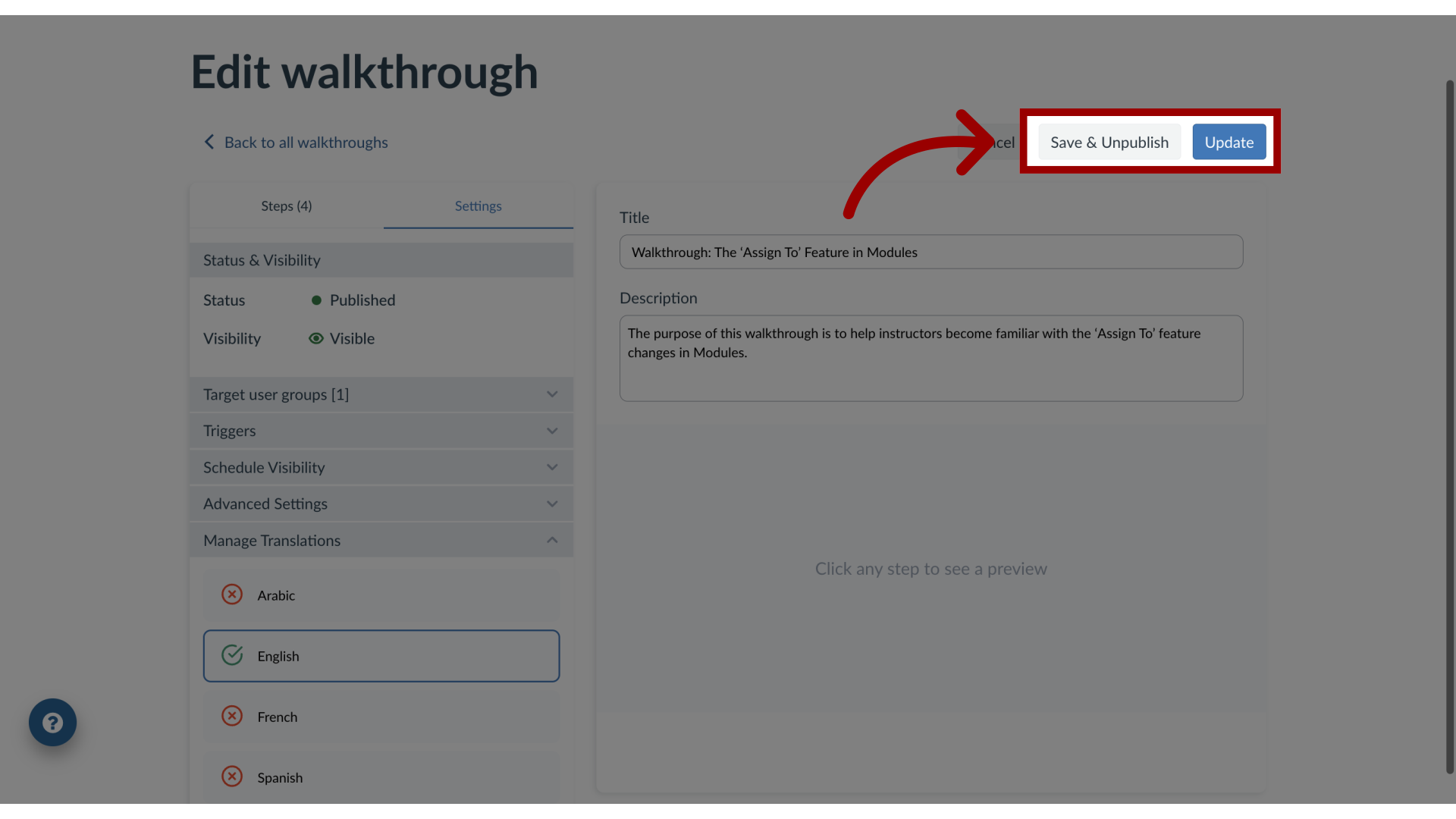
You can edit existing walkthroughs in the Impact Dashboard. Walkthroughs consist of multiple steps that may span multiple pages.How do I edit a Walkthrough in the Impact Dashboard?1. Open WalkthroughsIn the Global Navigation, click the Communication dropdown menu. Then click the Walkthroughs link.2. Open Walkthrough To edit an existing walkthrough, click the name of the walkthrough.3. Delete or Edit WalkthroughTo delete a walkthrough, click the Delete button. To modify the walkthrough, click the Edit button.4. Edit Walkthrough StepsTo add an additional step, click the Add Step button. To update a walkthrough step, click the Drag and Drop icon.5. Edit SettingsIn the Settings tab, you can edit different walkthrough settings.6. Target User GroupsTo update who is assigned the Walkthrough, click the Target User Groups drop-down menu.7. TriggersTo immediately begin the Walkthrough when a user opens the page, open the Triggers section and ensure the Trigger proactively from first walkthrough step checkbox is selected.8. Schedule VisibilityTo update the schedule message visibility, in the sidebar, locate and open the Schedule Visibility section.9. Advanced SettingsTo collect feedback from the Walkthrough, open the Advanced Settings section and click the Collect feedback at the end of the walkthrough checkbox.10. Manage TranslationsTo Manage Translations, click the Manage Translations drop-down menu11. Update WalkthroughTo unpublish your walkthrough and save your current changes, click the Save & Unpublished button. To publish your updated walkthrough, click the Update button.