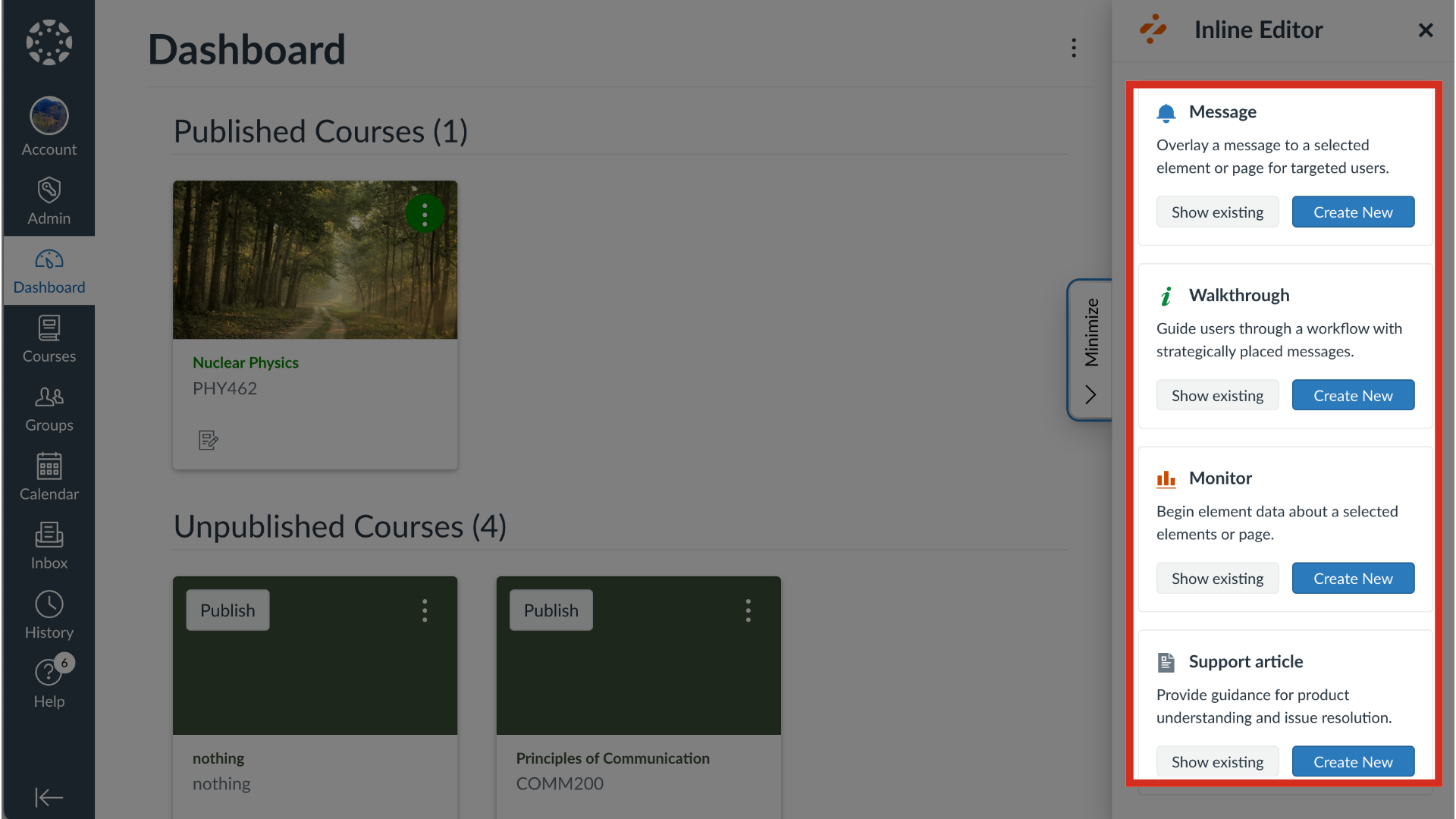
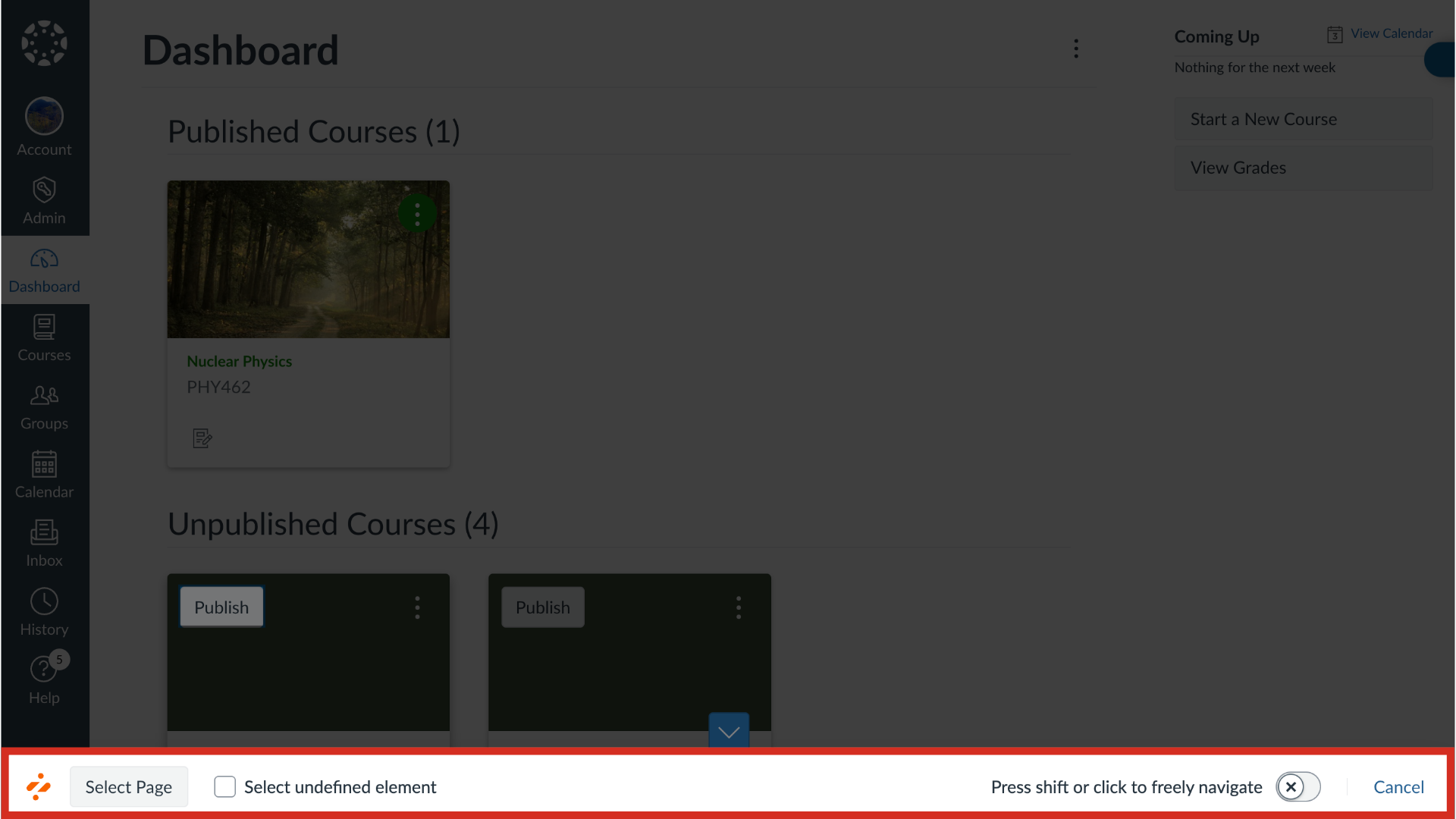
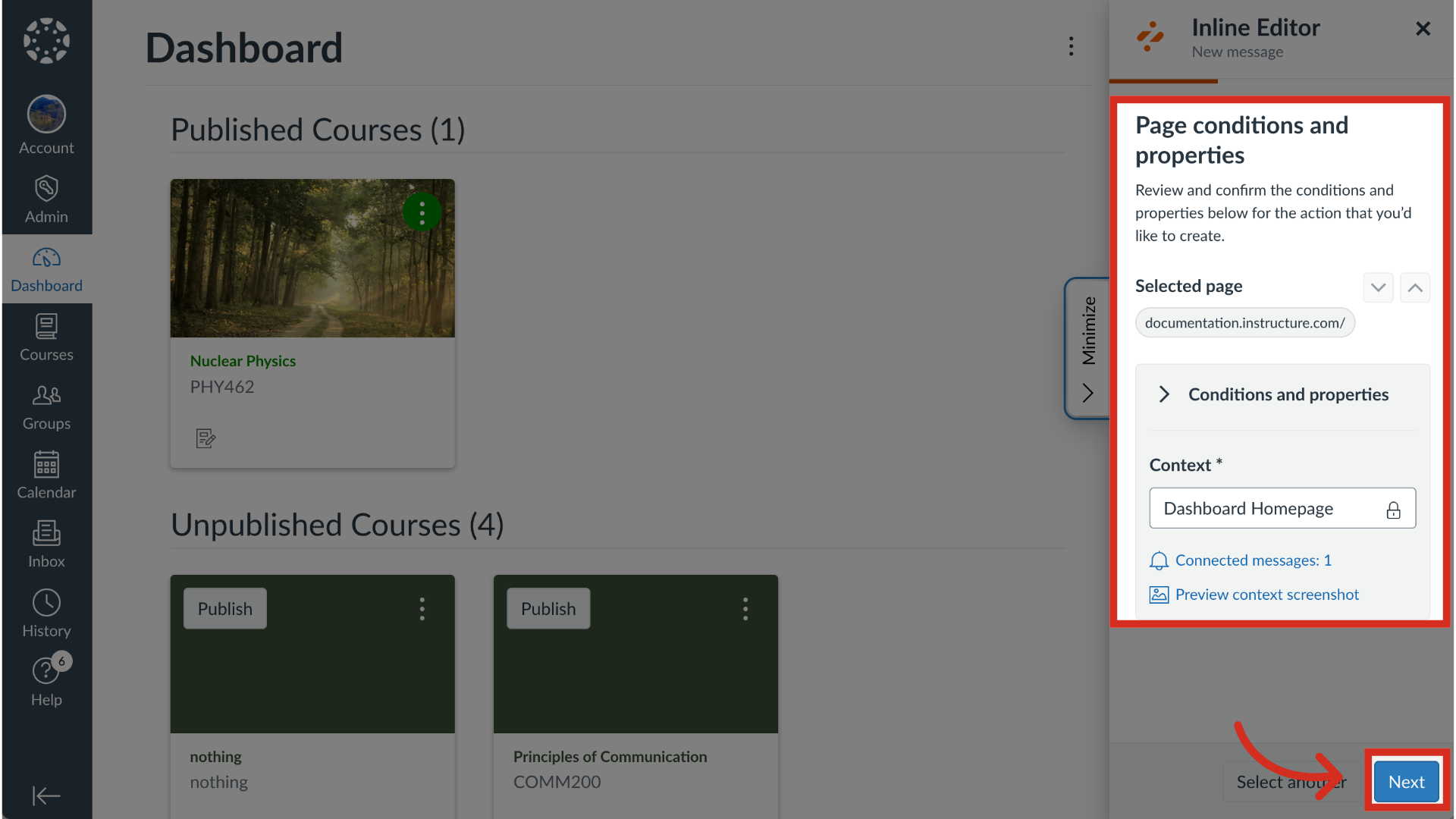
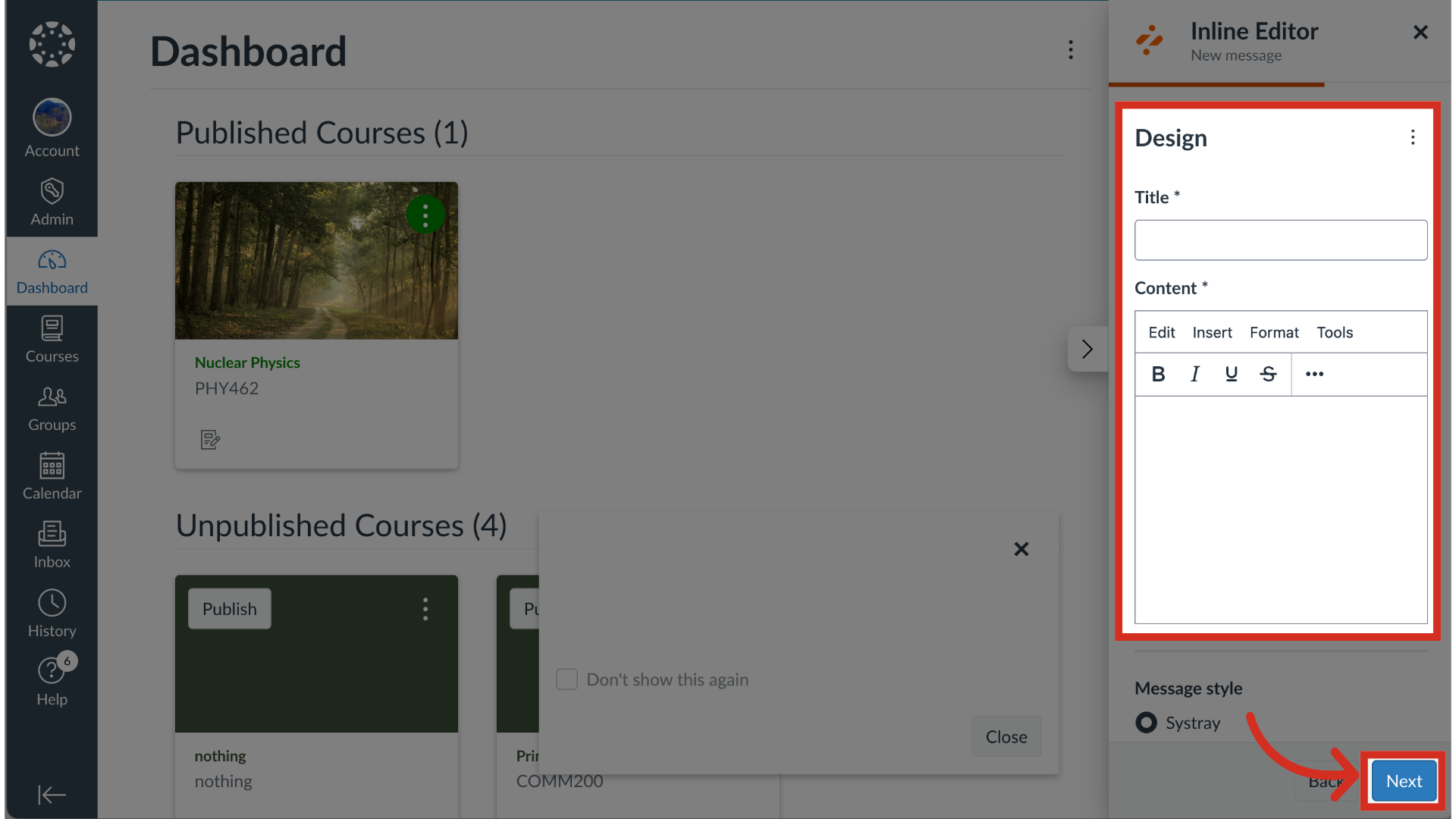
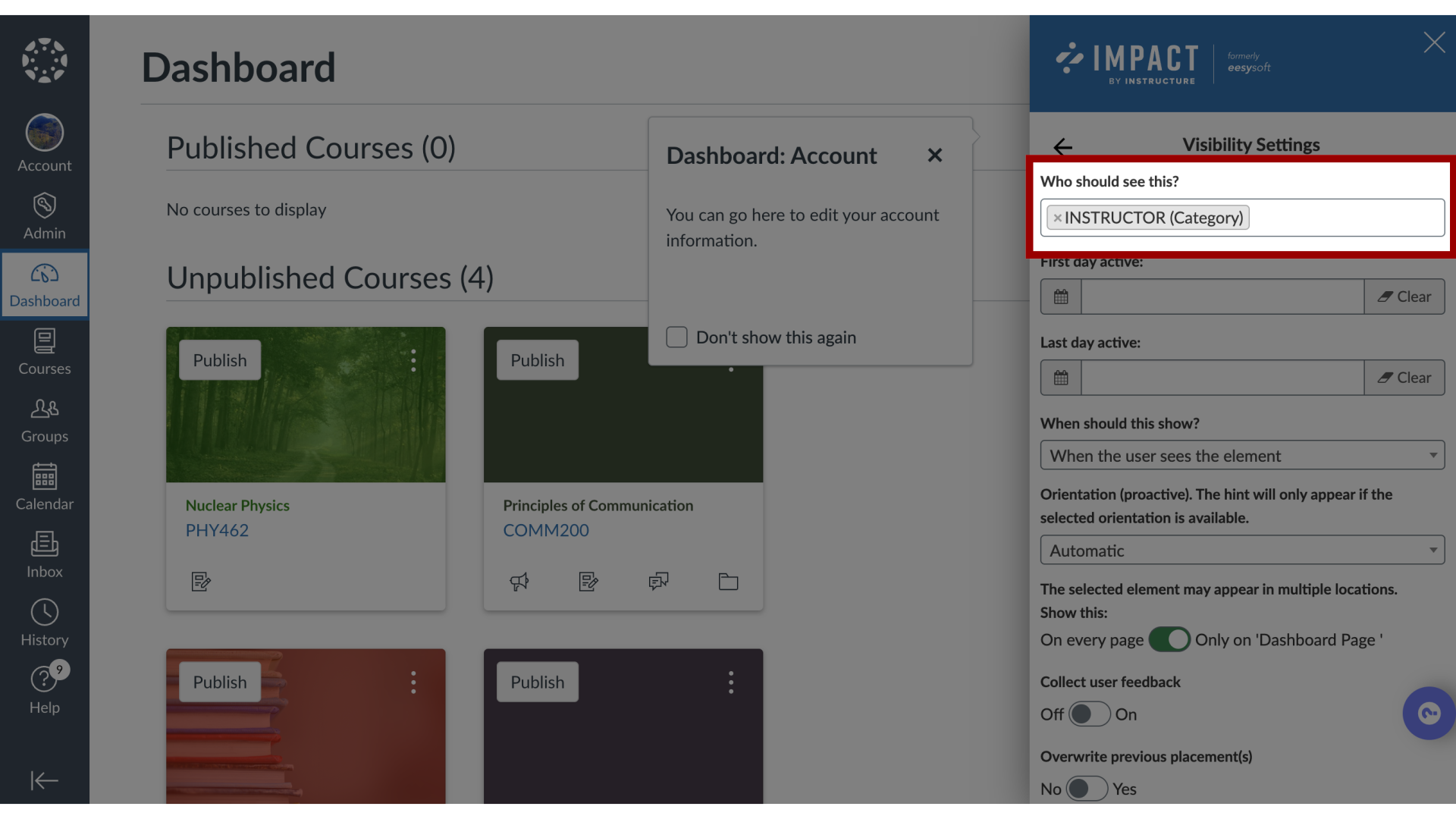
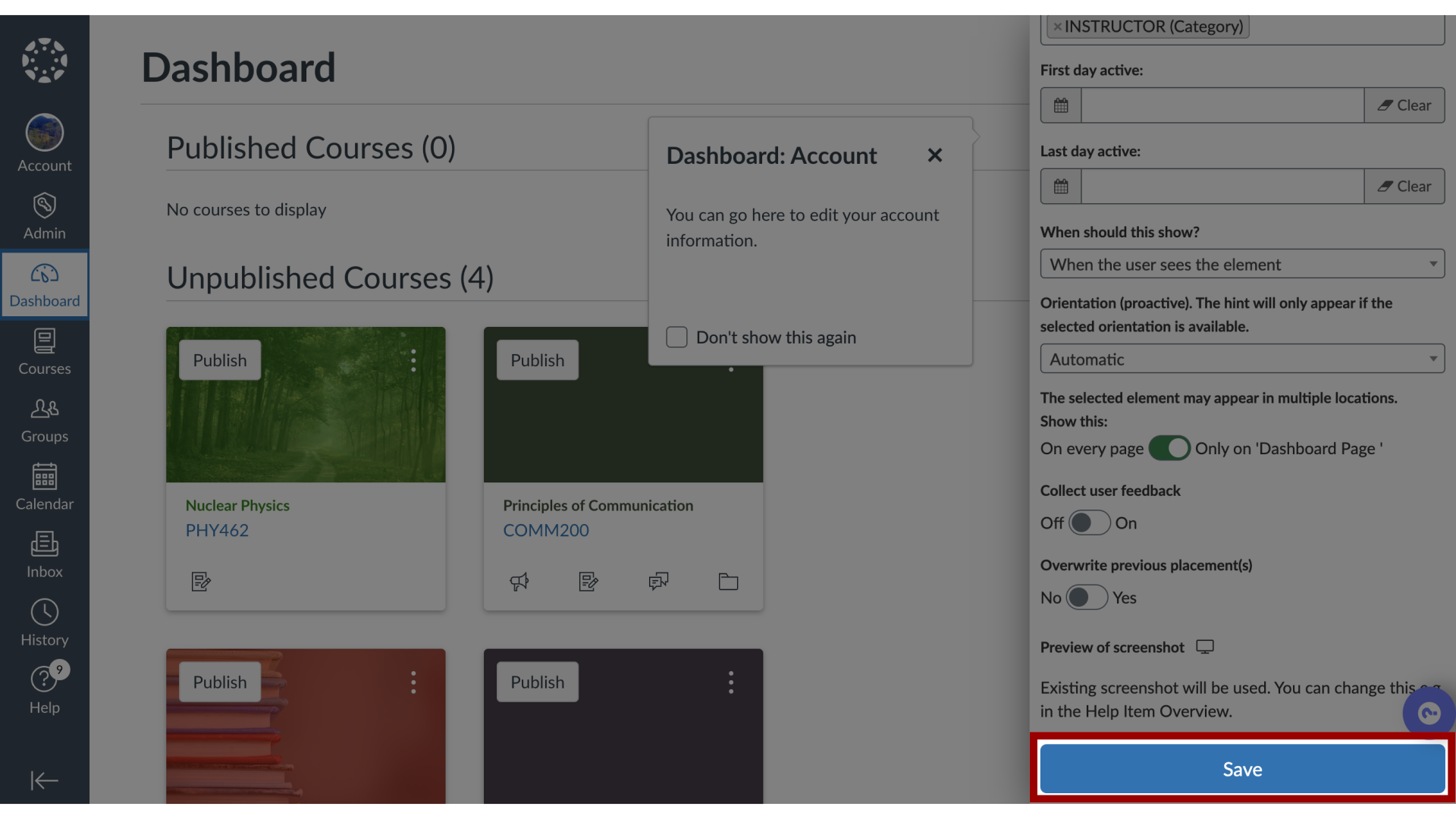
You can add new content to an existing campaign using the Inline Editor within your learning management system.How do I add a new content item to an existing Impact campaign from the Inline Editor?1. Open Inline EditorNavigate to the area of the learning application where you wish to place the monitor. Then click the Create New button for the corresponding content you wish to add.2. Select Page or ElementSelect a page or element and create your message or article content.3. Review Page Conditions and PropertiesReview the page conditions and properties. Then click the Next button.4. Add DesignAdd the desired design information. Then click the Next button.Note: For more information on message design, visit How do I create a message with the Impact Inline Editor?5. Select Visibility SettingsIn the Configuration settings, select the relevant campaign from the Target User Group drop-down menu.6. Save Content ItemClick the Save button to finish creating the message or article and add it to the selected campaign. Then select the And publish or As draft option. This guide covered how to add a new content item to an existing Impact campaign from the Inline Editor.For more information on the following referenced topics:How do I create a message with the Impact Inline Editor?How do I create a support article with the Impact Inline Editor?