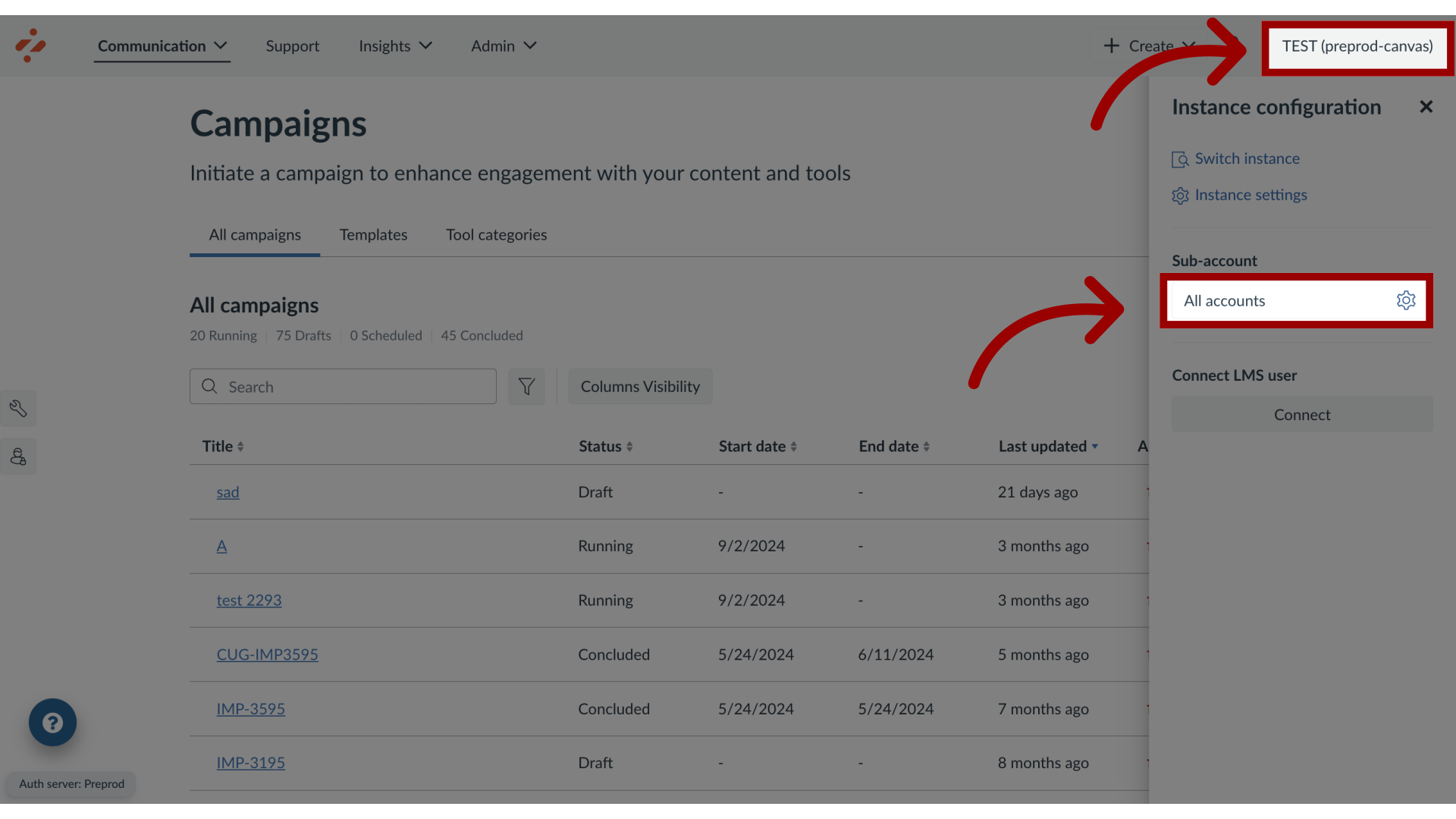
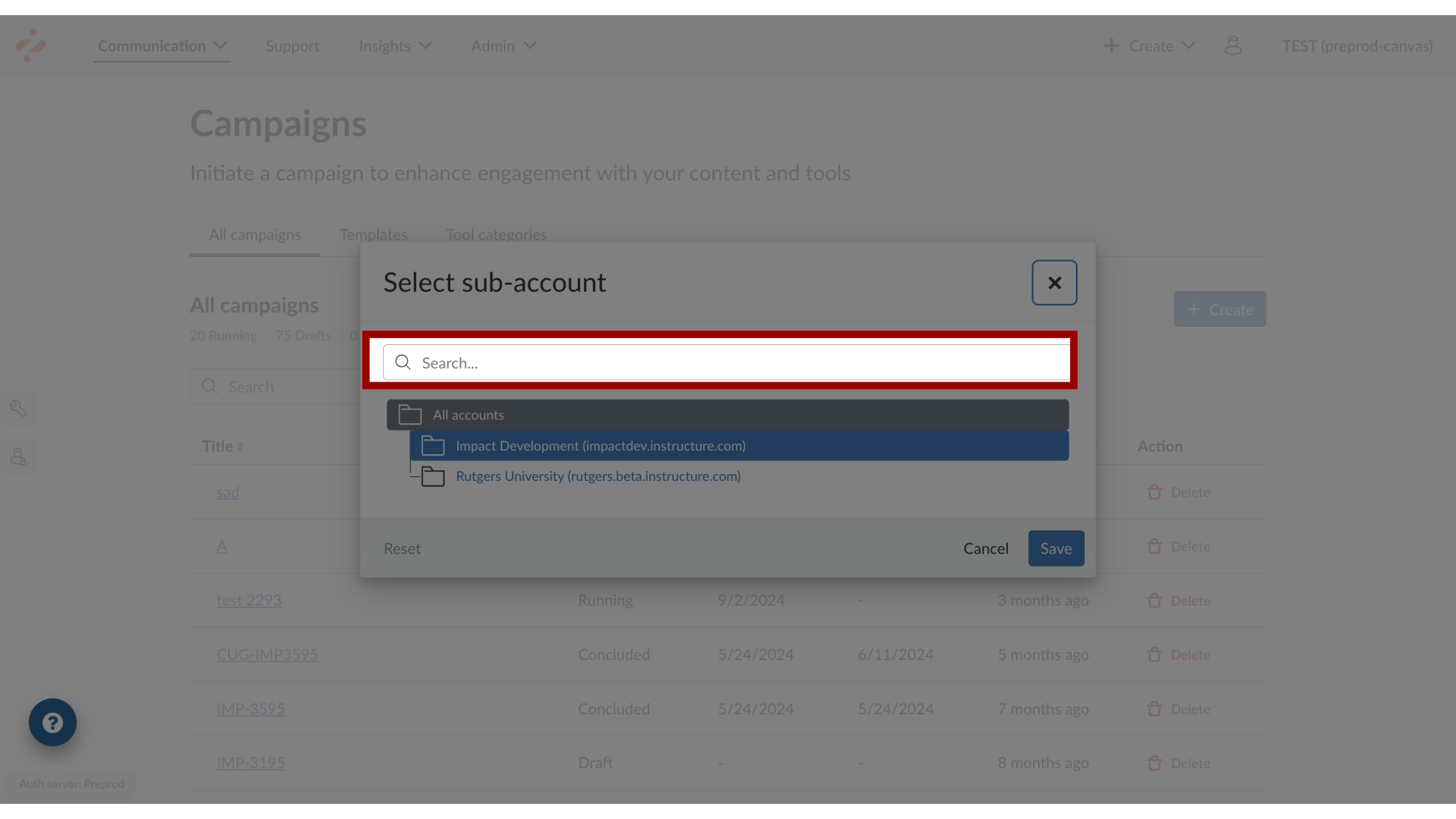
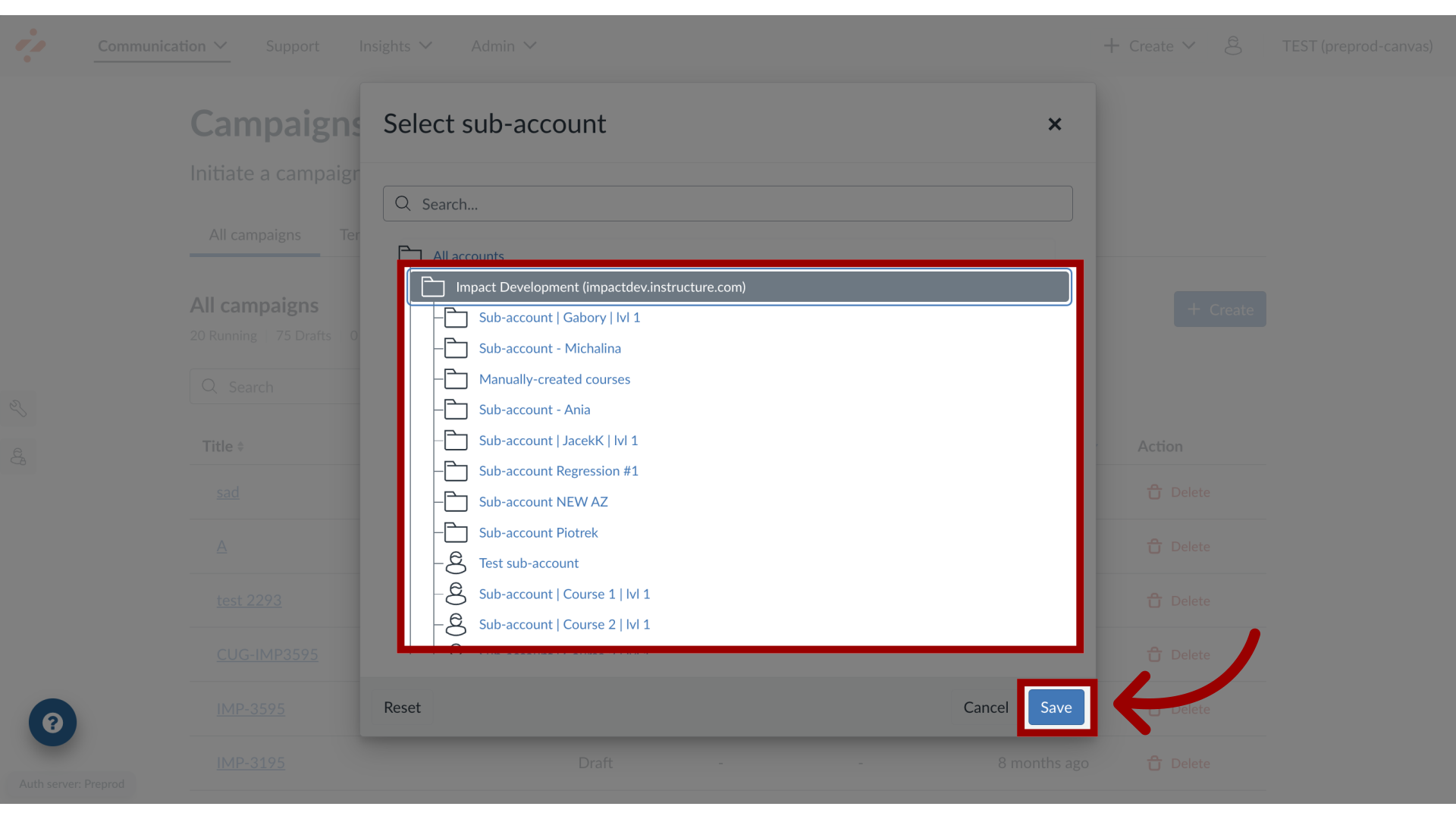
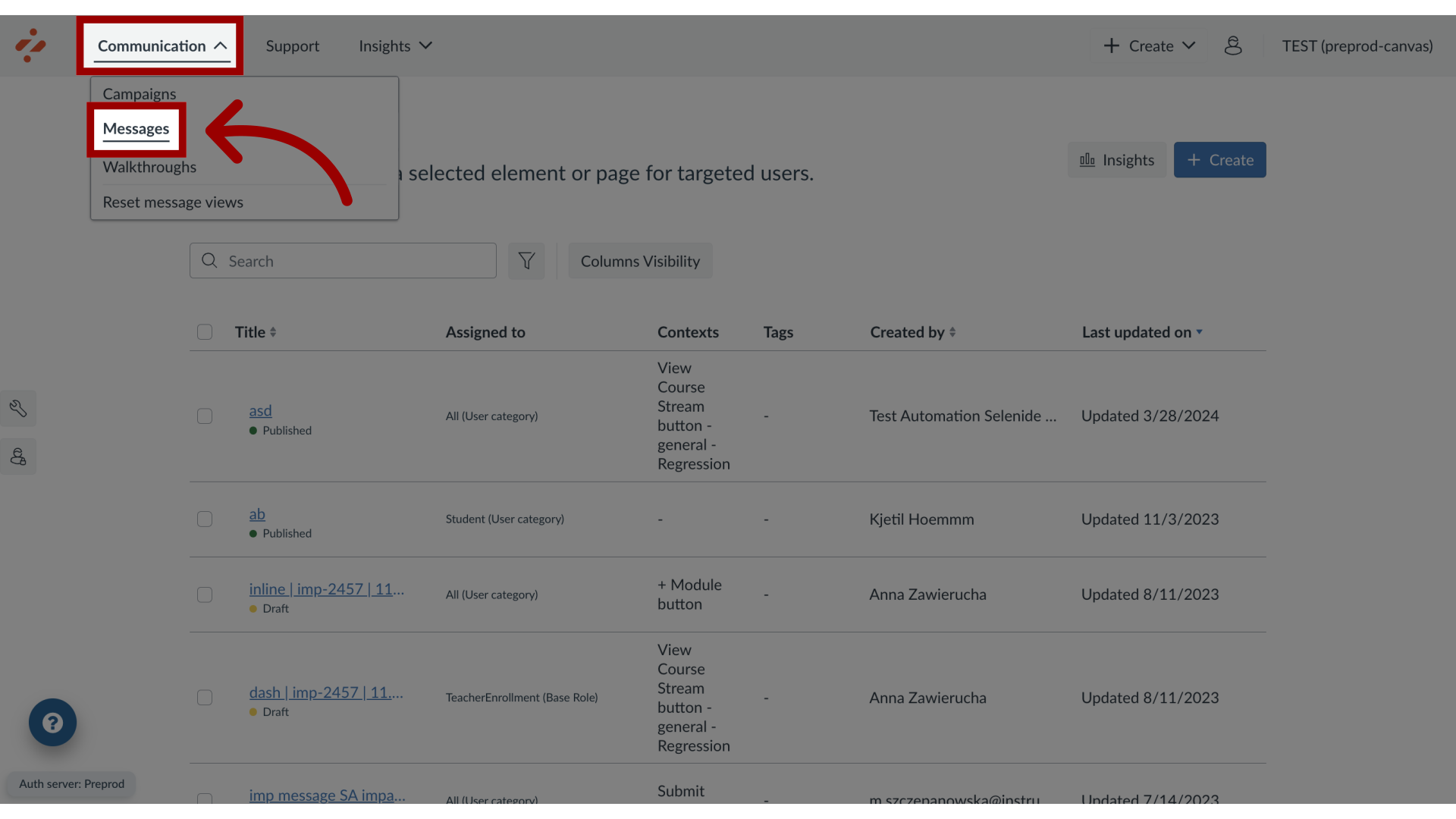
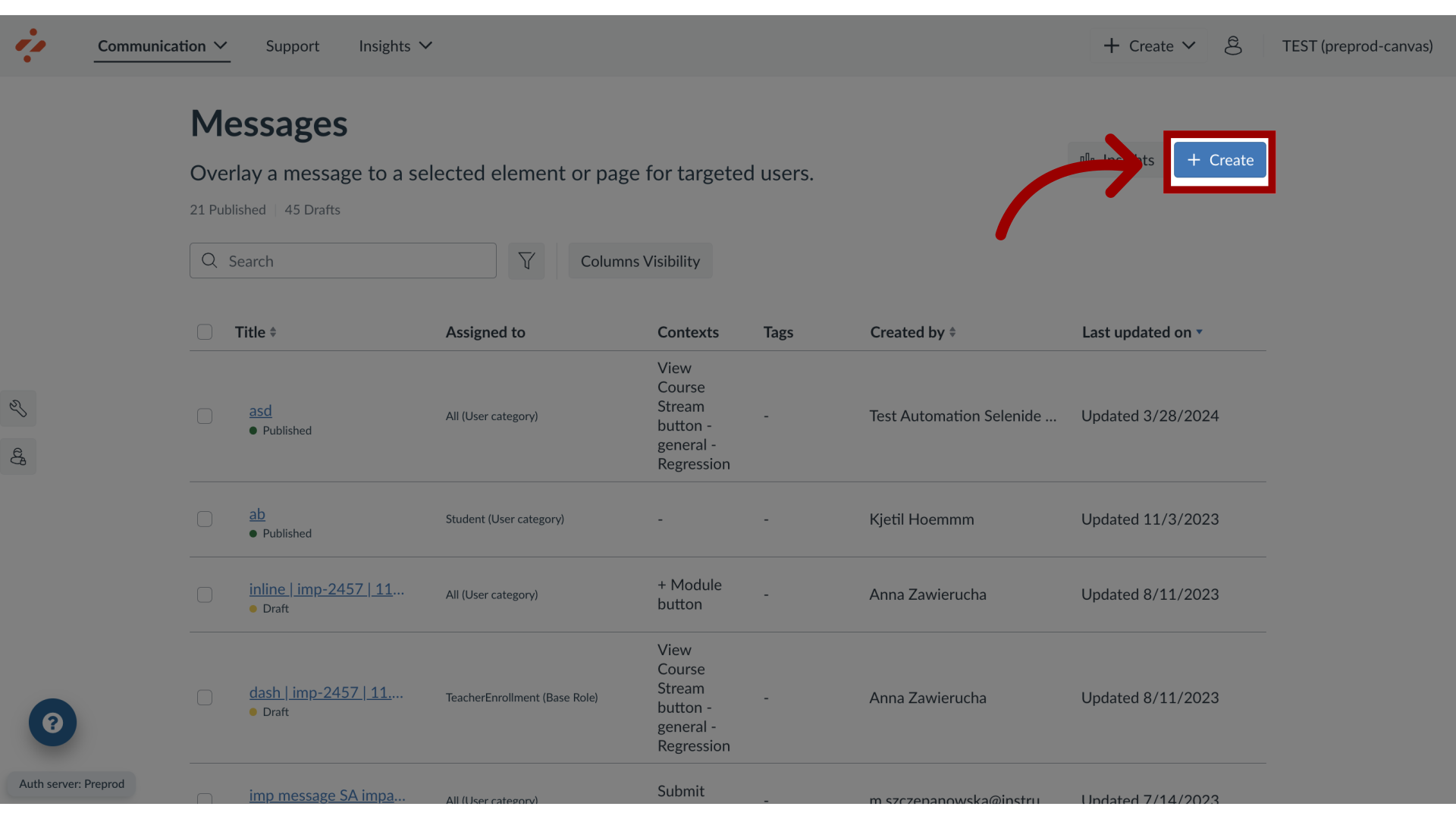
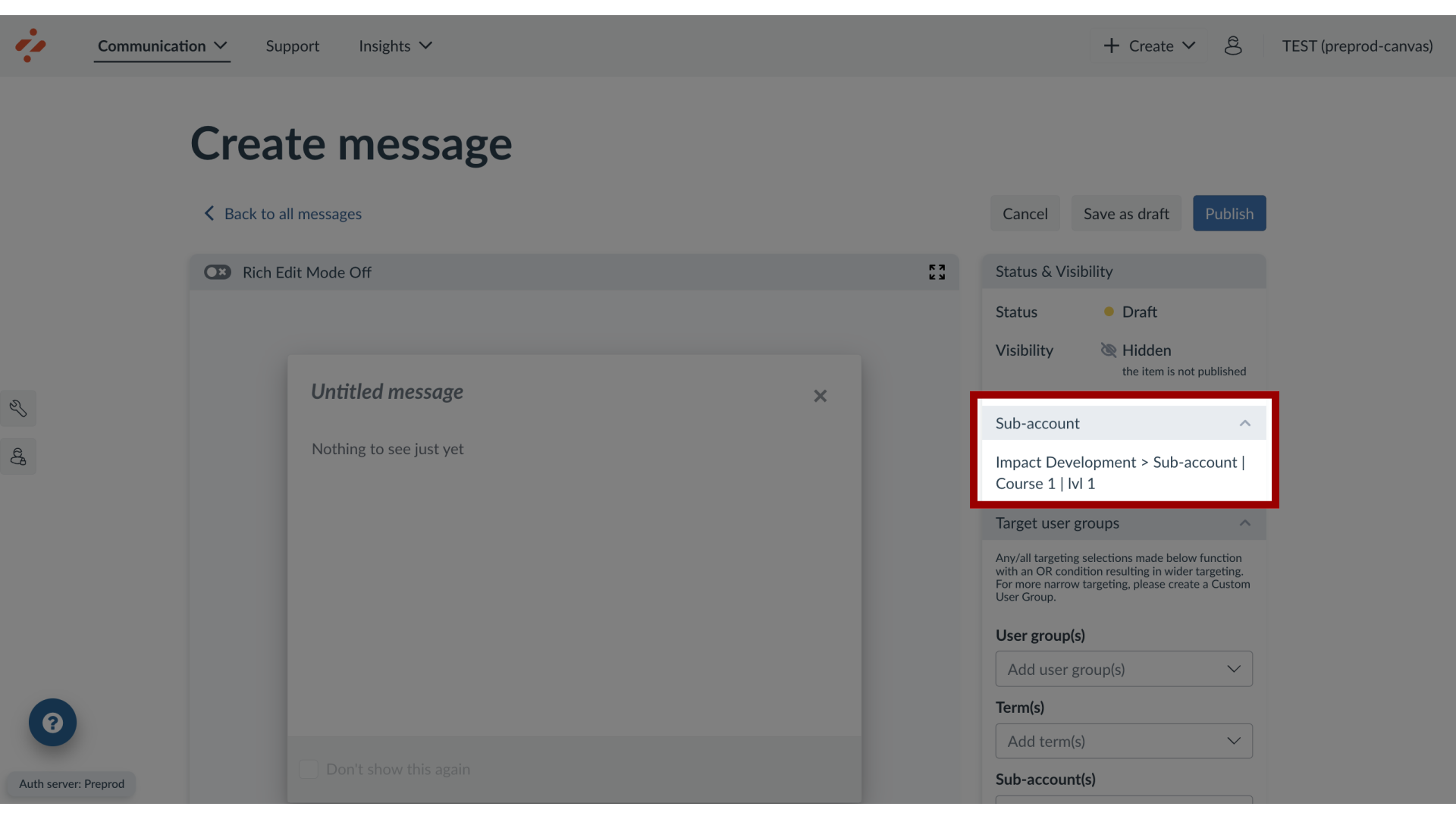
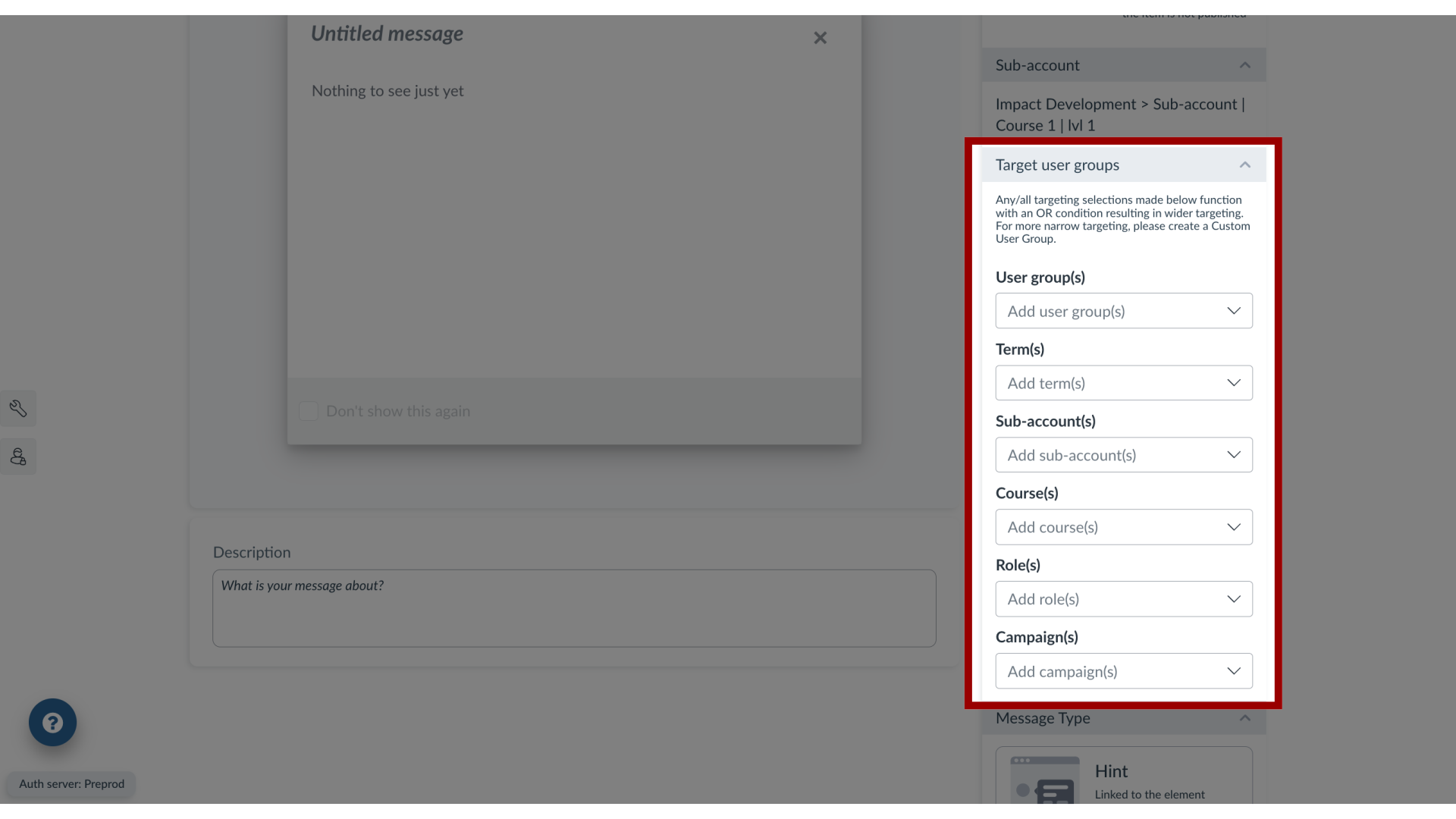
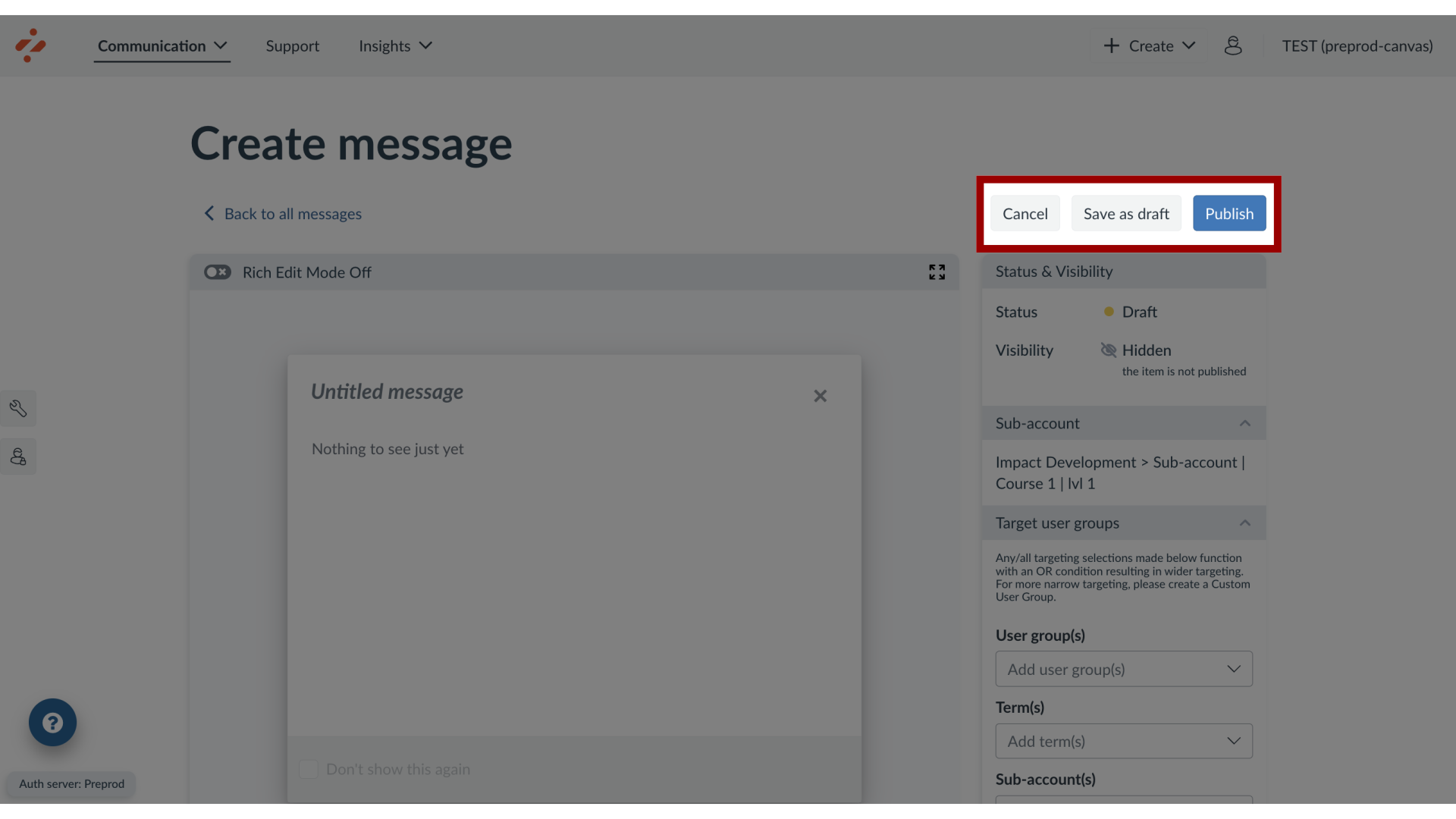
Impact messages can be assigned to sub-accounts in your learning application. By assigning sub-accounts to a message, you control which audience sees your message.Note: This feature is only available to Canvas customers.How do I create a message for a sub-account?1. Open Account SettingsIn the Global Navigation, click the Instance Configuration link. Then, click the Sub-account Settings button.2. Search Sub-AccountsYou can search for sub-accounts using the Search field.3. Switch Sub-AccountsYou can select the admin account to locate the sub-account. To switch sub-accounts, click the name of the sub-account. Then click the Save button4. Open MessagesIn Global Navigation, click the Communication link. Then click the Messages link.5. Create New MessageClick the Create button.6. View Assigned Sub-AccountIn the sidebar, locate and open the Sub-account section. By default, the message is created on the sub-account you are currently using.7. Target User GroupsLocate and open the Target User Groups section. Use the drop-down menus to select among the types of users.8. Publish Your MessageNow that your message content and settings are all set up, you can continue by the following options: Publish: Publishing your messageSave as Draft: Saving your message as a draft allows you to publish the message another time but save your current changes Cancel: Canceling your message deletes your message content and settings or any unsaved changes.