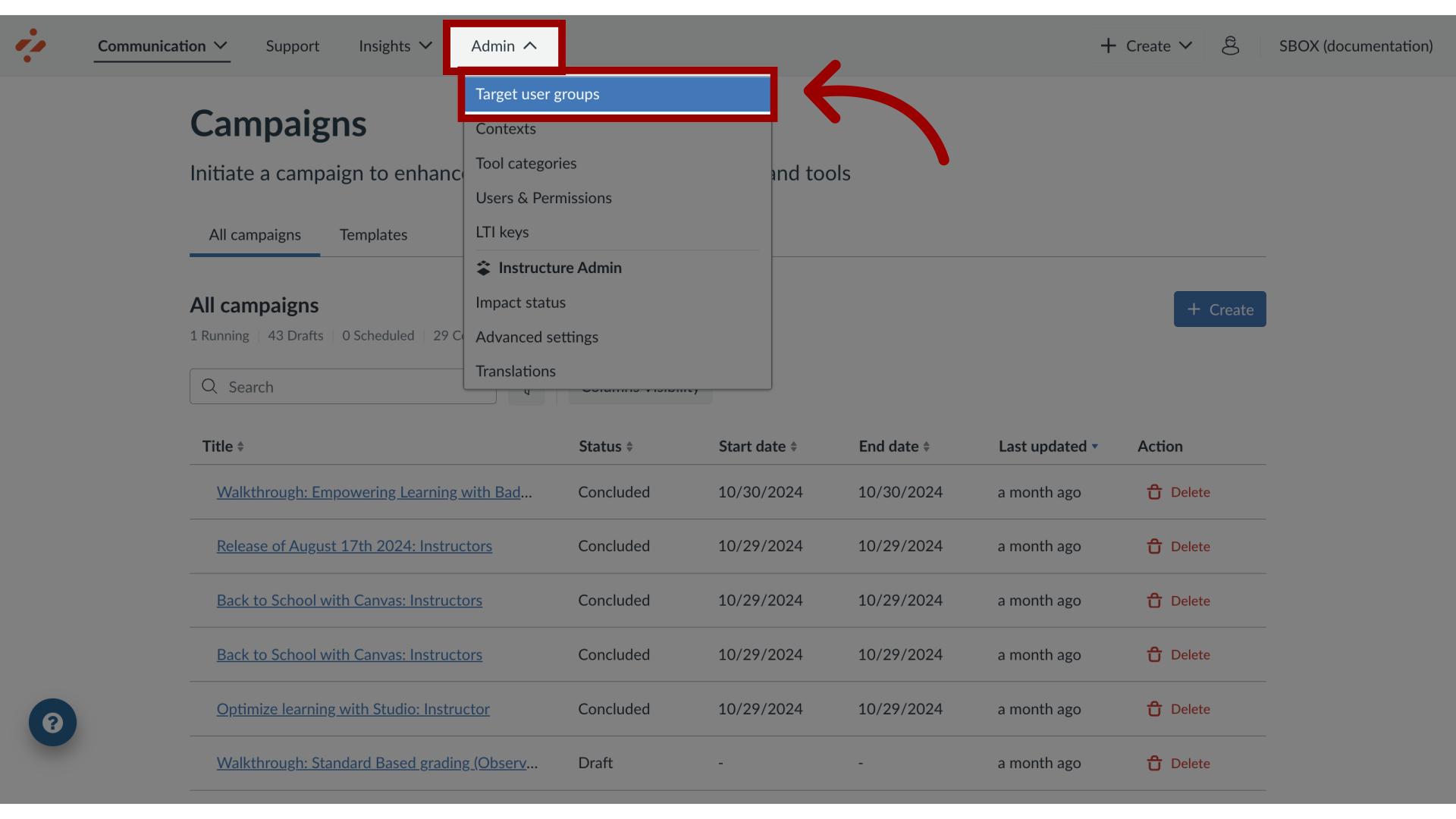
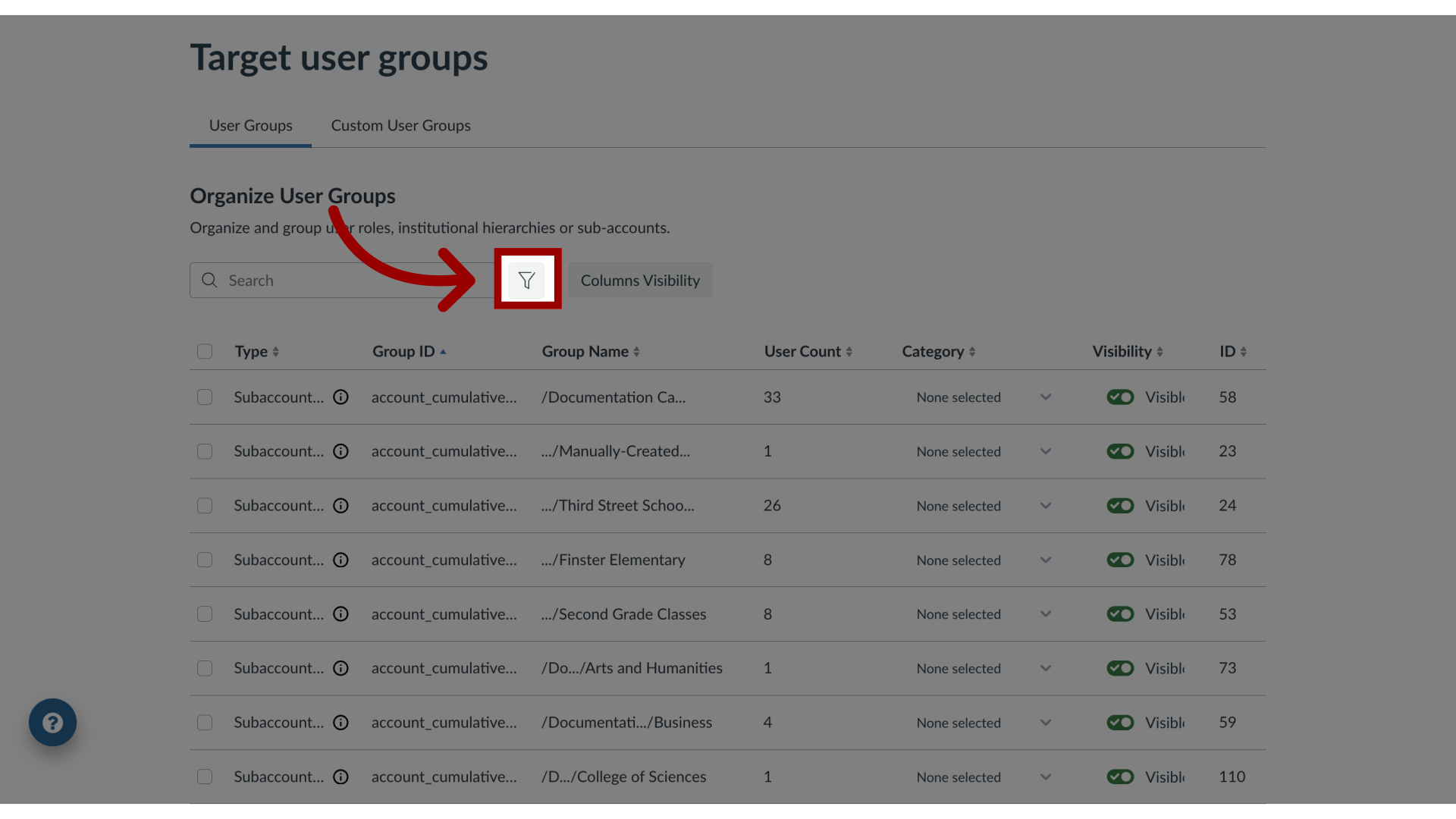
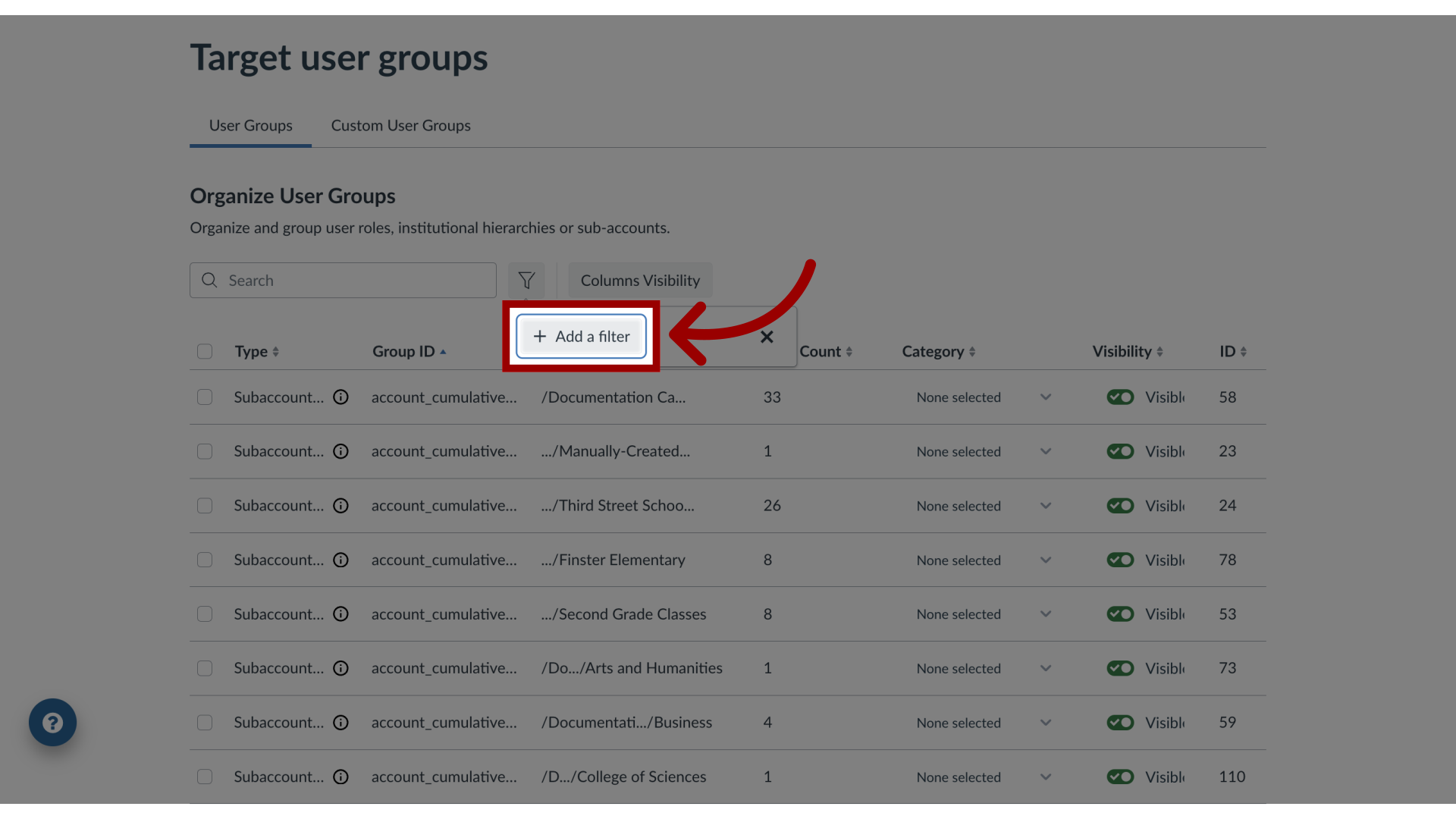
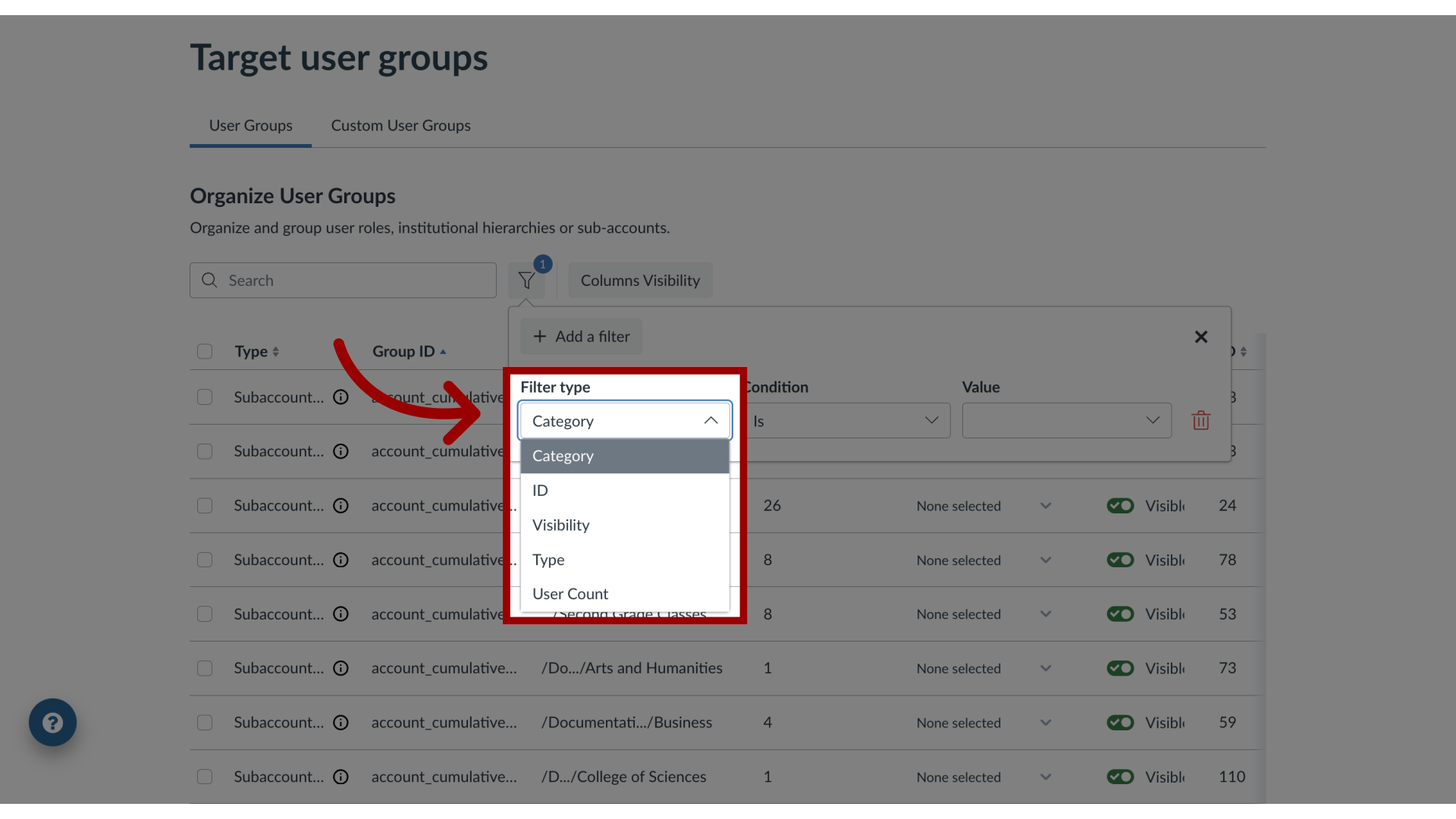
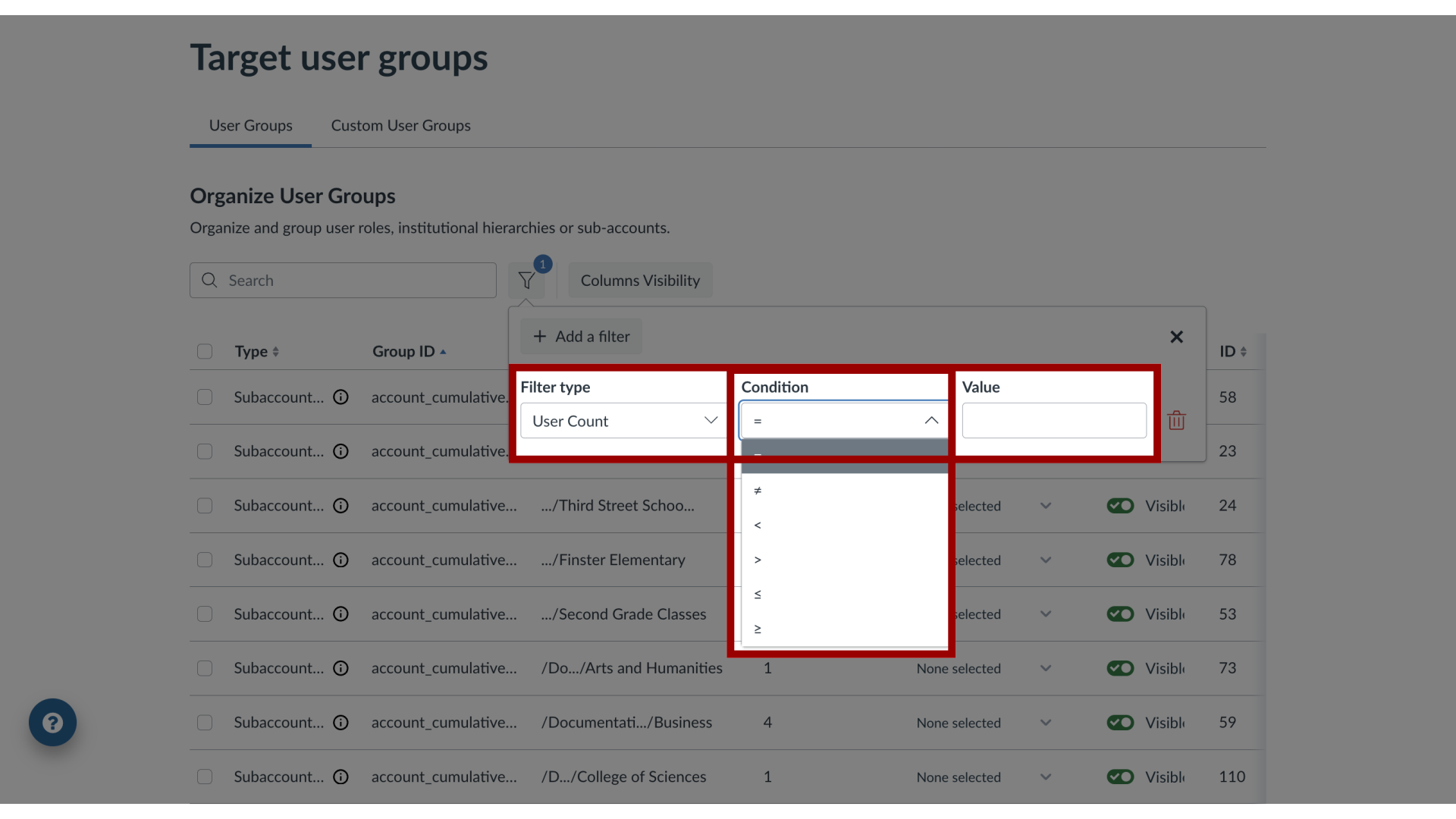
You can use the User Groups filters to view all relevant filters and conditions that Impact has registered from your learning application.What are the User Groups filters?1. Open User GroupsIn Global Navigation, click the Admin dropdown menu. Then click the Target User Groups link. The User Groups tab displays a list of all of the roles registered within the Impact system.2. Open FiltersTo search based on a combination of criteria, click the Filters icon.3. Add a FilterTo add a new filter, click the Add a filter button.4. Select Filter TypeTo select a filter type, click the Filter type drop-down. Filter Types include Category, ID, Visibility, Type, and User Count.5. Category FilterThe Category filter conditions include Is, Is not, Has any, and Has none. After adding a condition, select the value.6. ID FilterThe ID filter conditions include math conditions. After adding a condition, select the value.7. Visibility FilterThe Visibility filter conditions include Is and Is not. After adding a condition, select the value.8. Type FilterThe Type filter conditions include Is and Is not. After adding a condition, select the value.9. User Count FilterThe ID filter conditions include math conditions. After adding a condition, select the value.