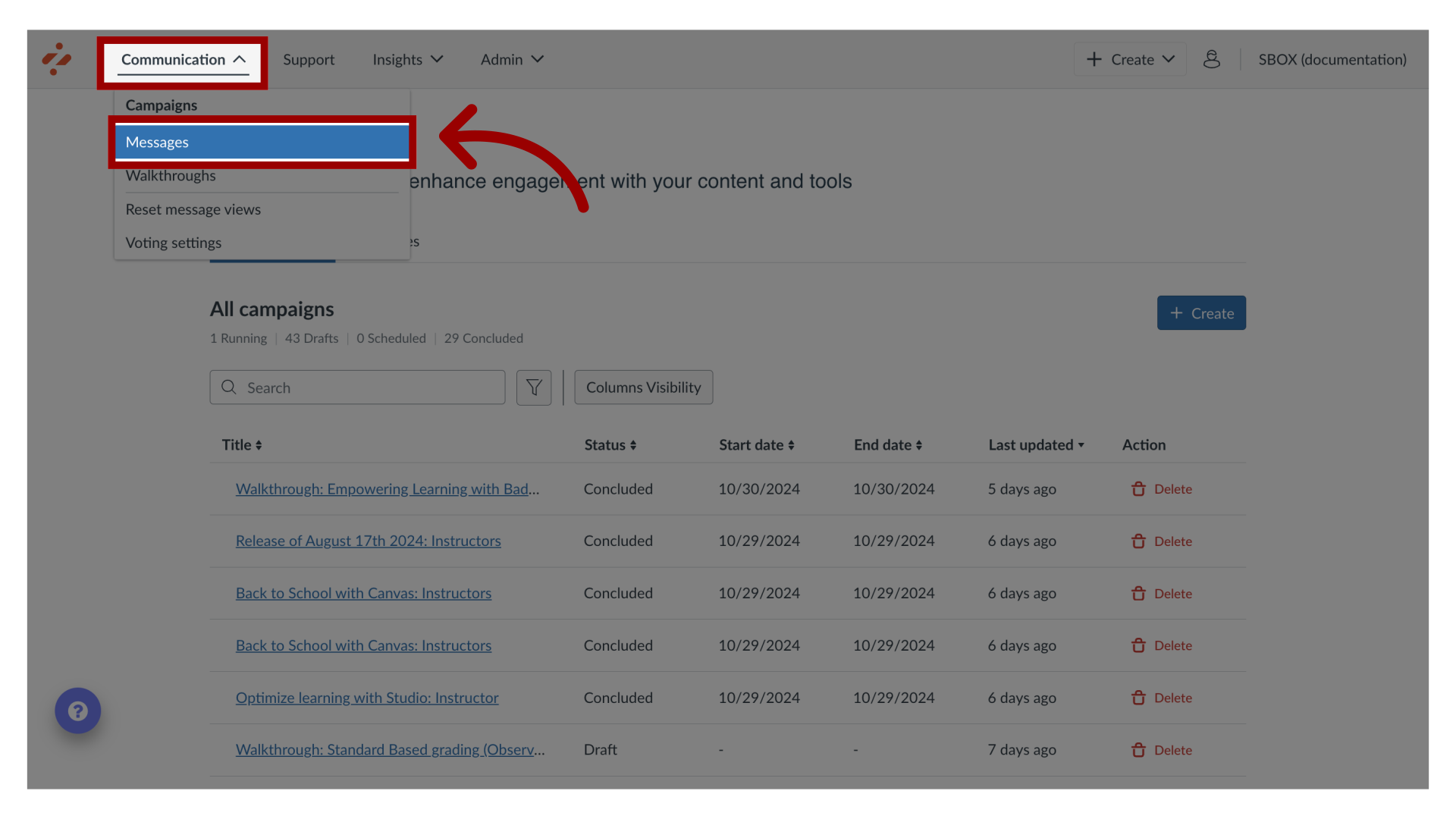
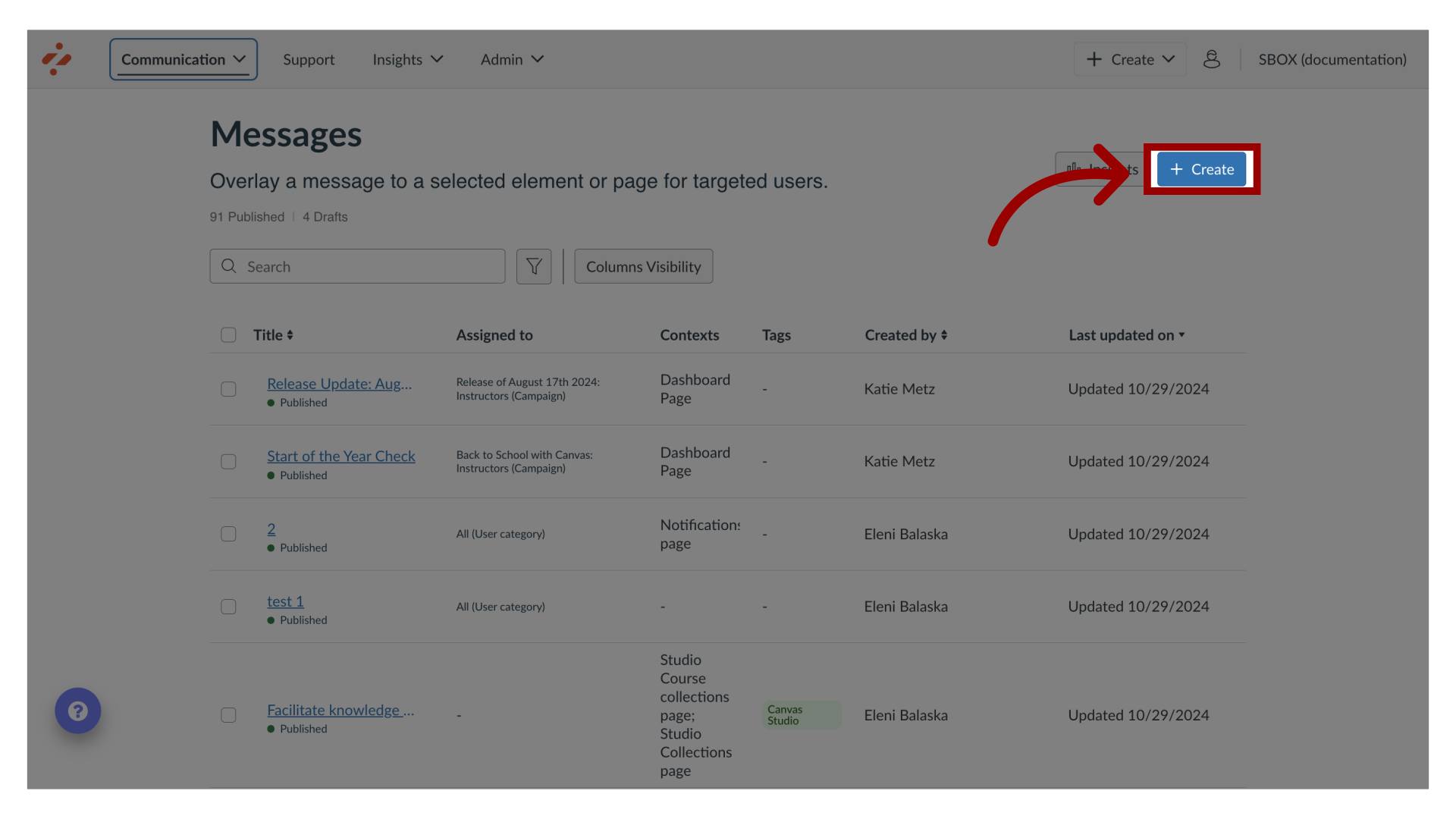
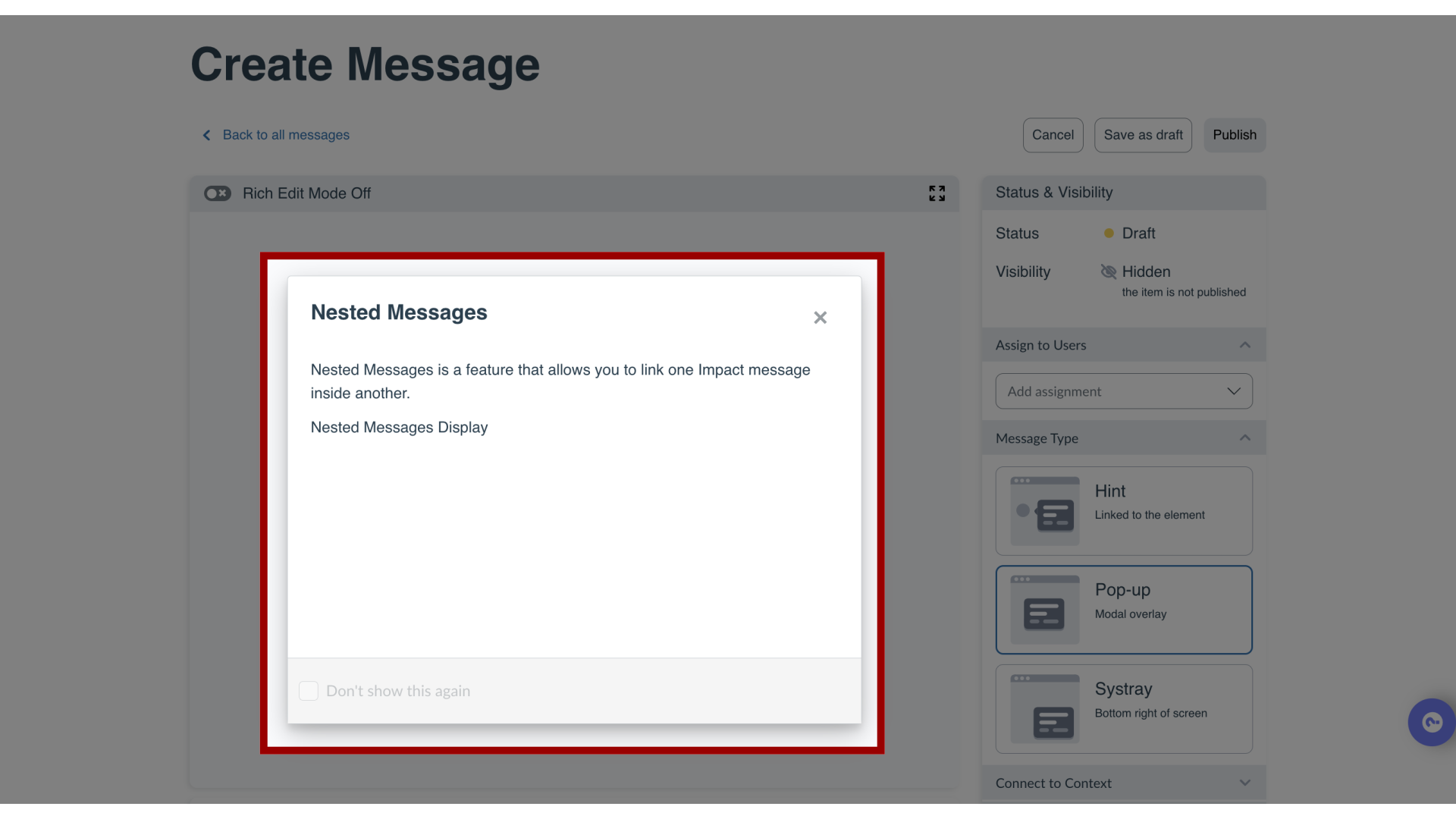
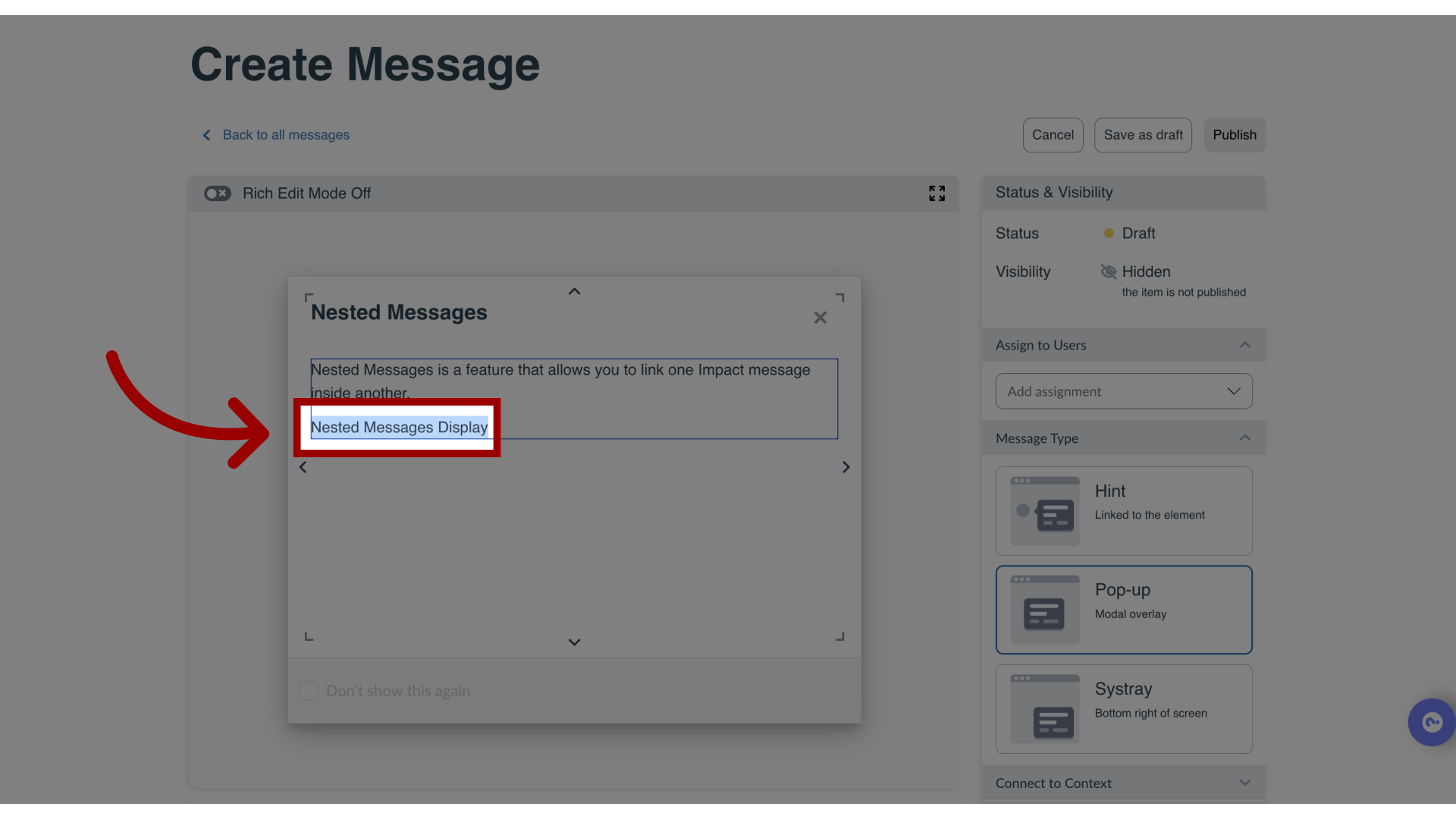
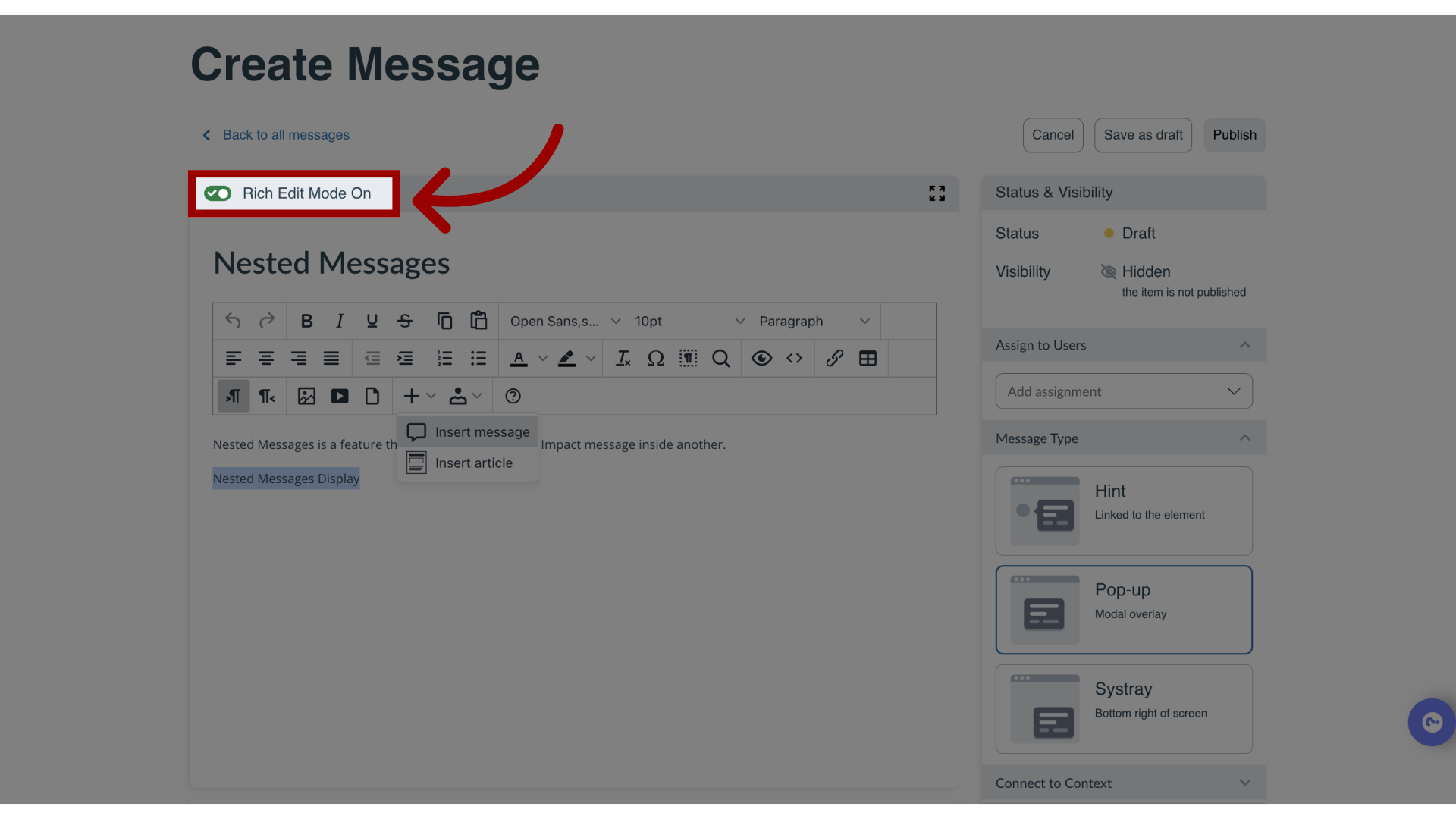
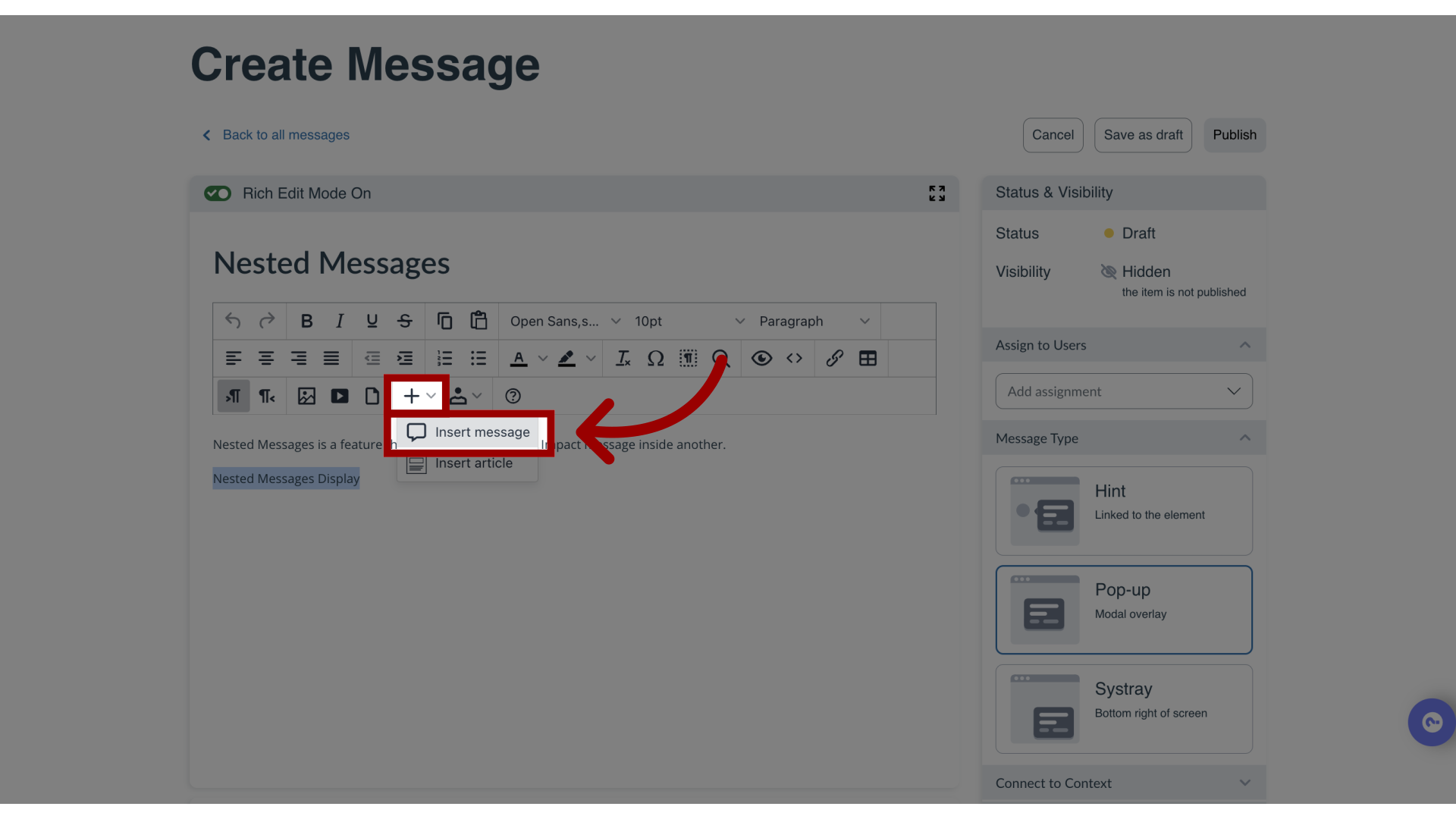
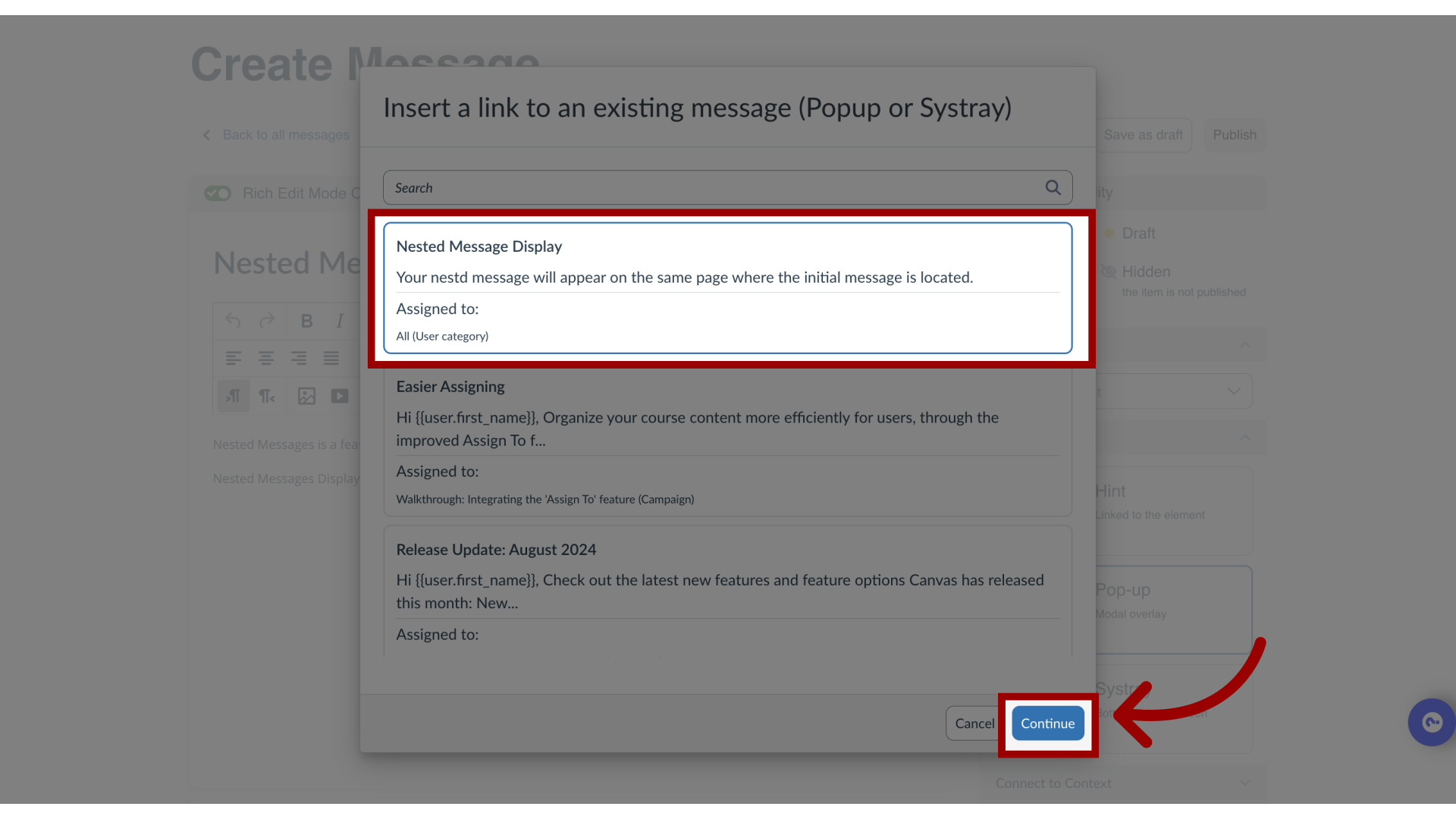
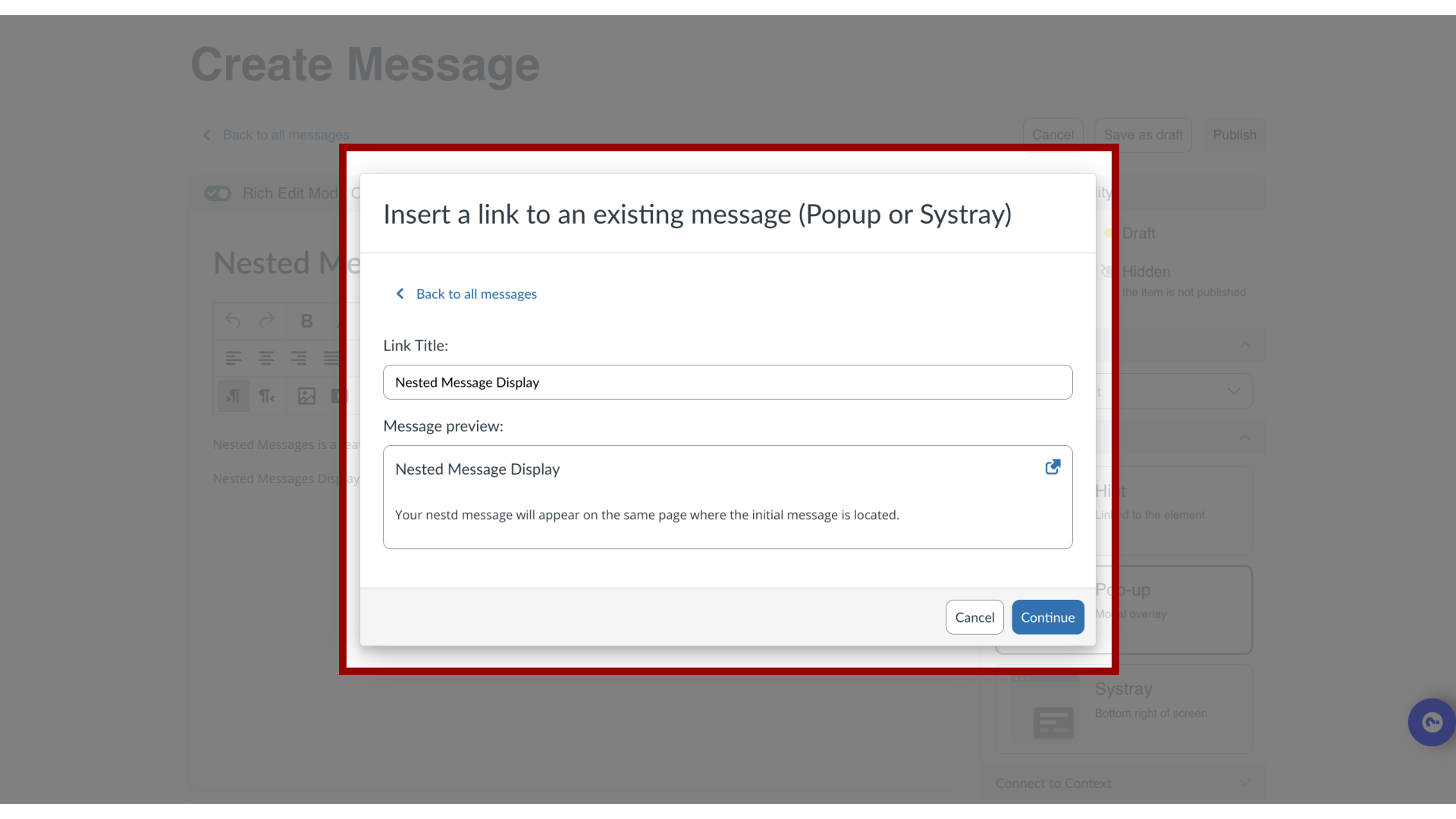
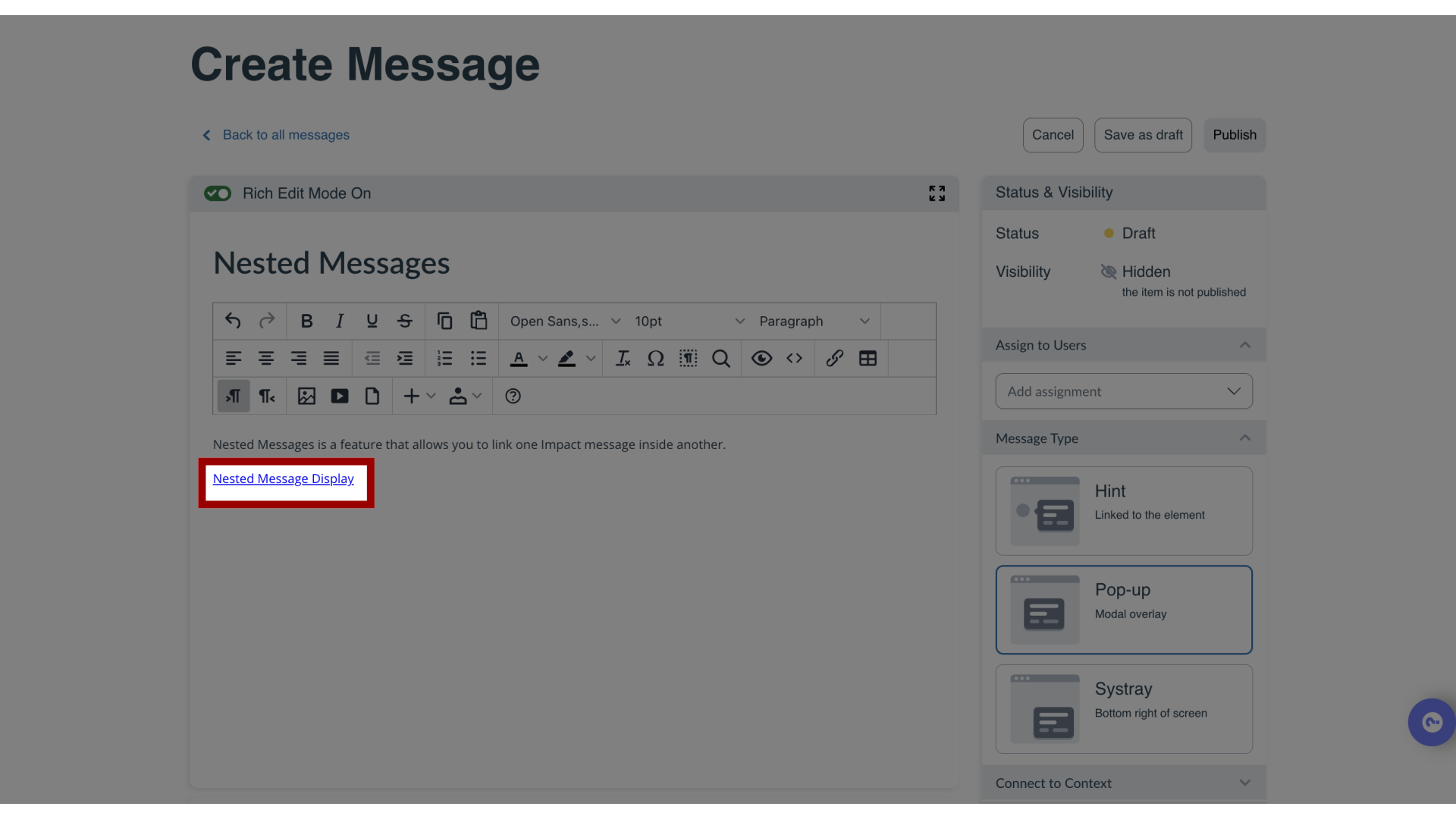
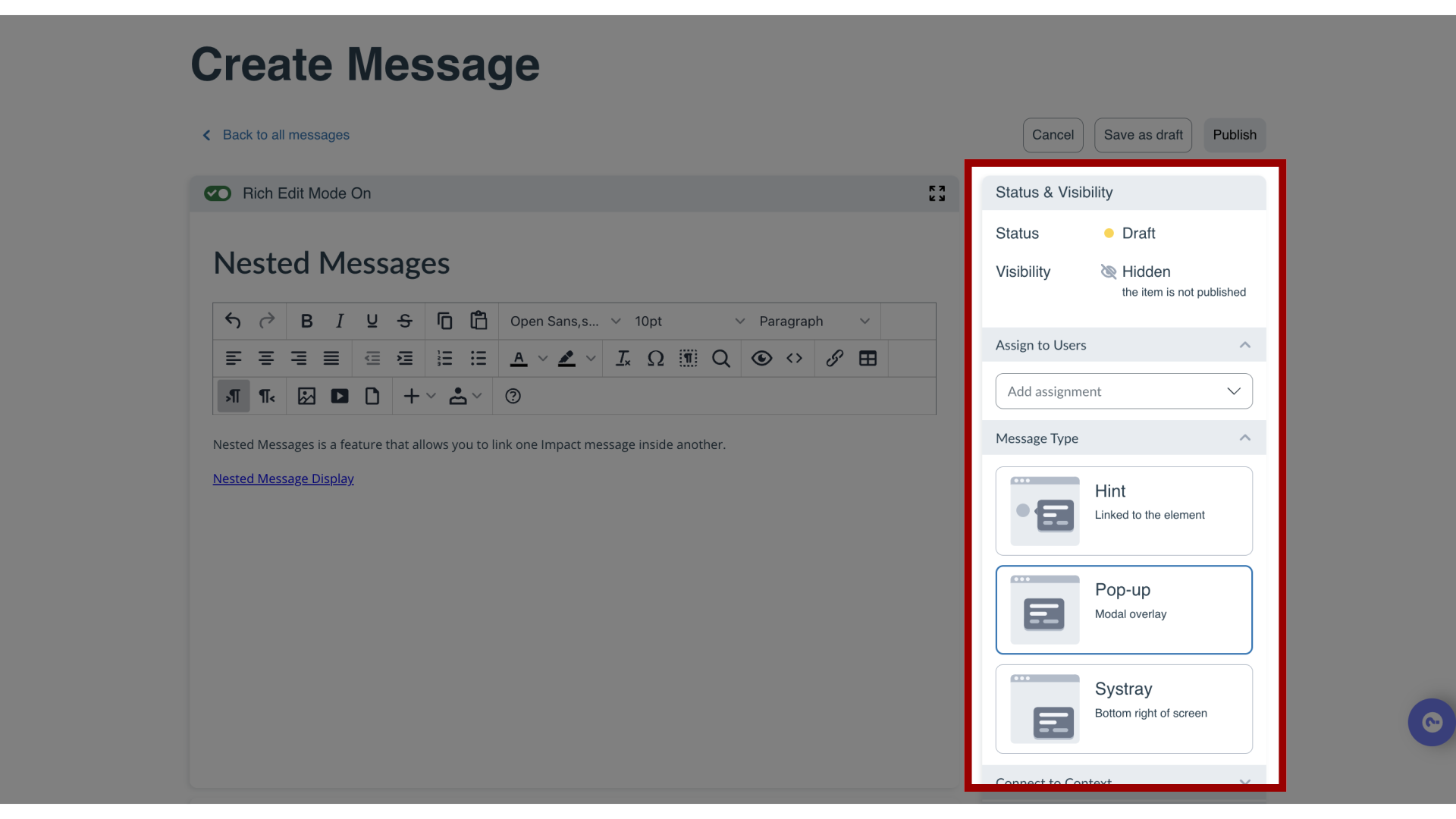
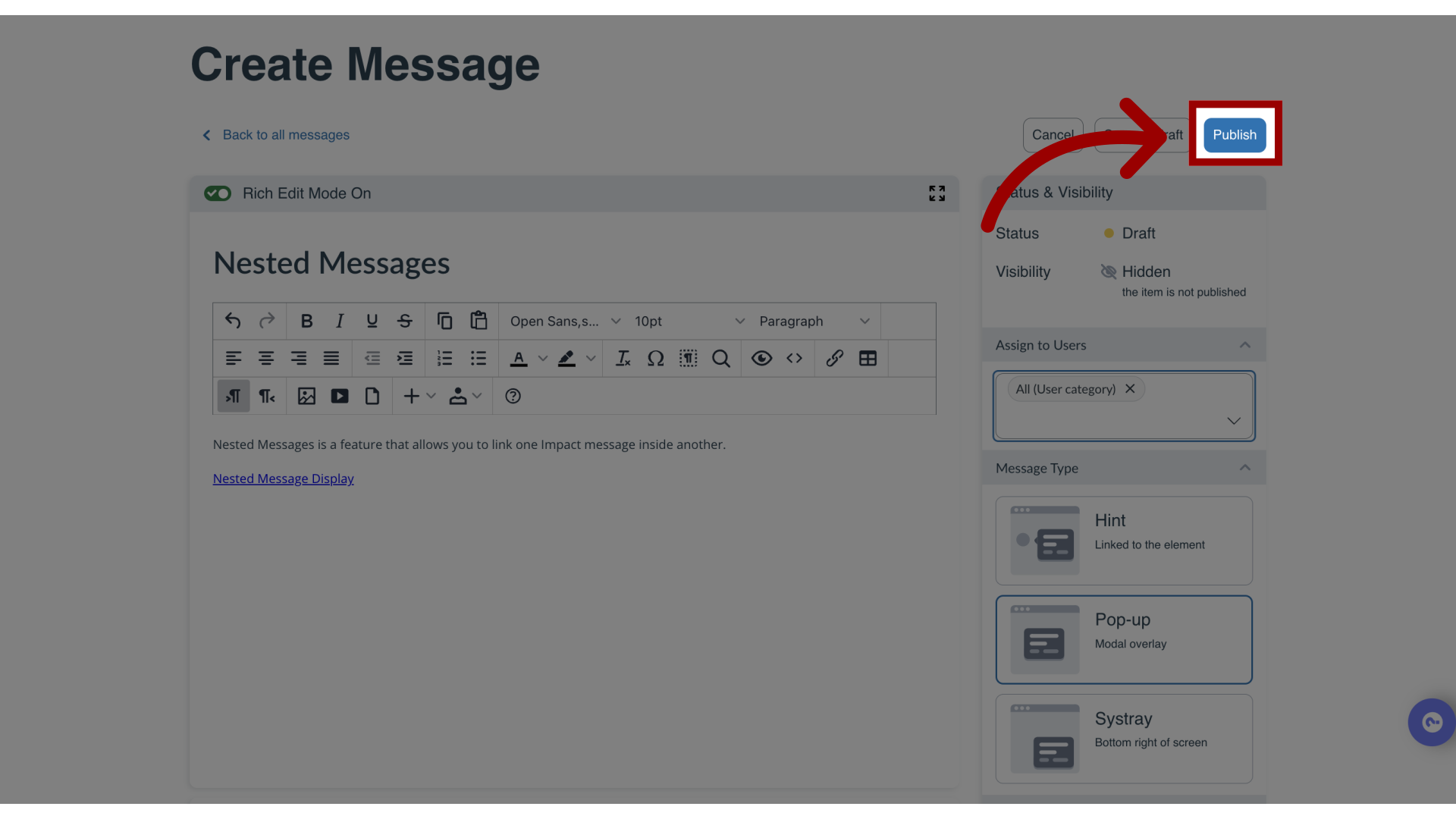
You can use the Impact Dashboard to add a nested message to a message to view in your Learning Management System.Note: For more information on nested messages, visit What are nested messages?How do I add a nested message to a message in the Impact Dashboard?1. Open MessagesIn Global Navigation, click the Communication dropdown menu. Then click the Messages link.2. Create New MessageClick the Create button.3. Create Message Create the initial message that will display the desired nested message. Nested messages need to be Systray Messages or Pop-up Messages.4. Highlight Text for Nested Message Select the text you want to attach with the nested message.5. Enable Rich Edit ModeClick the Rich Edit Mode toggle to enable the Rich Content Editor.6. Insert Nested MessageClick the Insert button and then click the Insert Message button.7. Select Nested MessageSelect the message to link to the existing message. Then click the Continue button.8. Preview Nested MessagePreview the Link Title and Message preview. Then click the Continue button.9. Nested Message Linked Your nested message is linked within the initial message.10. Edit Message SettingsIn the sidebar of the create message page, select your message settings. Nested messages do not require a context to be connected to them but they must be assigned to the same user group as the original message and published to function correctly.11. Publish MessageClick the Publish button.