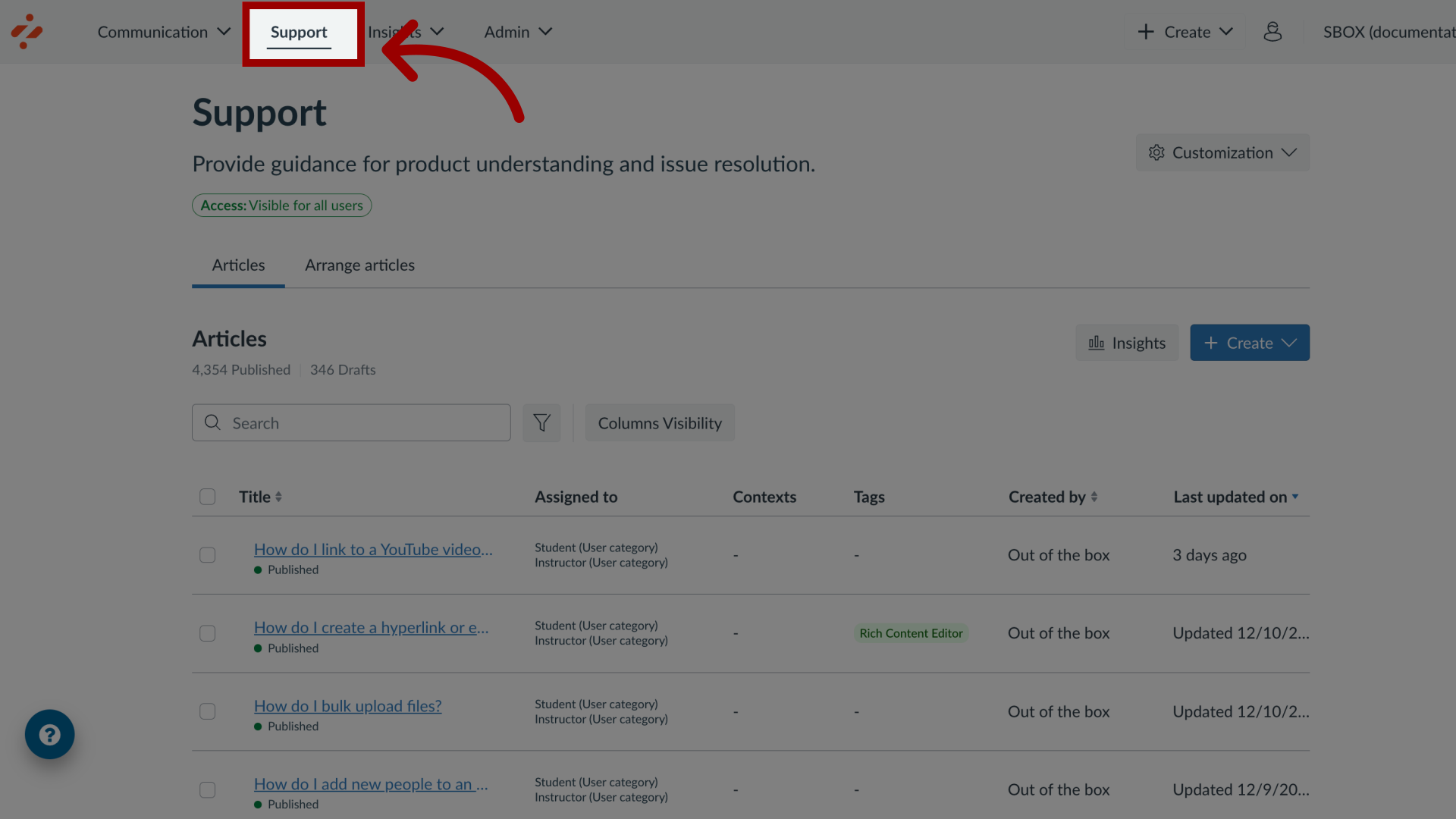
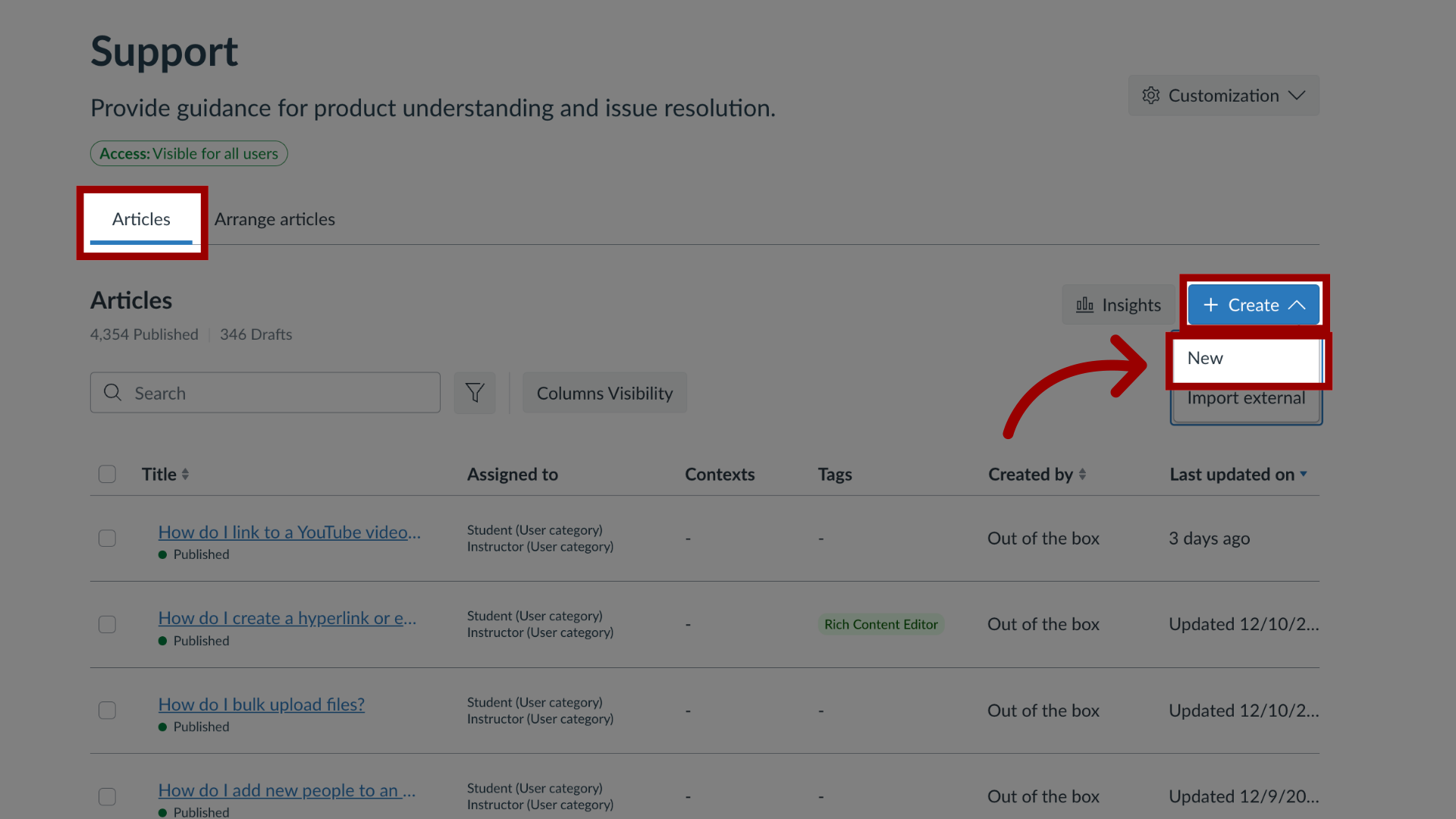
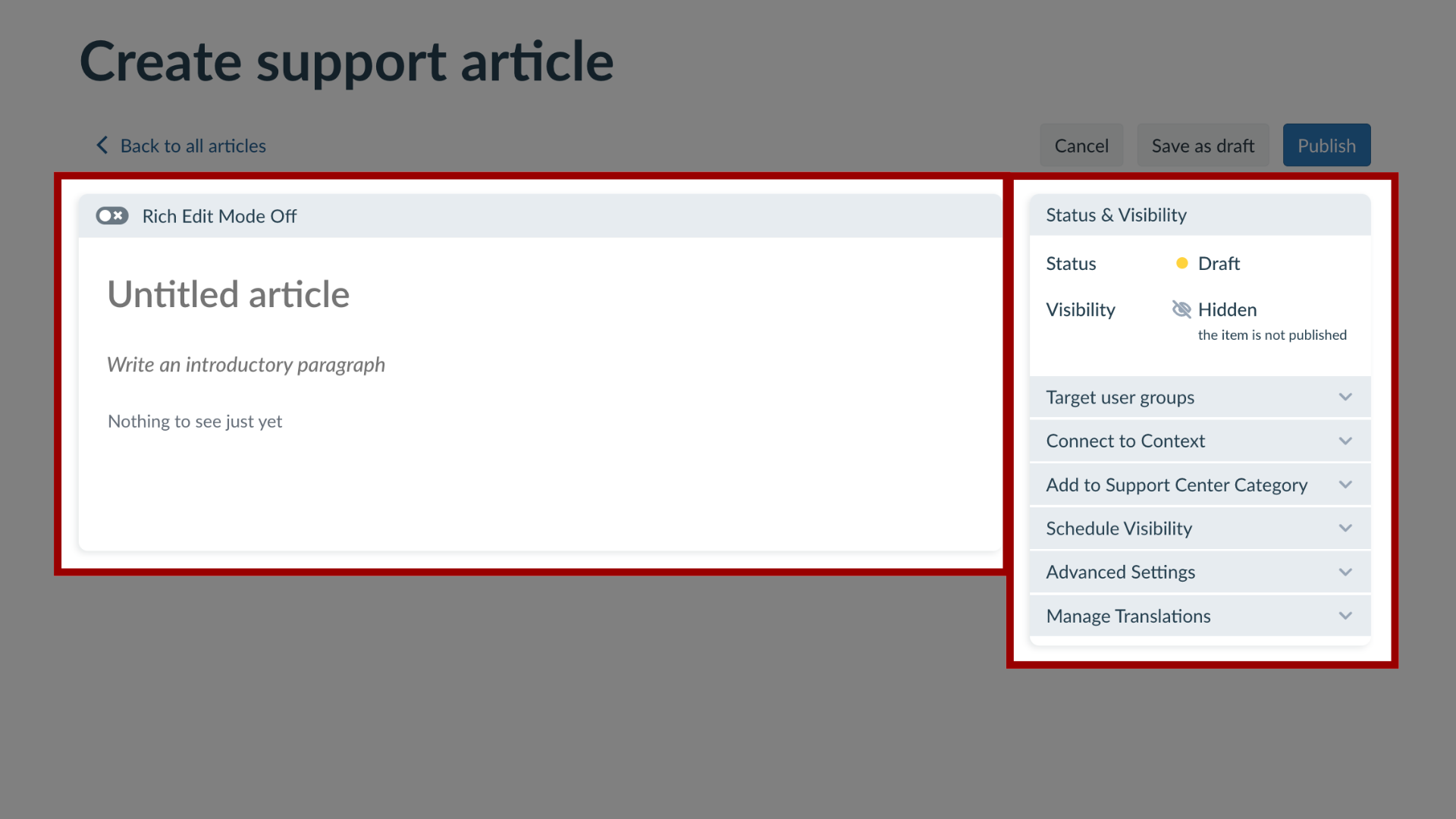
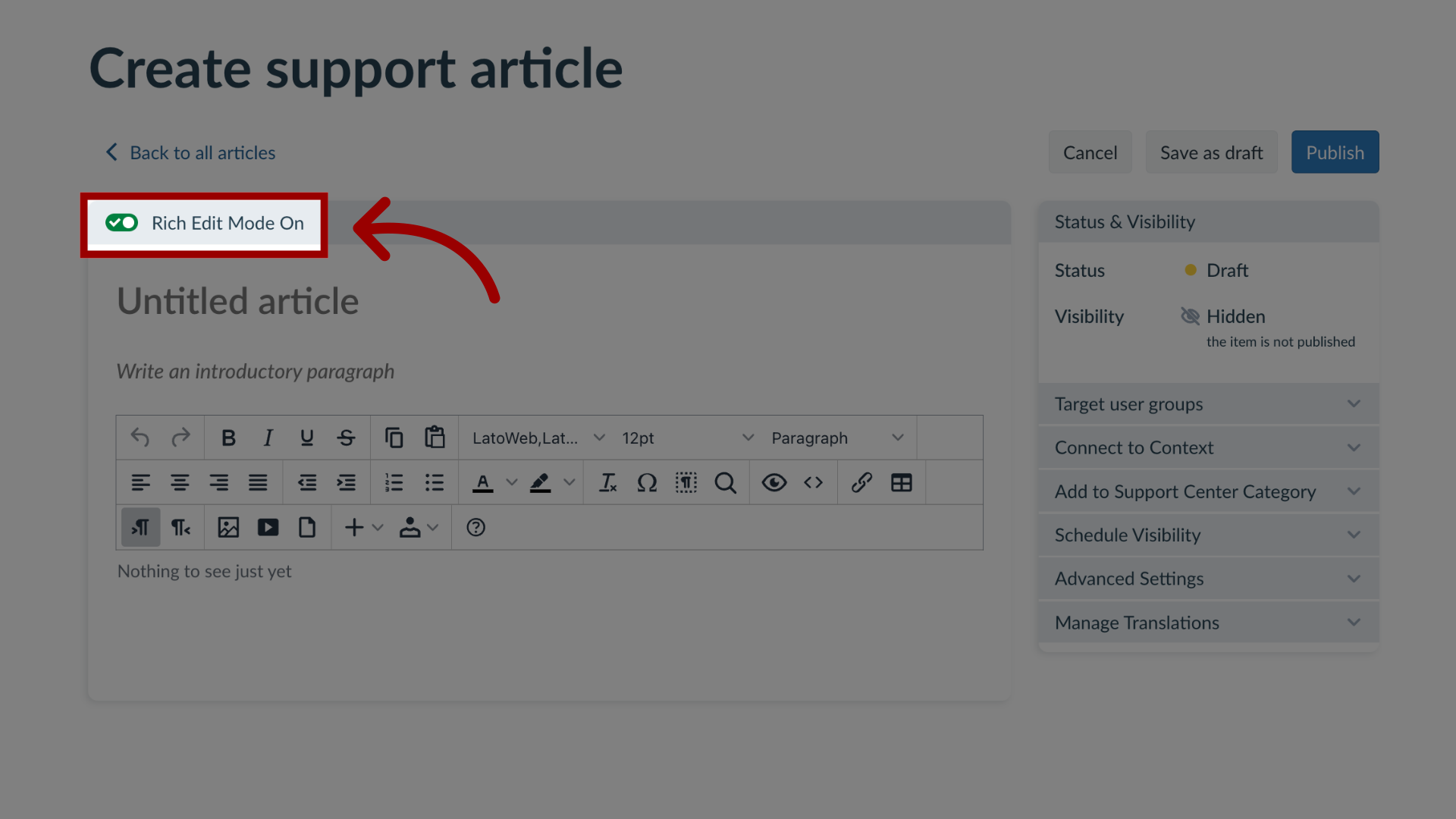
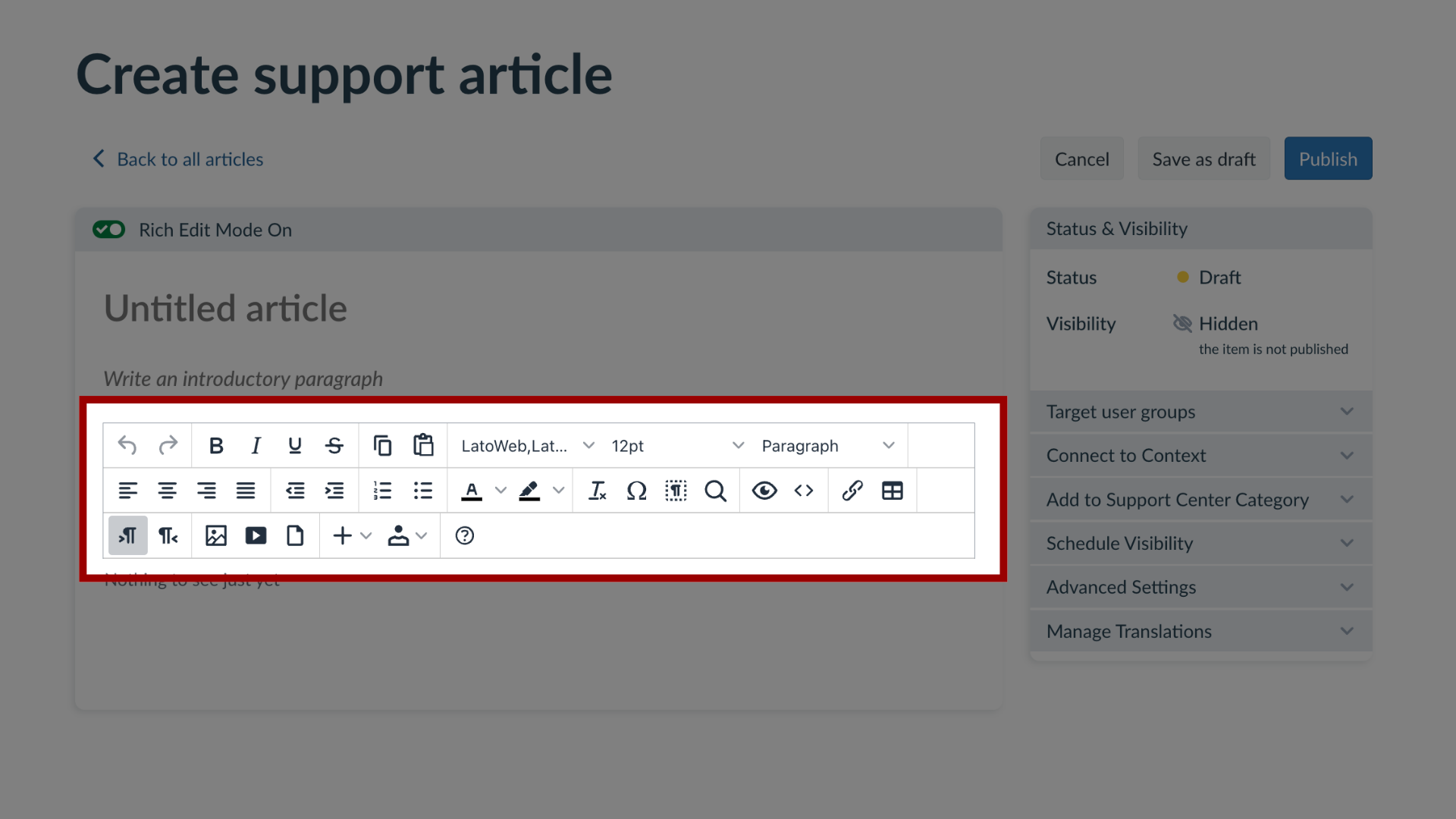
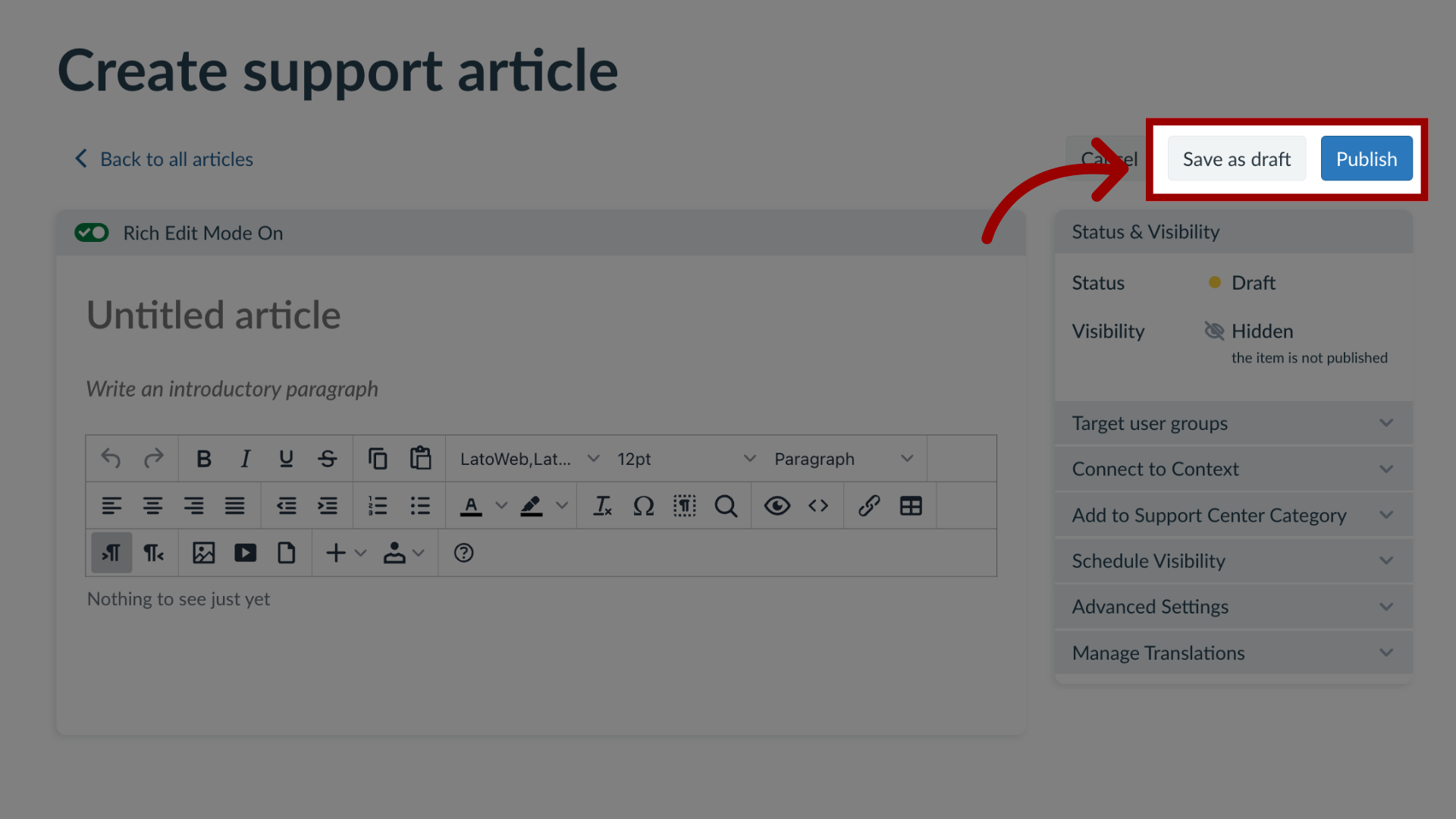
With Impact, you can add rich content to your messages and support articles, such as images, videos, and documents. How do I add rich content to a support article in the Impact Dashboard?1. Open SupportIn Global Navigation, click the Support link.2. Create New Support ArticleIn the Articles tab, to create a new article, click the Create drop-down button and click the New link.3. Add Article ContentTo add a title, introductory paragraph, and content, start typing in the article content box. In the sidebar, you can edit article settings.4. Enable Rich Edit ModeTo add rich content, click the Rich Edit Mode On toggle button.5. Add Rich ContentYou can insert the following content types: Ordered list (numbers) Unordered list (bullet points) Table Image External Media (YouTube links or iframes) Documents (PDF, Word, Powerpoint) Links to other messages or support articles Personalization tokens6. Publish ArticleThe Save as Draft button will create a draft of your support article so you can publish it later. If you would like to make it visible, click the Publish button.