Institutional Hierarchy is a hierarchy management interface that allows you to create groups to organize your institution's multiple schools, departments, academic programs, and courses.
Open Blackboard System Admin
To enable the Institutional Hierarchy, you need to be within an admin account on Blackboard.
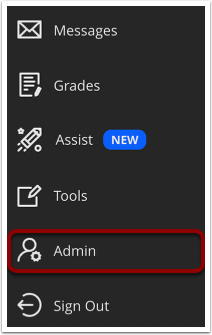
Within Blackboard, navigate to and click the Admin link.
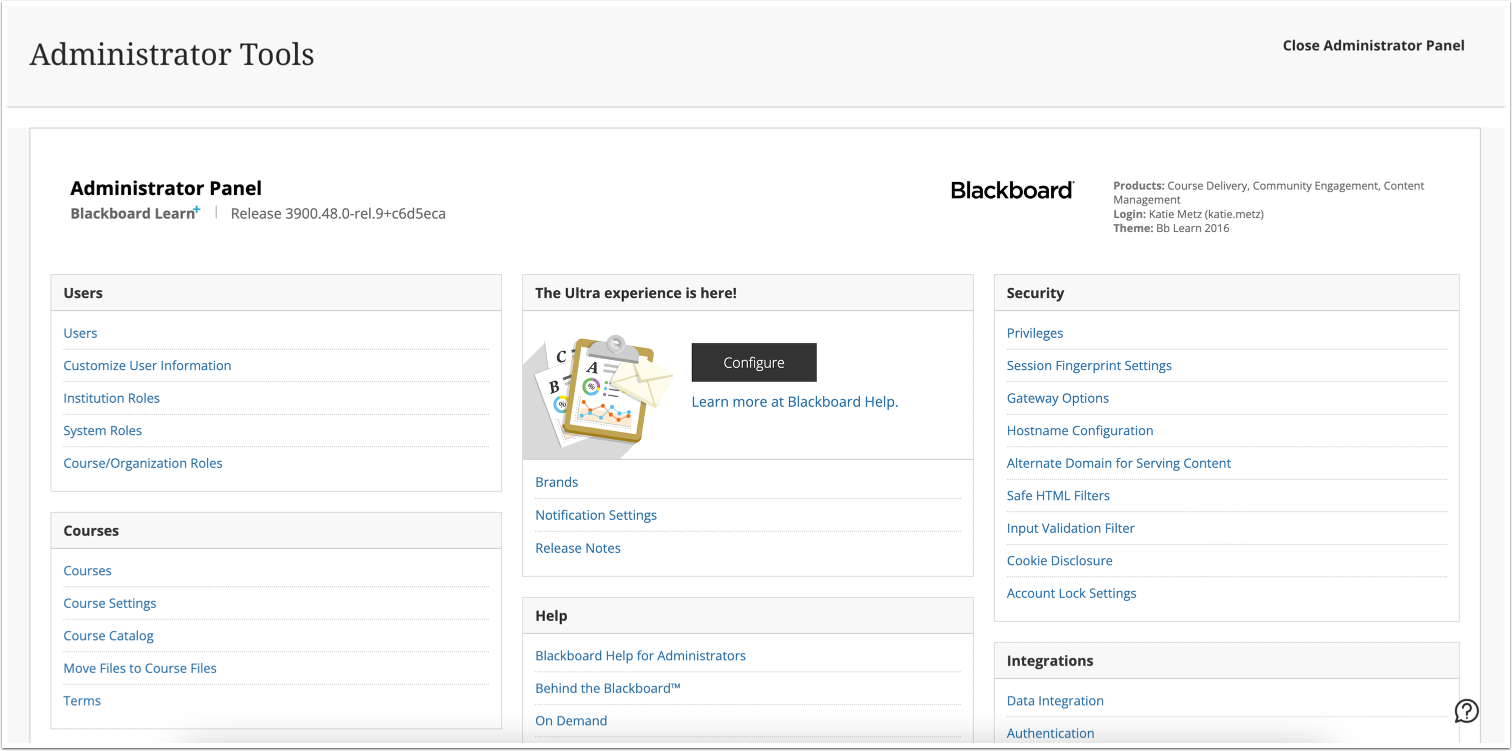
View Administrator Panel
View the Administrator Tools page.
Open System Roles
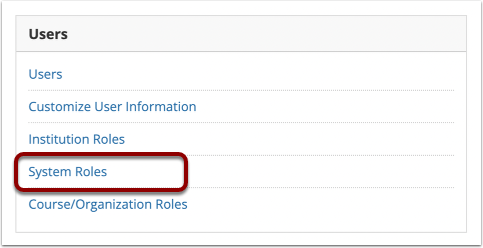
Scroll and navigate to Users.
Click the System Roles link.
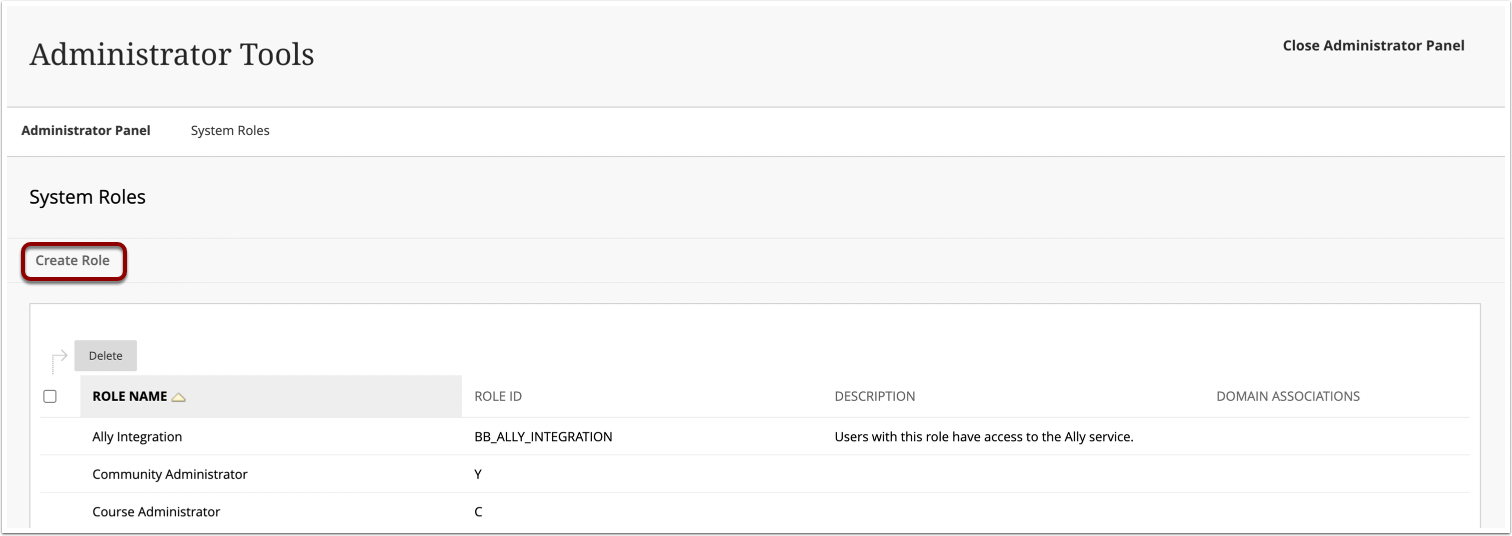
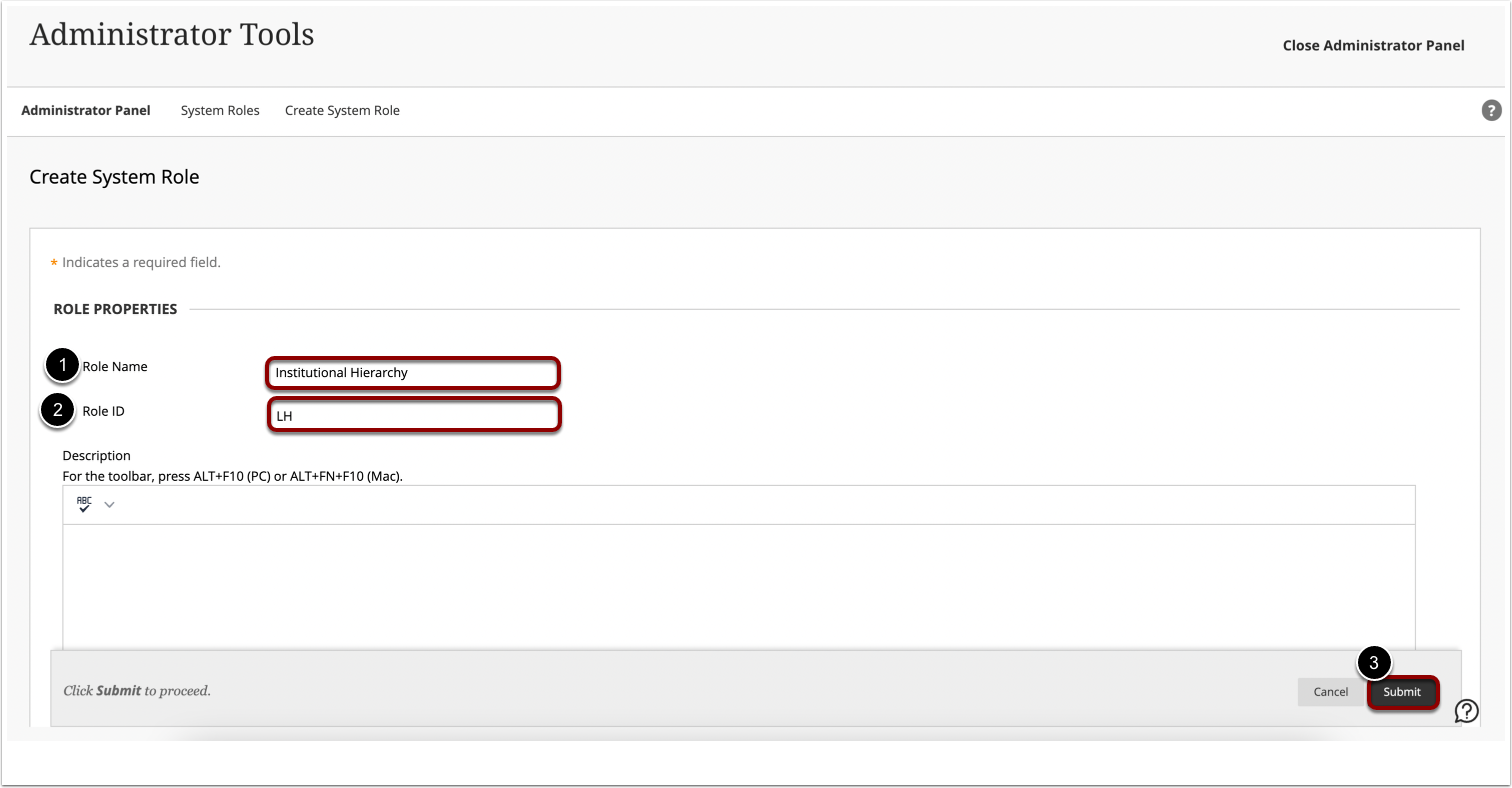
Create System Role
Click the Create Role link.
Add Role Properties
Enter the Role Name [1] and Role ID [2].
Click the Submit button [3].
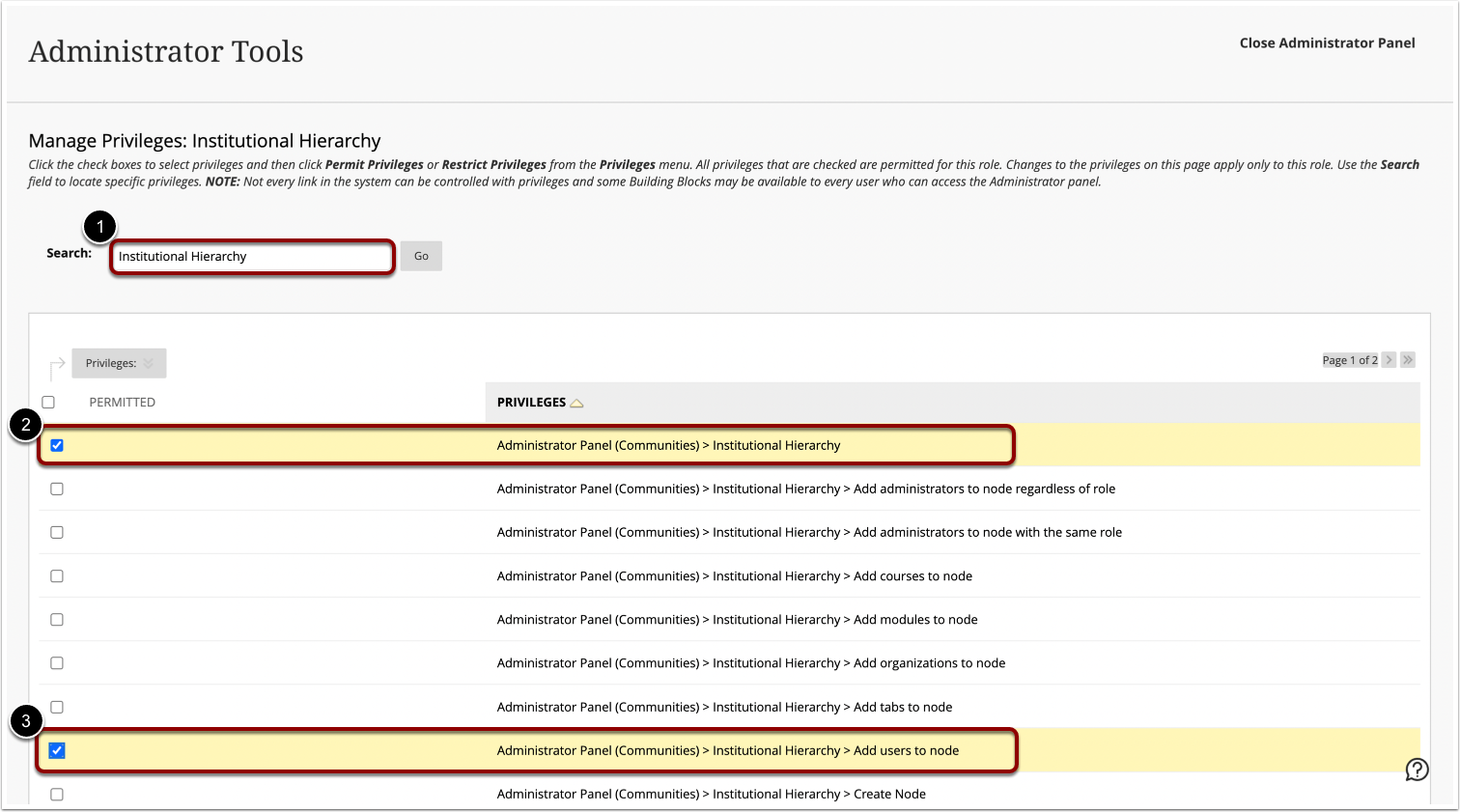
Manage Privileges
Search for keyword 'Institutional Hierarchy' [1].
Select the checkbox for Administrator Panel (Communities) > Institutional Hierarchy [2] and Administrator Panel (Communities) > Institutional Hierarchy > Add users to node [3] privileges.
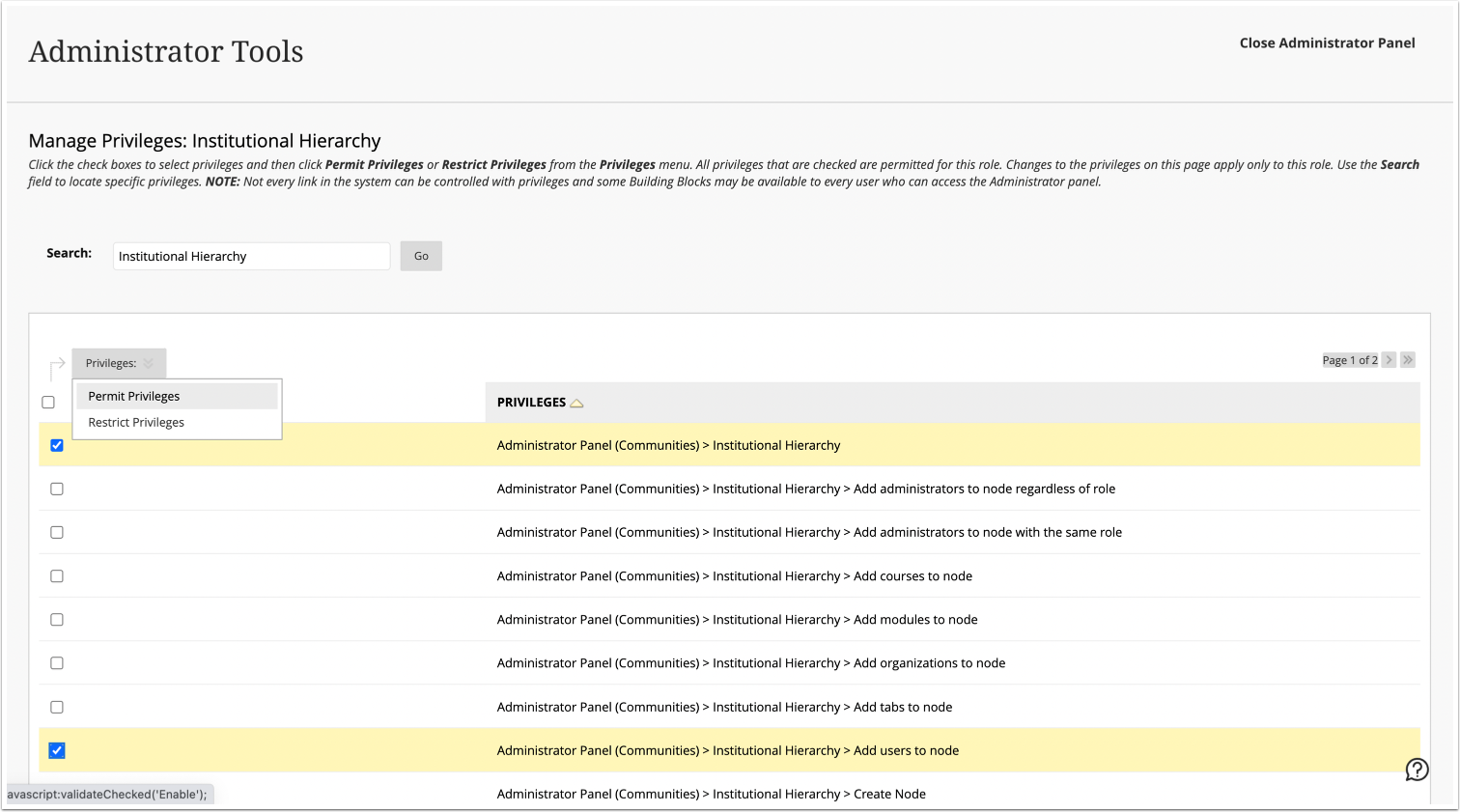
Hover over Privileges [1] and select Permit Privileges [2].
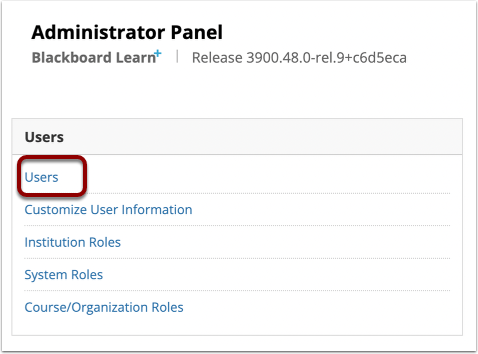
Open Users
Navigate to Administrator Panel. Click the Users link.
Search Users
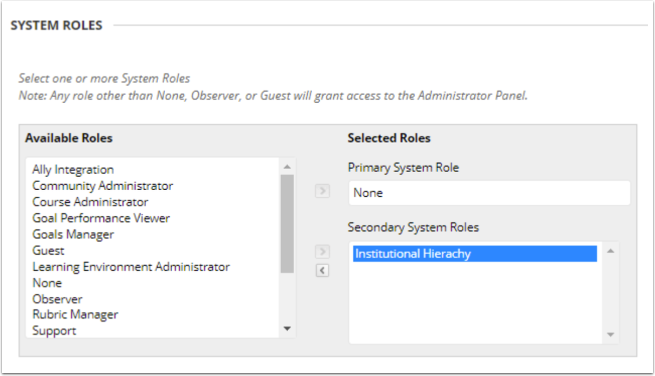
Add the new Institutional Hierarchy to the user.
Note: The user is the same as the Rest API Integration.