Open Users and Permissions
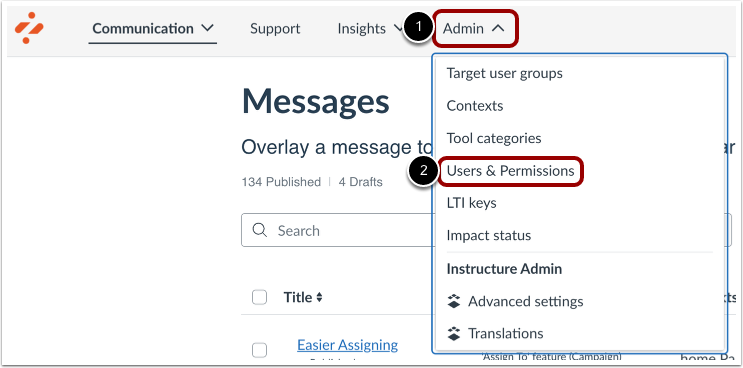
In your Impact dashboard, click the Admin link [1]. Then click the Users & Permissions link [2].
Open Feature Permissions
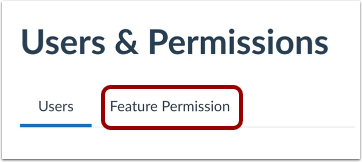
Click the Feature Permission tab.
Edit Custom Feature Permissions
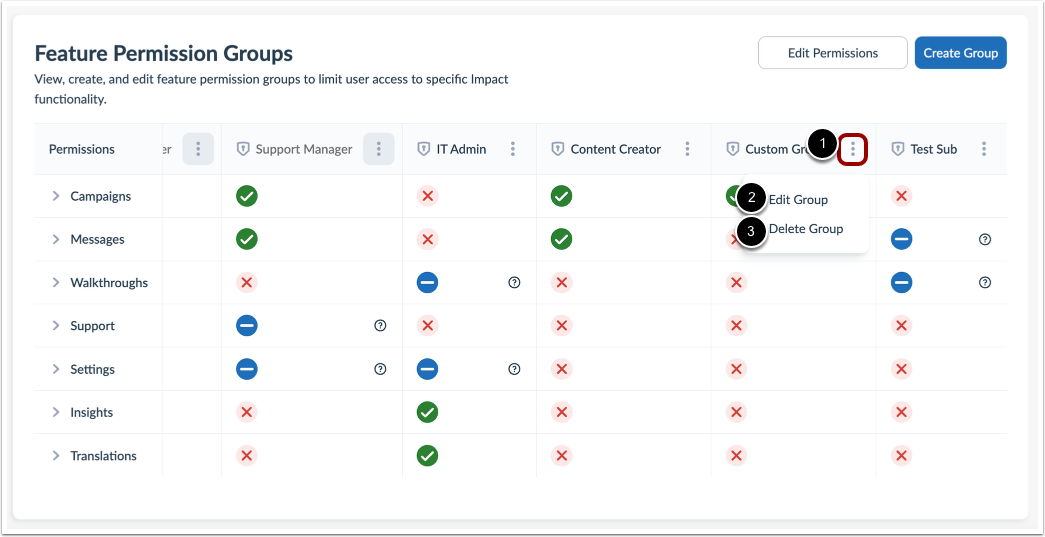
To edit a custom permission group, click the Options menu [1] and click the Edit Group link [2].
To delete a custom permission group, click the Delete Group link [3].
Edit Permissions Group
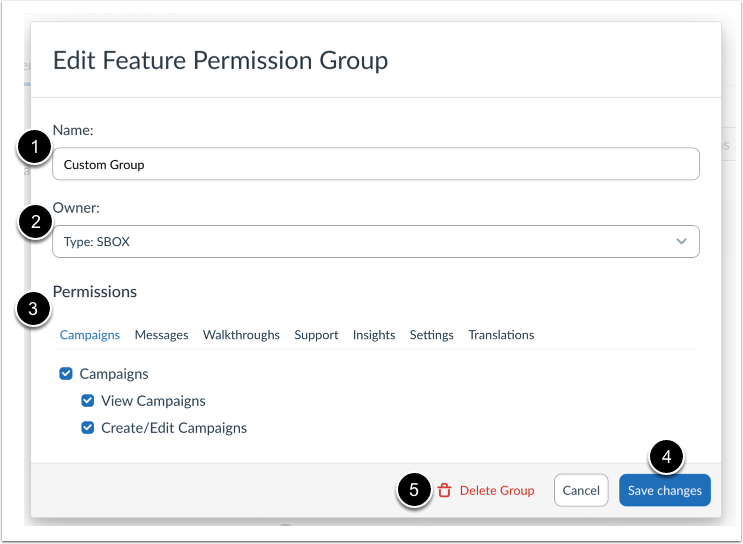
To edit a custom feature permission group, change the name [1] or change an owner [2].
You can switch between Campaigns, Messages, Support, Insights, and Settings permissions [3]. To customize the permissions more, you can select specific functions of the feature category.
Once you have finished creating a feature permission group, click the Save Changes button [4].
If you want to delete the custom group, click the Delete Group link [5].
View Permission Group
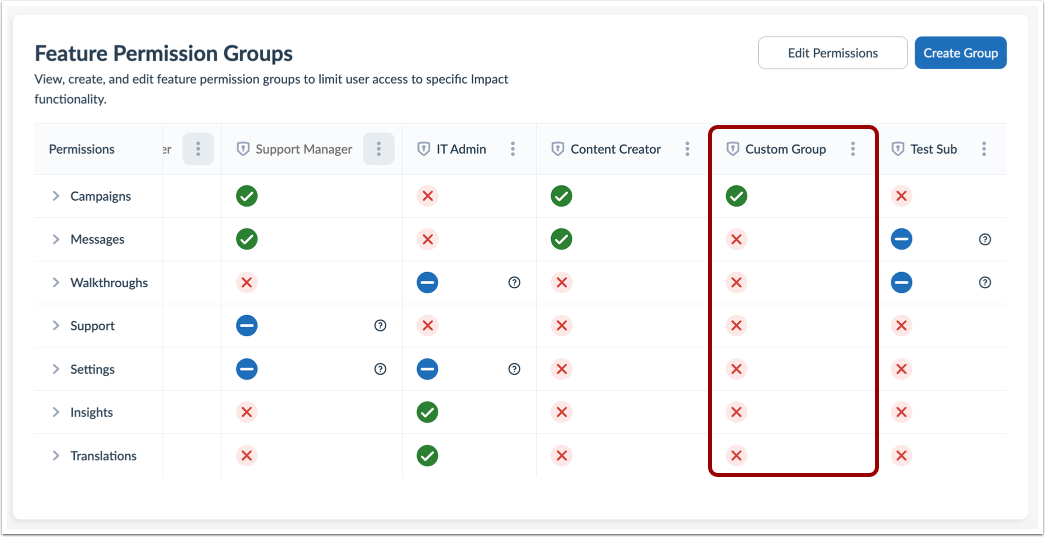
View your edited custom permission group with the configurations and access levels of the feature permissions group.