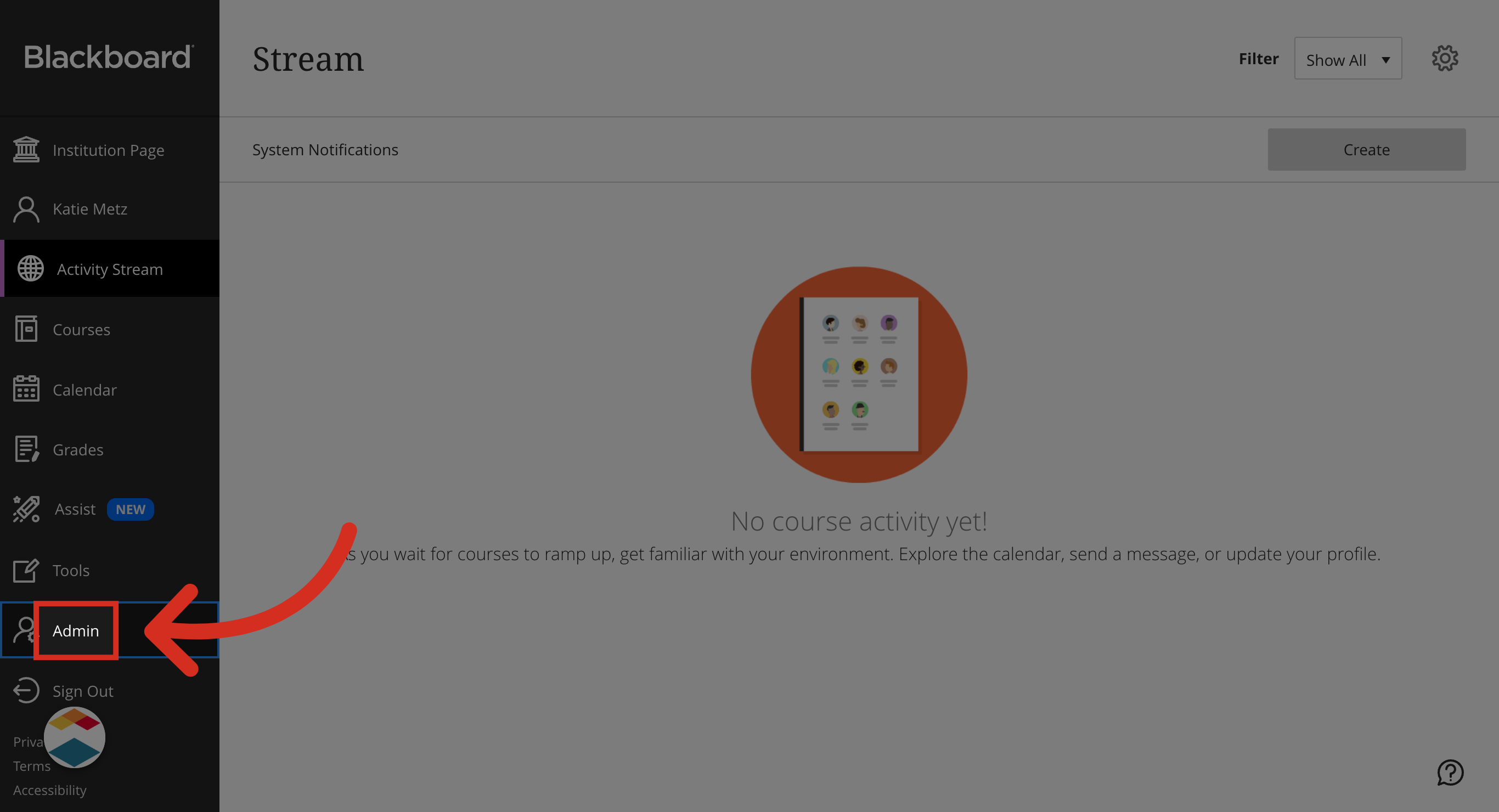
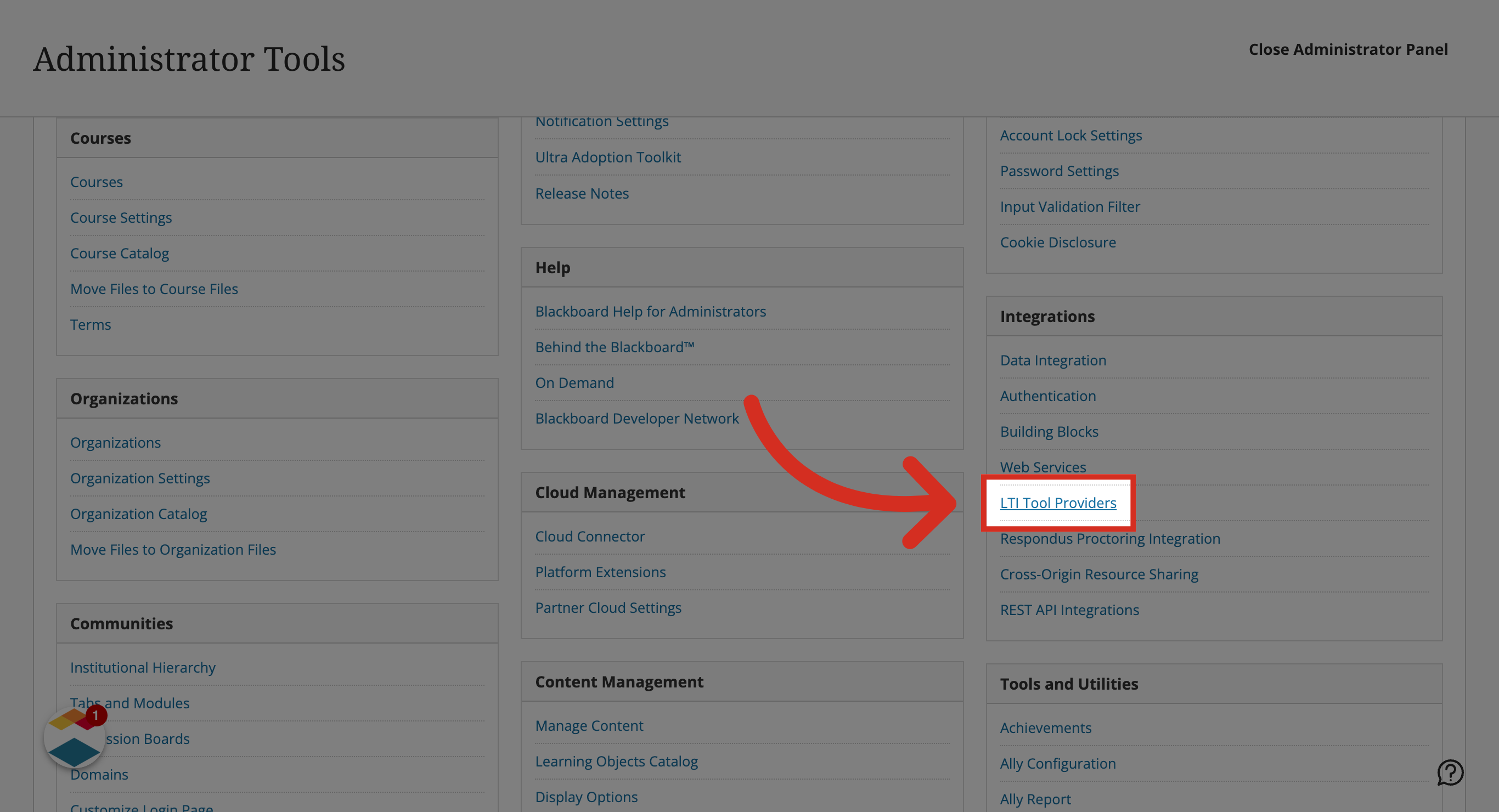
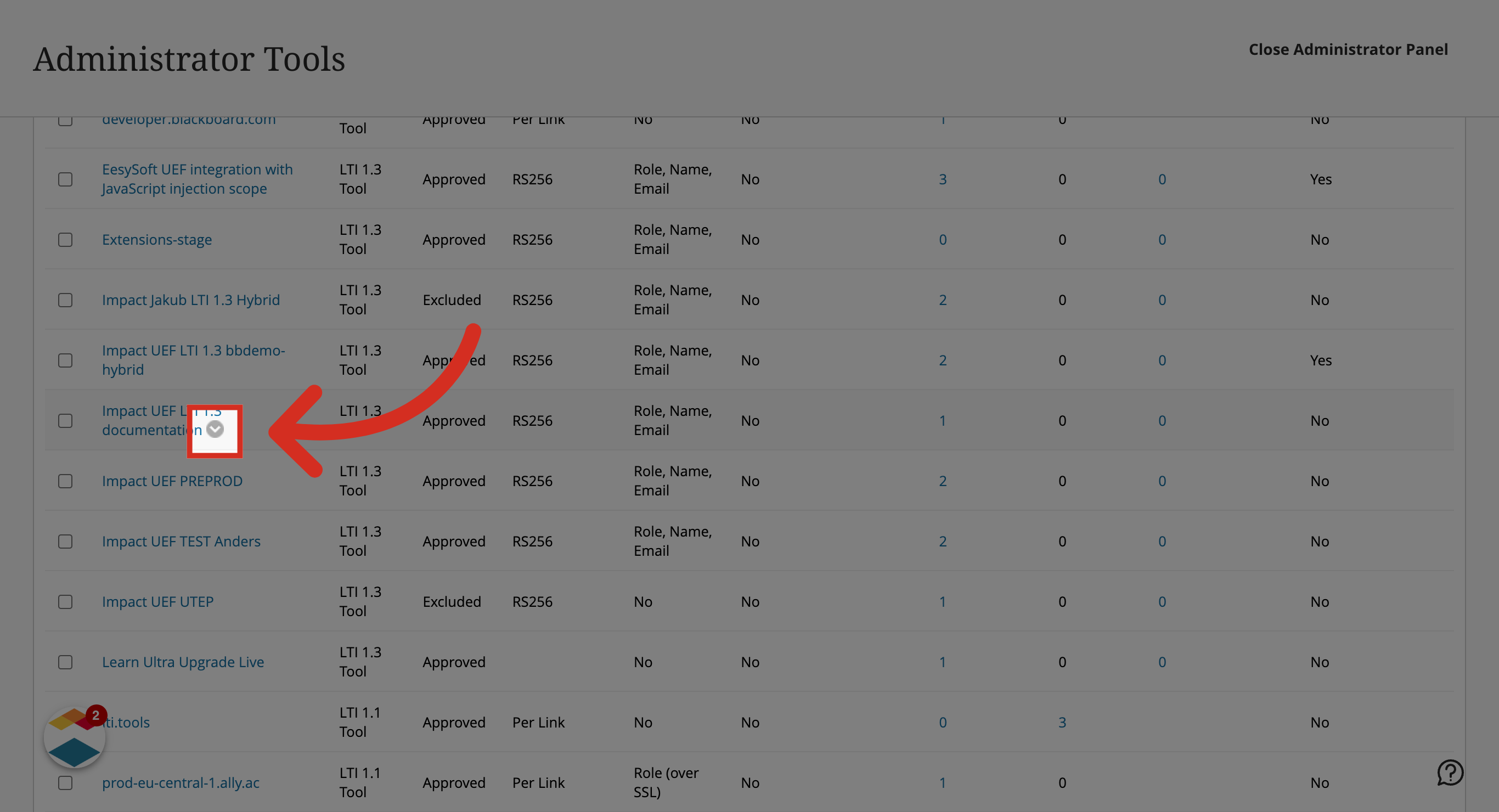
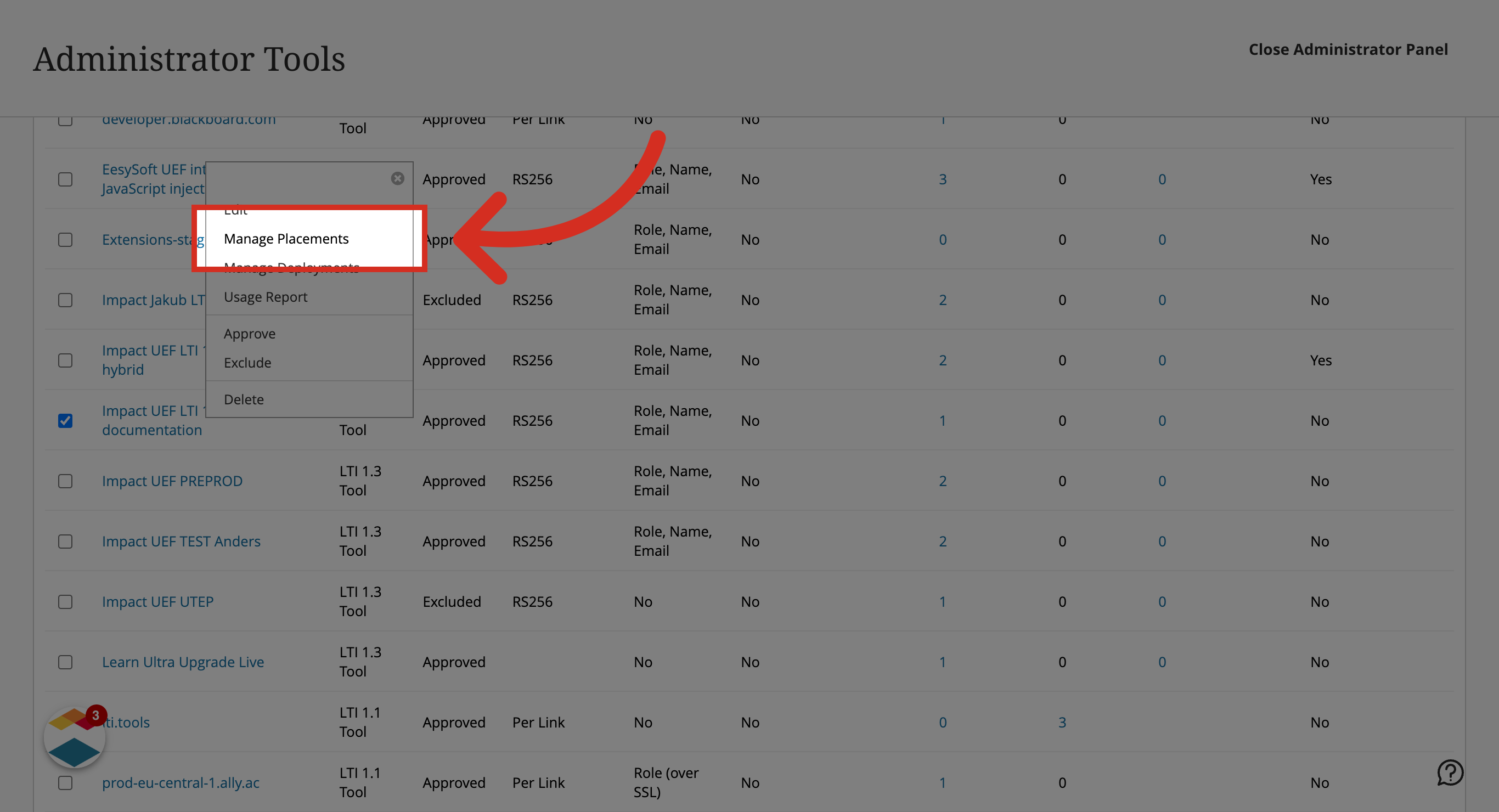
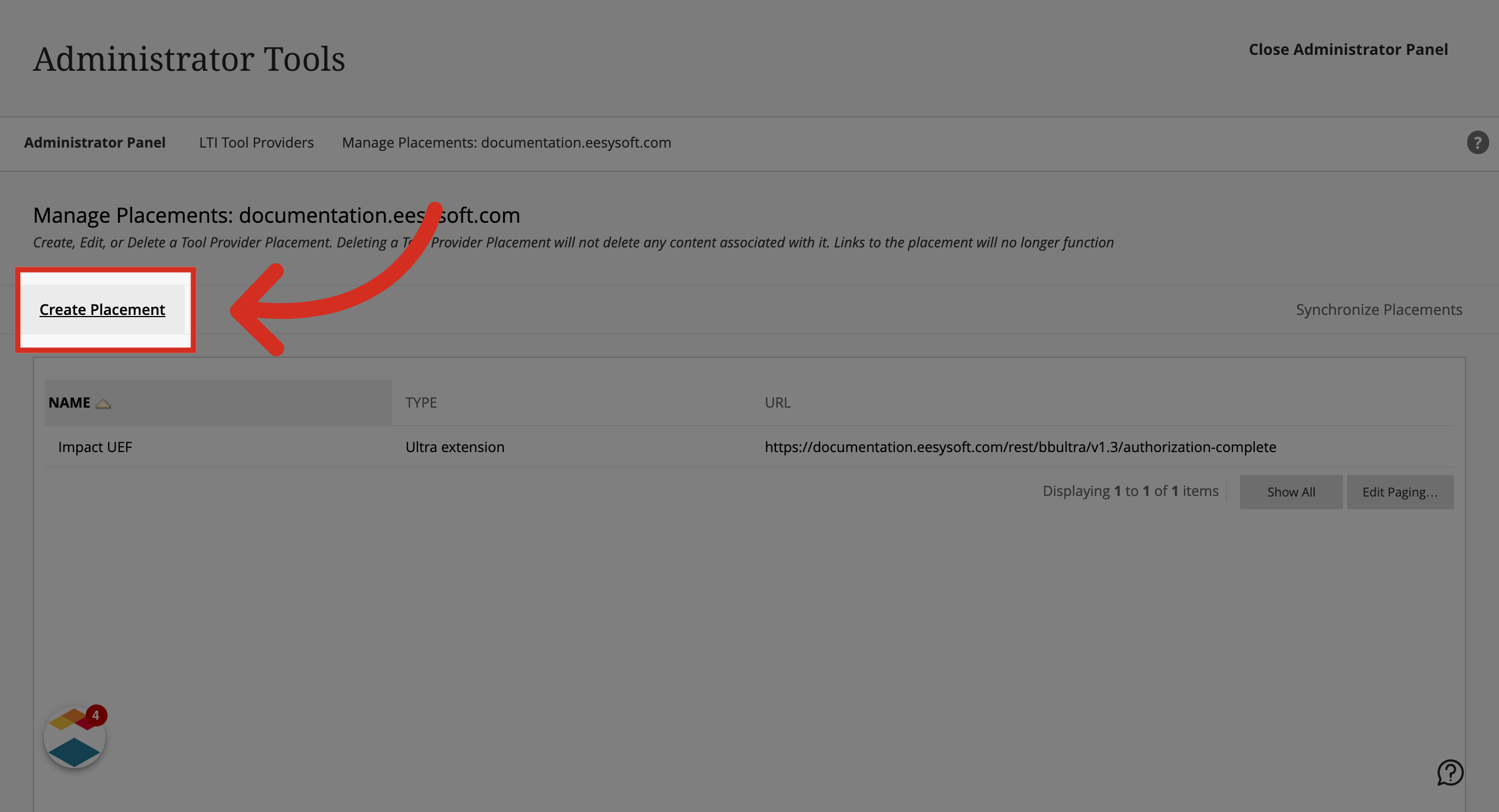
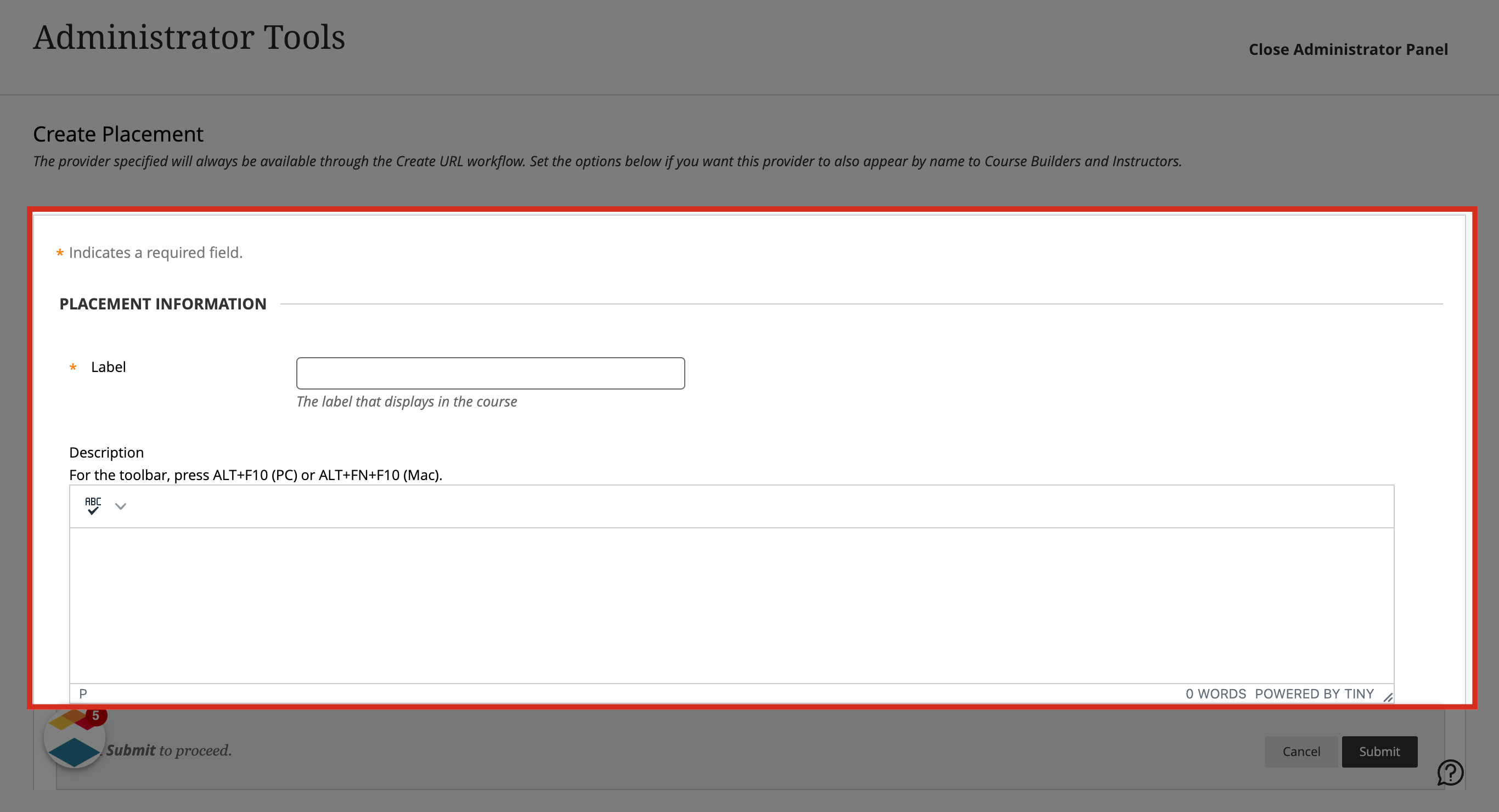
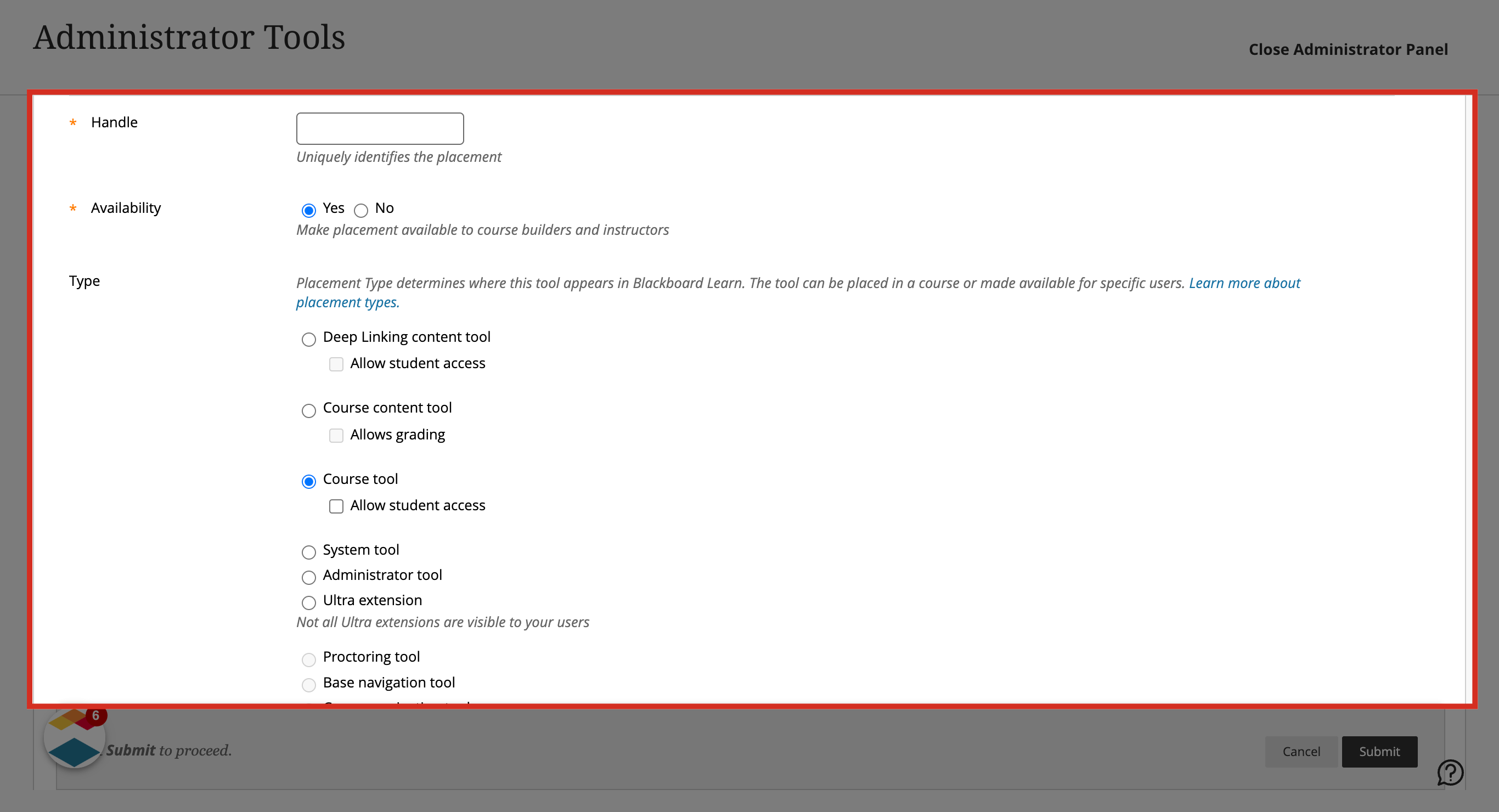
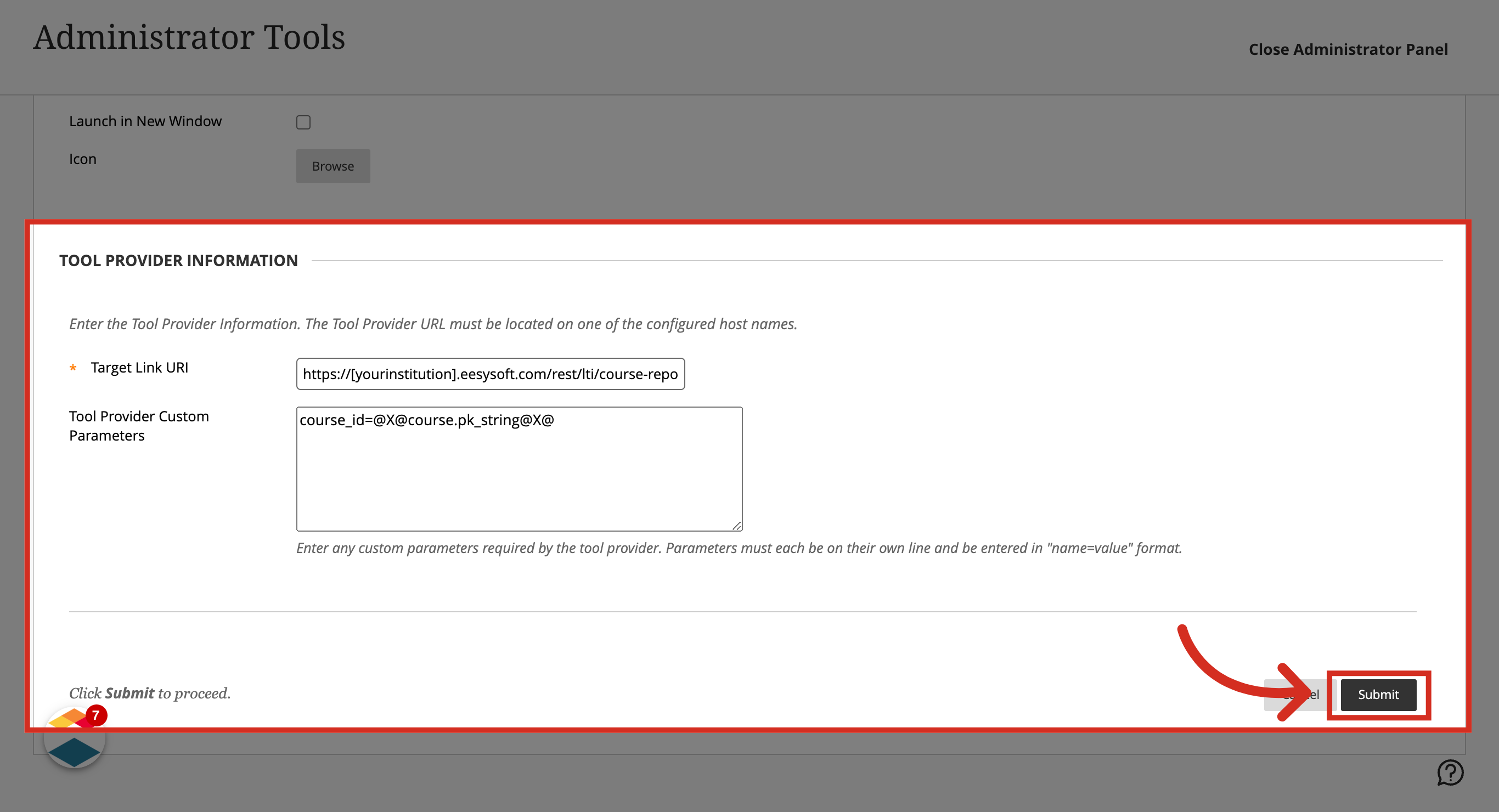
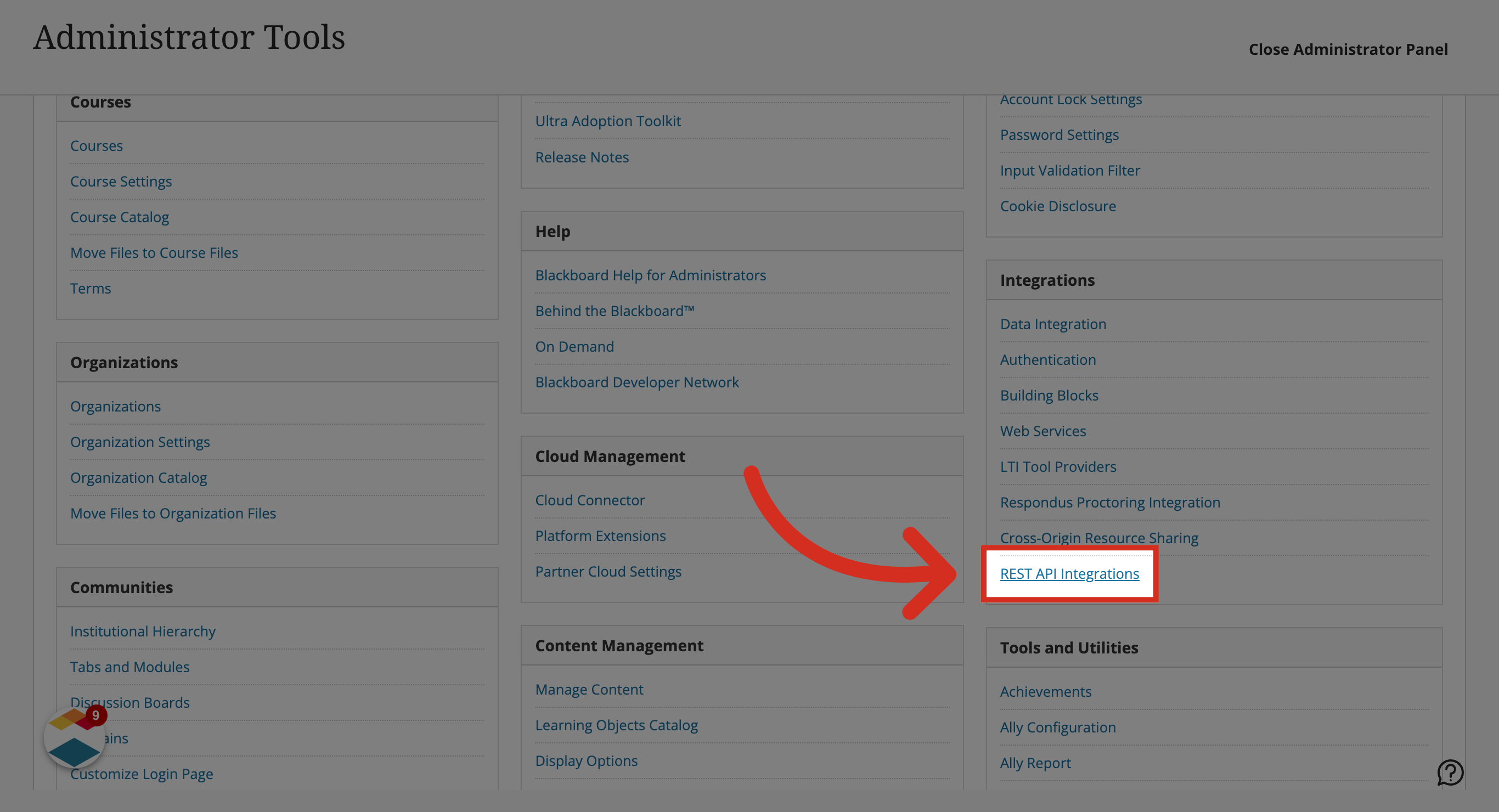
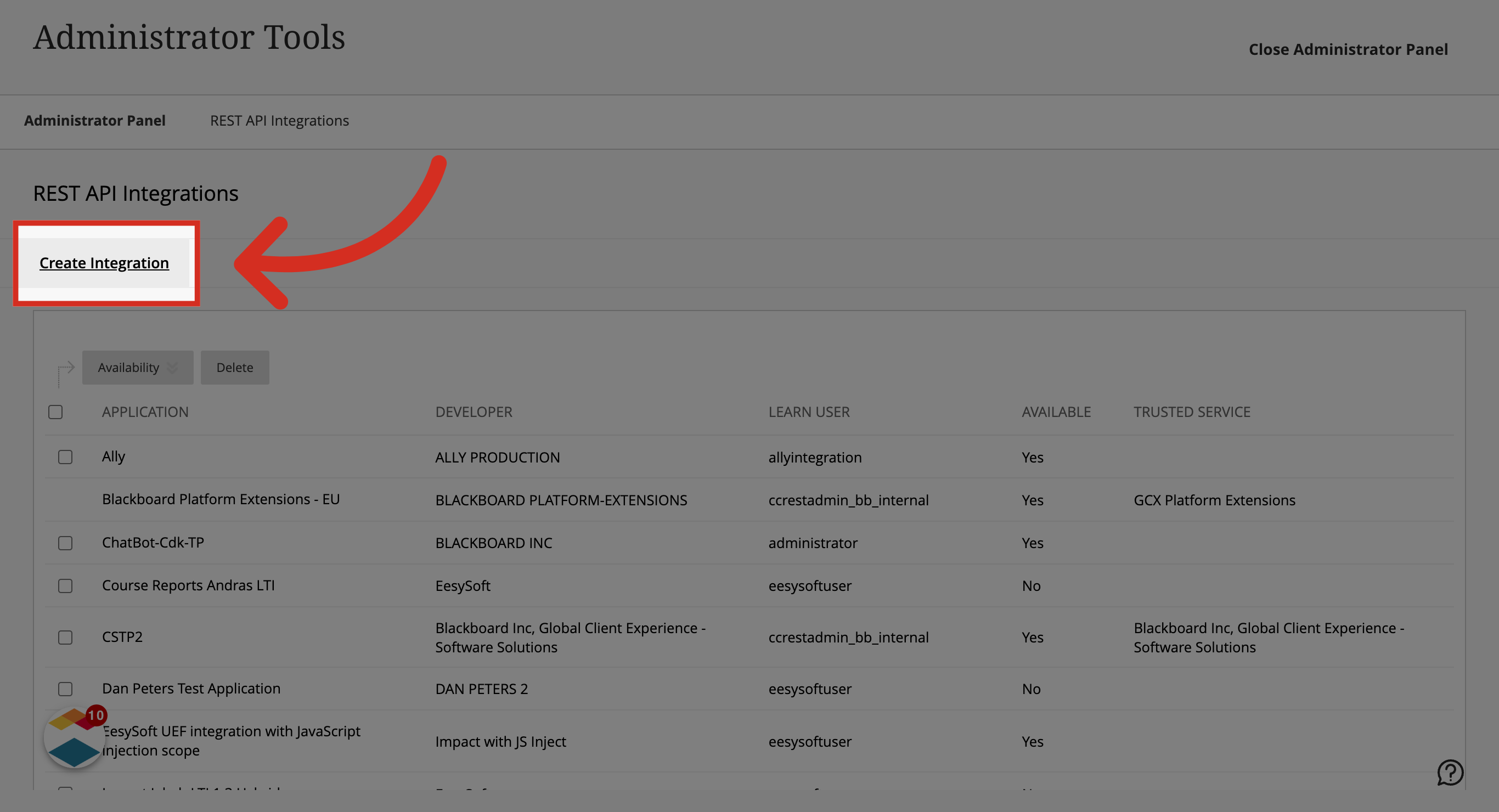
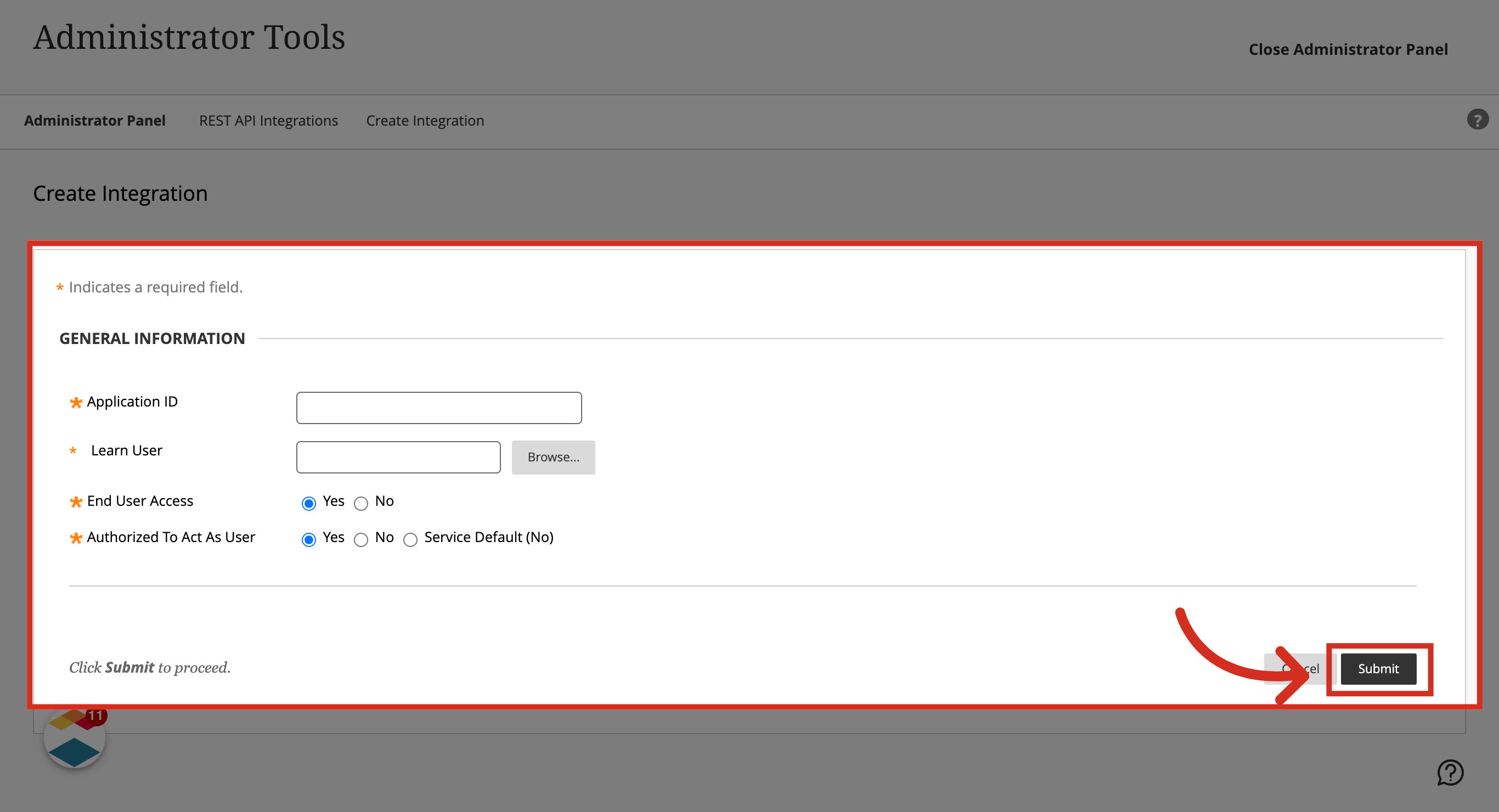
You can configure and install the Impact Course Reports LTI 1.3 in Blackboard provided you have installed the 1.3 version of the Impact UEF LTI.Notes:Please submit a ticket by emailing support-impact@instructure.com or clicking the Impact Support button on your Impact dashboard to obtain a unique application/client ID to configure the application.How do I configure and install the Impact Course Reports LTI 1.3 in Blackboard Ultra?1. Open AdminIn Blackboard, click the Admin link.2. Open LTI Tool ProvidersIn the Integrations section, click the LTI Tool Providers link.3. View LTI Provider OptionsLocate the existing LTI Provider added for Impact UEF version 1.3 and click the drop-down button.4. Manage PlacementsClick the Manage Placements link.5. Create PlacementClick the Create Placement link.6. Enter Placement Information In the Placement Information, enter the Label that displays in the course.7. Enter Remaining Placement InformationEnter the remaining placement information: Handle: Add a nameAvailability: YesType: Course tool8. Enter Tool Provider InformationThe Target Link URL needs to be your specific provider's URL.The Tool Provider Custom Parameters needs to be set to course_id=@X@course.pk_string@X@Then click the Submit button.9. Open REST API IntegrationsIn the Admin Panel Integrations section, click the REST API Integrations link.10. Create IntegrationClick the Create Integration link.11. Enter Integration InformationEnter the following information for Integration Information: Application ID: Please submit a ticket to support-impact@instructure.com or through the Impact Support button on your Impact Dashboard to obtain a unique application/client ID to configure the application.Learn User: should be a user with a minimum set of privilegesEnd User Access: YesAuthorized to Act As User: YesThen click the Submit button.Note: If you get an error when launching the LTI tool, as an admin, navigate to Course Settings, click Course Tools, and turn tool LTI On.