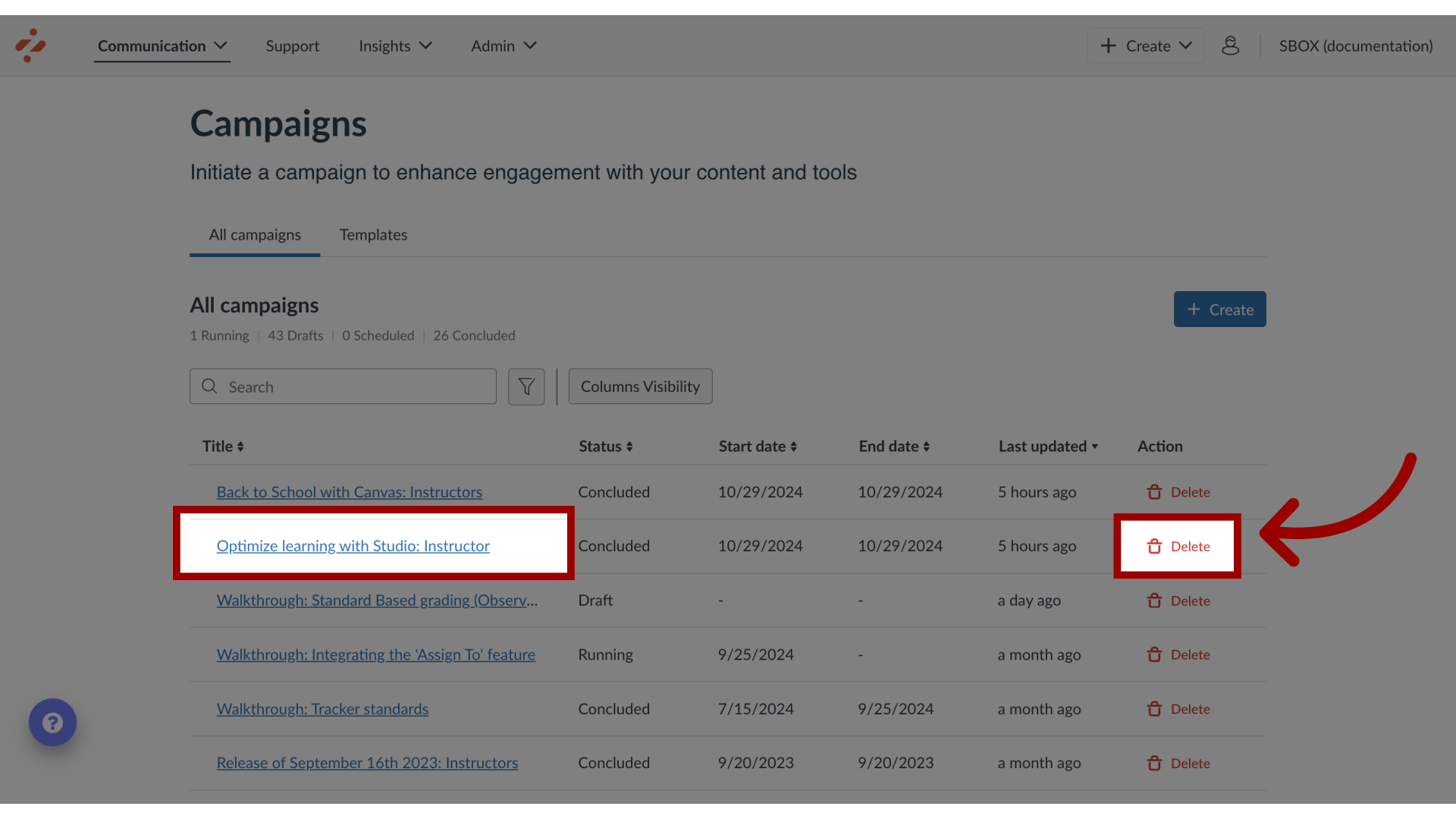
How do I delete a campaign and its content from my Impact Dashboard?
1. Delete Content from Campaign
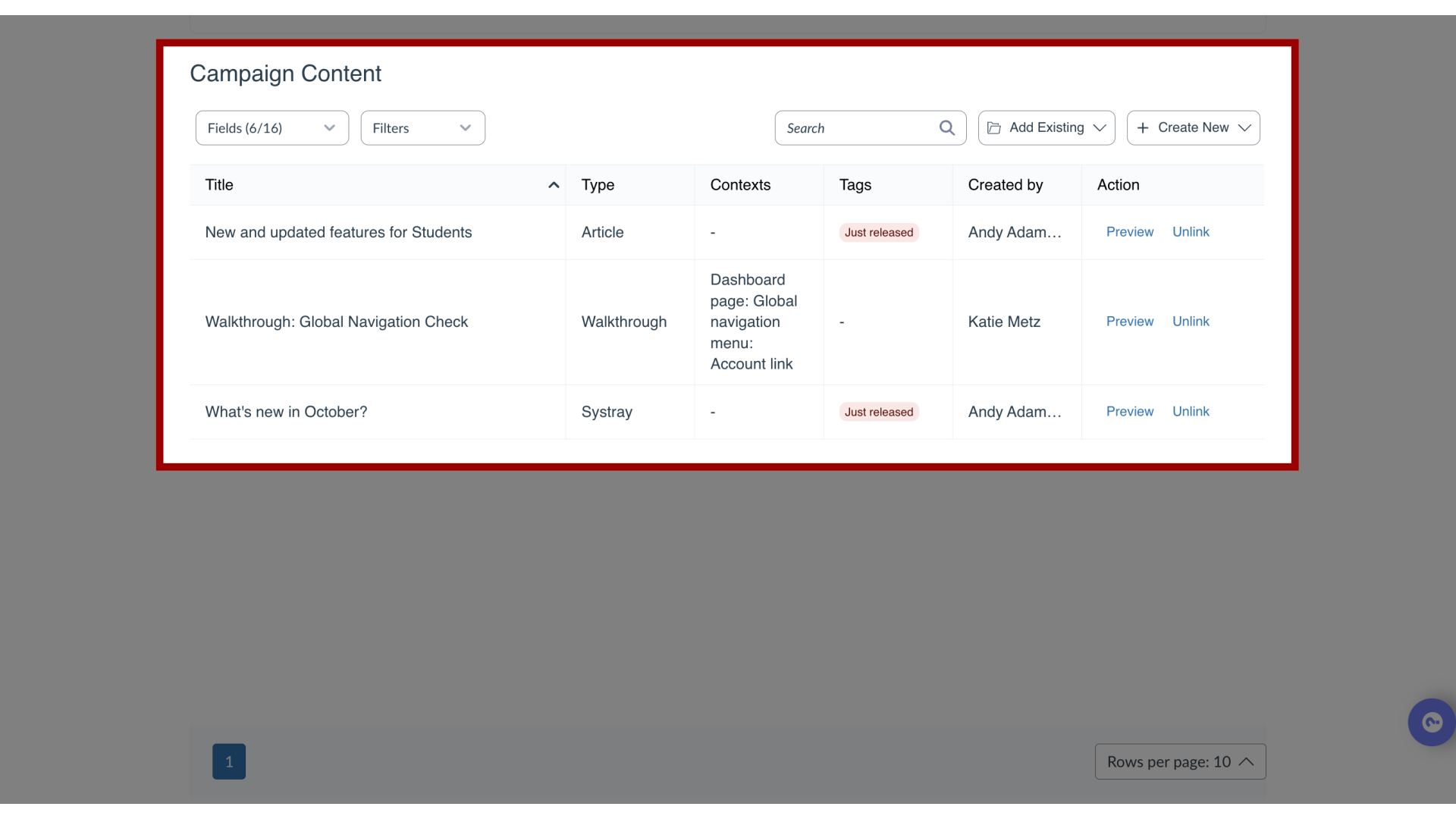
When you need to delete a campaign you have imported to your Impact dashboard, you should first delete its content to ensure you keep your Dashboard clean from duplicated unnecessary messages, articles, and walkthroughs.
Instead of removing help items from the campaign, you should make sure you delete the content, which has been imported locally together with the campaign: Message(s), Article(s), and Walkthrough(s)
2. Open Messages
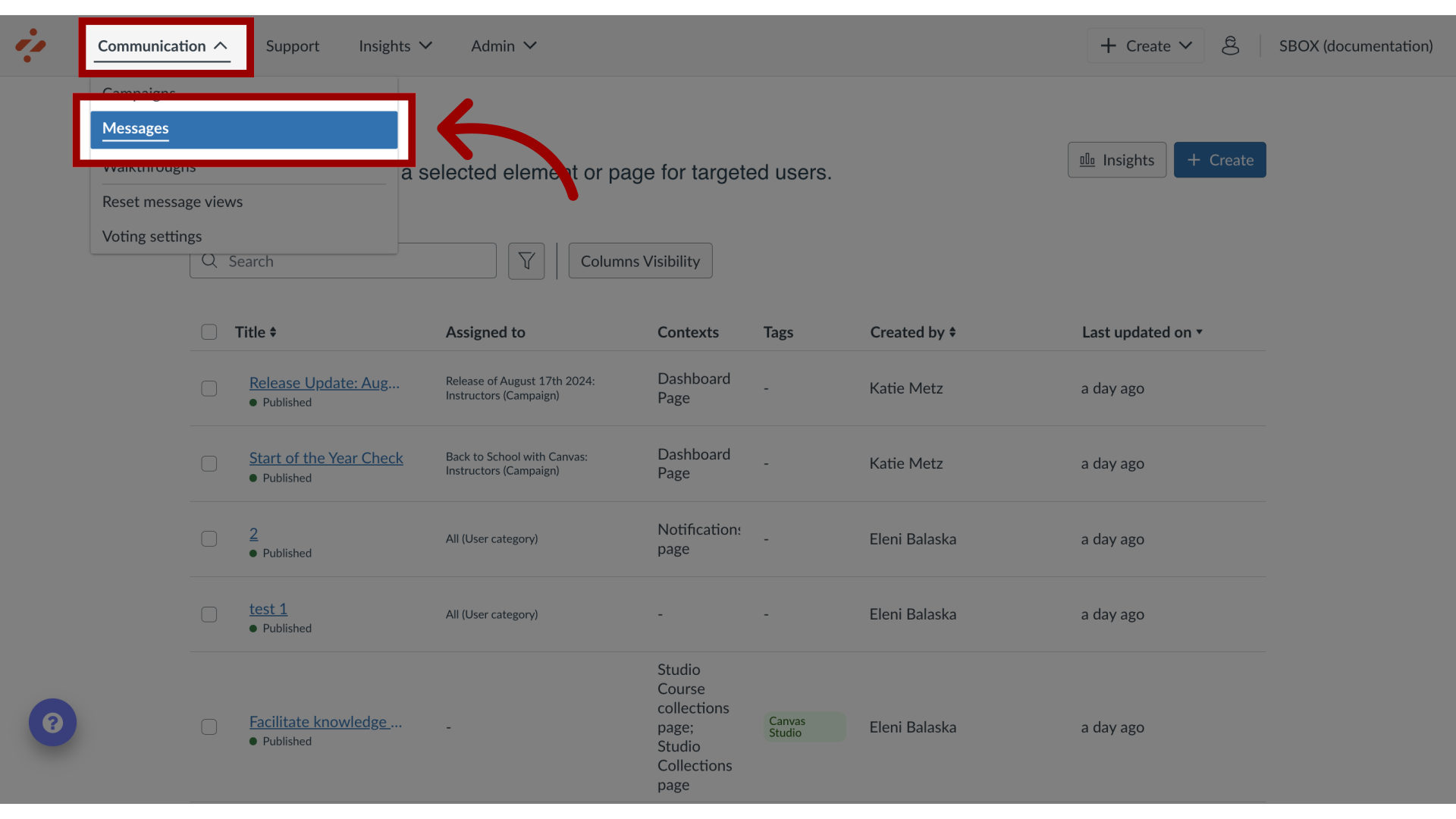
In the Global Navigation click the Communication dropdown menu and click the Messages link.
3. Filter Messages by Campaign
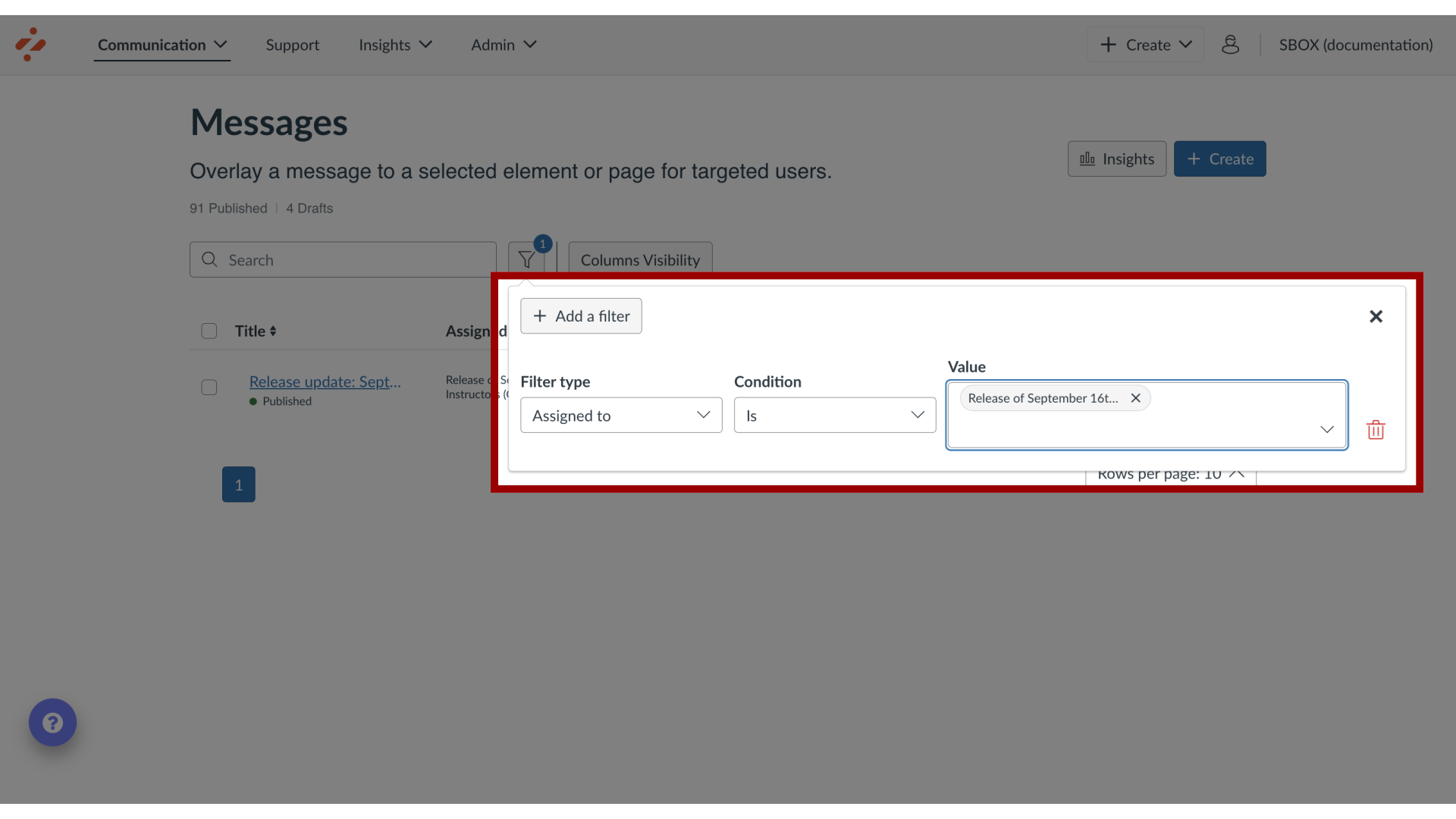
Filter your messages based on the Campaign they are assigned to. Select the Campaign you want to delete.
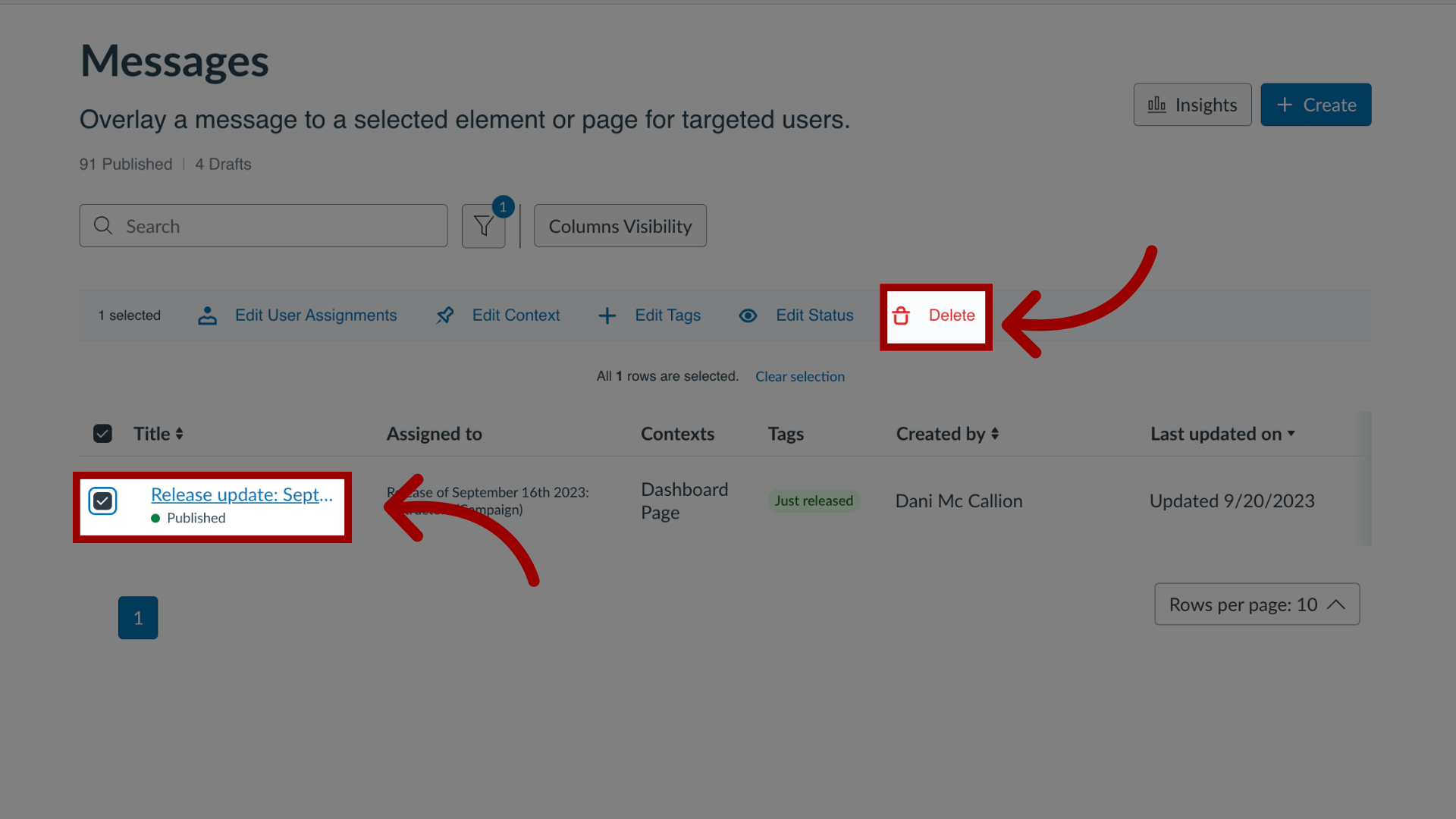
4. Delete Message(s)
Select the messages that are only assigned to that campaign. Click the Delete link.
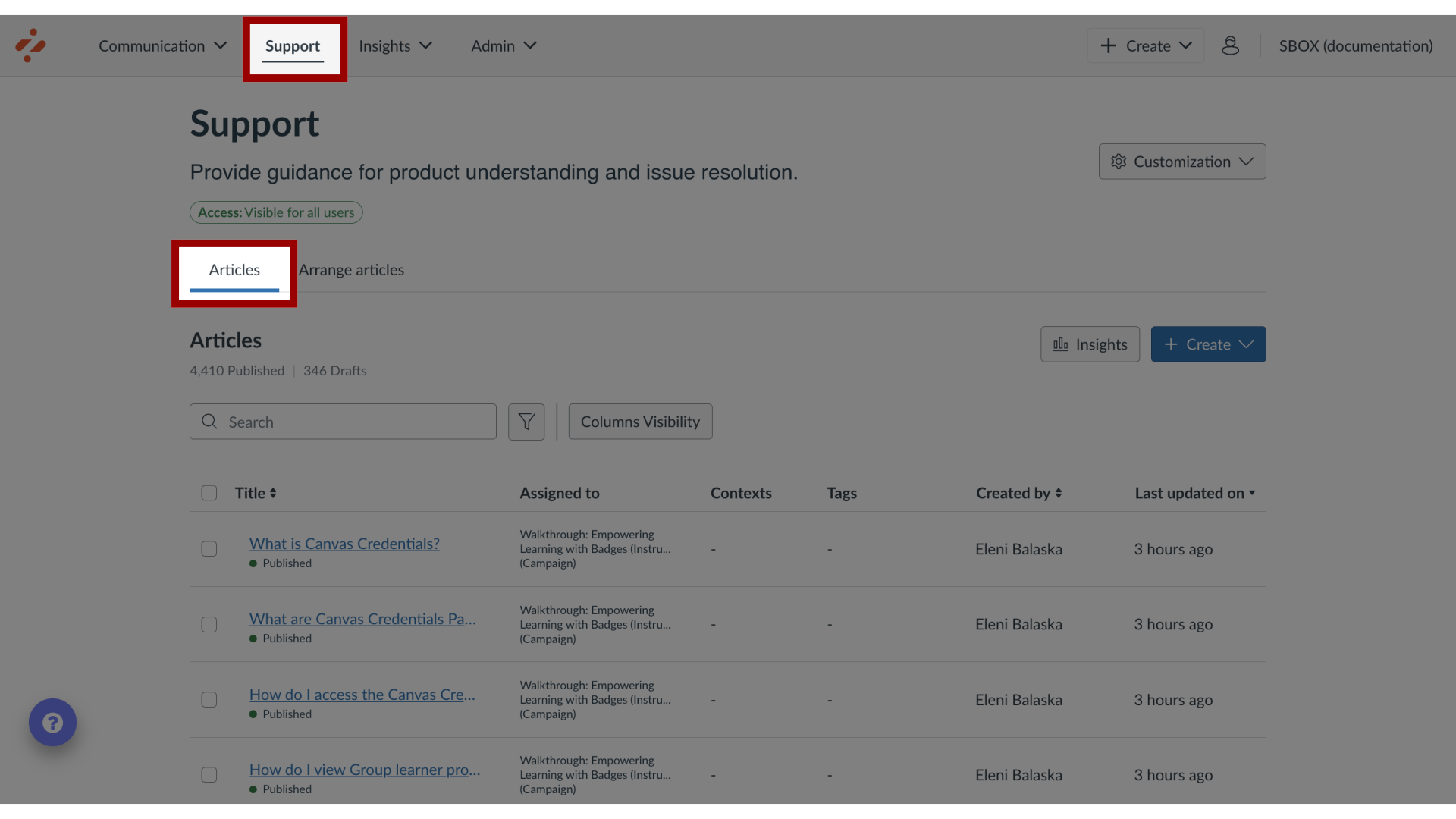
5. Open Articles
To delete articles, navigate to the Support tab and then to Articles in your Impact dashboard.
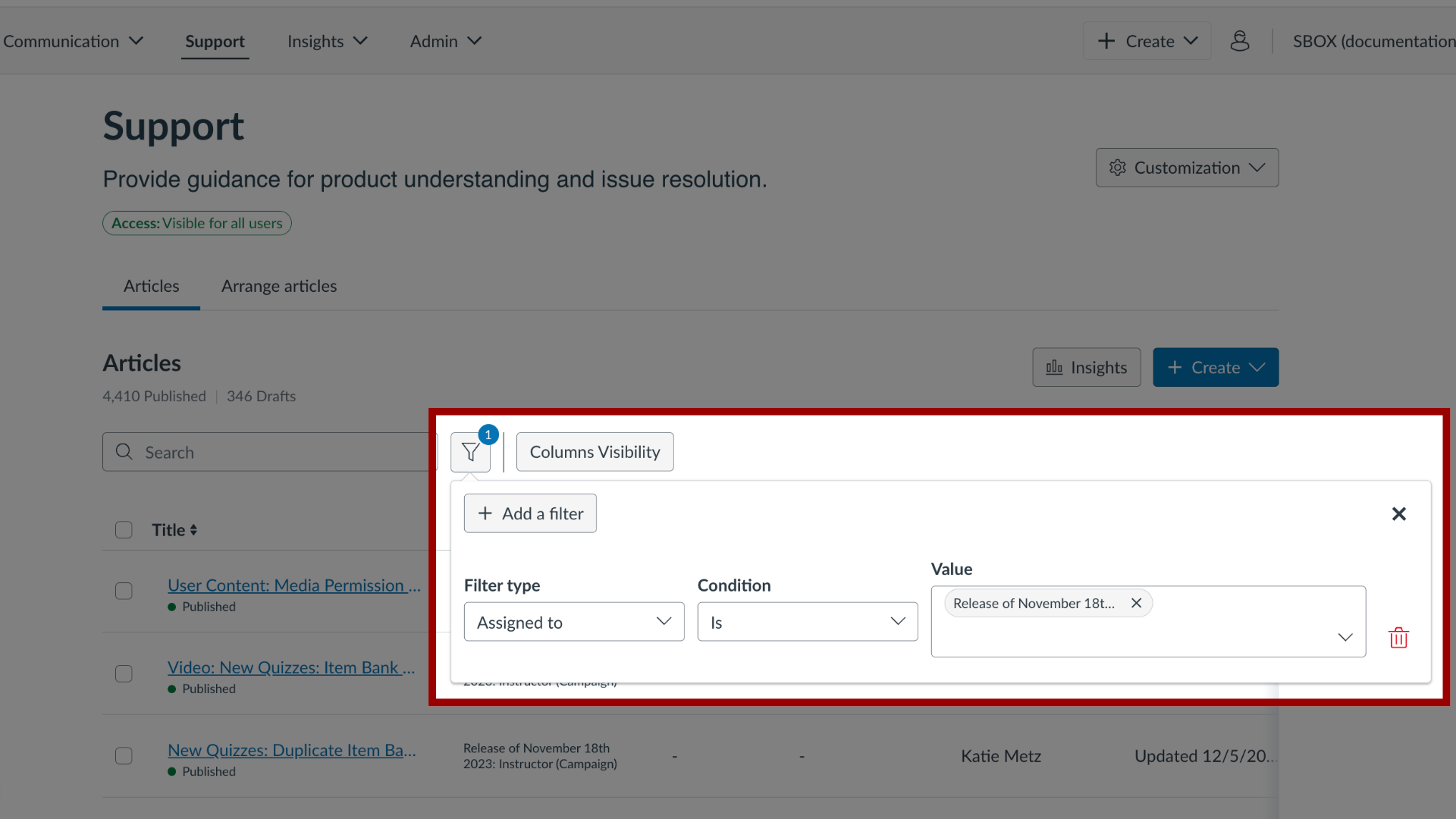
6. Filter Articles by Campaign
Filter your articles based on the Campaign they are assigned to. Select the Campaign you want to delete.
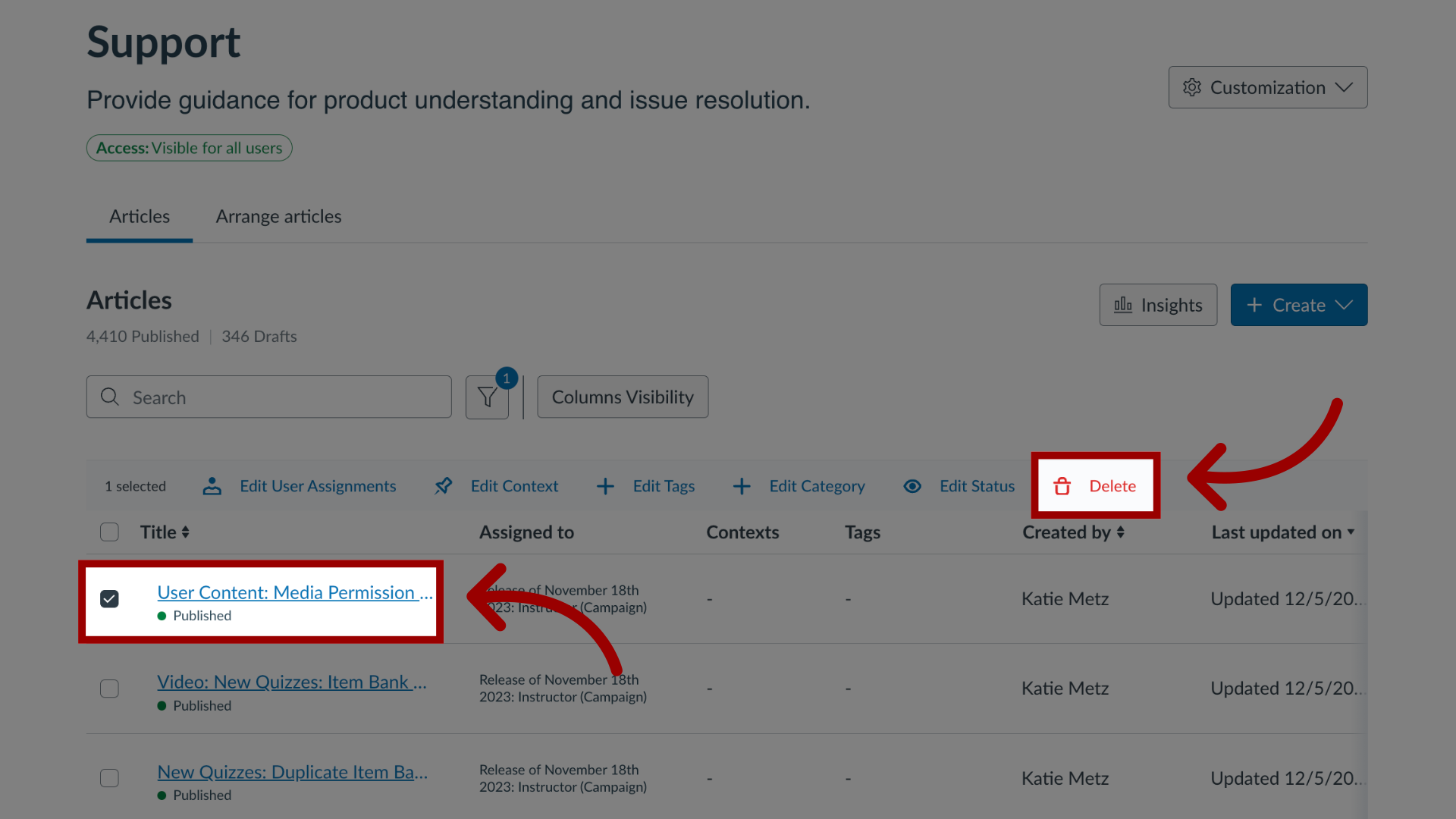
7. Delete Article(s)
Select the articles that are only assigned to that campaign and then click the Delete link.
8. Open Walkthroughs
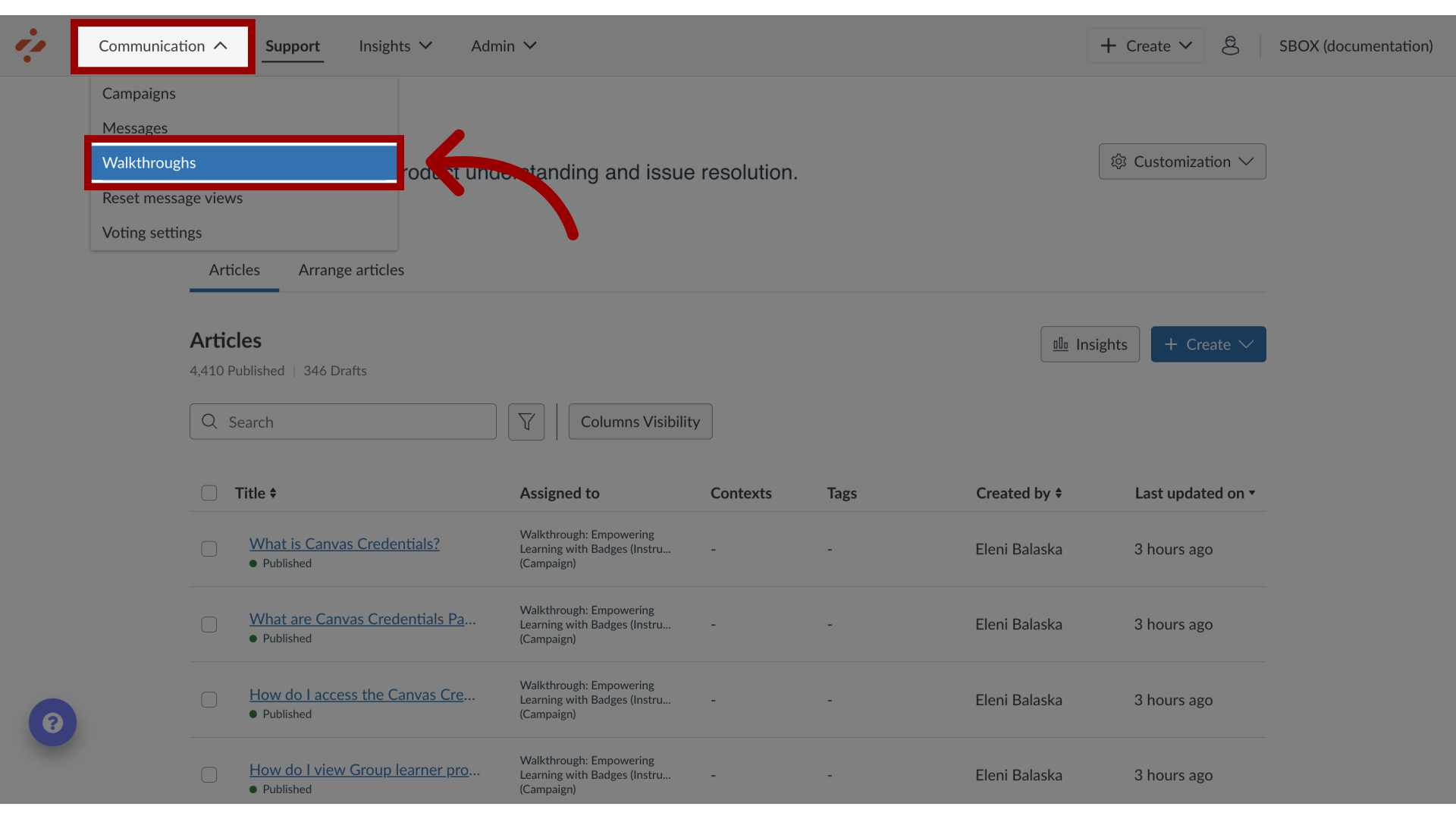
To delete walkthroughs: In the Global Navigation click the Communication dropdown menu. Then click the Walkthroughs tab.
9. Filter Walkthroughs
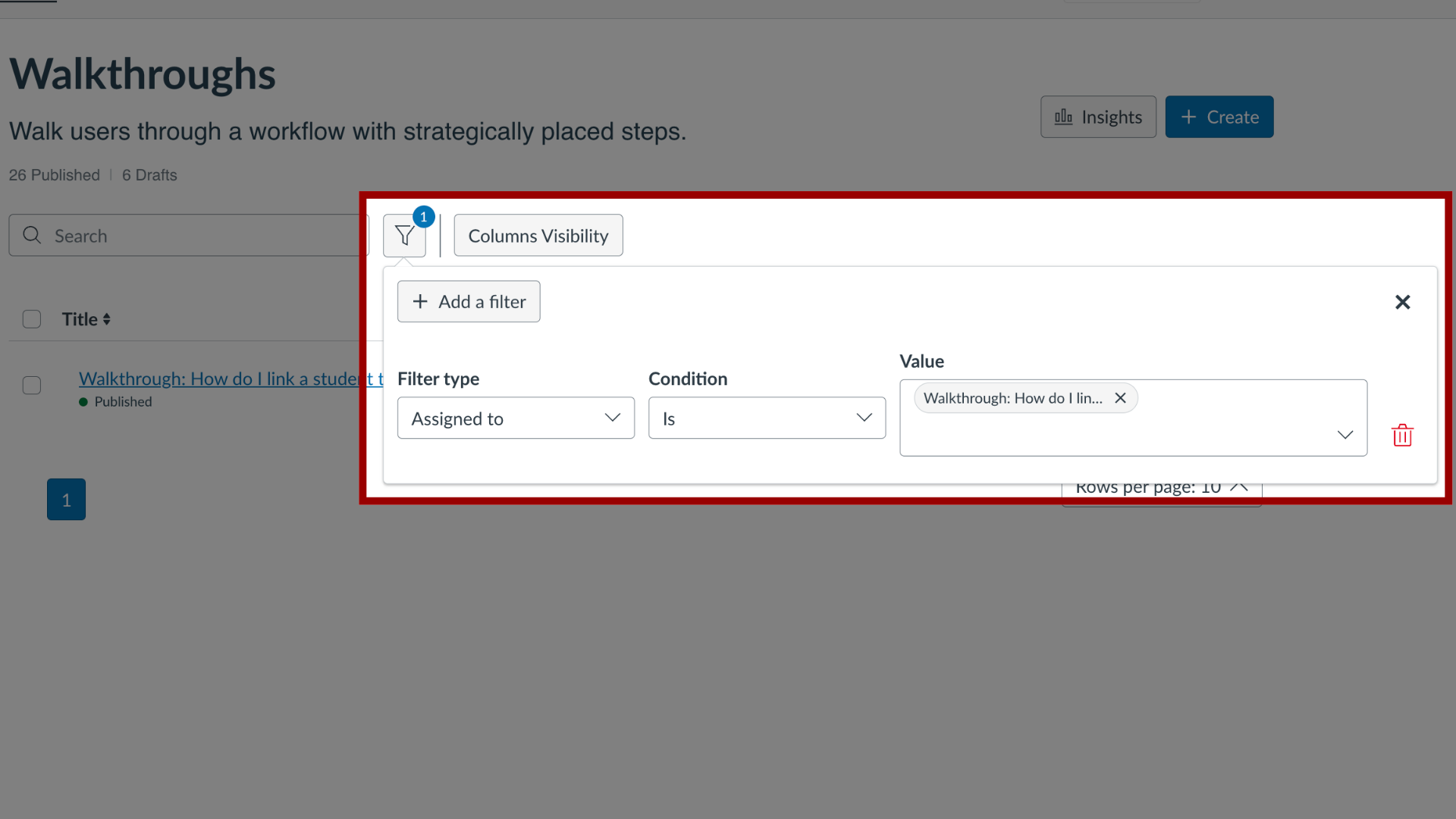
Filter your walkthroughs based on the Campaign they are assigned to. Select the Campaign you want to delete.
10. Delete Walkthrough(s)
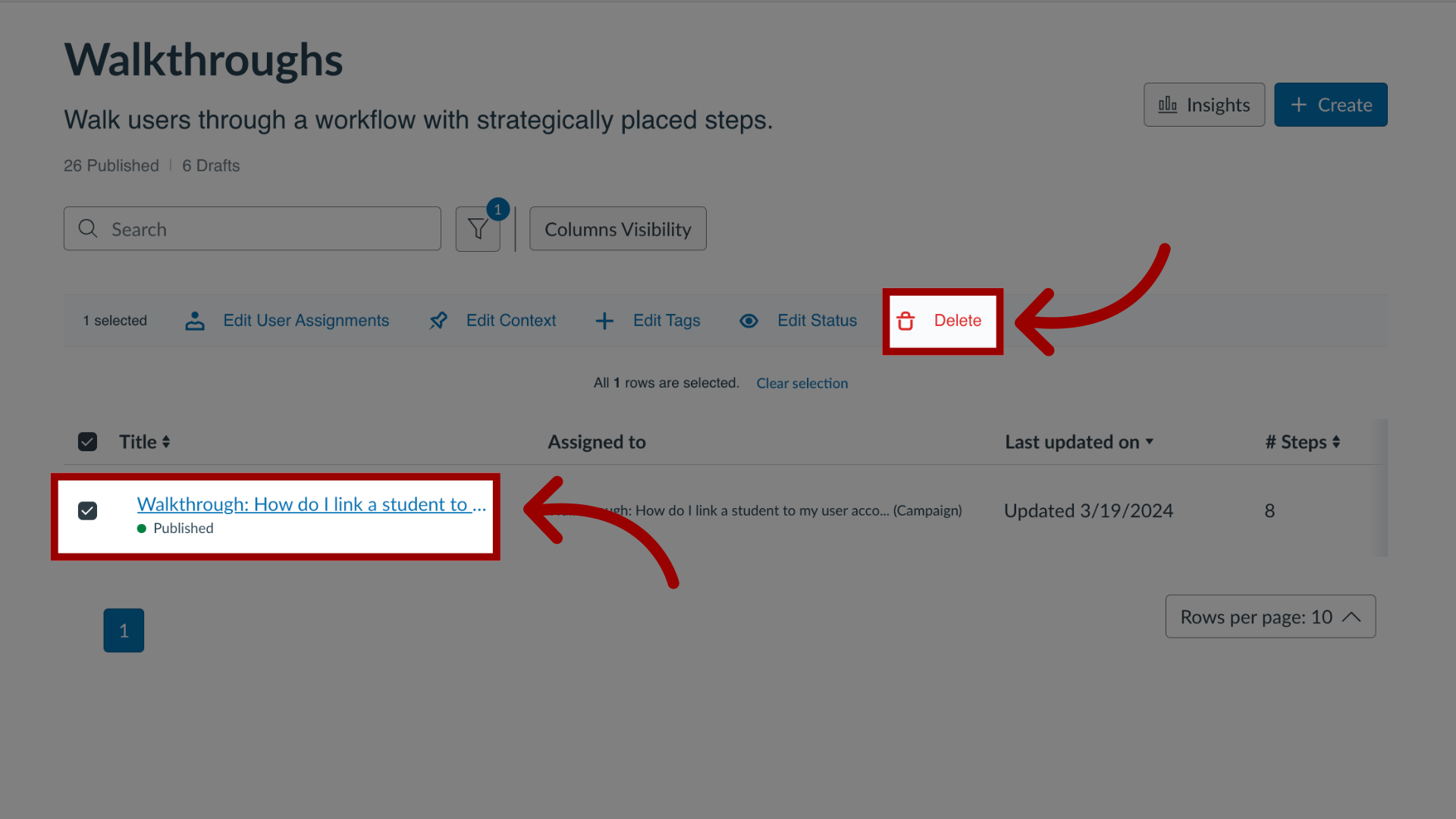
Select the walkthroughs that are only assigned to that campaign and then click the Delete link.
11. Campaign Shell
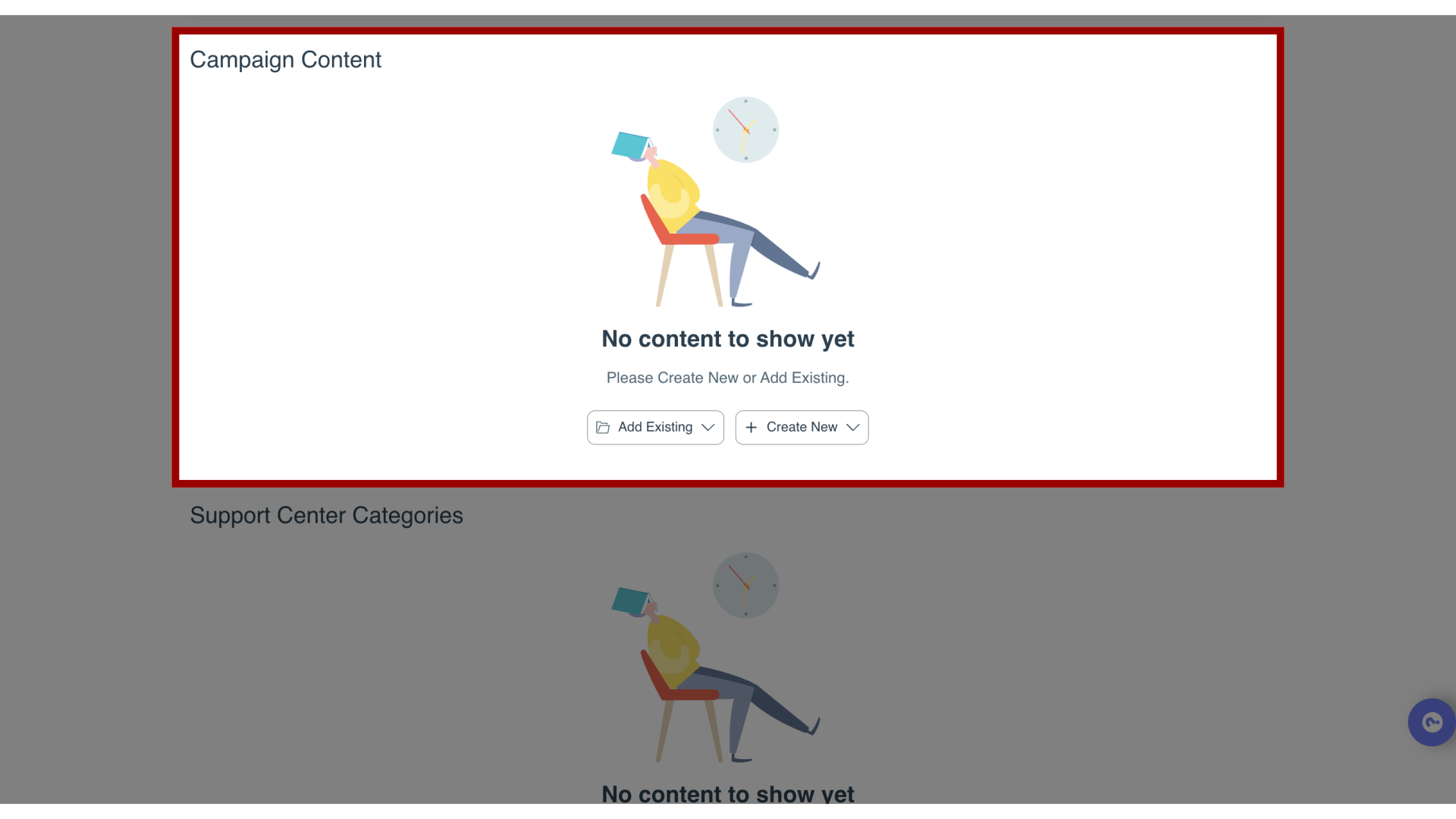
Once you delete the content imported through the campaign, check whether the campaign shell includes any more campaign content items.
12. Delete Campaign
If there are no more campaign content items left inside the campaign shell, you are ready to delete the campaign.