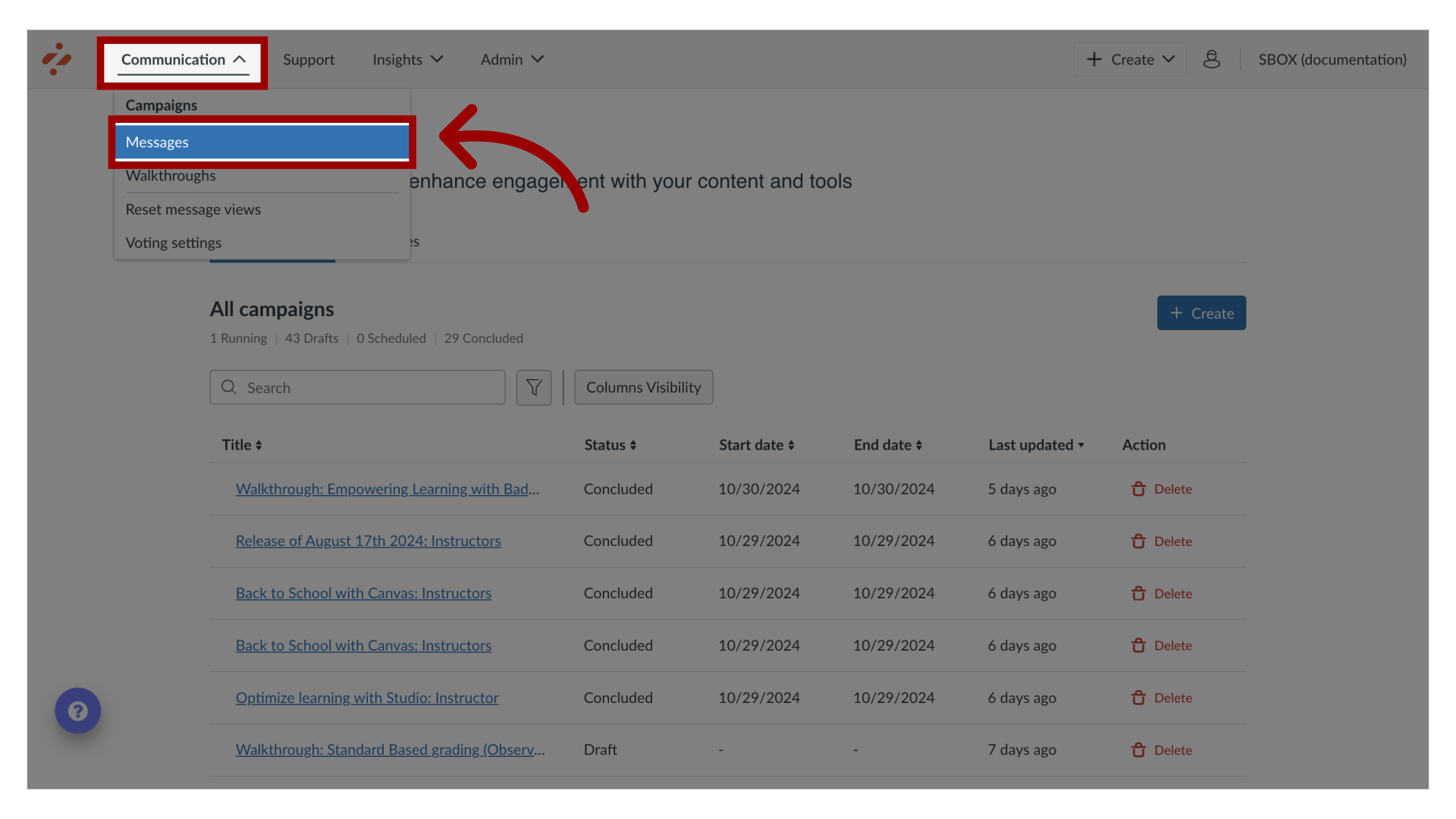
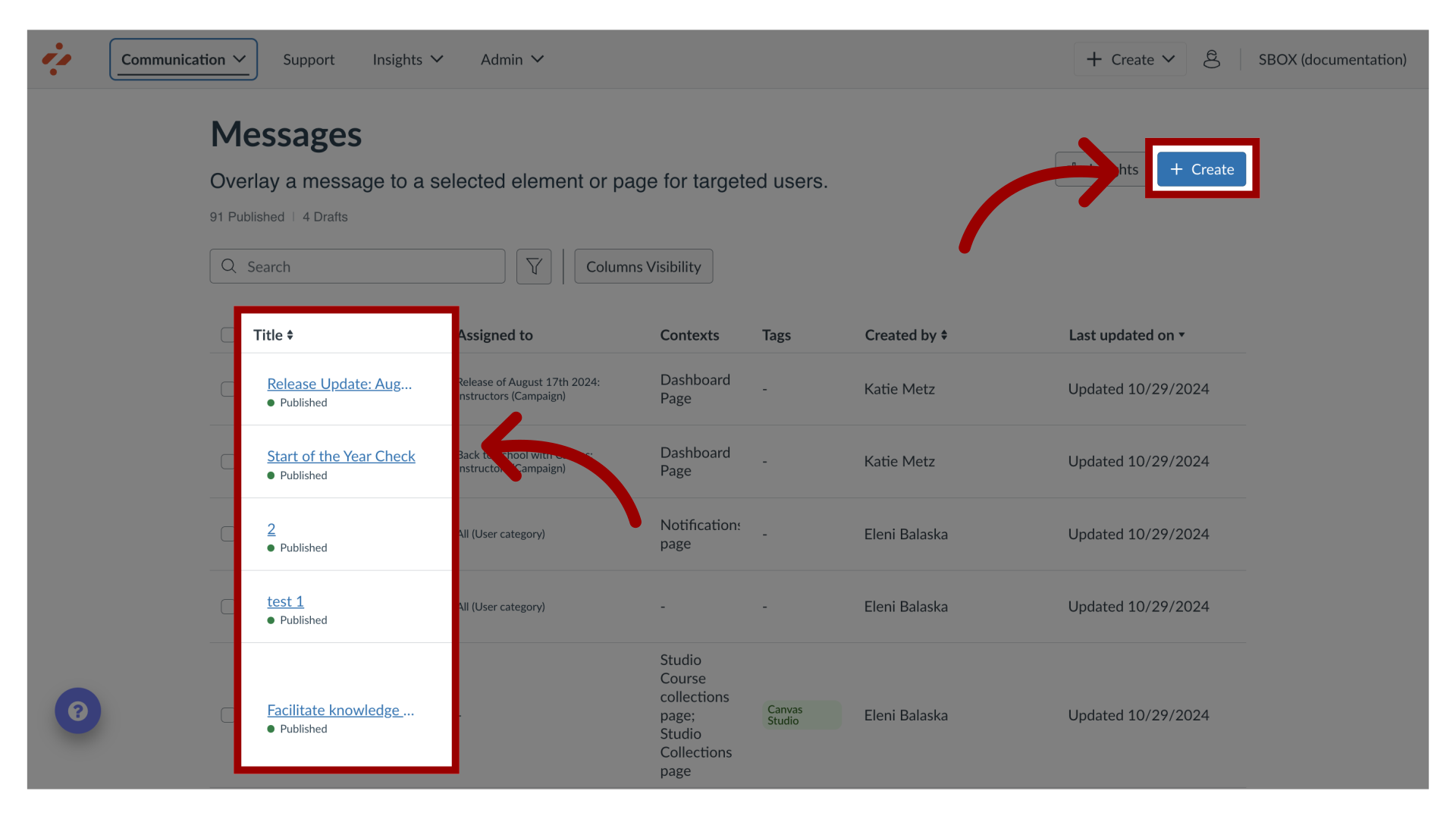
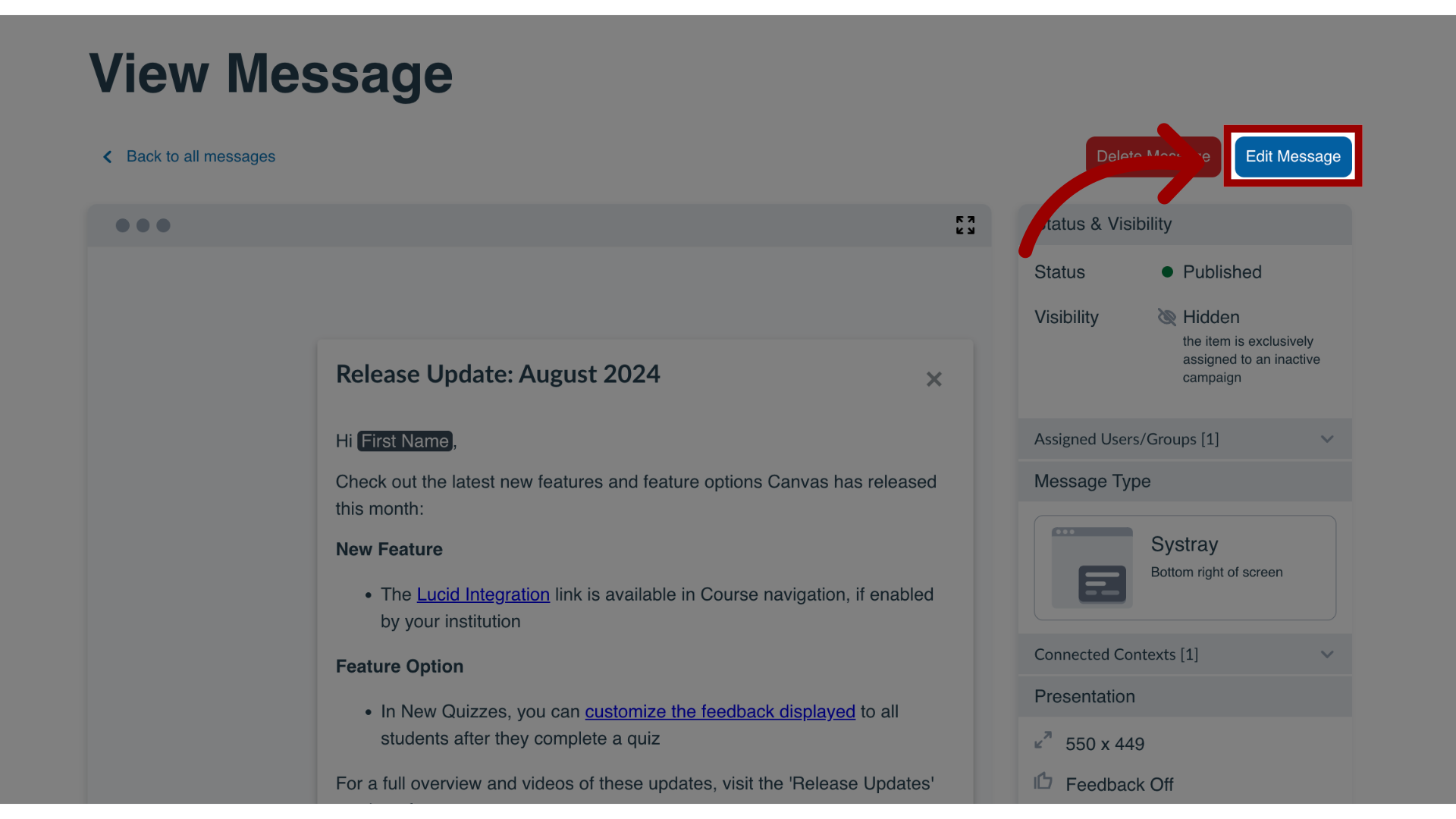
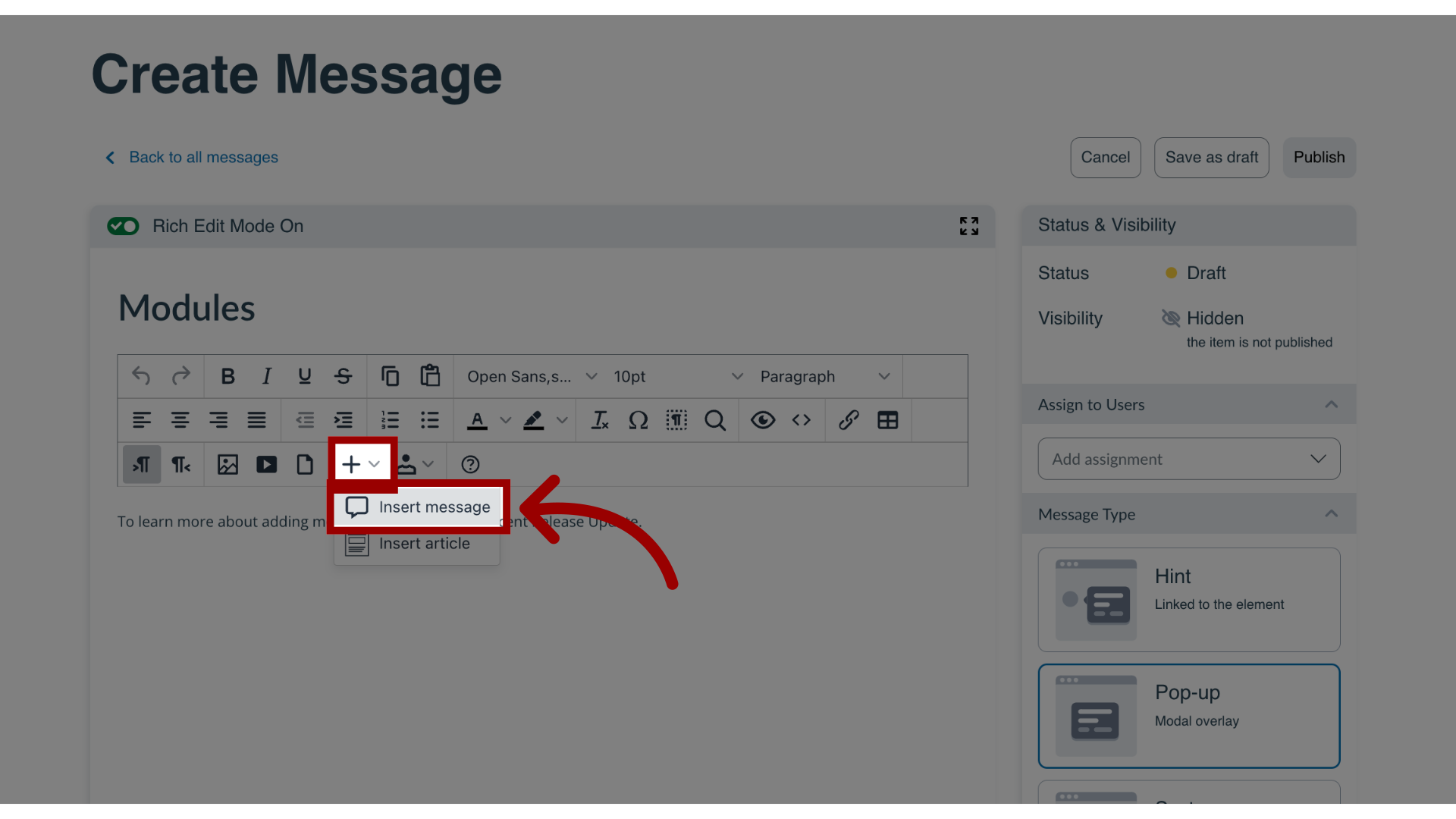
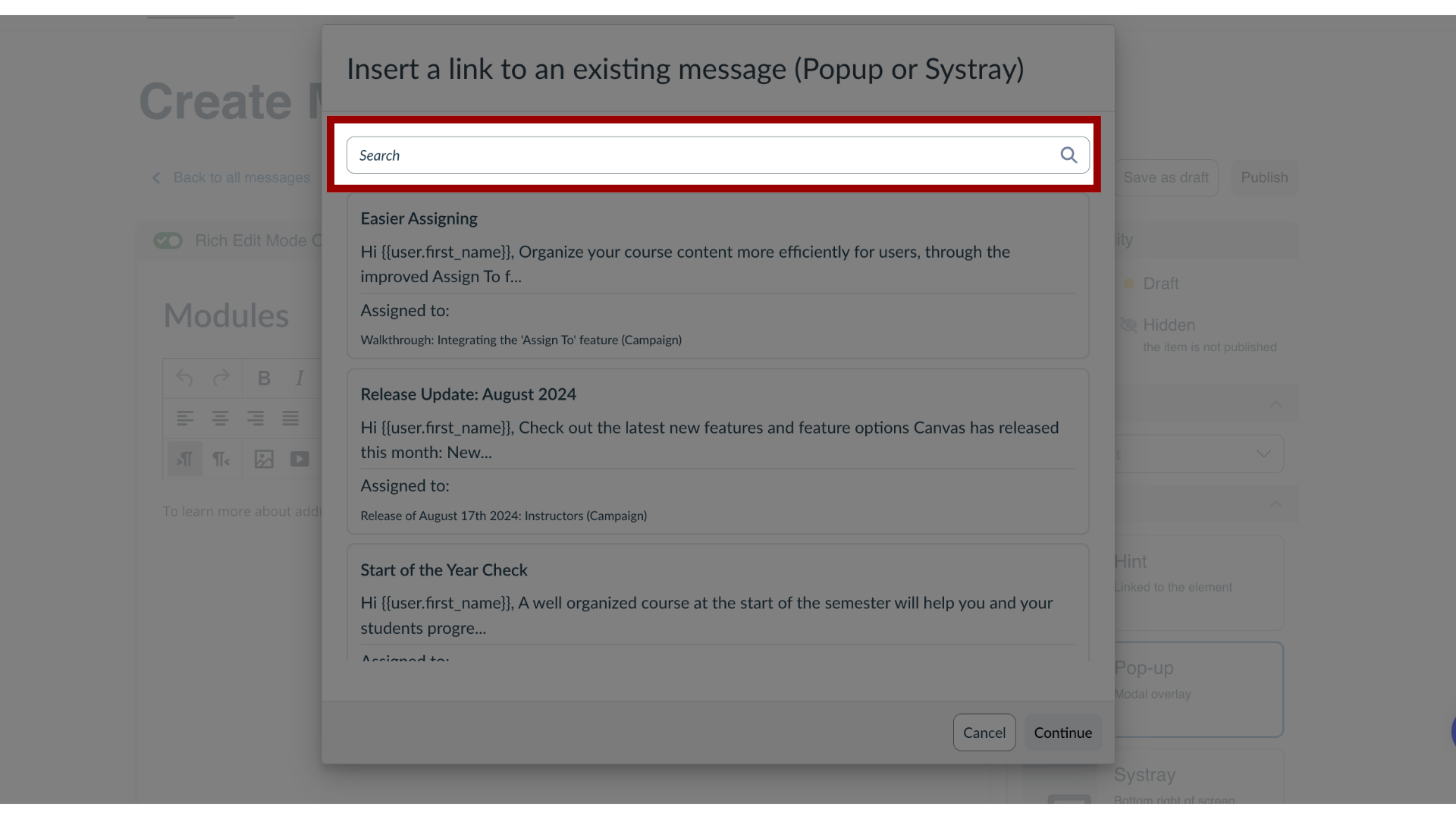
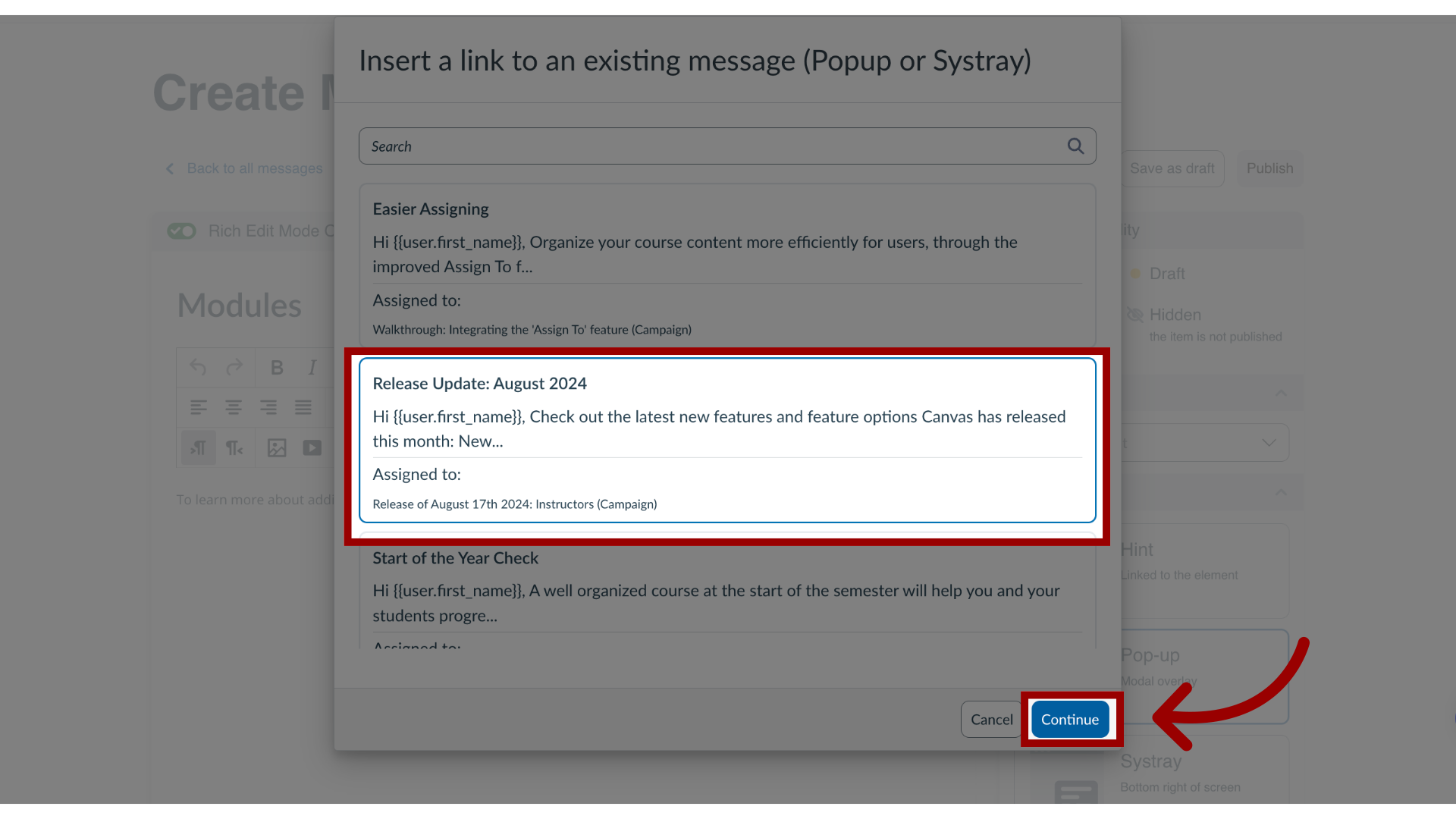
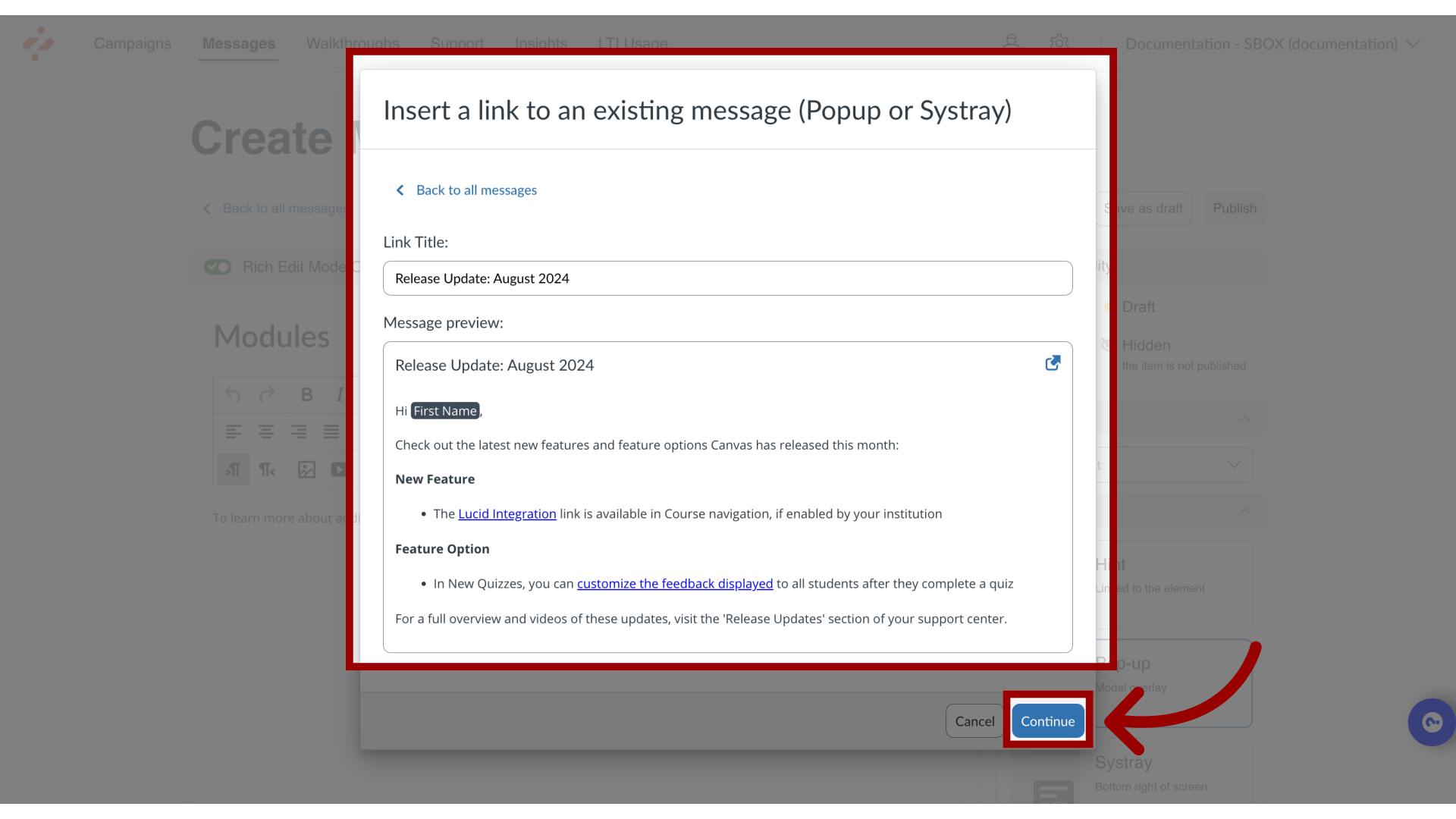
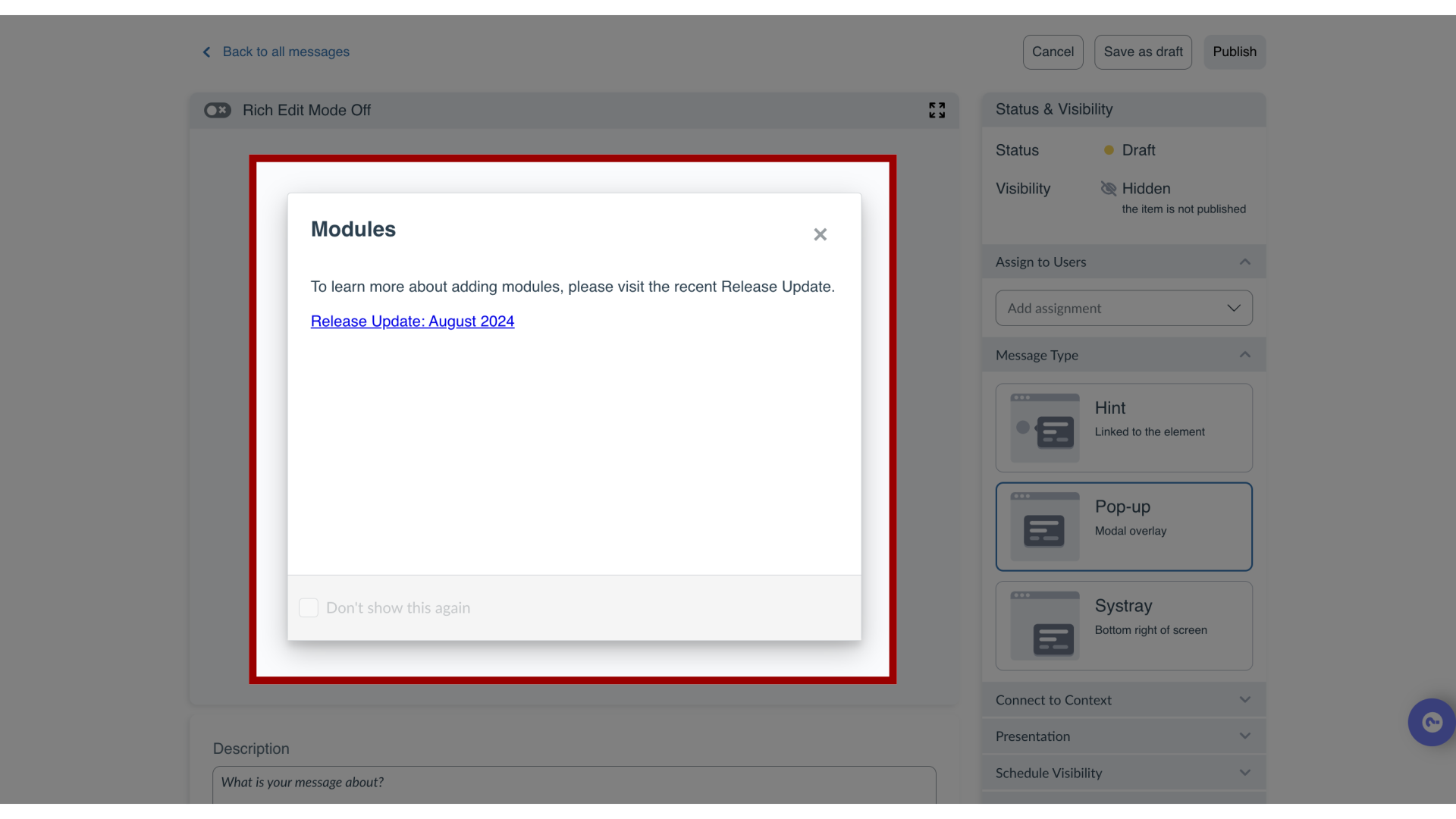
Creating links between the messages you create using Impact is a great way to present users information at different places in your learning application. This help article shows you how to link a new message to an existing message via the Impact dashboard. How do I link a message to another message in the Impact Dashboard?1. Open MessagesIn Global Navigation, click the Communication dropdown menu. Then click the Messages link.2. Manage MessagesTo edit an existing message, click the name of the message. To create a new item, click the Create button.3. Edit MessageIn the View Message page, click the Edit Message button. If you are creating a new message, the Edit Message button does not display.4. Insert MessageClick the body of the message or press enter if editing text to see the in-line insert options. Click the Add icon and click the Insert message option.5. Search MessagesUse the Search field to find the message.6. Link MessageClick the message you want to link one message to another one. Then, click the Continue button.7. Preview Linked MessageYou can now preview the message and adjust the wording of the link title. Then click the Continue button.8. View Linked MessageNow that you have linked one message to another, you are ready to continue to edit this message or publish it to your learning environment.