How do I use the Impact Course Reports LTI?
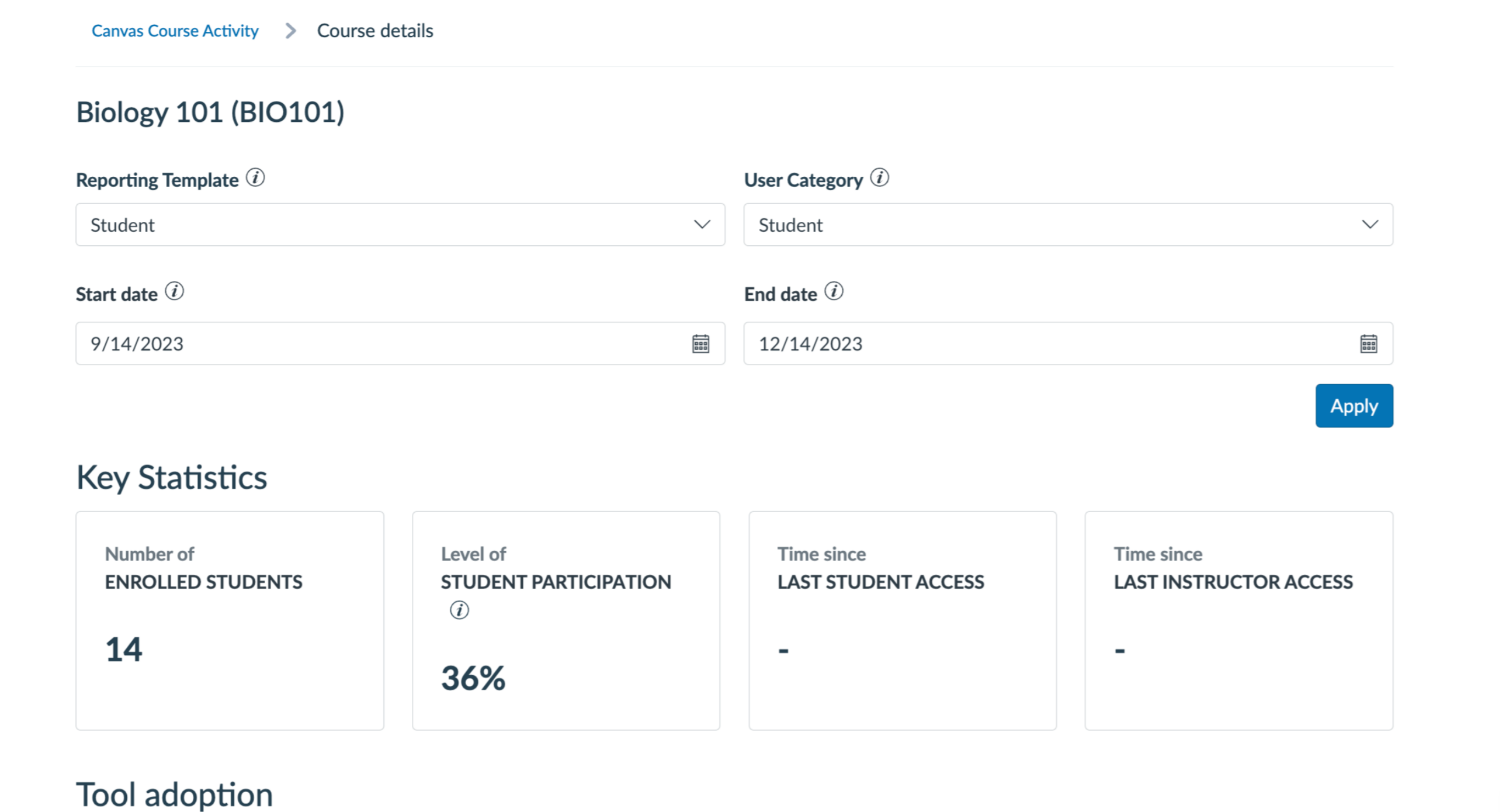
1. View Course Activity
In the Course Activity section, you can view key statistics for your course such as the number of enrolled students, student participation level (percentage of active users enrolled in the course that has triggered at least one of the monitors), the number of days since the course was accessed by an instructor or student, and instructor(s) most recent course access date(s).
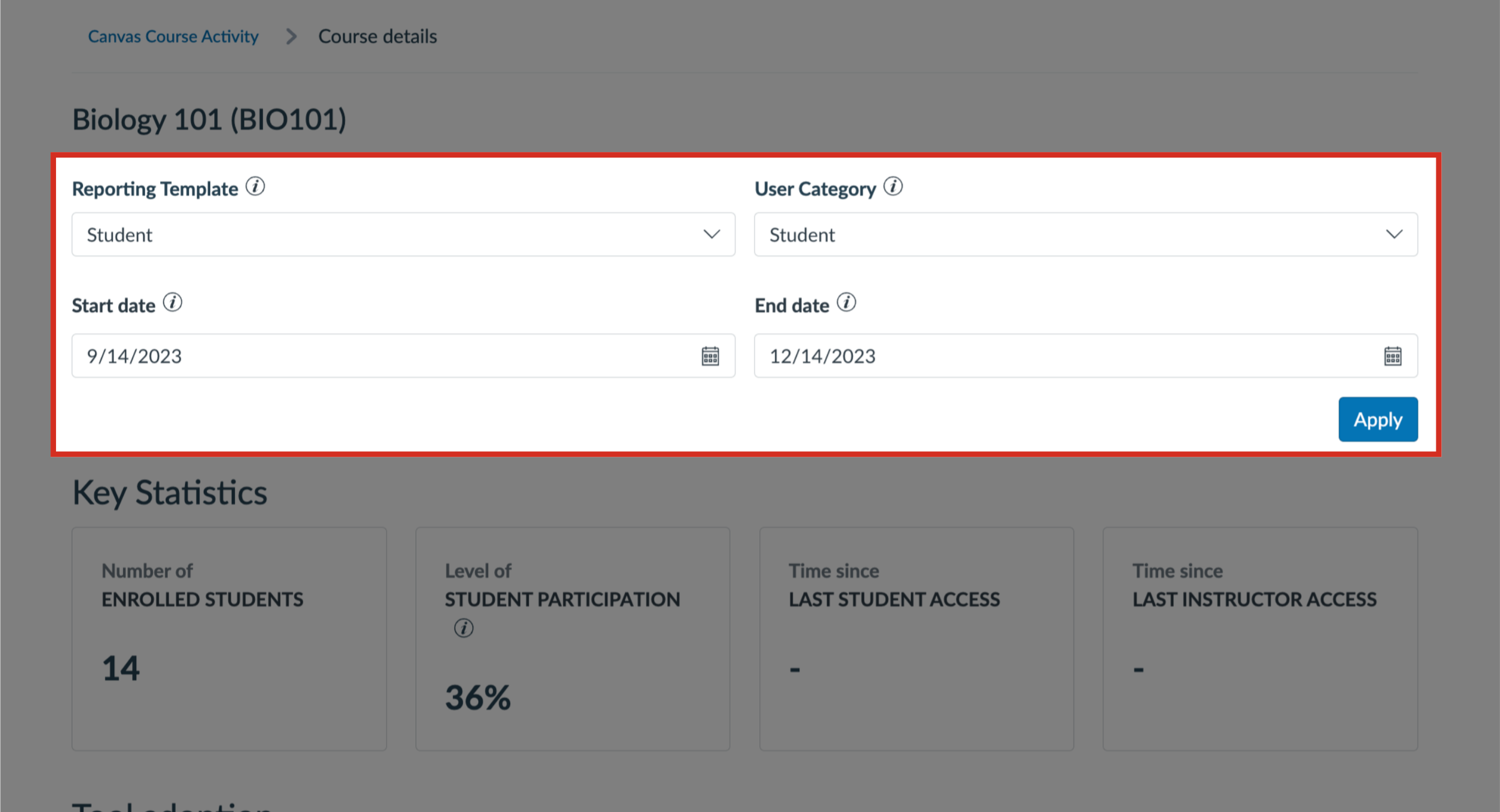
2. Filter Data
The data presented in the Course Activity details can be filtered using the global filter bar at the top of the page.
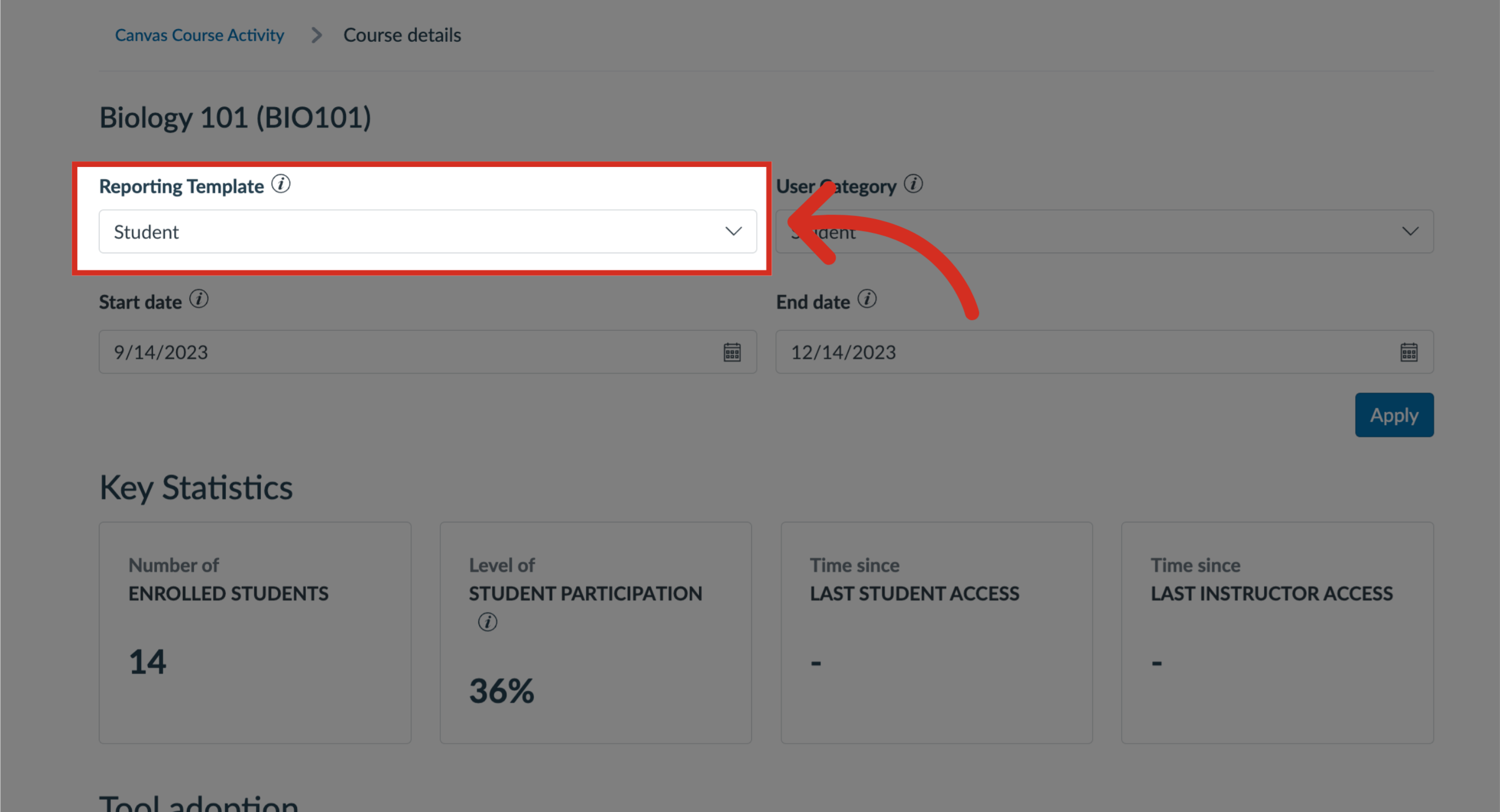
3. Reporting Templates Filter
To determine the structure shown in the chart and monitor category breakdown, click the Reporting Template drop-down menu and select the template you want to use.
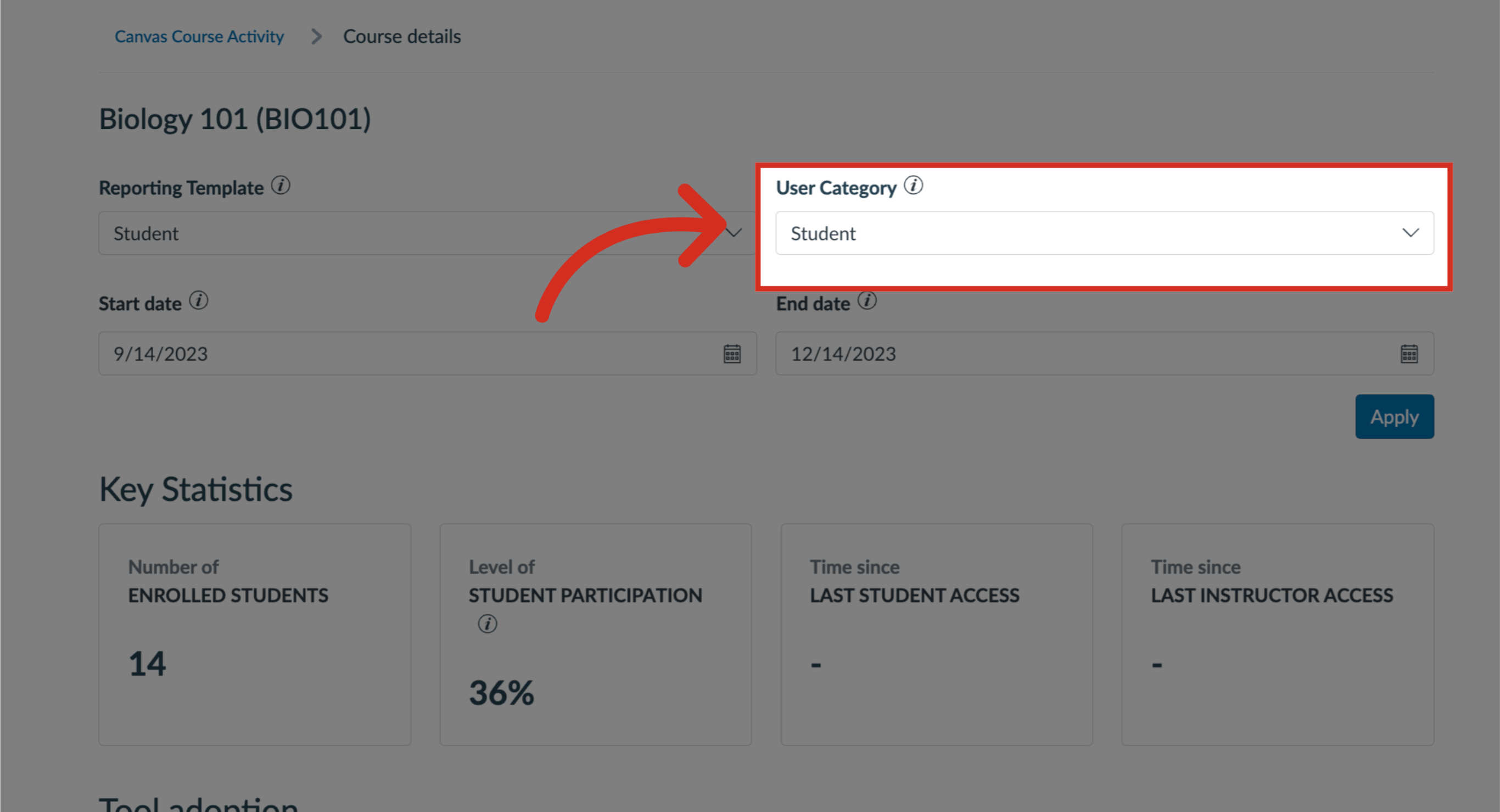
4. User Category Filter
To limit the adoption data to users who belong to the selected, click the User category drop-down menu.
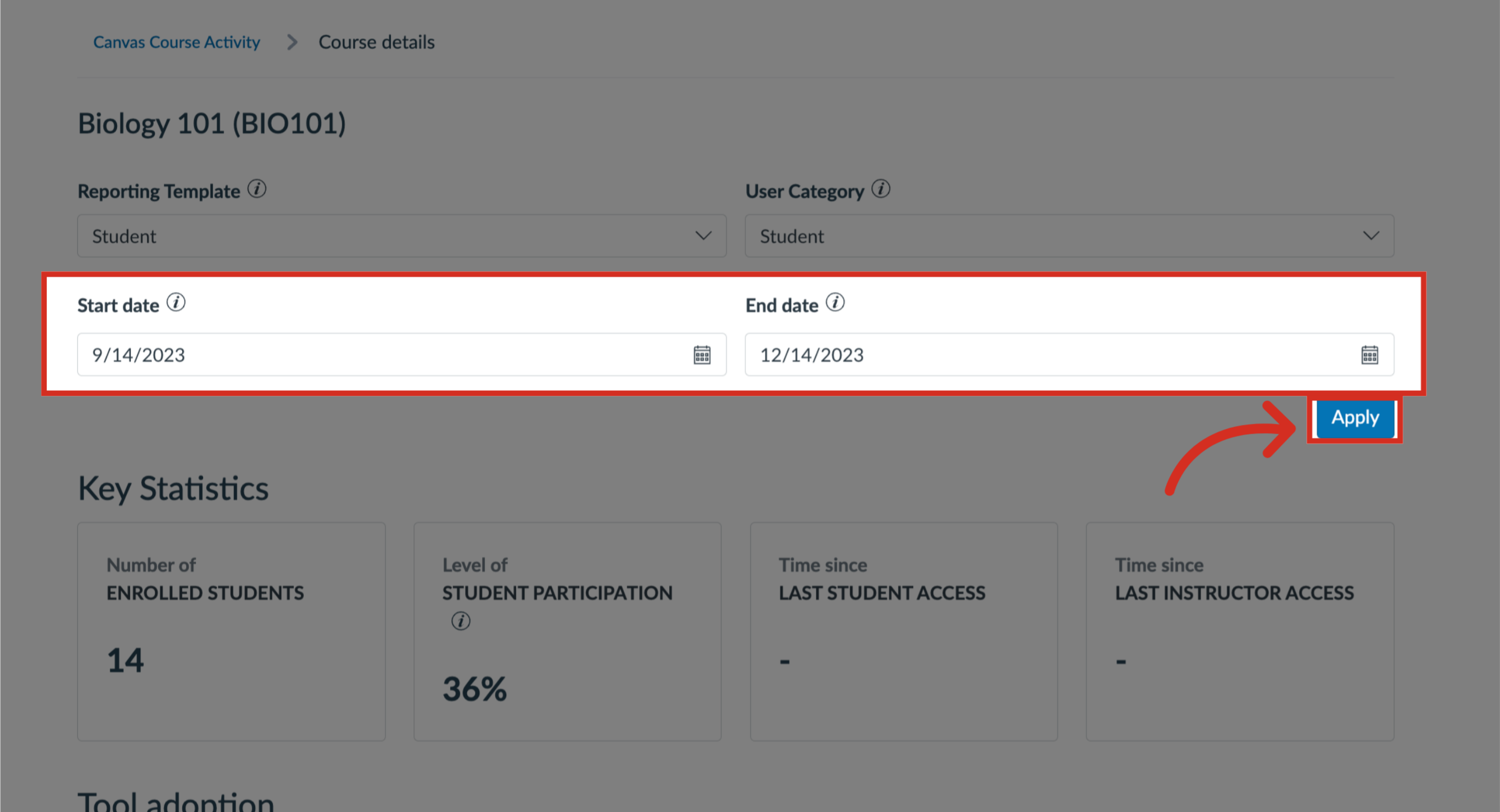
5. Modify Start/End Dates
To modify the Start Date or End Date, click the Calendar icon. By default, the date range is set to a Start Date of three months before the current date and an End Date of today.
To apply filters, click the Apply button.
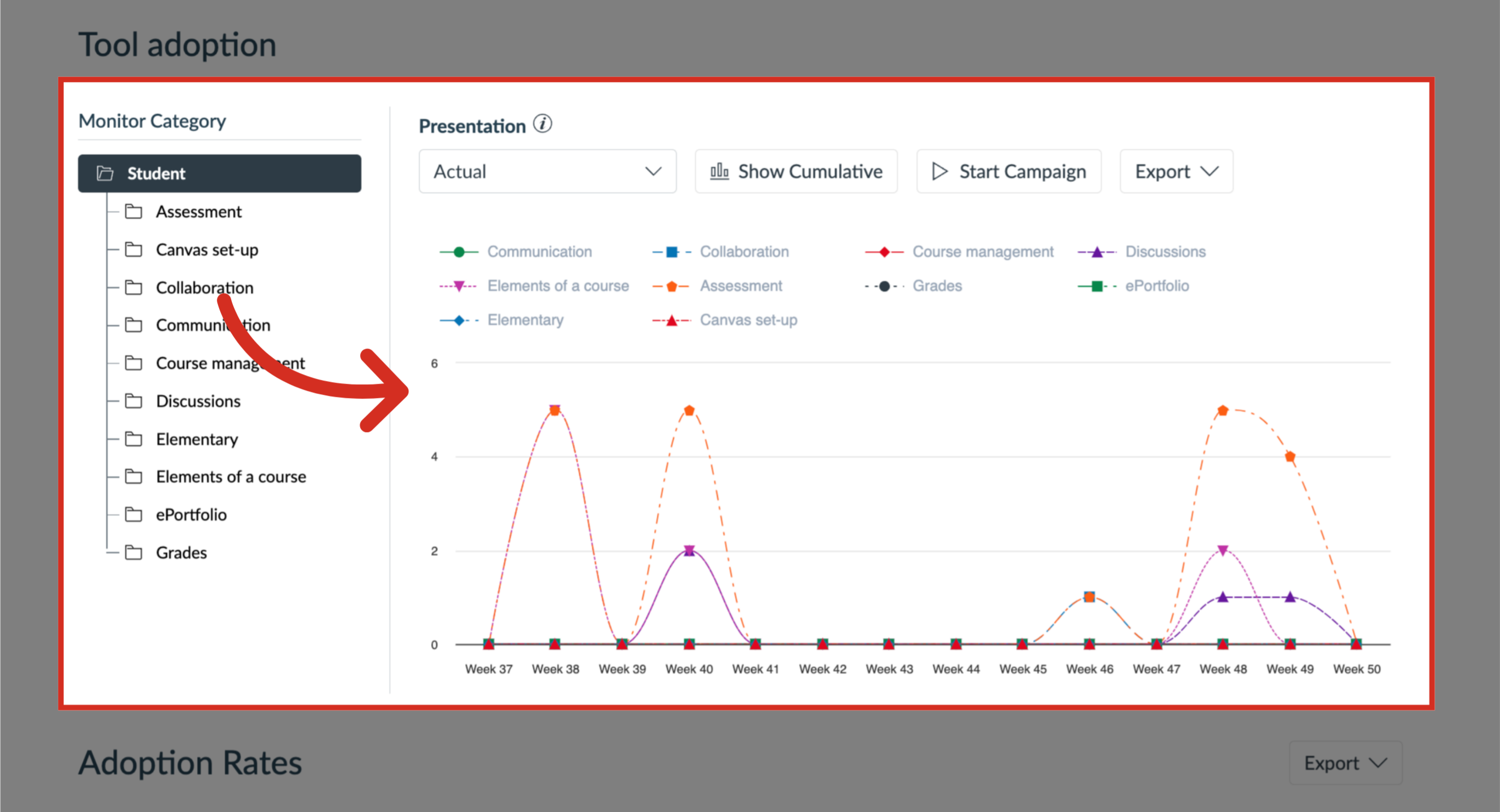
6. View Tool Adoption
In the Tool Adoption section, you can generate a report to view adoption data. You can specify information and formatting in which data is displayed by applying report settings.
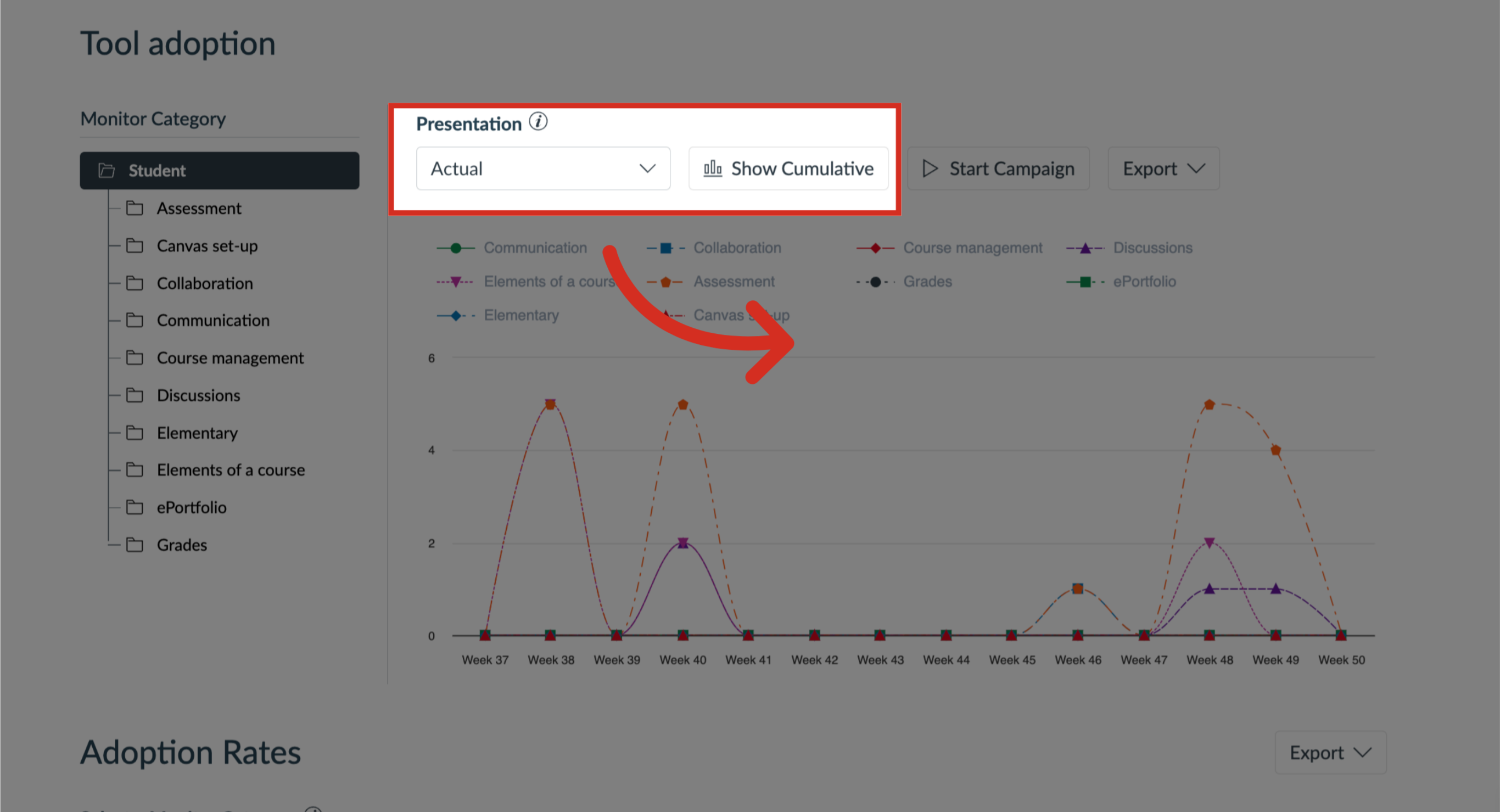
7. Change Presentation
To determine how the chart data is scaled and whether the adoption level for each monitor category is expressed in percentages or actual numbers, click the Presentation drop-down menu.
To toggle between Trend Line and Cumulative chart presentation, click the GraphType button. With Trend Line enabled, the chart shows separate adoptions levels for each unit of time. When set to the Cumulative Graph Type, the chart presents the growth curve of adoption from the first unit of time to the last unit of time.
In the Tool Group table, you can view tool adoption data and an accompanying graph for a specific tool group or tool.
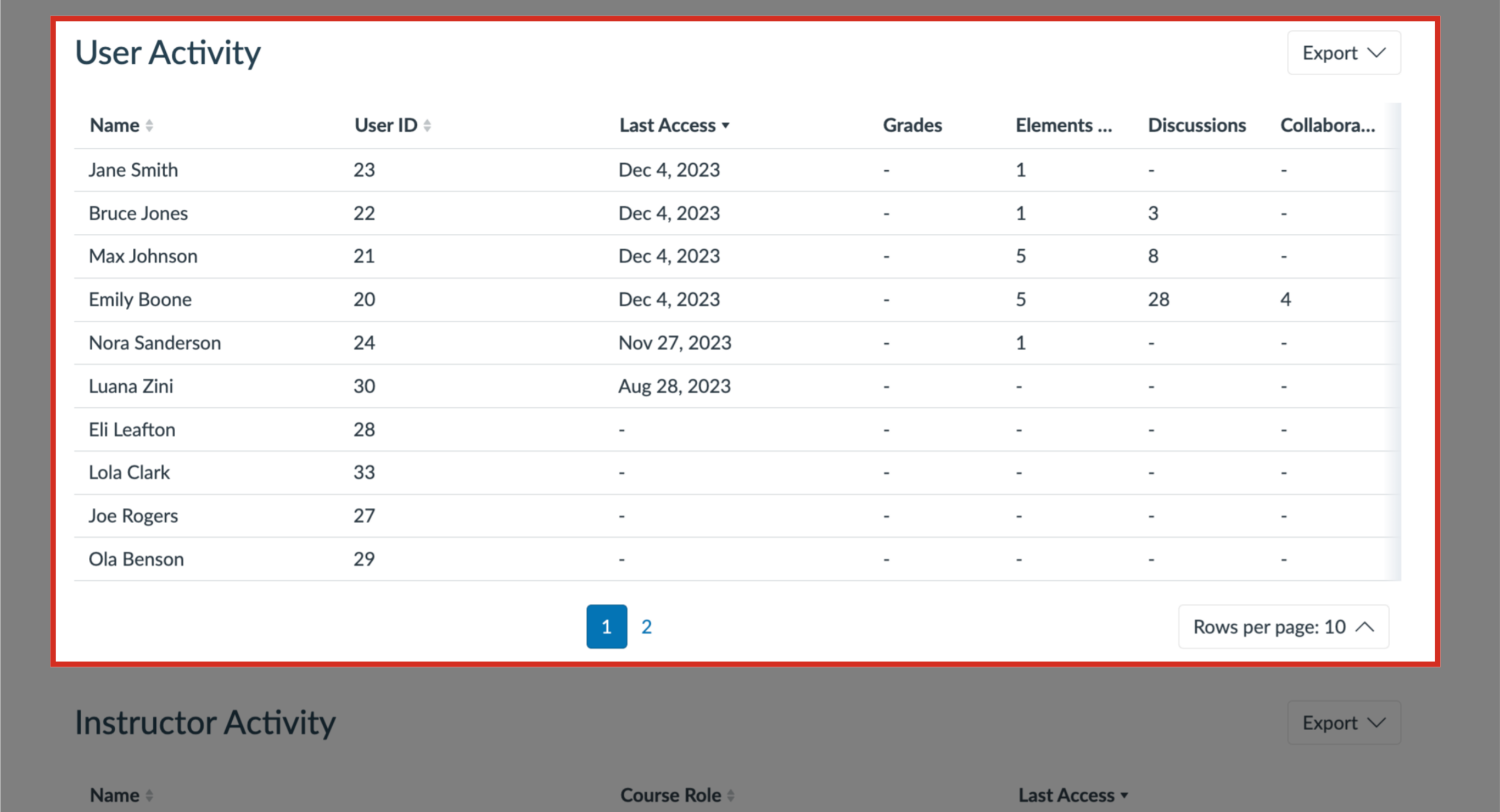
8. View User Activity