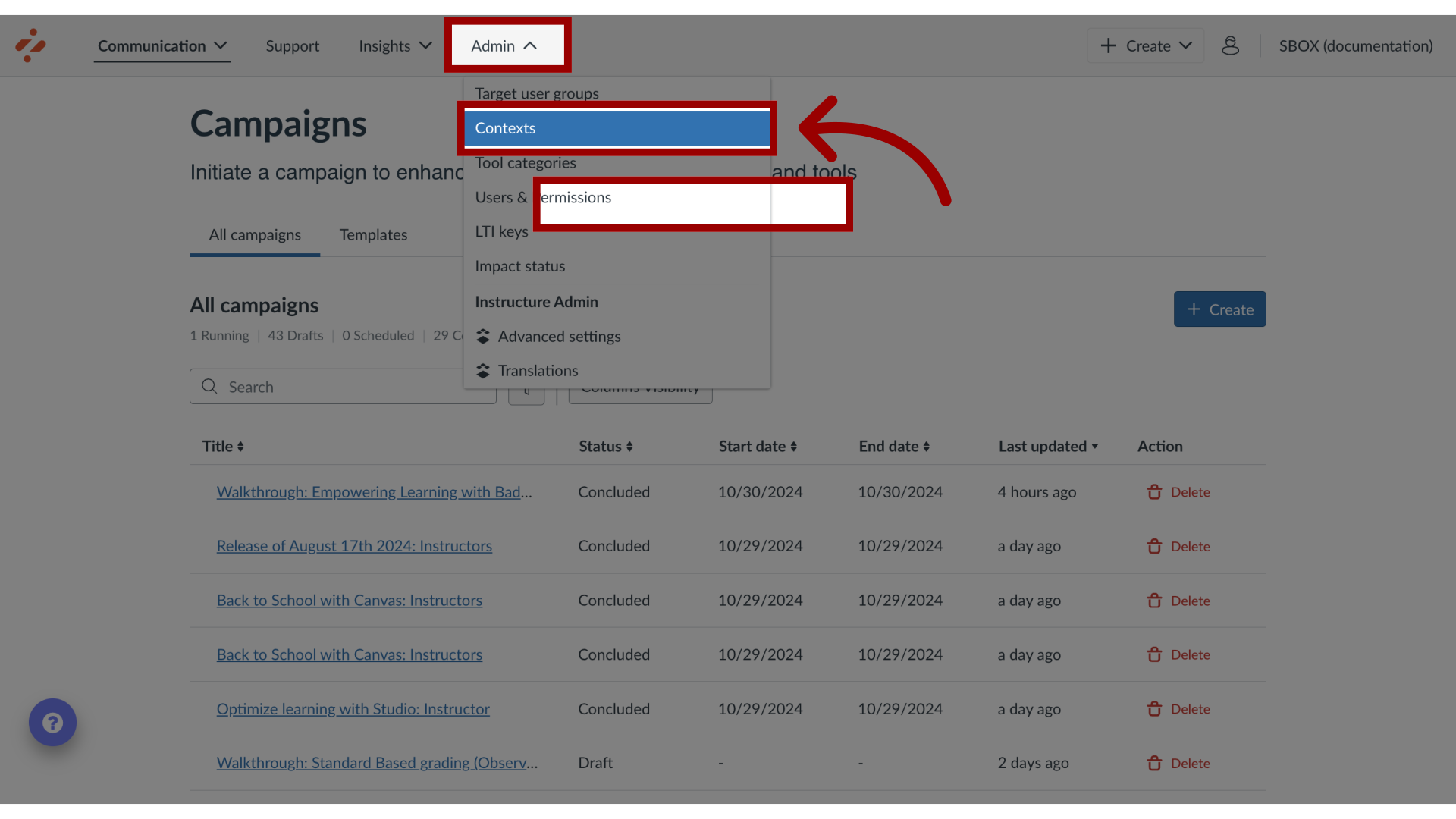
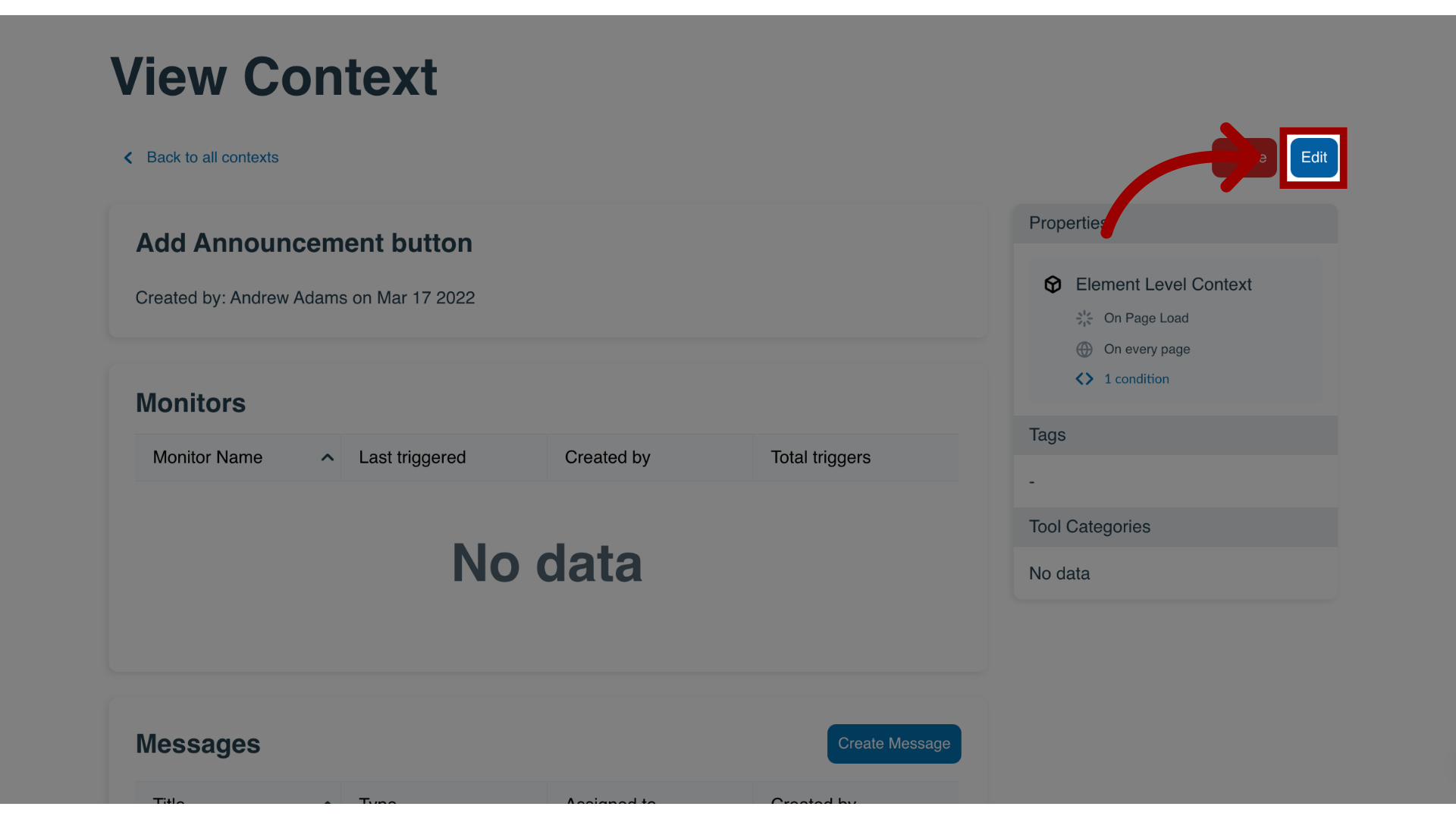
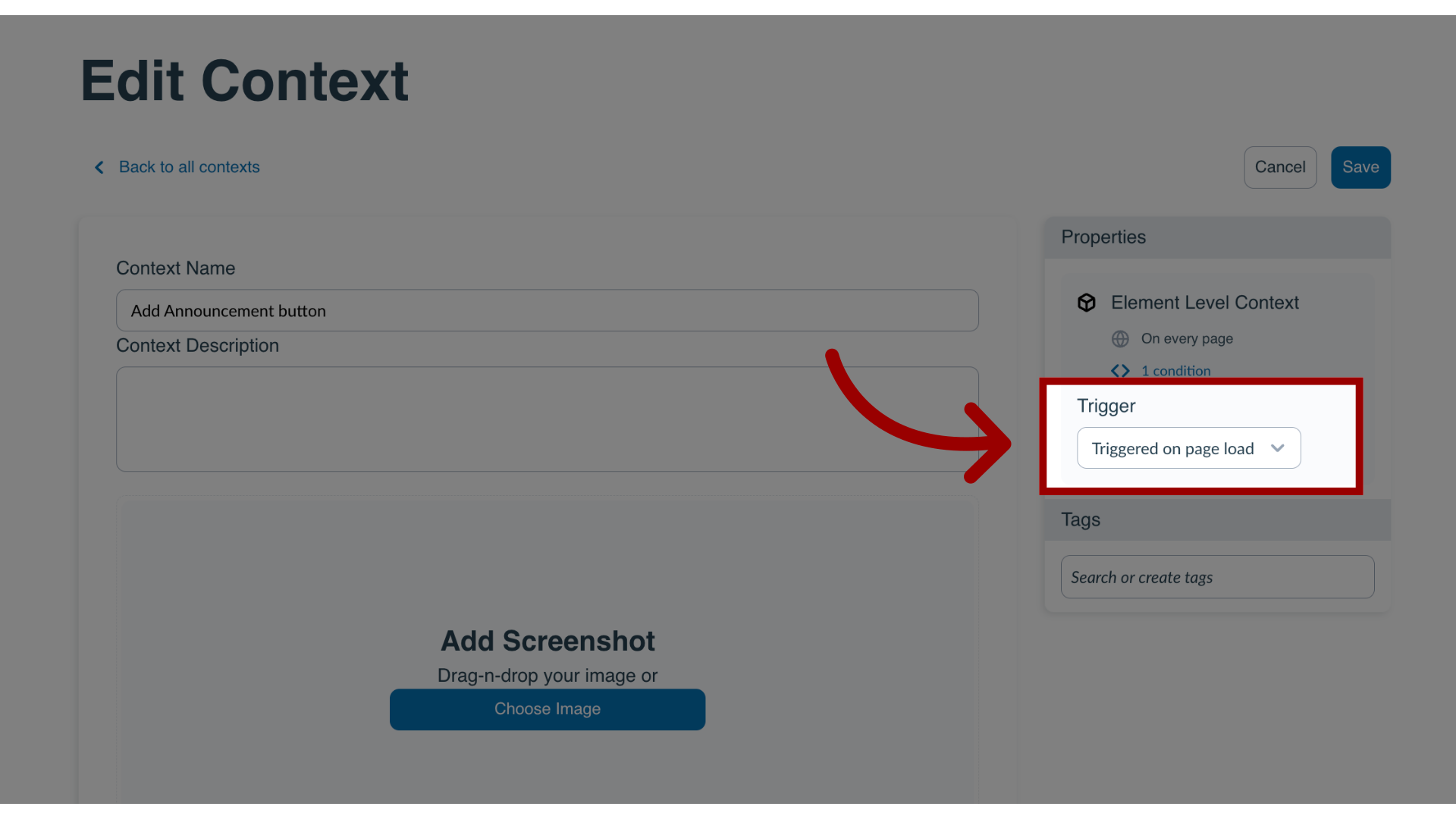
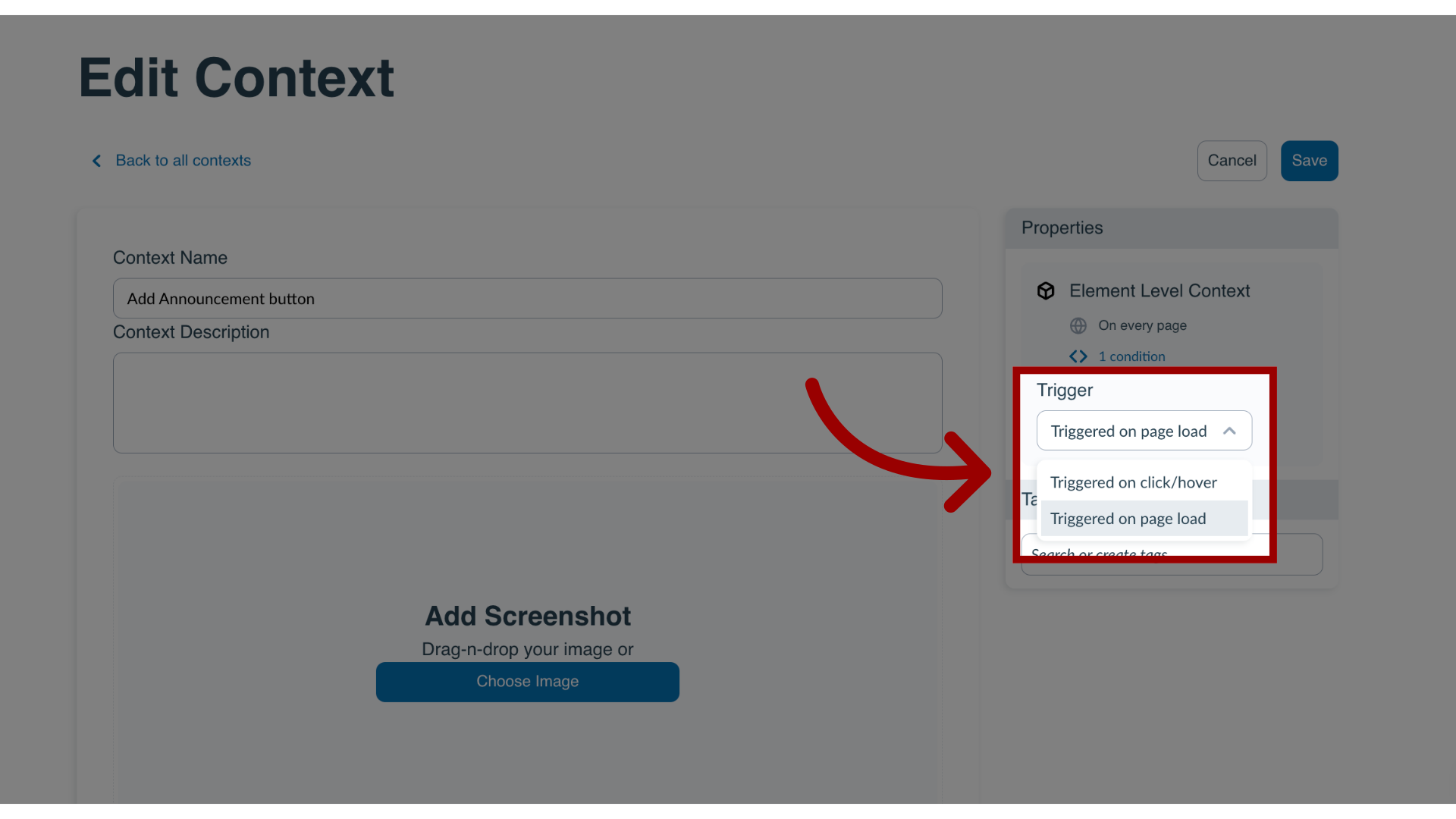
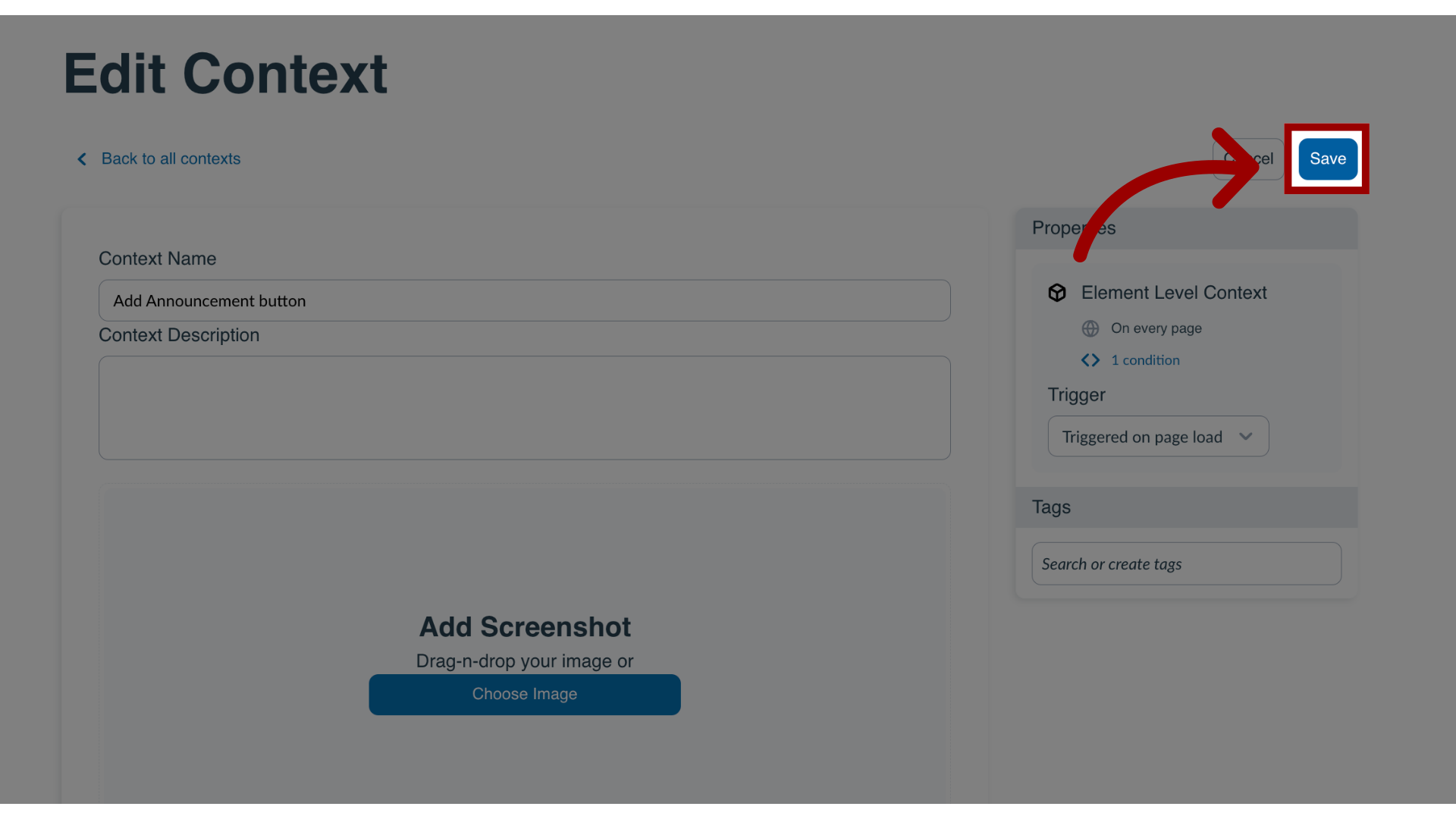
Contexts in Impact determine how messages and support articles are displayed in your learning environment. The way your context is triggered can be either on a page load or click/hover depending on your need. This trigger determines how your context behaves. This article explains how to change the behavior of a context.How do I change the behavior of a context in the Impact Dashboard?1. Open ContextsIn the Global Navigation, click the Admin dropdown menu. Then click the Contexts link.2. Open Context Click the name of a context.3. Edit ContextClick the Edit button.4. Open Trigger Drop-down MenuTo manage the behavior of your context, click the Trigger drop-down menu.5. Change Behavior You can choose between on click/hover and on page load.6. Save ChangesTo save changes made to your context, click the Save button.