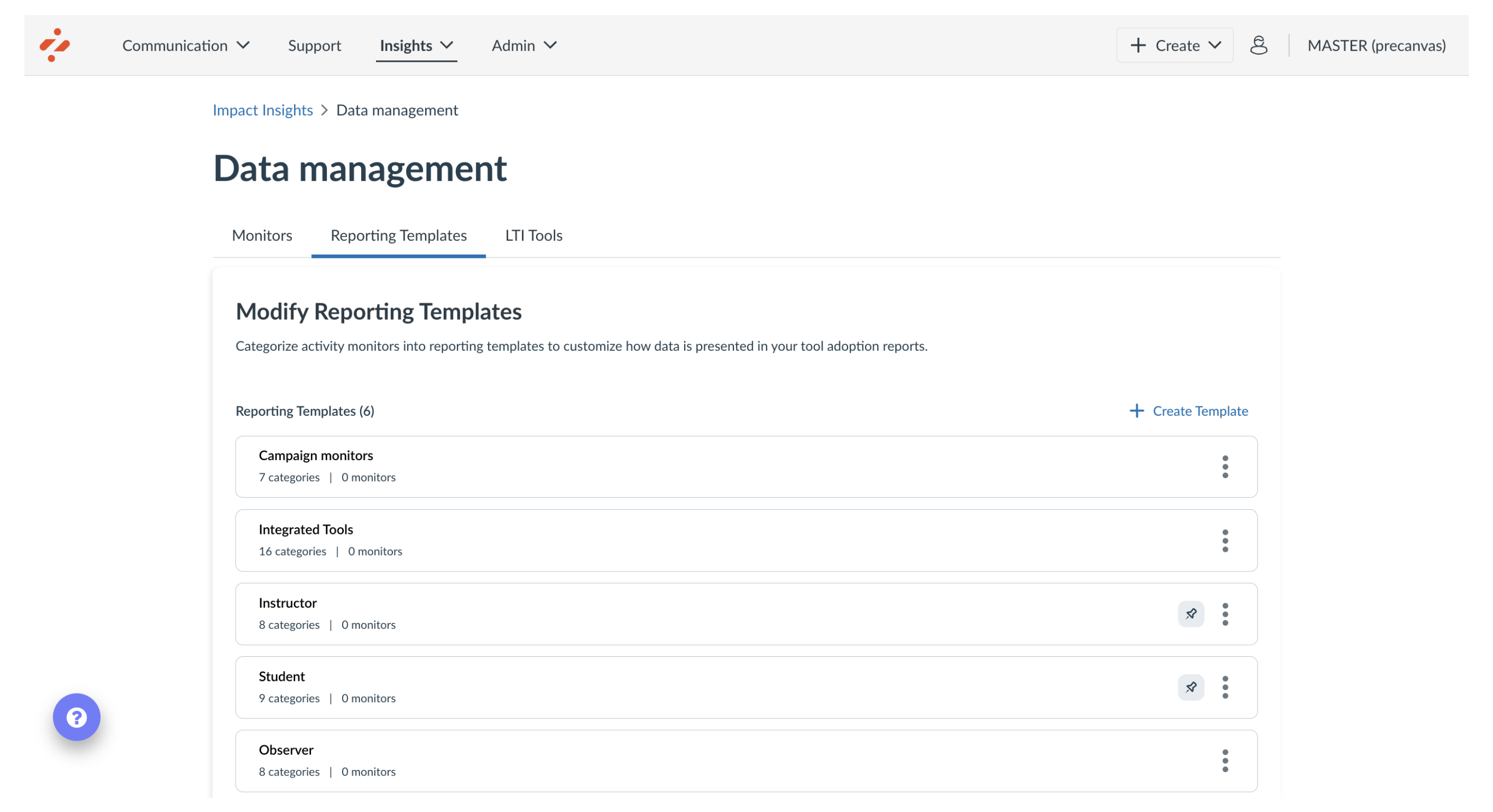
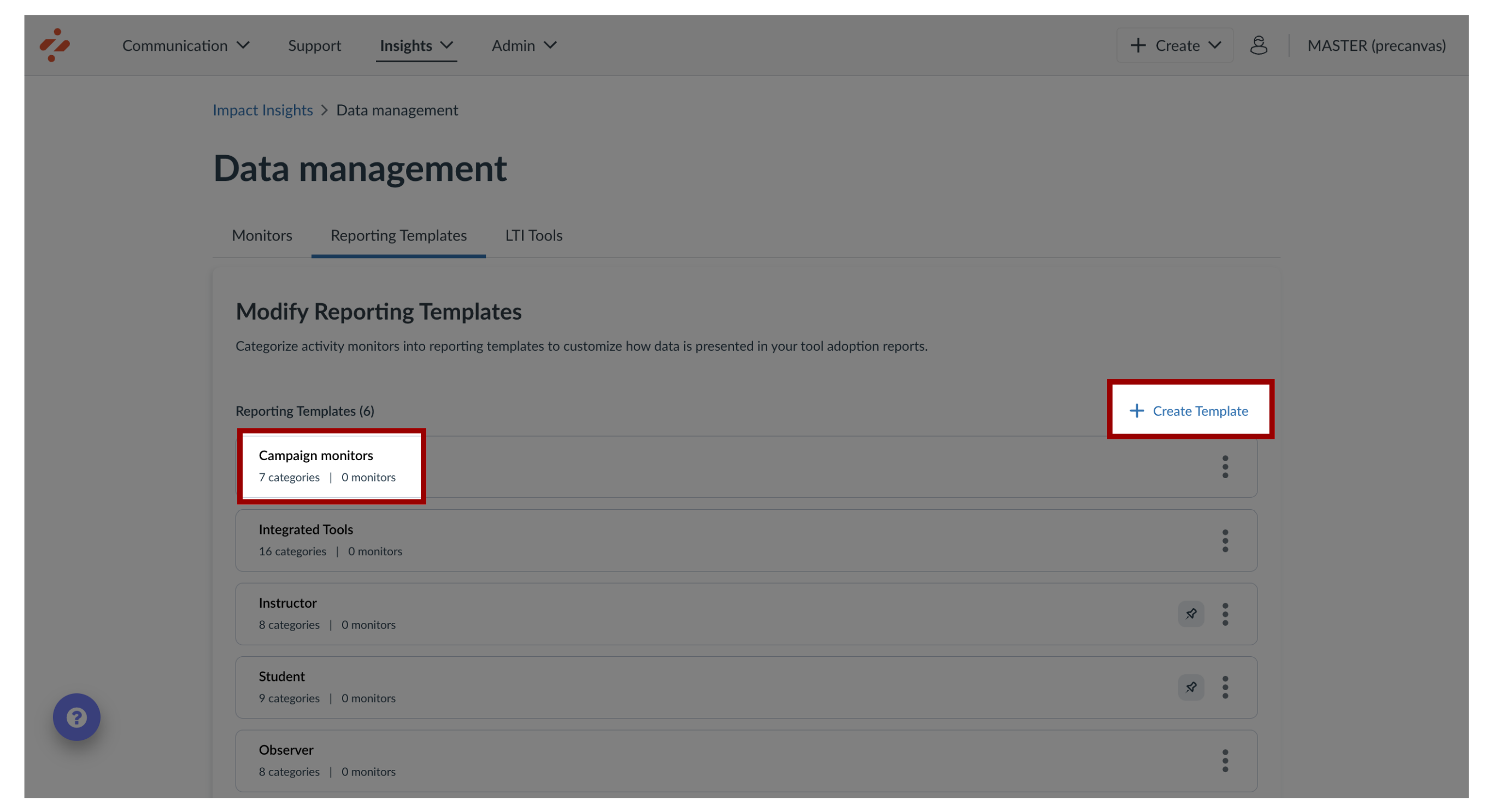
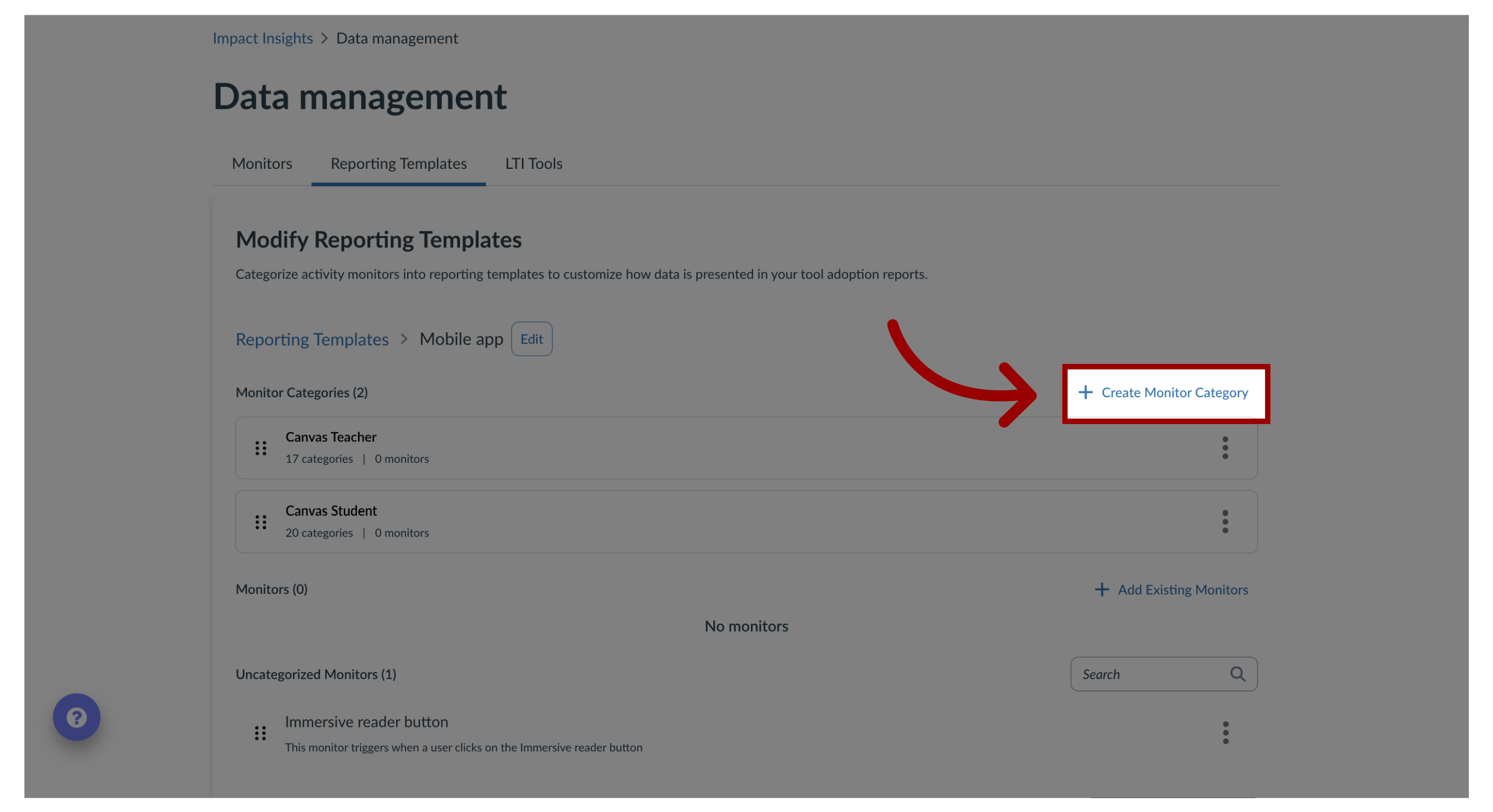
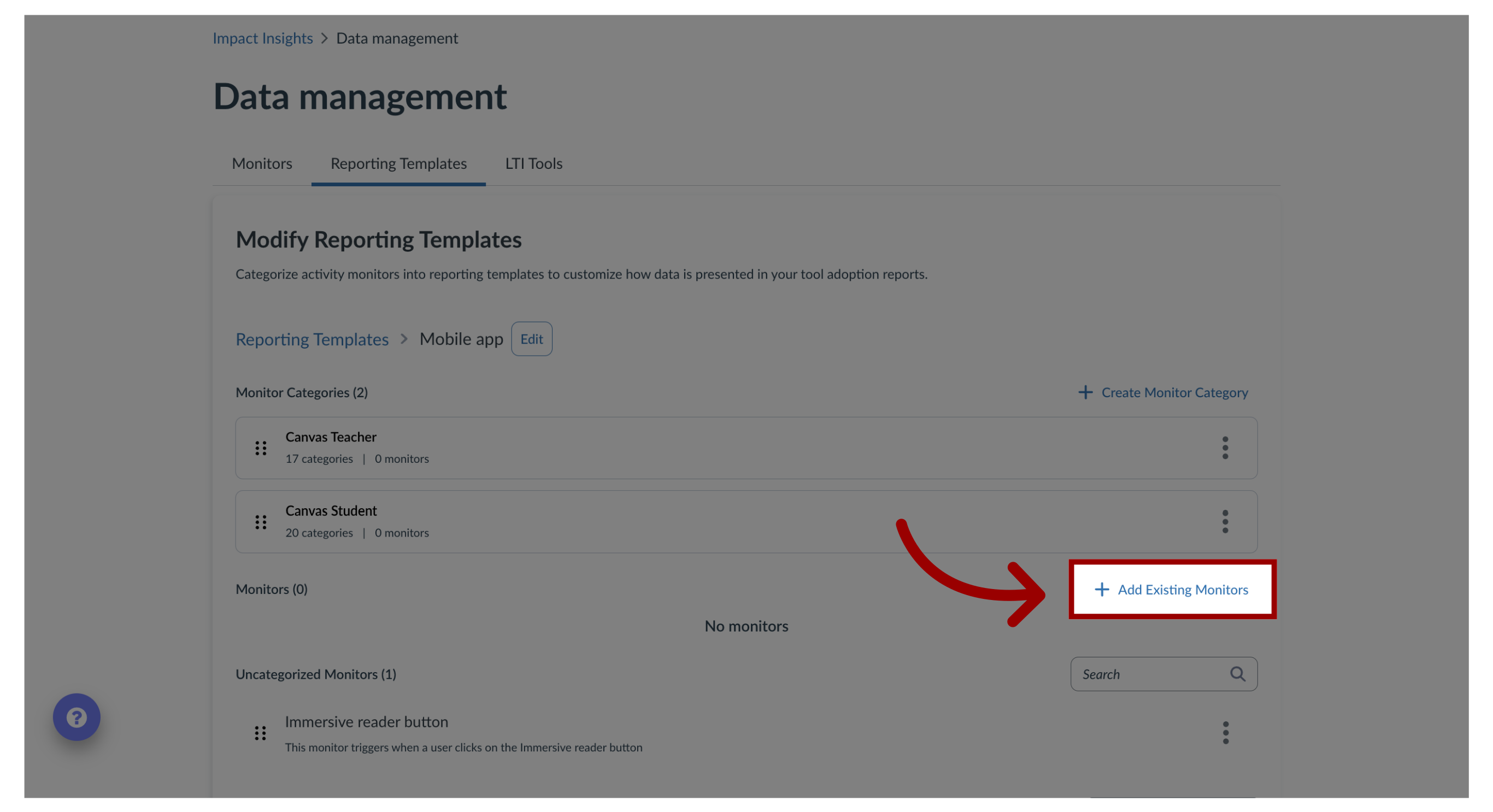
You can add locally created monitors and existing monitors inside campaigns.How do I connect Monitors in Campaigns?1. Viewing Monitors in CampaignsTo view Monitors in Campaigns, you need to add monitors to Reporting Templates. The two ways to add Monitors through Reporting Templates are by creating a new template or adding the monitor to an existing reporting template. 2. Open Reporting Template MonitorsTo add an activity monitor, click the reporting template name link or click the Create Template button.3. Create Monitor CategoryTo create monitor categories, click the Create Monitor Category link.4. Add Existing MonitorsTo add existing monitors, click the Add Existing Monitors link.5. Create Existing MonitorTo search for an existing monitor, enter a search term in the Search field. To add an existing monitor, click the monitor checkbox, then click the Insert button.6. CampaignsOnce you have set your Monitors inside the desired Reporting Templates, click the Communication dropdown menu and then click the Campaigns link. Select the Campaign you want your Monitor.7. Edit PropertiesTo edit the campaign property, click the Edit Properties button.8. Edit CampaignTo add your Monitors to your Campaign, navigate to the Target Outcomes section. In the Monitor Categories field, add the desired Monitor Category you created. Click the Save changes button.