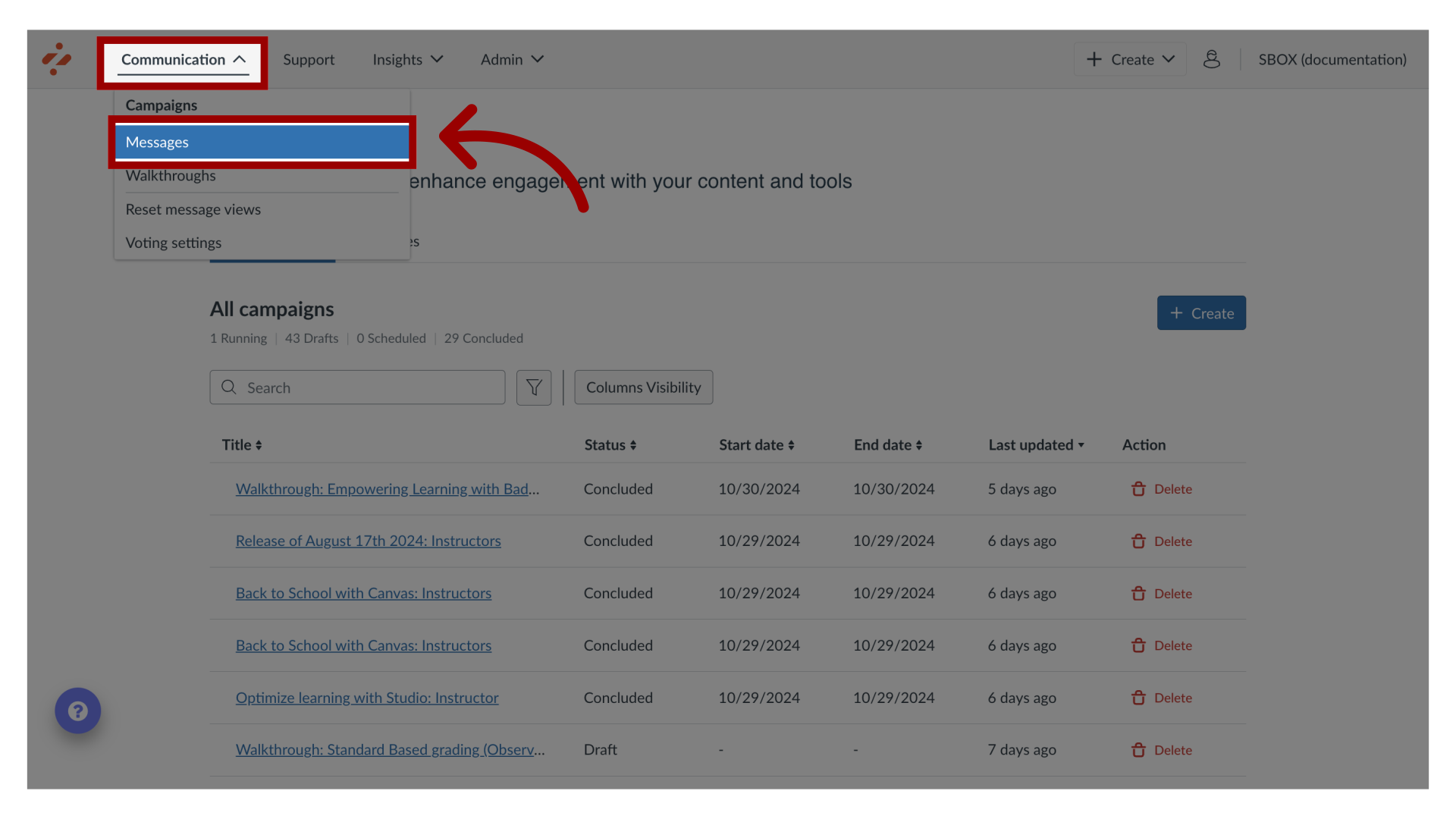
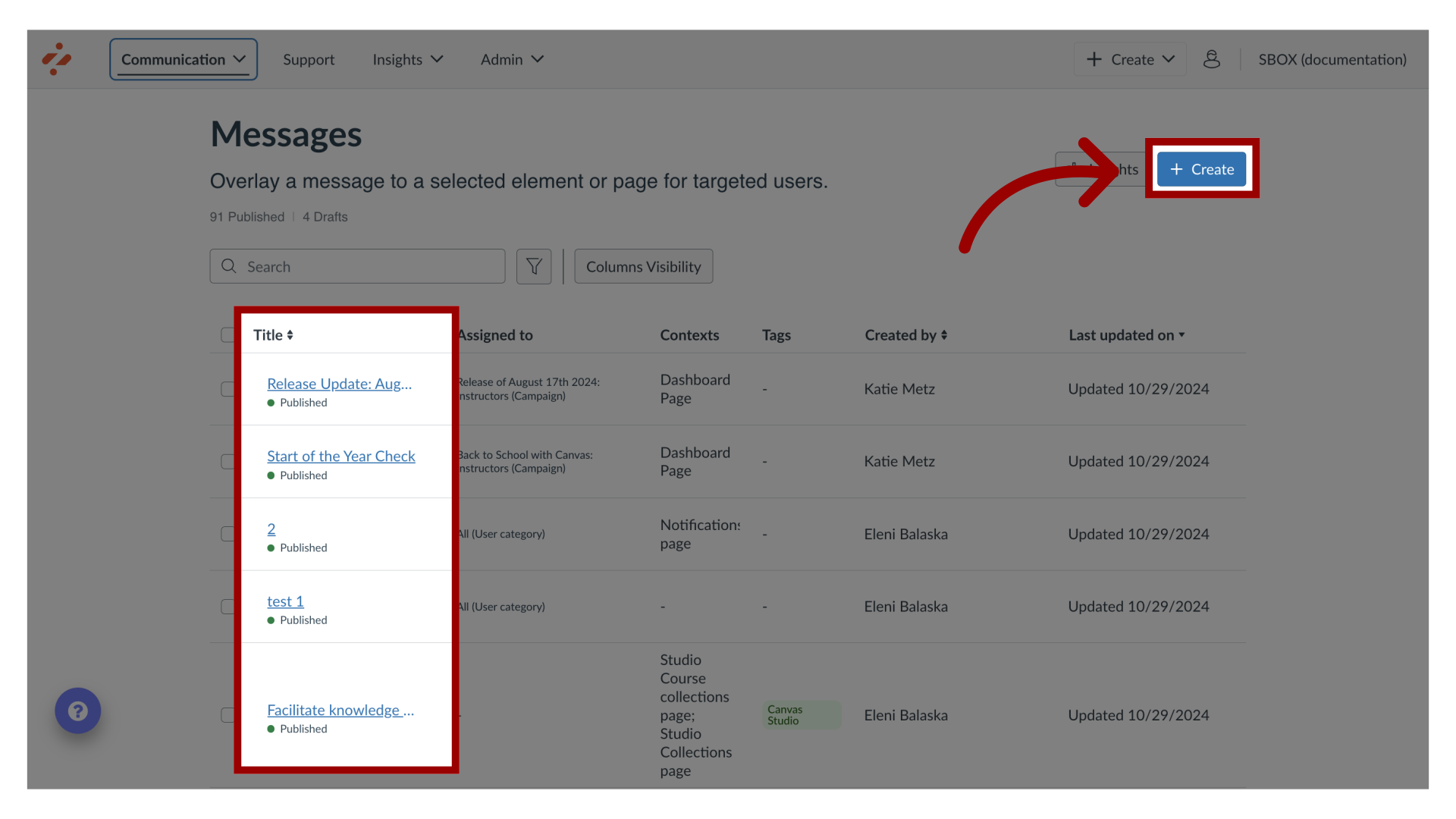
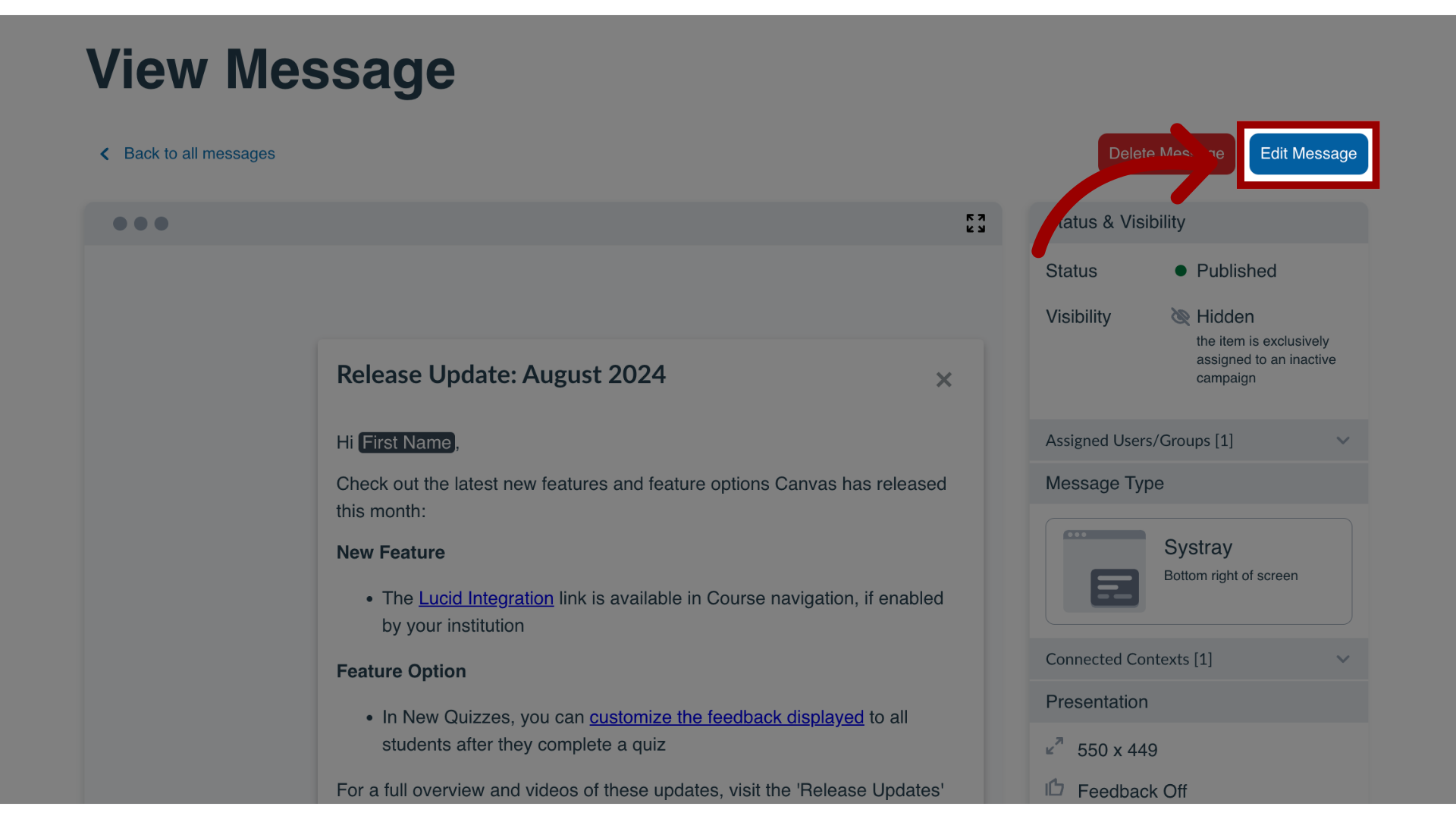
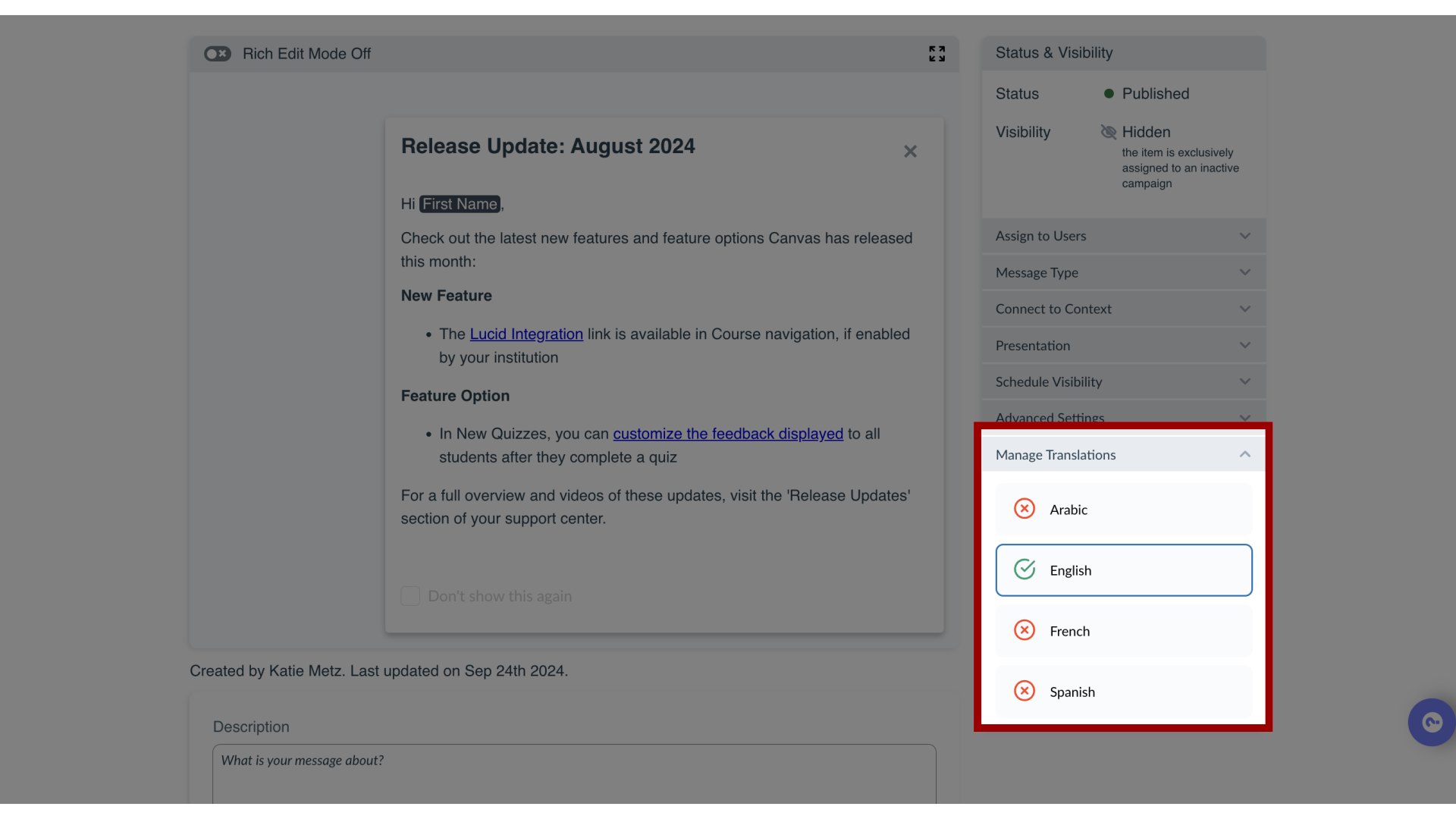
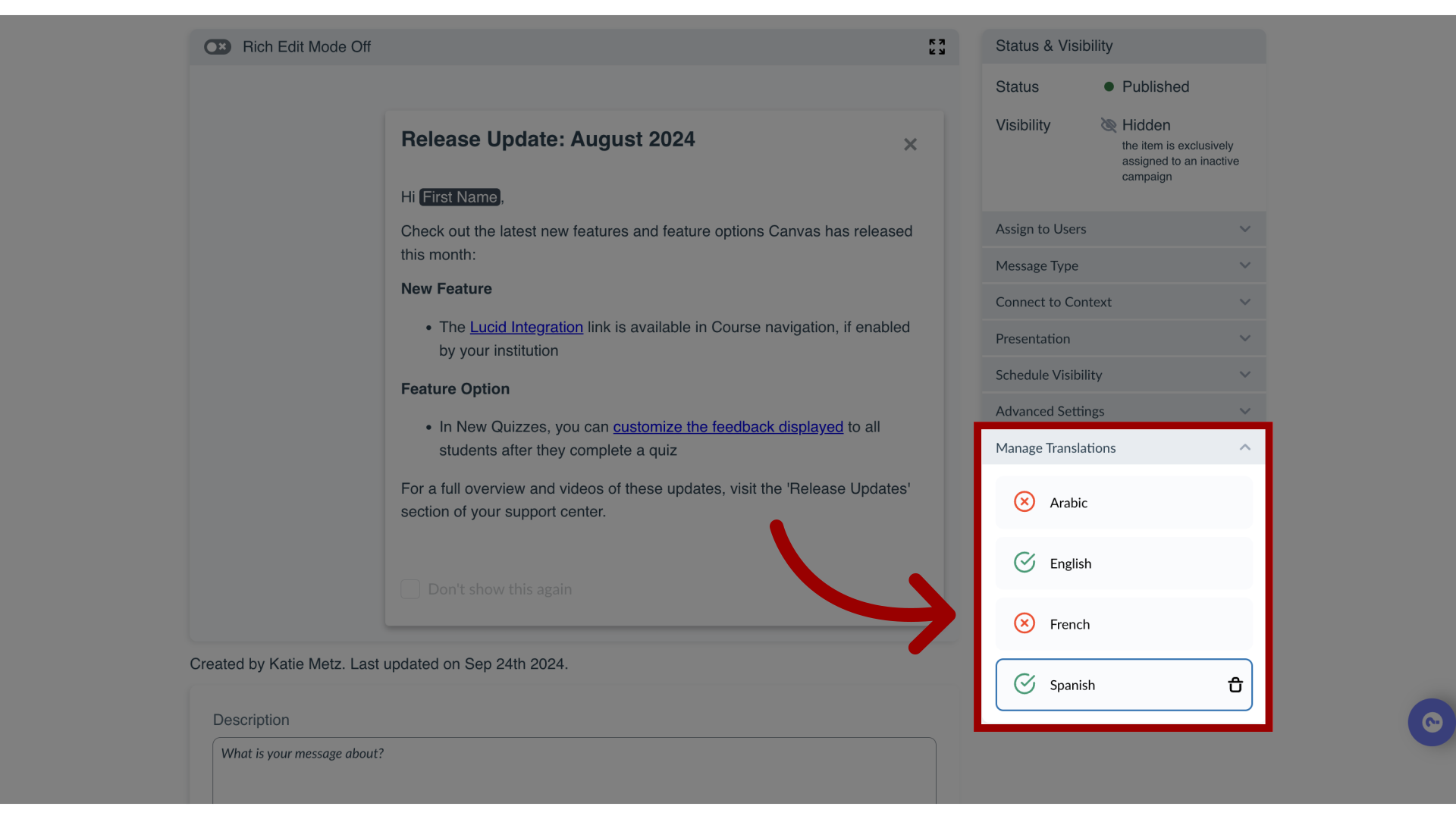
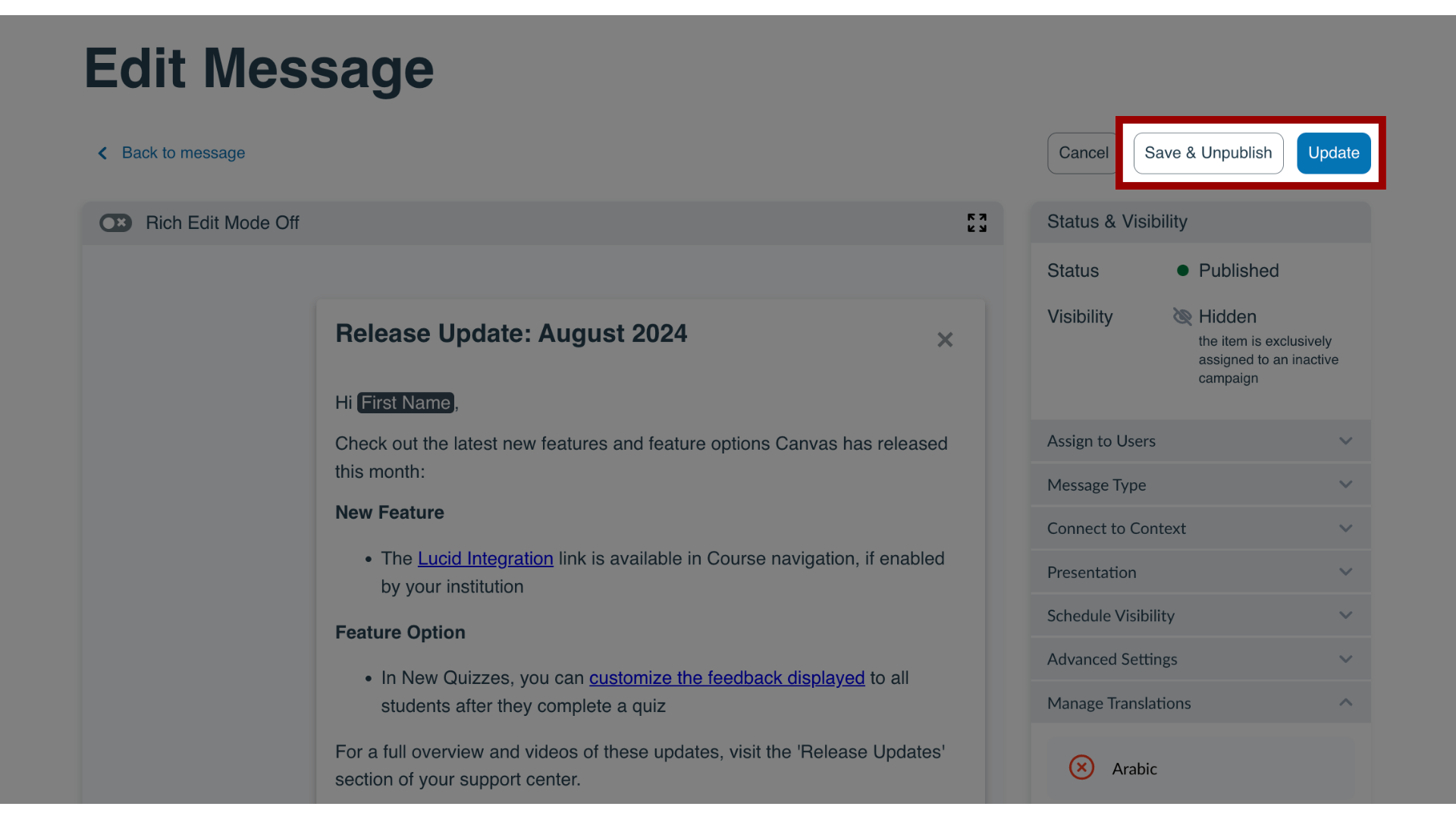
With Impact, you can add different languages to your dashboard so that you can provide multiple versions of your messages and articles depending on your LMS needs. Once you have added a new language, you can toggle between translations within the message and article editors. This article shows you how to add or edit message translations.How do I add or edit message translations in the Impact Dashboard?1. Open MessagesIn Global Navigation, click the Communication dropdown menu. Then click the Messages link.2. Manage MessagesTo edit an existing message, click the name of the message. To create a new item, click the Create button.3. Edit MessageIn the View Message page, click the Edit Message button. If you are creating a new message, the Edit Message button does not display.4. Manage TranslationsIn the sidebar, click the Manage Translations section. You can see all of your different languages available.5. Add or Edit Translation Click the language in which you want to add to the message. When a language is selected, it displays a green check.6. Save MessageTo update your message, click the Update button.To save your message, click the Save & Unpublish button.