As an admin, you can view and manage emojis available to teachers and students in an account when adding submission comments.
00:07: How do I view and manage blocked emojis for an account?
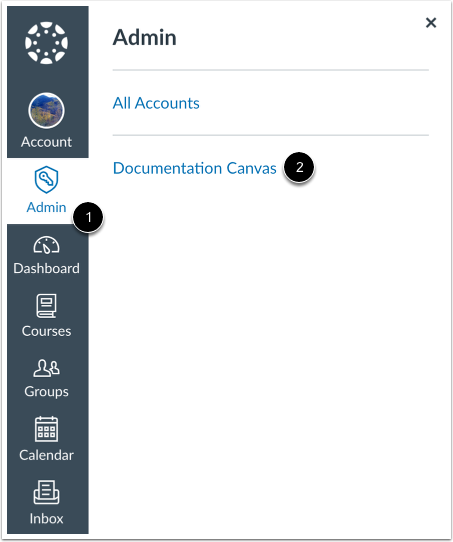
00:11: In global navigation click the admin link then click the name of
00:15: the account.
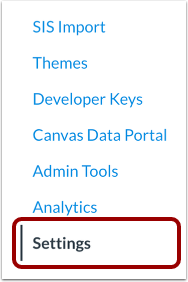
00:17: In account, navigation, click the settings link.
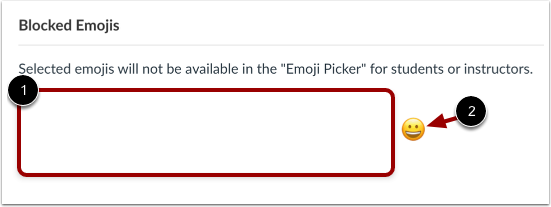
00:25: Blocked account emojis display in the blocked emojis, field to block
00:29: additional emojis for all account users, click the emoji icon.
00:34: To locate an emoji to block type a keyword, the search field.
00:38: To block an emoji, click the Emoji.
00:42: To save your changes, click the update settings button.
00:46: This guide covered how to view and manage blocked emojis for an account.
Open Account
In Global Navigation, click the Admin link [1], then click the name of the account [2].
Open Settings
In Account Navigation, click the Settings link.
Managed Blocked Emojis
Blocked account emojis display in the Blocked Emojis field [1]. To block additional emojis for all account users, click the Emoji icon [2].
Select Emoji
To locate an emoji to block, type a keyword the Search field [1]. To block an emoji, click the emoji [2].
Update Settings
To save your changes, click the Update Settings button.