00:07: How do I view course activity for an account?
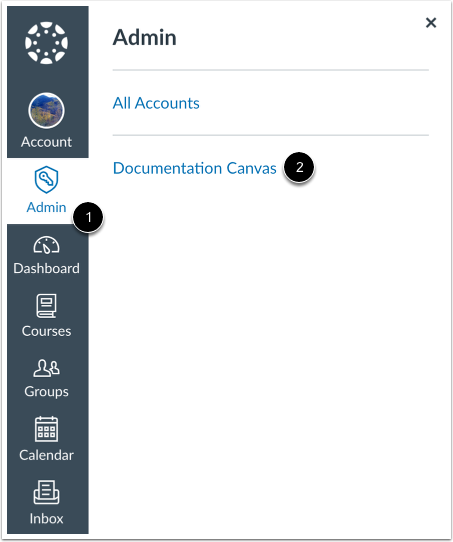
00:10: In Global Navigation, click the Admin link, then click the name of the account.
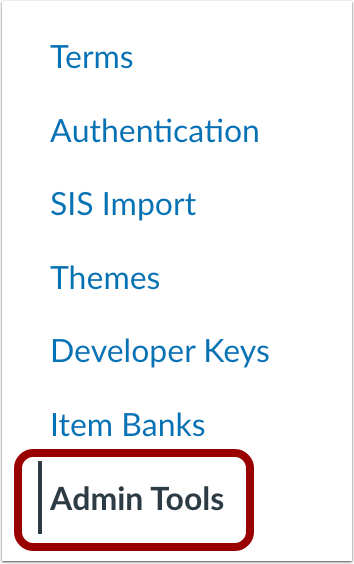
00:15: In Account Navigation, click the Admin Tools link.
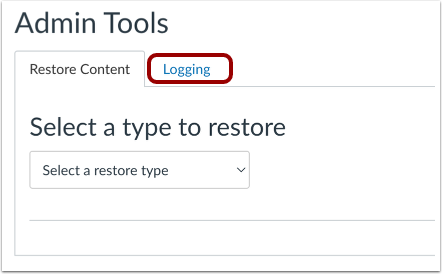
00:19: Click the Logging tab.
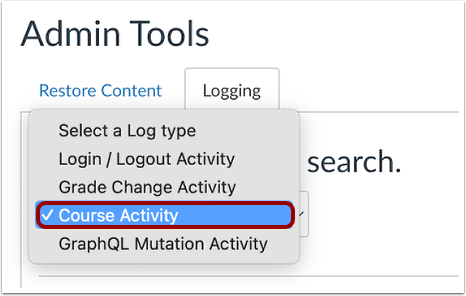
00:21: From the log type drop-down menu, select the Course Activity option.
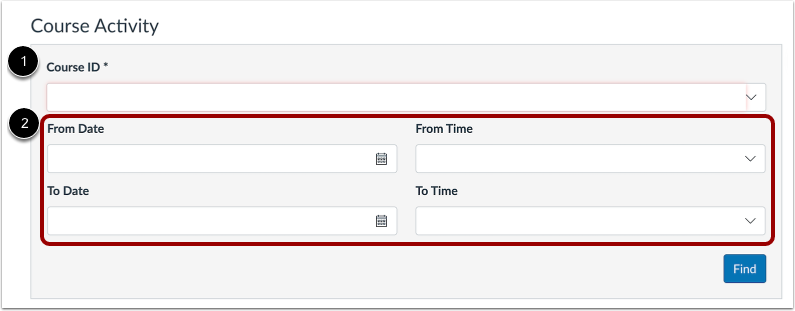
00:26: Search by Course ID. You can locate your course ID number at the end of your course URL.
00:33: Once you start to type the course information, Canvas will generate a drop-down list of matching Canvas courses. Results are based on valid field entries, so if no results appear (especially if searching by name), confirm the information and try again.
00:48: You can also enter a date range in the date fields. Dates are not required, but adding dates will narrow your results.
00:56: Click the Find button.
00:58: Canvas will display any applicable results for the field you selected
01:03: The Date of the activity.
01:06: The Time of the activity.
01:08: The User who performed the activity.
01:11: The Type of activity (such as concluded, unconcluded, published, deleted, restored, updated, created, copied to, copied from, reset to, and reset from).
01:17: The Source of the activity (such as manual or via API).
01:22: To view the Event Details of the activity type,click the View Details link.
01:27: The guide covered how to view grade change activity for an account.