00:07: What user roles and permissions are available in canvas.
00:11: Course, level roles are roles with permissions that allow a user course, level access.
00:15: Usually users with these roles. Cannot see more than what is in their canvas courses.
00:21: Canvas provides five base course, level user roles that each include their
00:25: own set of default permissions. You can manage the permissions according
00:29: to the needs of your Institution. You can also create custom course
00:33: roles that are created from a base role. The canvas base roles are.
00:39: Student, these users are permitted to submit assignments.
00:42: This permission should not be turned off for this role student permissions
00:46: are restricted, but they have enough. Permissions to access and interact.
00:50: With course materials. You may also Grant other permissions to students.
01:06: Teacher the teacher role grants a user course, admin permissions, giving
01:10: them control over their assigned course, or courses.
01:13: However, institutions can revise and limit these permissions as needed depending
01:18: upon the needs of your Institution.
01:22: Ta these users have permissions similar to teachers, except that tush
01:26: should not have access to Sis data. The tar role is meant to support
01:30: the teacher role admins can manage top permissions.
01:33: For example, some institutions May permit touch to grade students
01:37: submissions
01:40: Designer, these users are permitted to access and create course content
01:44: including announcements assignments, discussions and
01:48: quizzes. Designer access to student information will vary
01:52: from institution to institution. However, designers cannot
01:56: access grades. If your institution does not use course.
01:59: Designers, you may choose to use this role as another ta user role, that has
02:03: more permissions than a regular Tah.
02:07: Observer this user role can be linked to a student user enrolled in
02:11: a course. For example, parents Guardians, and or
02:15: mentors may wish to be linked to a student to view their course progress.
02:19: Observers usually have the fewest permissions.
02:33: Account admins have the power to set permissions for all users in canvas.
02:37: Admins can create additional account level roles with account level permissions.
02:41: The default permissions for account, admins can include access to everything
02:45: within the account. Plus, the ability to masquerade as a user, Each
02:50: sub-account has its own permissions page.
02:52: So admins can create a count level roles within a sub account and add
02:56: sub-account permissions directly within the sub account.
03:00: Sub-account admins can only only manage permissions and settings for the sub
03:04: accounts to which they've been assigned. However, some permissions may not
03:08: be available for sub account users.
03:12: This guide covered the user roles and permission are available in canvas.
Course-Level Roles
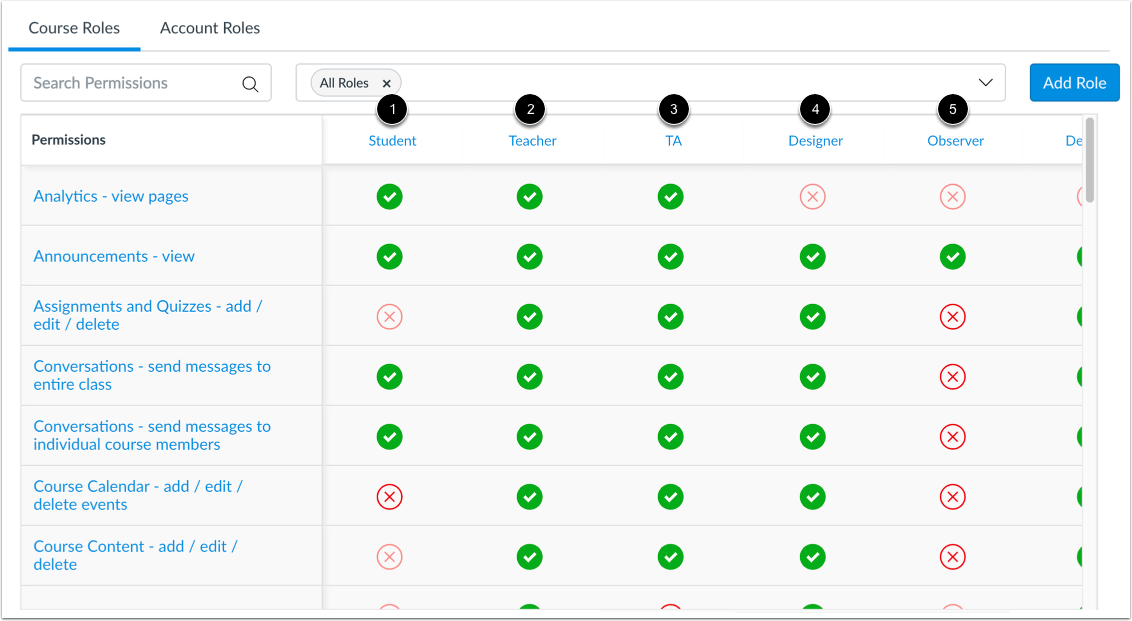
Course-level roles are roles with permissions that allow a user course-level access. Usually users with these roles cannot see more than what is in their Canvas courses.
Canvas provides five base course-level user roles that each include their own set of default permissions. You can manage the permissions according to the needs of your institution. You can also create custom course roles that are created from a base role. The Canvas base roles are:
- Student [1]: These users are permitted to submit assignments. This permission should not be turned off for this role. Student permissions are restricted, but they have enough permissions to access and interact with course materials. You may also grant other permissions to students.
- Teacher [2]: The teacher role grants a user course admin permissions, giving them control over their assigned course or courses. However, institutions can revise and limit these permissions as needed, depending upon the needs of your institution.
- TA [3]: These users have permissions similar to teachers except that TAs should not have access to SIS data. The TA role is meant to support the teacher role. Admins can manage TA permissions. For example, some institutions may permit TAs to grade student submissions.
- Designer [4]: These users are permitted to access and create course content, including announcements, assignments, discussions, and quizzes, but they cannot build or edit New Quizzes. Designer access to student information varies by institution, but they do not have access to grades. If your institution does not use Course Designers, you may choose to use this role as another TA user role that has more permissions than a regular TA.
- Observer [5]: This user role can be linked to a student user enrolled in a course. For example, parents, guardians, and/or mentors may wish to be linked to a student to view their course progress. Observers usually have the fewest permissions.
Note: All user permissions trickle down through an account. Additionally, all permissions modifications affect all users assigned to a role. You may need to create a custom course-level user role for users whose course-level permissions you would like to vary from others'.
Account-Level Roles
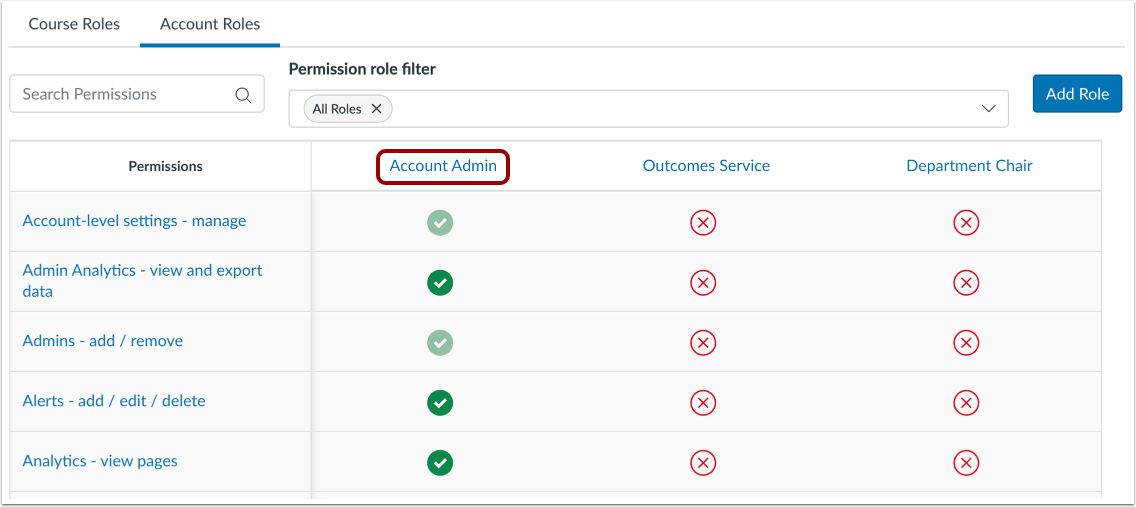
Account admins have the power to set permissions for all users in Canvas. Admins can create additional account-level roles with account-level permissions. The default permissions for account admins can include access to everything within the account, plus the ability to masquerade as a user.
Each sub-account has its own permissions page, so admins can create account-level roles within a sub-account and add sub-account permissions directly within the sub-account. Sub-account admins can only manage permissions and settings for the sub-accounts to which they've been assigned. However, some permissions may not be available for sub-account users. To learn more, view the Account vs. Sub-Account Comparisons resource document.