You can view the notifications received by individual students with the View Notifications tool.
Note: You must talk to your Customer Success Manager to enable this feature before you can use it. After your Customer Success Manager enables the feature, you should enable the View Notifications permission for the appropriate roles.
View the video transcript
00:07: How do I see which notifications have been sent to a user in an account?
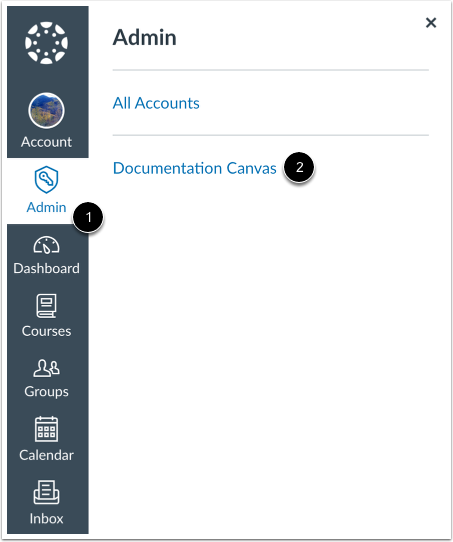
00:11: In Global Navigation, click the Admin link, then click the name of the account.
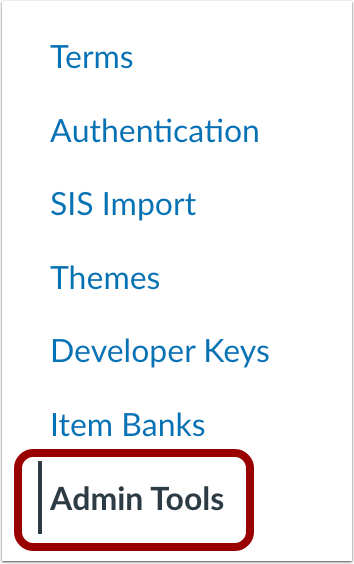
00:17: In Account Navigation, click the Admin Tools link.
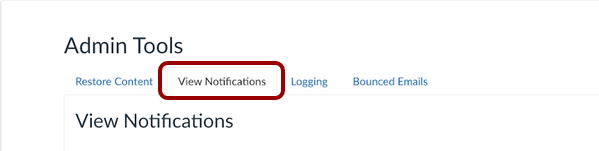
00:21: Click the View Notifications tab.
00:24: In the search field, type the name of the student. As you type, the student's name will appear in the list. Click the student's name.
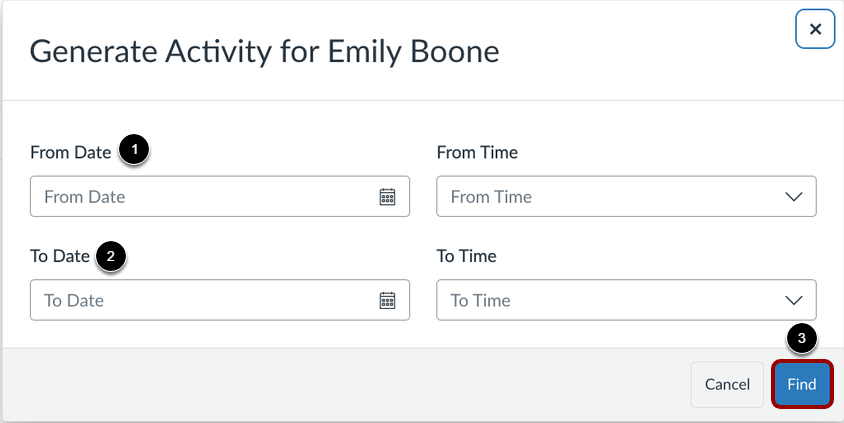
00:32: Create the date range you want to search. You can enter dates in the From Date and To Date date fields, or you can use the calendar icon to select dates. Then click the Find button.
00:44: View the notifications sent to the user from Canvas.
00:48: The guide covered how to see which notifications have been sent to a user in an account.
Open Account
In Global Navigation, click the Admin link [1], then click the name of the account [2].
In Account Navigation, click the Admin Tools link.
Open View Notifications
Click the View Notifications tab.
Search for Student
In the search field [1], type the name of the student. As you type, the student's name will appear in the list. Click the student's name [2].
Enter Date Range
Create the date range you want to search. You can enter dates in the From Date and To Date date fields [1], or you can use the calendar icon to select dates [2]. Then click the Find button [3].
View Notifications Sent to User
View the notifications sent to the user from Canvas.
The Notification Status tracks the progress of a message. It helps you understand whether a push notification reached the user or why it failed.
- Sent: The message was successfully dispatched to the recipient.
- Cancelled: The notification was halted. This typically happens if the message type is no longer supported or if the user has manually disabled notifications in their device settings.
- transmission_error: The delivery failed due to technical barriers. This usually indicates that the device's configuration is actively blocking the message or the device hasn't been properly registered to receive notifications.
Note: You can check Canvas Notifications for supported notifications.