Create New Case
In the Field Admin Console home page, click the Create Support Ticket button.
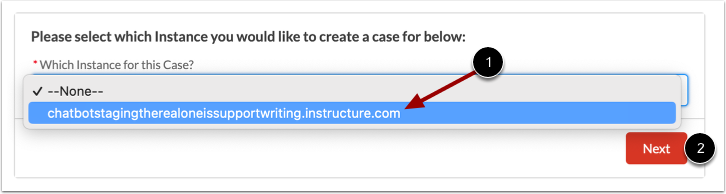
Select Instance
Select the instance in which you are creating the case using the Which Instance for this Case? dropdown [1]. Then click the Next button [2].
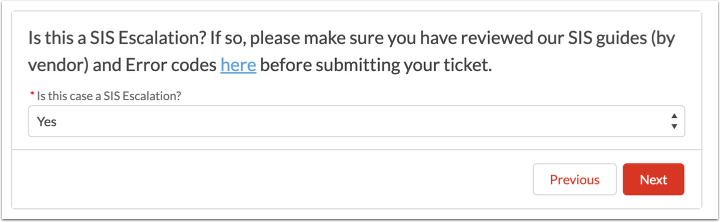
Escalate SIS Case
If your instance is authorized to escalate SIS cases, a SIS escalation prompt displays.
Learn more about creating a SIS escalation case.
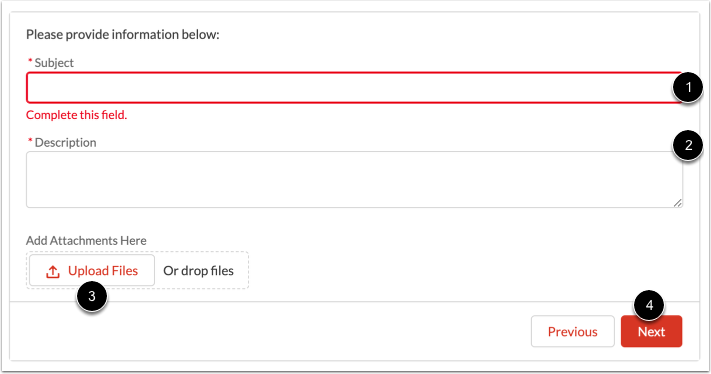
Add Case Details
Enter a subject for the case in the Subject field [1] and a description in the Description field [2].
To add an attachment to the case, drag and drop files or click the Upload Files button [3].
To submit your case, click the Next button [5].
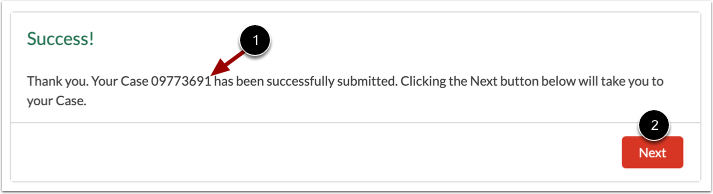
View Case
When submitted successfully, your case number displays [1].
To view full case details, click the Next button [2].