As an account admin, you can generate a Canvas Data 2 Client ID and Secret using Identity Services. Once you generate a Client ID and Secret, you can manage Canvas Data 2 API key.
Notes:
- Your institution must be included in the account domain lookup. Please contact your Customer Success Manager if your institution does not appear in the search list.
- You must be logged into Canvas to authorize access.
Find Institution
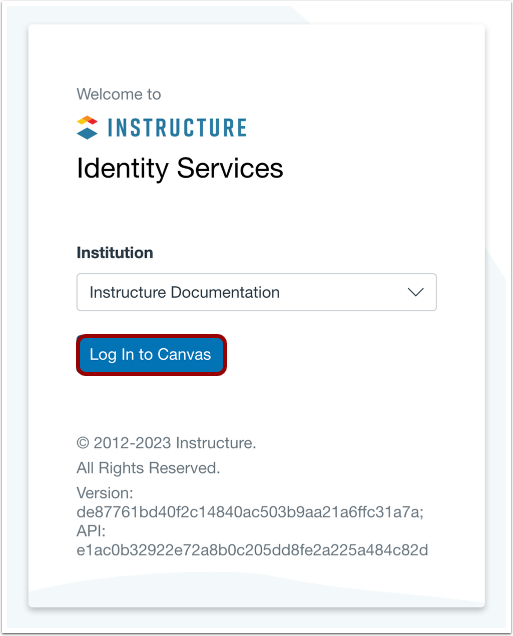
In your web browser, visit identity.instructure.com. In the Institution drop-down menu, search for your institution by entering its name [1]. Once it appears, click your institution's name [2].
Note: If your institution does not appear in the search list, please contact your Customer Success Manager about account domain lookup.
Log into Identity Services
Click the Log In to Canvas button.
Authorize Access
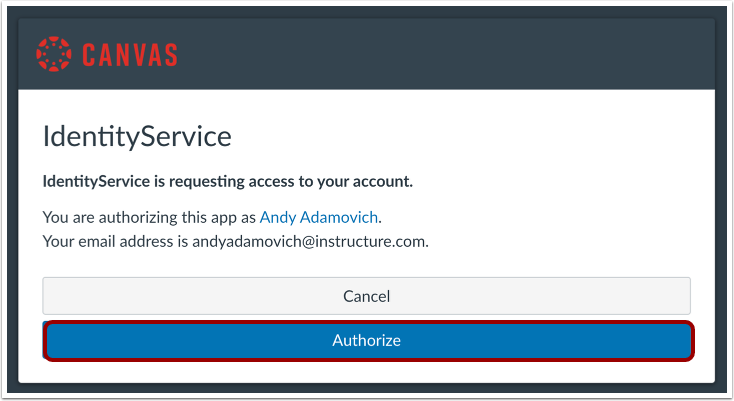
To authorize Identity Service to access your account, click the Authorize button.
Add New Key
To add a new key, click the Add New Key button.
In the Key Name field, enter a name for the key [1].
In the Expiry drop-down menu, select the expiration time (1 day, 1 week, 1 month, 6 months, 1 year, 3 years) [2].
In the Key Type section, click the Institutional Use or Instructure Partner radio button [3].
Click the Save button [5].
Add New Instructure Partner
Click the InstructurePartner radio button [1] and click the Add New Partner button [2]. In the SelectPartner drop-down menu [3], select your partner. In the email field, enter their email address [4]. Click the Submit button [5].
Verify API Key
After creating a key, you will receive a six-digit verification code at the email address associated with your Canvas account. Enter the code in the 6-digit code field [1]. Then, click the Verify button [2].
To resend the code, click the Resend code button [3].
To verify the API key at a later time, click the Close button [4].
Notes:
- Verification codes are valid for five minutes.
- You can resend the code up to three times.
- Up to five incorrect verification attempts are allowed per key.
- Verification must be completed within 15 minutes of key creation.
- Keys that are not verified within 15 minutes are permanently locked.
- For partner keys, the partner one-time password email is not sent until admin verification is successfully completed.
Copy API Key and Secret
To reveal your Client ID and Secret, click the Reveal OAuth Credentials button [1].
To copy your Client ID and Secret, click the Copy Text button next to the Client ID and Secret fields [2].
Notes:
- The Client ID and Secret window can only be opened one time. When you close it, you cannot reopen it.
- If you do not copy the generated Client ID and Secret and close the window, you will need to generate a new Client ID and Secret.
View Generated API Key
View the generated API key name [1]. Once the API key is generated, you can manage the API key.
If the API key has not been verified, the Pending Verification status displays [2]. To verify or revoke the key, click the View icon [3].
Verify or Revoke API Key
To verify the key, click the Save button [1]. To revoke the key, click the Revoke button [2]. To resend the verification to partner, click Resend to Partner button [3].