Administrators can enable a warning reminding all users about preferred email addresses for notifications. When enabled, the next time users at that institution visit the Notification Settings page, they will see a popup alerting them that adding a non-institution based email address may result in the exposure of sensitive content.
00:07: How do I warn users in an account about using non-institutional email address for
00:11: confidential information?
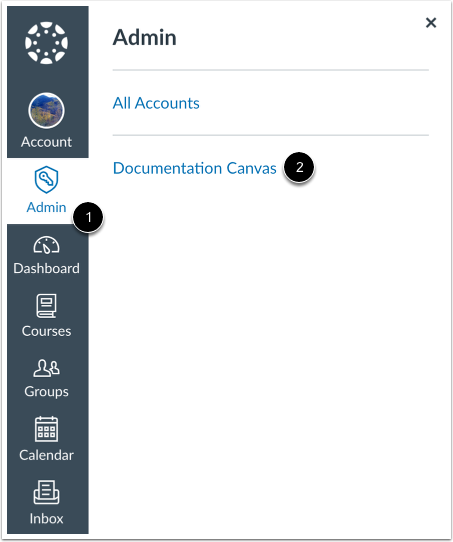
00:15: In global navigation click the admin link then click the name of
00:19: the account.
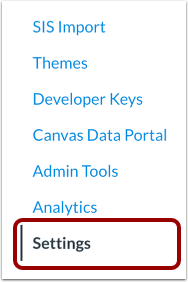
00:21: In account, navigation, click the settings link.
00:29: Click the notifications tab.
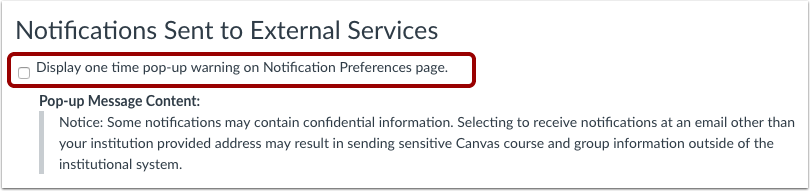
00:31: Select the display one-time. Pop-up warning on notification settings, page
00:35: checkbox.
00:37: Click the update settings button.
00:42: This guide covered how to warn users in an account about using non-institutional
00:46: email addresses for confidential information.
Open Account
In Global Navigation, click the Admin link [1], then click the name of the account [2].
Open Account Settings
In Account Navigation, click the Settings link.
Open Notifications
Click the Notifications tab.
Select Display Warning
Select the Display one time pop-up warning on Notification Settings page checkbox.
Update Settings
Click the Update Settings button.