You can create and manage questions banks for your institution or subaccount. Question banks are quiz question repositories that admins and instructors can access when creating a quiz. They make it easy to offer the same quiz questions to students in different courses.
After you create question banks, you can delete, edit, and bookmark them as needed. Bookmarking a question bank allows users to quickly identify favorite or frequently used question banks.
Note: If you are using New Quizzes, you can learn about creating or managing New Quizzes item banks.
00:07: How do I create or manage question banks in an account?
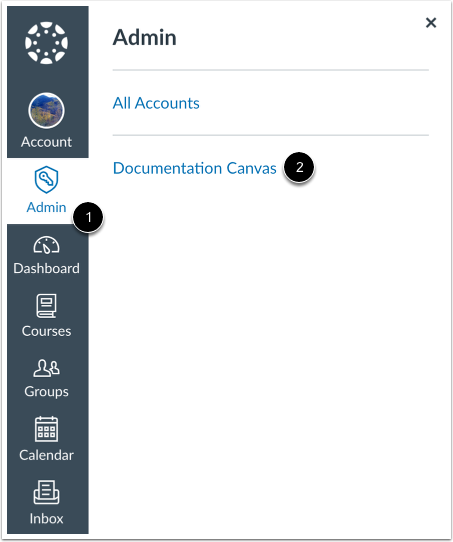
00:11: In global navigation click the admin link then click the name of
00:15: the account.
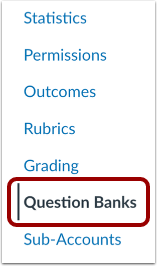
00:17: In account navigation click the question Banks link
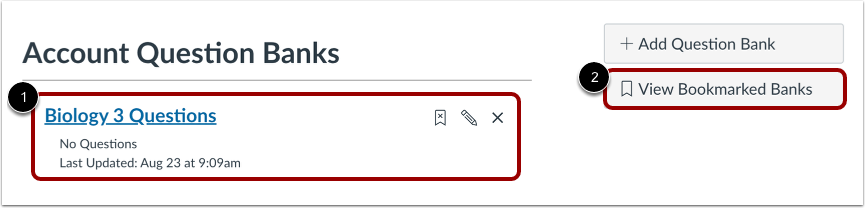
00:21: The account question Banks page lists existing account question Banks To
00:26: view bookmarked Banks click the view bookmarked Banks button
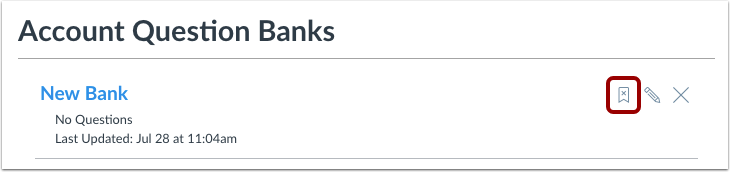
00:31: To bookmark the question Bank to your user account so you can view it when accessing other
00:35: courses click the bookmark icon.
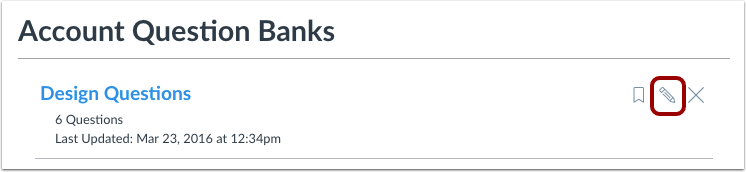
00:39: To change the name of a question Bank. Click the edit icon.
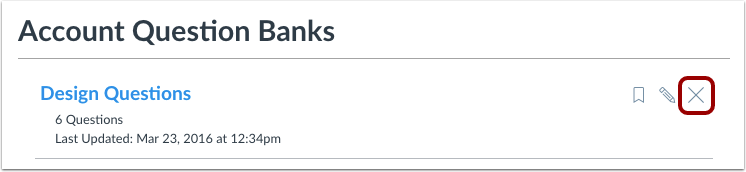
00:44: To delete a question Bank. Click the delete icon.
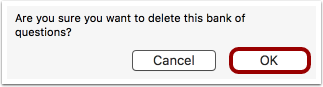
00:48: Click the okay button to delete the question Bank.
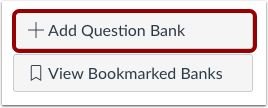
00:52: To add a question Bank. Click the add question Bank button.
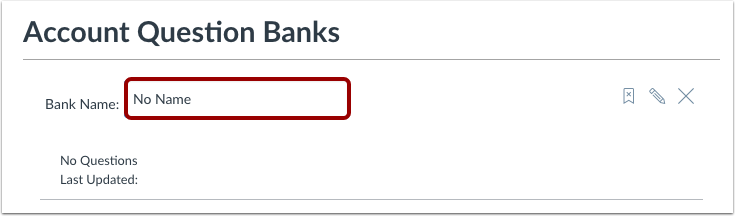
00:57: Type the name of the question Bank in the bank name field Press return
01:01: on a Mac keyboard or enter on a PC keyboard to
01:05: create the question Bank.
01:08: To edit add or delete questions from the question Bank.
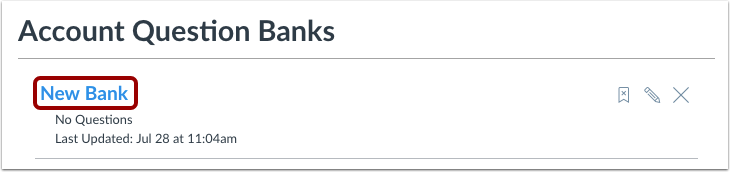
01:11: Click the question Bank name link.
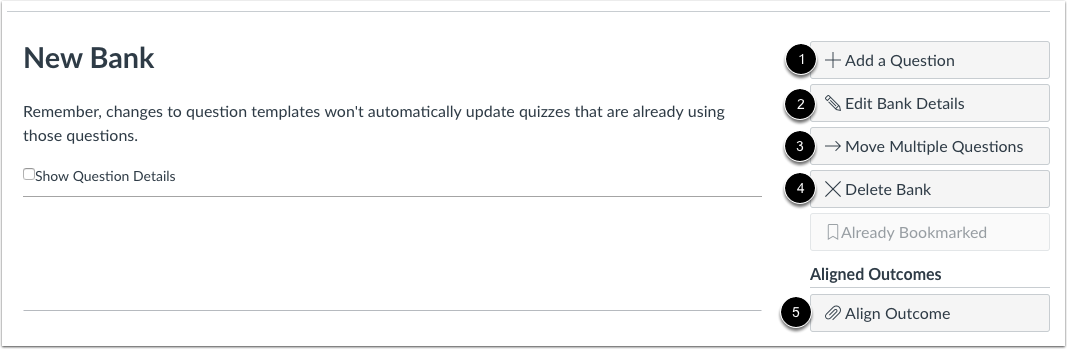
01:15: Use the buttons in the sidebar to add content to the question Bank.
01:19: You can add a question edit the bank name move questions.
01:23: Delete the bank or align the bank to outcomes.
01:27: View the questions in your question Bank to view question details click
01:31: the show question details checkbox.
01:35: This guide covered how to create or manage question banks in an account.
Open Account
In Global Navigation, click the Admin link [1], then click the name of the account [2].
Open Question Banks
In Account Navigation, click the Question Banks link.
View Existing Question Banks
The Account Question Banks page lists existing account question banks [1].
To view bookmarked banks, click the View Bookmarked Banks button [2].
Bookmark Question Bank
To bookmark the question bank to your user account so you can view it when accessing other courses, click the Bookmark icon.
Note: Question banks that are already bookmarked show a white x in the bookmark icon.
Edit Question Bank Name
To change the name of a question bank, click the Edit icon.
Delete Question Bank
To delete a question bank, click the Delete icon.
Click the OK button to delete the question bank.
Add Question Bank
To add a question bank, click the Add Question Bank button.
Add Bank Name
Type the name of the question bank in the Bank Name field. Press Return (on a Mac keyboard ) or Enter (on a PC keyboard) to create the question bank.
Open Question Bank
To edit, add, or delete questions from the question bank, click the question bank name link [2].
Add Content to Question Bank
Use the buttons in the sidebar to add content to the question bank. You can add a question [1], edit the bank name [2], move questions [3], delete the bank [4], or align the bank to outcomes [5].
View Questions
View the questions in your question bank. To view question details, click the Show Question Details checkbox.
Note: Question details are not available in question banks with more than 50 questions.