You can merge two users within your account. Merging accounts combines the logins, contact methods, and enrollments for the two user accounts. Page views are not retained for the user who was merged.
If the account being merged is enrolled in a course that the account it is being merged into is not enrolled in, grade information will be transferred to the merged account. If both accounts are enrolled in the same course, grade information from the account being merged will not be transferred.
After the accounts have been merged, the user can use the logins that originated from either account to view all their course enrollments within the same account.
Notes:
- If you cannot merge users, you may not have the appropriate permissions or merging users has been turned off in your account.
- If necessary, user accounts can be split using the Canvas Users API or using the Split Merged Users link within 180 days of the user merge; however, merged users cannot be fully restored to their previous state.
- A manual merge of user accounts in different instances is not supported.
Open Account
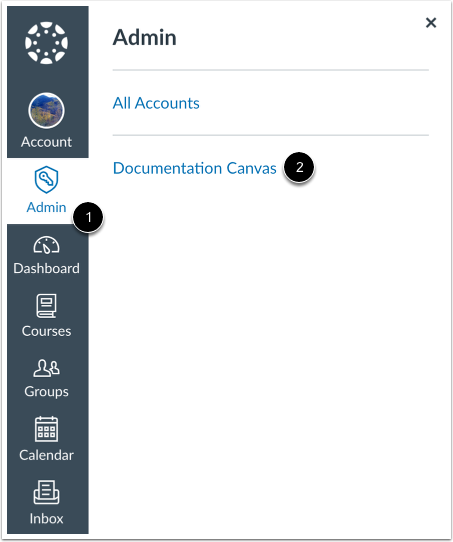
In Global Navigation, click the Admin link [1], then click the name of the account [2].
Open People
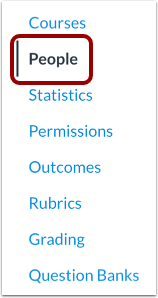
In Account Navigation, click the People link.
Find User
Use the filter and search options to find the user in the account.
Open User Profile
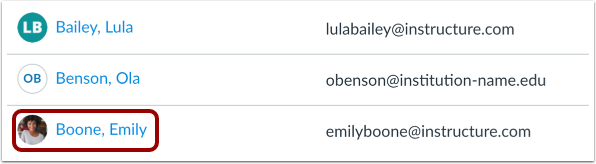
In the search results, click the user's name.
Merge User
Click the Merge with Another User link.
Find User Account
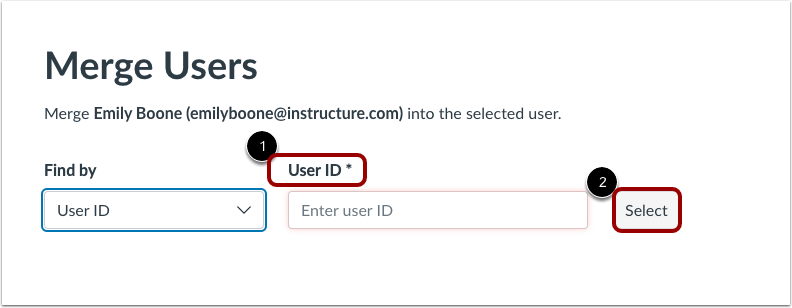
Locate the user account where you want to merge the user's information. In the drop-down menu, find a user either by the User ID [1] or the Name [2].
To find a user by name, you may select from the Root Account drop-down menu [1]. Then, enter the user's name in the User field [2]. After confirming the user, click the Select button [3].
To find a user by user ID, enter the ID in the User ID field [1] and click the Select button [2].
Note: The User ID is found at the end of your Canvas URL (i.e. account.instructure.com/account/XXXXXX/users/XXXXXX).
Merge User Accounts
After selecting the user account to merge, you will see the process and end result table.
The table will show you the User, Action, Emails, Logins, and Enrollments of each user [1]. The table will tell you what will be deleted and kept.
If you want to change positions of the users so one gets deleted and the other does not, click the Switch User Positions button [2].
You can also click the Merge Someone Else With [User Name] [3] for either of the users if you decide to change the users.
When you are ready, click the Prepare to Merge Users button [4].
Note: The table will not display enrollments in concluded courses or courses in an unpublished state.
Confirm Merge
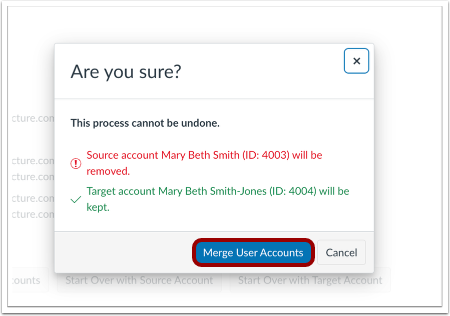
You will be prompted one more time to ask if you are sure about merging the users together. When you are ready, click the Merge User Accounts button.
Note: This process cannot be undone.
Preview Confirmation
A confirmation modal displays for admins before merging user accounts. Once you have confirmed all the details, click the Merge Accounts button.
View Confirmation
Confirm the merge was successful.