Within Admin Tools, admins can view the login/logout activity of users within their institution. Log activity is organized by date with the most recent activity at the top of the list.
Notes:
- Canvas will only register a user’s logout when the Logout button is clicked in the User Account menu. Closing the browser window does not create a logout request.
- Logging activity will only show activity that took place within the past year.
- Login and logout activity in Admin Tools cannot be viewed by sub-account admins.
View the video transcript
00:07: How do I view login and logout activity for a user in an account?
00:12: In Global Navigation, click the Admin link, then click the name of the account.
00:17: In Account Navigation, click the Admin Tools link.
00:21: Click the Logging tab.
00:23: From the log type drop-down menu, select the Login / Logout Activity option.
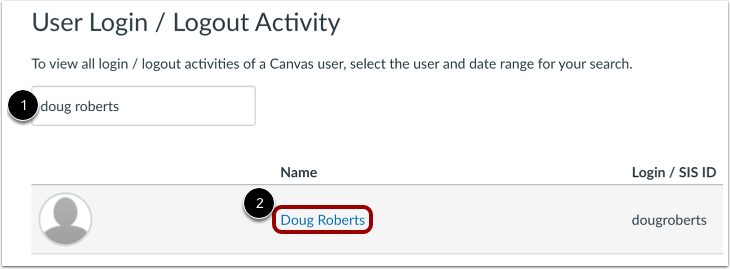
00:29: Type the name of the user in the Search field.
00:32: Then click the user's name.
00:35: Create the date range you want to search. You can enter dates in the From Date and To Date date fields, or you can use the calendar icon to select dates.
00:46: Click the Find button.
00:48: View the login and logout activity for the user.
00:52: The guide covered how to see which notifications have been sent to a user in an account.
Open Account
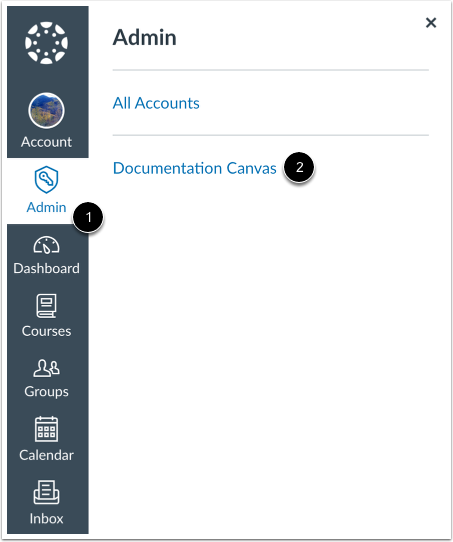
In Global Navigation, click the Admin link [1], then click the name of the account [2].
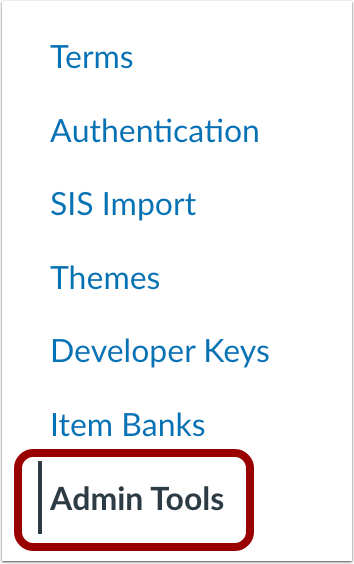
In Account Navigation, click the Admin Tools link.
Open Logging
Click the Logging tab.
Select Log Type
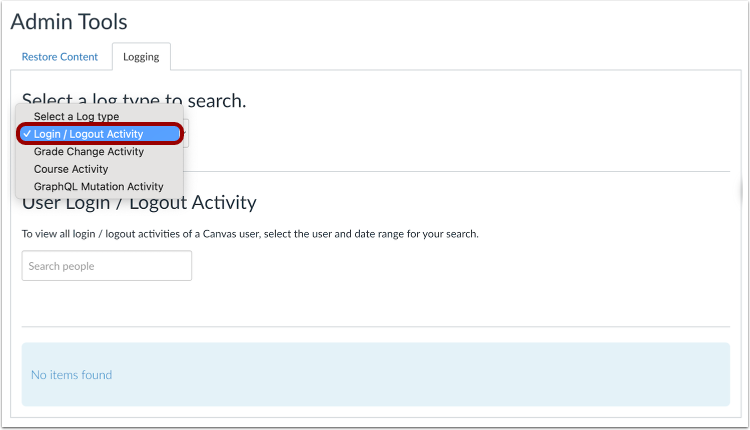
From the log type drop-down menu, select the Login / Logout Activity option.
Search for User
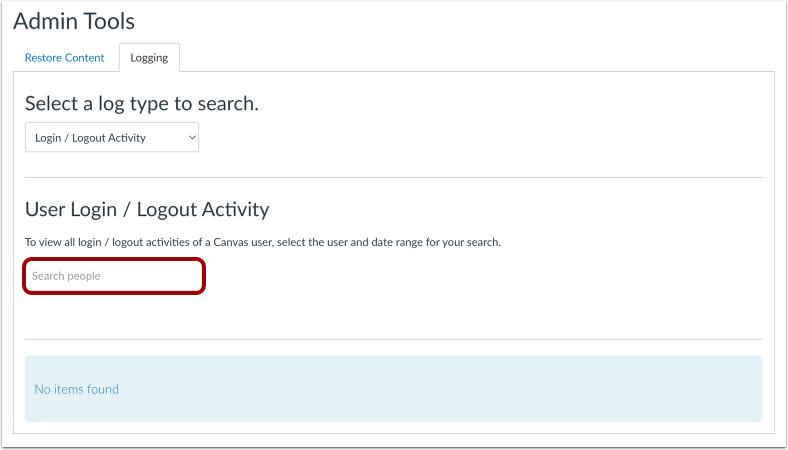
Type the name of the user in the search field [1], then click the user's name [2].
Enter Date Range
Create the date range you want to search. You can enter dates in the From Date and To Date fields [1], or you can use the calendar icon to select dates [2]. Then click the Find button [3].
View Logging Activity
View the login/logout activity for the user.