The Dashboard is the first thing you see when you log into Canvas. The Dashboard displays at-a-glance information about what is happening in all current courses for students you are observing.
You can return to your User Dashboard at any time by clicking the Dashboard link in Global Navigation.
View the video transcript
00:07: How do I use the dashboard as an observer?
00:10: In global navigation. Click the dashboard link.
00:14: The dashboard is your landing page in canvas, depending on your institution,
00:18: your dashboard, May default to one of two views, cardview or
00:22: recent activity View, Card view, displays course
00:27: cards for quick access to all your favorite courses.
00:29: The same courses display in the course, is linked from the global navigation
00:33: menu, recent activity, view displays, all recent activity
00:37: for all courses.
00:40: To filter your dashboard by student. Click the student.
00:43: Drop down menu. Then click the student's name.
00:46: The dashboard view displays based on your students dashboard View.
00:51: The dashboard may also include Global announcements which are announcements created
00:55: by your Institution. To remove the announcement from your dashboard, click
01:00: the remove icon,
01:02: If you dismiss a global announcement, you can view dismissed announcements on the global
01:06: announcements page.
01:09: To change your dashboard view, click the options, menu and select your preferred
01:13: viewing option.
01:15: This guide covered how to use the dashboard as an observer.
Open Dashboard
In Global Navigation, click the Dashboard link.
View Dashboard
The Dashboard is your landing page in Canvas. Depending on your institution, your Dashboard may default to one of two views: Card View or Recent Activity View.
- Card View: displays course cards for quick access to all your favorite courses (the same courses display in the Courses link from the Global Navigation Menu)
- Recent Activity View: displays all recent activity for all courses
View Student Dashboards
To filter your dashboard by student, click the Student drop-down menu [1], then click the student's name [2]. The dashboard view displays based on your student's dashboard view.
View Global Announcement
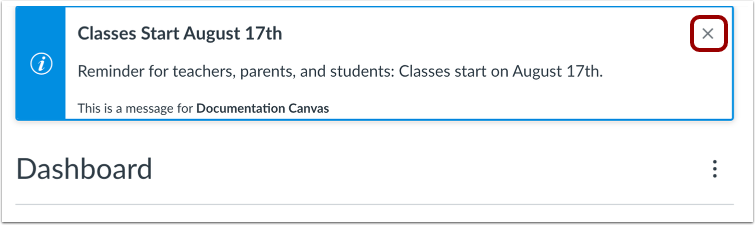
The Dashboard may also include global announcements, which are announcements created by your institution. To remove the announcement from your dashboard, click the Remove icon.
View Dismissed Announcement
If you dismiss a global announcement, you can view dismissed announcements on the Global Announcements page.
Change Dashboard View
To change your Dashboard view, click the Options menu and select your preferred viewing option.