View the video transcript
00:07: How do I preview a file in files?
00:10: In user group or course files click the name of the file you
00:14: want to preview?
00:16: You can also click the line item for the file and click the view icon.
00:21: The preview toolbar displays the file and file information details as
00:25: well as a link to download the file. For documents you
00:29: can scroll through the document zoom in and out and view the document in
00:33: full screen.
00:36: This guide covered how to preview a file in files.
Open Files
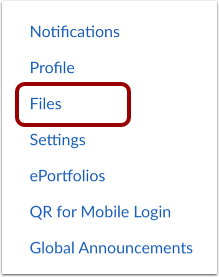
In Course, Account, or Group Navigation, click the Files link.
Open File
Click the name of the file you want to preview.
Preview File
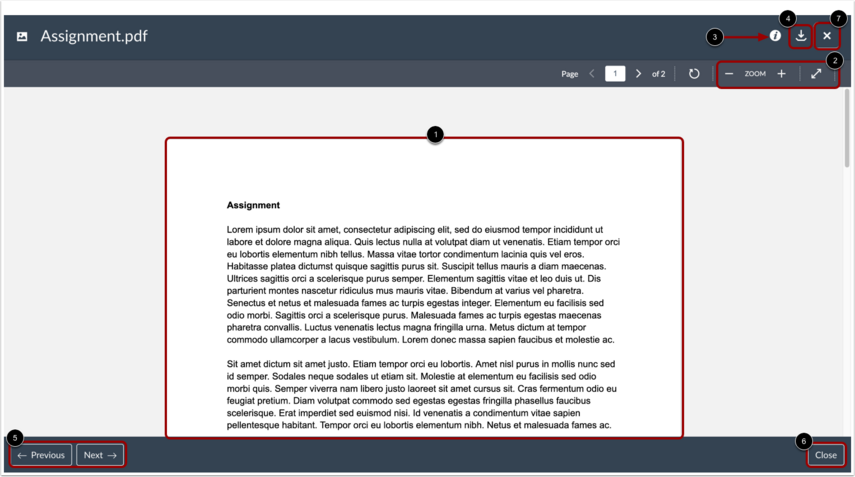
The preview displays the file contents [1]. You can scroll through the document, zoom in and out, and view the document in full screen [2].
To view file information details, click the Information icon [3].
To download the file, click the Download icon [4].
You can also view other files by clicking the Previous or Next buttons [5].
To close the preview, click the Close button [6] or the Close icon [7].