View the video transcript
00:07: How do I add a to-do item in the list, view dashboard as a student?
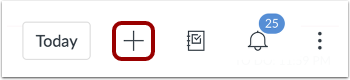
00:12: Click the add to do button.
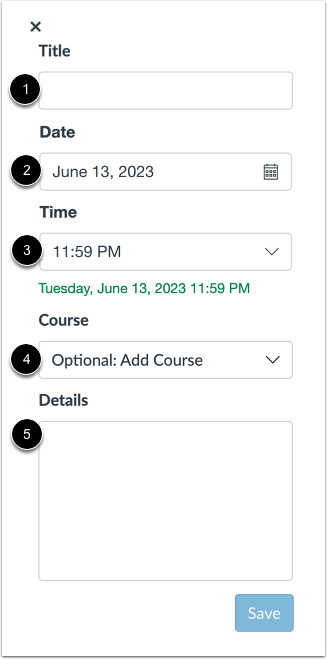
00:15: In the to do, sidebar title field, type of name for the to-do item.
00:20: The date field defaults to the current date and the time field defaults
00:24: to 11:59 p.m. to change the date and or time.
00:28: When you want to complete the item modify the date or time appropriate late.
00:33: Items. Default is General to-do items but you can associate the item
00:37: with a course by selecting a course. From the course drop down menu.
00:42: In the details field. Any other details about your to-do item.
00:47: Click the save button.
00:50: View your to-do item. Items that you associate with a
00:54: course display on the to-do list with other course, to-do items.
00:59: Items that are not associated with a specific course, display at the bottom of the days to
01:03: do list.
01:05: Edit or delete a to-do item. Click the edit icon.
01:10: The edit the item, edit the information in it to do, detail sidebar
01:14: to save your edits. Click the save button.
01:18: To delete the item, click the delete button when the delete confirmation
01:22: window displays, click the okay button.
01:26: This guy covered how to add a to-do item in the list view dashboard as a student.
Add To-do Item
Click the Add To Do button.
Add To-do Details
In the To Do sidebar Title field [1], type a name for the to-do item.
The Date field defaults to the current date [2], and the Time field defaults to 11:59pm [3]. To change the date and/or time when you want to complete the item, modify the date or time appropriately.
Items default as general to-do items, but you can associate the item with a course by selecting a course from the Course drop-down menu [4].
In the Details field [5], any other details about your to-do item.
Save To-do
Click the Save button.
View To-do Item
View your to-do item.
Items that you associate with a course display on the to-do list with other course to-do items [1].
Items that are not associated with a specific course display at the bottom of the day's to-do list [2].
Manage To-do Item
To edit or delete a To-Do item, click the Edit icon [1].
To edit the item, edit the information in the To Do details sidebar [2]. To save your edits, click the Save button [3].
To delete the item, click the Delete button [4]. When the delete confirmation window displays, click the OK button.