Your institution may enable multi-factor authentication for your user account. Multi-factor authentication adds security to your account by verifying you are the user accessing your account. Multi-factor authentication may be optional or required.
You must have a mobile device to set up multi-factor authentication for your user account. Your device must be able to send text (SMS) messages, or if you have a smartphone, you can download the Google Authenticator app for iPhone or Android.
Notes:
- The MFA and notification features are only available in the production environment and not in Test or Beta.
- This lesson shows how to set up multi-factor authentication if it is an optional setting in your user account. However, if multi-factor authentication is required by your institution, you will be shown the multi-factor authentication page directly after you log in to Canvas.
- When MFA is initially set up or reset in the Production environment, the new MFA configuration will not take effect in the Beta or Test environments until the next Beta or Test refresh. Additionally, Beta and Test environment MFA codes only send if an authenticator app is used; SMS codes do not send for the Beta or Test environments.
- If a user is locked out and unable to access their account to update their MFA settings, an admin can manually reset MFA from the user's profile.
- Multi-factor authentication must be enabled by a Canvas account administrator. Administrators can set up MFA as Required, which enforces MFA for all users. Optional allows users to choose whether to enable it, Required for Admins applies the enforcement strictly to administrative roles, and Disabled turns the feature off entirely for the account.
View the video transcript
00:07: How do I set up multi-factor authentication for my user account?
00:12: In global navigation, click the account link then click the settings
00:16: link.
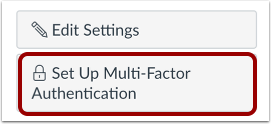
00:18: Click the setup, multi-factor, authentication button.
00:22: To verify multi-factor authentication, a time-based one-time, password
00:26: totp authenticator app on iPhone or
00:30: Android X Google.
00:32: Authenticator Microsoft, authenticator authy.
00:36: Download the app for your device.
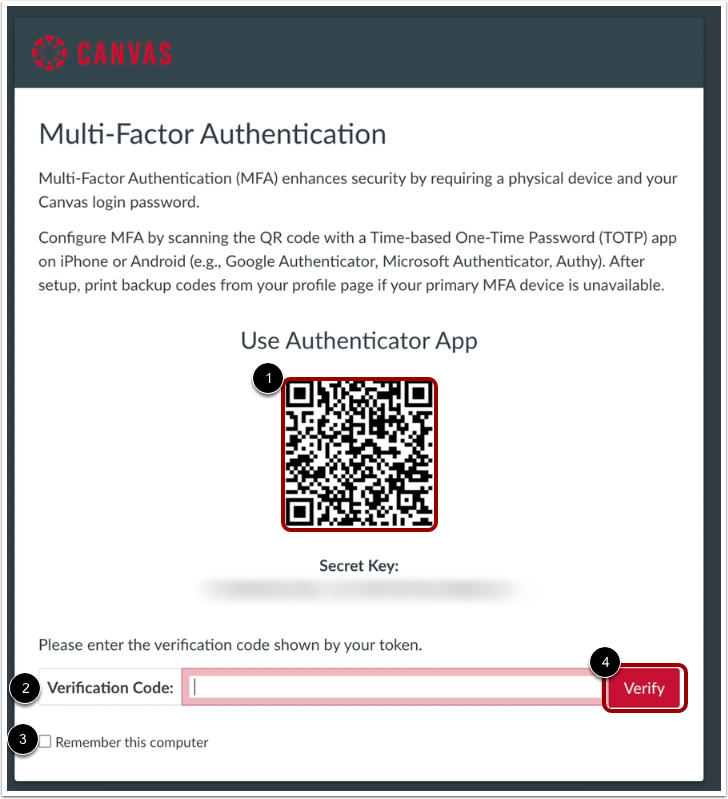
00:40: Use the app to scan and generate the Q R code, enter the code
00:44: in the verification code field. If you want multi-factor
00:48: authentication to remember the computer you are using to log into canvas, click
00:52: the remember this computer checkbox. Click the verify
00:56: button.
00:58: To verify multi-factor authentication via text message.
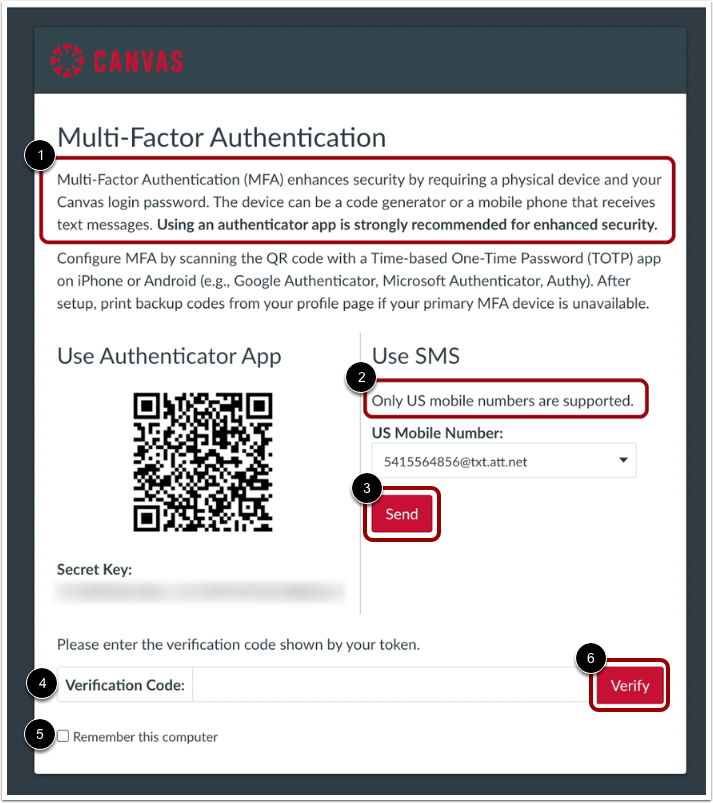
01:01: Enter your phone number and select your carrier.
01:04: This is the number where your multi-factor verification code will be sent
01:10: What to set up your new phone number or selected, an existing phone number.
01:13: Click the send button, your mobile device will receive a verification code,
01:18: enter the code in the verification, code field, click
01:23: the verify button.
01:25: Once multi-factor authentication is enabled, your user settings page, May
01:29: display additional options to manage your Authentication.
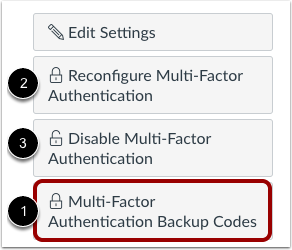
01:33: You can choose to create multi-factor, authentication codes to use as backup
01:37: in case your authentication device is not available.
01:39: This option is available to all users with multi-factor
01:43: Authentication.
01:45: If multi-factor authentication is optional for your account, you can also
01:49: choose to reconfigure authentication or disable Authentication.
01:54: This guide covered how to set up multi-factor authentication for my user account.
Open User Settings
In Global Navigation, click the Account link [1], then click the Settings link [2].
Set Up Multi-Factor Authentication
Click the Set Up Multi-Factor Authentication button.
Verify via Authenticator App
To verify multi-factor authentication a time-based one-time password (TOTP) authenticator app on iPhone or Android (ex: Google Authenticator, Microsoft Authenticator, Authy), download the app for your device.
Use the app to scan and generate the QR code [1]. Enter the code in the Verification Code field [2].
If you want multi-factor authentication to remember the computer you are using to log in to Canvas, click the Remember this computer checkbox [3].
Click the Verify button [4].
Verify via Text Message
To verify multi-factor authentication via text message, enter your phone number [1] and select your carrier [2]. This is the number where your multi-factor verification code will be sent.
Once you have set up your new phone number, or selected an existing phone number, click the Send button [3]. Your mobile device will receive a verification code. Enter the code in the Verification Code field [4].
If you want multi-factor authentication to remember the computer you are using to log in to Canvas, click the Remember this computer checkbox [5].
Click the Verify button [6].
Manage Multi-Factor Authentication
Once multi-factor authentication is enabled, your User Settings page may display additional options to manage your authentication.
You can choose to create multi-factor authentication codes to use as backup in case your authentication device is not available [1]. This option is available to all users with multi-factor authentication.
If multi-factor authentication is optionalfor your account, you can also choose to reconfigure authentication [2] or disable authentication [3].