The Public Course Index allows all users within an institution to publicly view the institution’s course index in a catalog format. You can view a link to the Public Course Index on the My Courses page.
Notes:
View the video transcript
00:07: How do I view my institutions public horse index as a student.
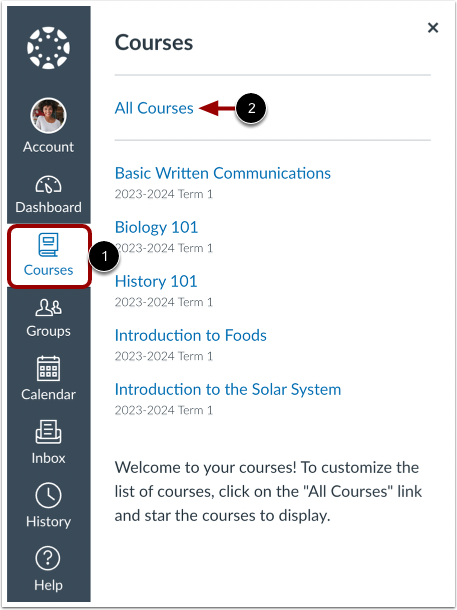
00:12: In global navigation, click the courses link.
00:14: Then click the all courses link.
00:18: In the night courses page, sidebar, click the browse more courses link.
00:23: You can do all courses that have been included in the public course, index, with the
00:27: most recently created courses shown first You can
00:31: view the name of the course and a description, if any
00:35: You can search for courses in several different ways in the name field.
00:39: You can type the name of a course.
00:42: You can also search for courses by status if you want to view only
00:46: public courses, click the public courses, only checkbox.
00:49: If you want to view only open enrollment courses, click the Open
00:53: Enrollment courses. Only checkbox open enrollment courses
00:57: are courses that you can join it anytime.
01:01: When you are finished selecting your search options, click the search button.
01:06: If you a course, click the name of the course.
01:08: It's a corselet student self enroll.
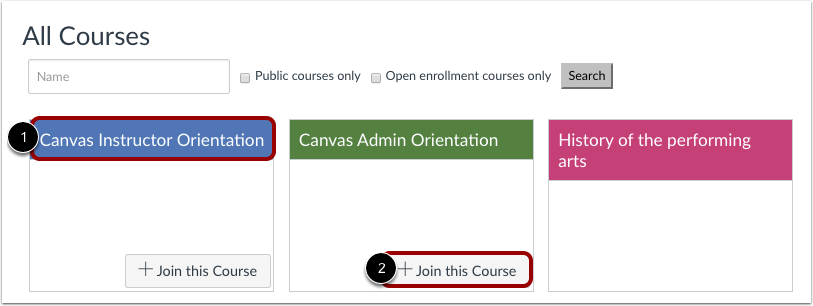
01:10: You can join the course at any time by clicking the join this course button.
01:14: However, you can do the course first and enroll in a course home
01:18: page.
01:21: This guy covered how to view my institutions.
01:23: Public course, index as a student.
Open Courses
In Global Navigation, click the Courses link [1], then click the All Courses link [2].
Browse More Courses
In the My Courses page sidebar, click the Browse More Courses link.
View All Courses
You can view all courses that have been included in the public course index, with the most recently created courses shown first.
You can view the name of the course [1] and a description, if any [2].
Search Courses
You can search for courses in several different ways. In the Name field [1], you can type the name of a course.
You can also search for courses by status. If you want to view only public courses, click the Public courses only checkbox [2]. If you want to view only open enrollment courses, click the Open enrollment courses only checkbox [3]. Open enrollment courses are courses that you can join at any time.
When you are finished selecting your search options, click the Search button [4].
View Course
To view a course, click the name of the course [1]. If a course lets students self-enroll, you can join the course at any time by clicking the Join this Course button [2]. However, you can also view the course first and enroll in the course home page.
Enroll Course
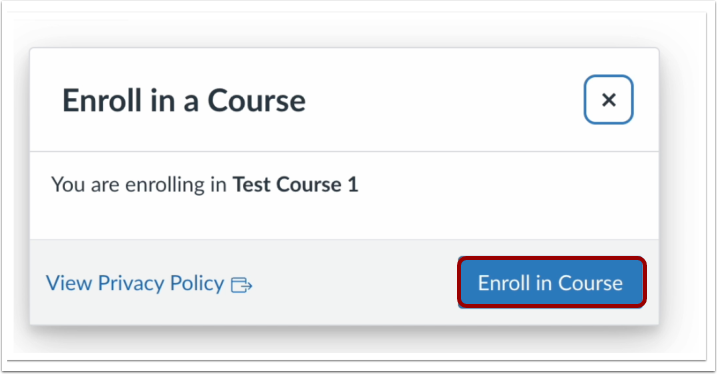
Click the Enroll in Course.