View the video transcript
00:07: How do I create a folder in files?
00:10: Click the add folder button.
00:13: Type the name of the folder and name field to save the name of the folder, press
00:17: the return Mac or enter PC key or click the check
00:21: button. To return to the previous title.
00:24: Click the cancel button.
00:27: Your folder will appear in both panes of the files view.
00:29: You can organize your files on canvas by moving them to folders.
00:35: To delete a folder click the line item for the folder and then click the delete icon.
00:41: Or click the options icon and then click the delete link.
00:45: This guide covered how to create a folder in files.
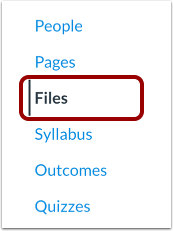
Open Files
In Course, User, or Group Navigation, click the Files link.
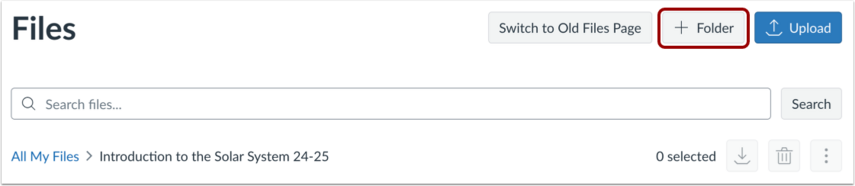
Add Folder
Click the Add Folder button.
Name Folder
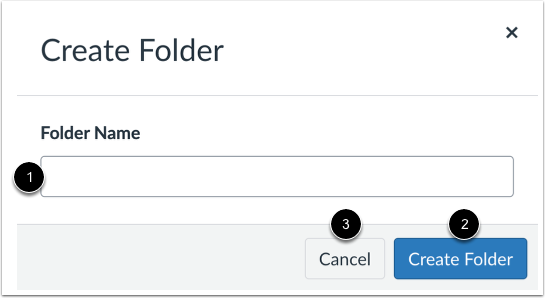
Type the name of the folder in the Folder Name field [1]. To save the name of the file, press Return (Mac) or Enter (PC) key or click the Create Folder button [2]. To return to the previous title, click the Cancel button [3].
View Folder
Your folder displays in Files. You can organize your files by moving them to folders.
Delete Folder
To delete a folder, click the Folder Options icon [1] and then click the Delete link [2].
Note: Deleting a folder also deletes all files in that folder.