You can access the Rich Content Editor from Announcements, Assignments, Discussions, Pages, Classic Quizzes, New Quizzes, and the Syllabus. This lesson explains how to access the Rich Content Editor from each of those areas.
Learn more about the Rich Content Editor.
Note: Depending on your user role, you may or may not be able to access the Rich Content Editor in certain areas.
View the video transcript
00:07: How do I access the rich content editor?
00:10: In announcements, you can access the rich content editor by creating or
00:14: editing an announcement. To create an announcement, click the add
00:18: announcement button.
00:20: To edit an announcement, click the announcement title, then click the options
00:24: icon and click the edit button.
00:27: In assignments. As an instructor, you can access the rich content editor
00:31: by creating or editing an assignment.
00:34: To create an assignment, click the add assignment button.
00:38: To edit an assignment click, the assignments options icon, and click the
00:42: edit option.
00:44: In assignments. As a student, you can access the rich content editor
00:48: by submitting a text entry assignment.
00:52: In discussions as an instructor, you can access the rich content editor
00:56: by creating editing or replying to a discussion.
01:00: To create a discussion. Click the add discussion button.
01:04: To edit a discussion, click the discussion title, then click the options
01:08: icon, and click the edit button,
01:11: In discussions, you can access the rich content editor by adding a
01:15: discussion reply. To reply to a discussion.
01:17: Click the reply button.
01:21: In Pages, you can access the rich content editor by creating or editing
01:25: a page. To view all pages in a course, click the view.
01:29: All pages button.
01:32: To create a new page, click the add page button.
01:36: To edit a page, click the pages options, icon and click the edit
01:40: option.
01:42: In classic quizzes as an instructor, you can use the rich content Editor
01:46: to edit the quiz description or quiz questions.
01:49: You can access the rich content Editor to edit a quiz description, when adding
01:53: a new quiz or editing a quiz, To add a new quiz, click
01:57: the add quiz button.
02:00: To edit a quiz, click the quizzes options icon and select the edit
02:04: option.
02:06: To use the rich content, Editor, to edit a question, click the questions
02:10: tab. Then click the edit icon for the question.
02:13: You want to edit?
02:15: In classic quizzes, as a student, you can use the rich content editor
02:19: when answering essay questions. You can use the editor to format
02:23: your content.
02:25: In new quizzes as an instructor, you can use the rich content Editor to
02:29: edit the quiz description or quiz questions.
02:32: To add a new quiz, click the add quiz button.
02:36: To edit a quiz, click the quizzes options icon and select the build
02:40: option.
02:42: To use the rich content Editor to edit a question, click the edit icon
02:46: for the question. You want to edit
02:49: To use the rich content Editor to edit a question, click the edit icon
02:53: for the question. You want to edit
02:56: In the syllabus as an instructor. You can use the rich content Editor to
03:00: edit, your course syllabus. To edit the syllabus, click the
03:04: edit button.
03:06: View the rich content editor.
03:09: This guide covered how to access the rich content editor.
Announcements
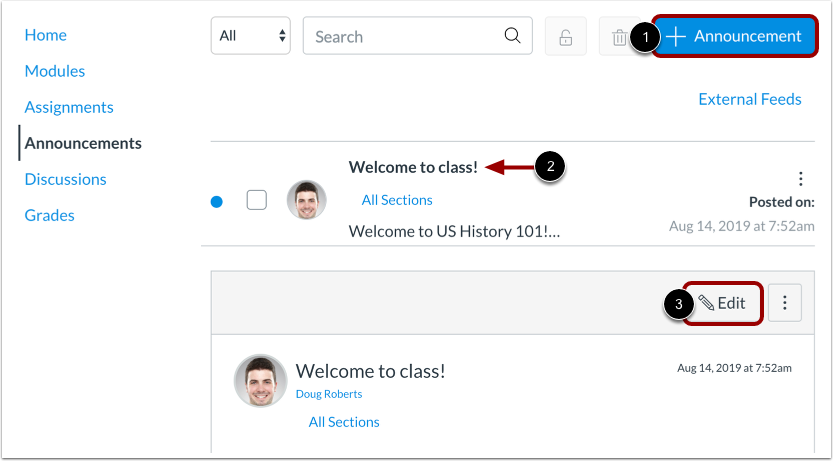
In Announcements, you can access the Rich Content Editor by creating or editing an announcement.
To create an announcement, click the Add Announcement button [1].
To edit an announcement, click the announcement title [2] then click the Edit button [3].
Assignments
In Assignments, as an instructor, you can access the Rich Content Editor by creating or editing an assignment.
To create an assignment, click the Add Assignment button [1].
To edit an assignment, click the assignment's Options icon [2] and click the Edit option [3].
Text Entry Assignment Submission
In Assignments, as a student, you can access the Rich Content Editor by submitting a text entry assignment.
Discussions
In Discussions, as an instructor, you can access the Rich Content Editor by creating, editing or replying to a discussion.
To create a discussion, click the Add Discussion button [1].
To edit a discussion, click the discussion title [2] then click the Edit button [3].
Discussion Reply
In Discussions, you can access the Rich Content Editor by adding a discussion reply.
To reply to a discussion, click the Reply button.
Pages
In Pages, you can access the Rich Content Editor by creating or editing a page. To view all pages in a course, click the View All Pages button [1].
To create a new page, click the Add Page button [2]. To edit a page, click the page's Options icon [3] and click the Edit option [4].
Note: You can only create or edit pages if allowed.
Classic Quizzes
Quiz Description
In Classic Quizzes, as an instructor, you can use the Rich Content Editor to edit the quiz description or quiz questions.
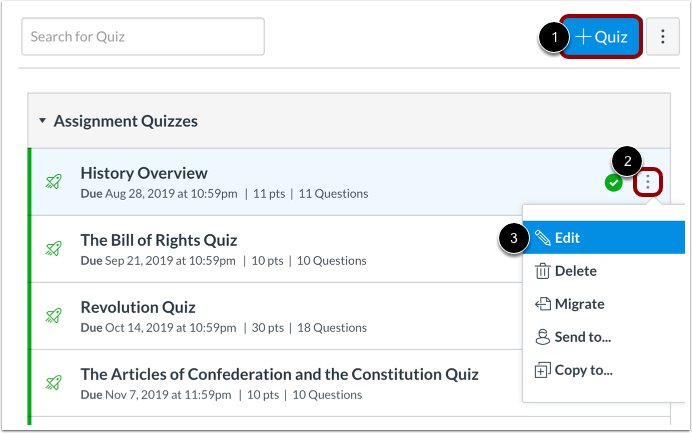
You can access the Rich Content Editor to edit a quiz description when adding a new quiz or editing a quiz.
To add a new quiz, click the Add Quiz button [1]. To edit a quiz, click the quiz's Options icon [2] and select the Edit option [3].
Quiz Questions
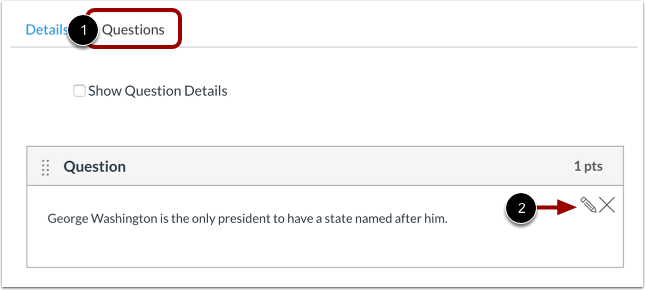
To use the Rich Content Editor to edit a question, click the Questions tab [1]. Then click the Edit icon for the question you want to edit [2].
Essay Classic Quiz Question
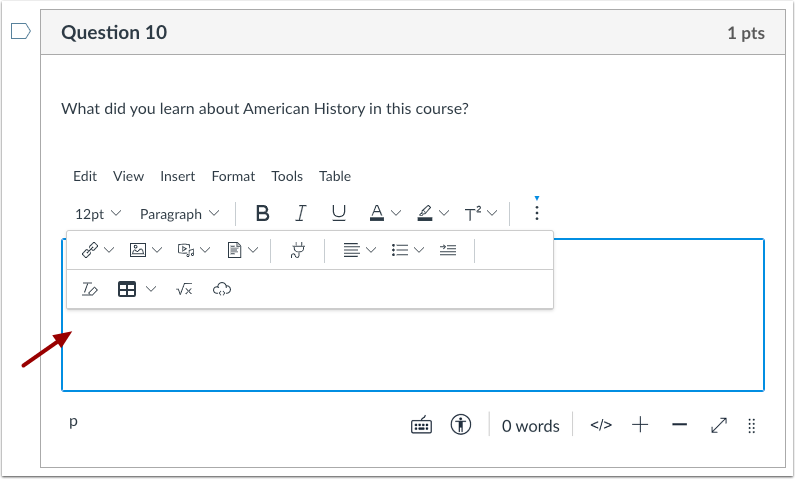
In Classic Quizzes, as a student, you can use the Rich Content Editor when answering essay questions. You can use the editor to format your content.
New Quizzes
Build Quiz
In New Quizzes, as an instructor, you can use the Rich Content Editor to edit the quiz description or quiz questions.
To add a new quiz, click the Add Quiz button [1]. To edit a quiz, click the quiz's Options icon [2] and select the Build option [3].
Quiz Question
To use the Rich Content Editor to edit a question, click the Edit icon for the question you want to edit.
Essay New Quiz Question
In New Quizzes, as a student, you can use the Rich Content Editor when answering essay questions. To answer an Essay question, click the text box and enter your content [1]. Content can be formatted through the Rich Content Editor [2].
Syllabus
In the Syllabus, as an instructor, you can use the Rich Content Editor to edit your course syllabus. To edit the syllabus, click the Edit button.
View Rich Content Editor
View the Rich Content Editor.
Learn how to add and modify text in the Rich Content Editor.