If enabled by your institution, you can choose to have celebration animation confetti display.
If you prefer not to see confetti or would like to re-enable this feature, you can manage the feature option in your user settings.
Notes:
- If you are a student, celebration animation confetti displays when you submit an assignment on time.
- If you are an instructor, celebration animation confetti displays when you validate links in a course, if the link validator celebrations feature option is enabled by your institution's Canvas admin.
- Assignments set up with external tools as the submission type do not display confetti animation upon a student's submission.
View the video transcript
00:07: How do I manage confetti animations in canvas?
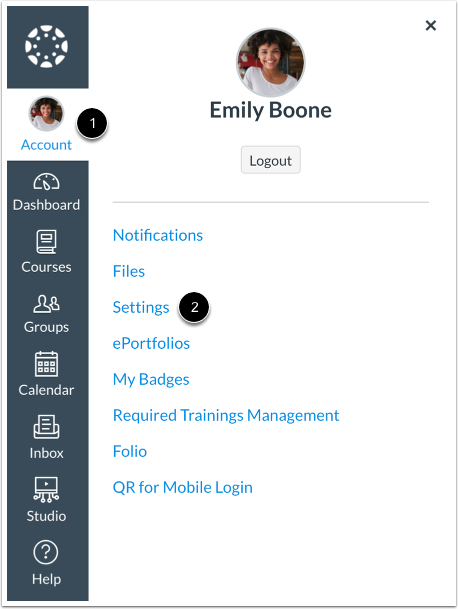
00:10: In global navigation, click the account link then click the settings
00:14: link.
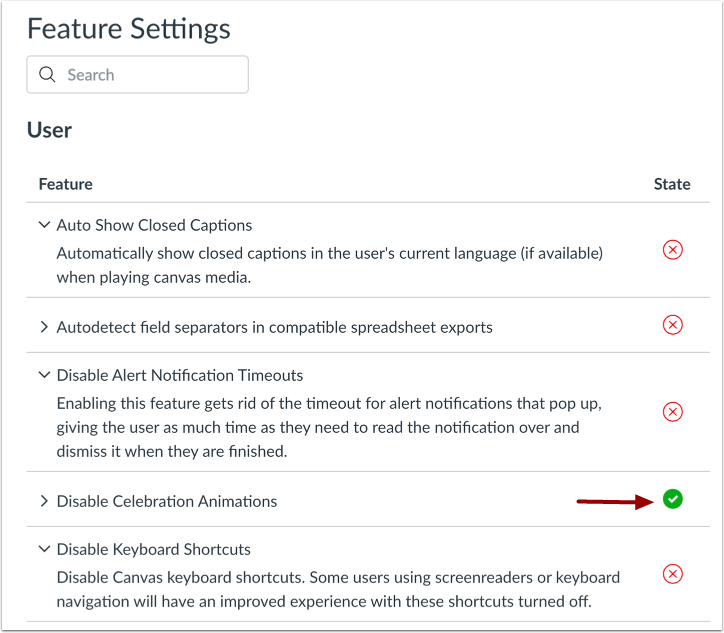
00:16: In the feature settings section, use the disabled celebration animations
00:20: icon to enable or disable this feature.
00:24: This guide covered how to manage confetti animations in canvas.
Open User Settings
In Global Navigation, click the Account link [1], then click the Settings link [2].
Manage Celebration Animations
In the Feature Settings section, use the Disable Celebration Animations icon to enable or disable this feature.