View the video transcript
00:07: How do I download a file or folder?
00:10: Click the line item for the file. Click the download icon.
00:14: Or click the options icon and then click the download link.
00:18: Your file will download to your desktop open the appropriate folder to
00:22: view the file.
00:24: This guide covered how to download a file or folder.
Open Files
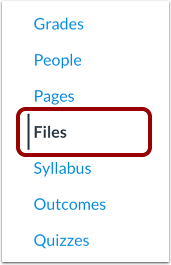
In Account, Group, or Course Navigation, click the Files link.
Download File
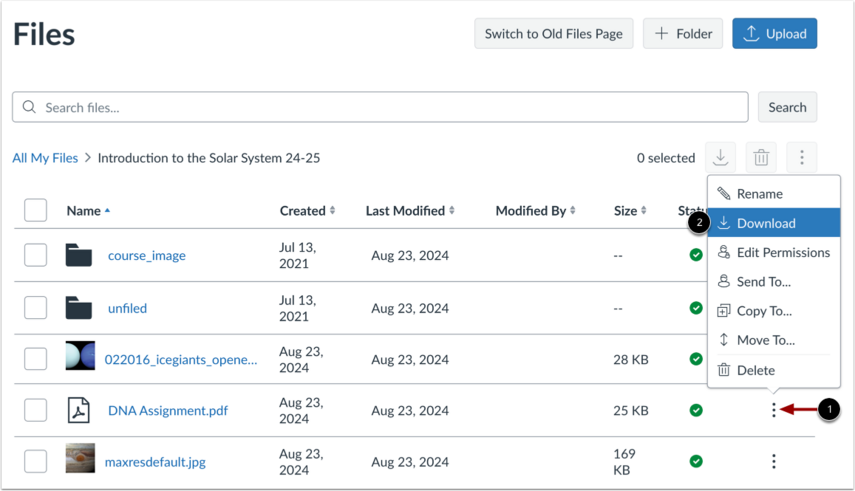
To download a file, click the Options icon [1] and then click the Download link [2].
Open File
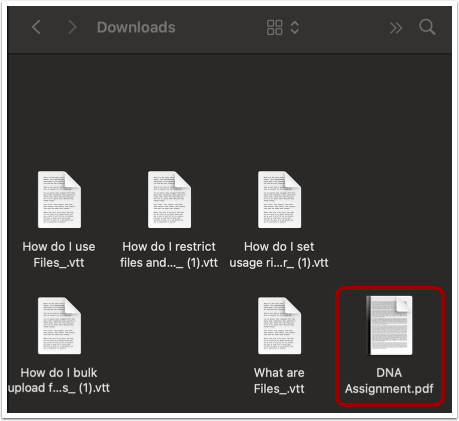
Single files download as individual files. Open the appropriate folder to view the file.
Note: Files download to the location where your browser saves downloads, which may be the Downloads folder on your computer.
Download Folder
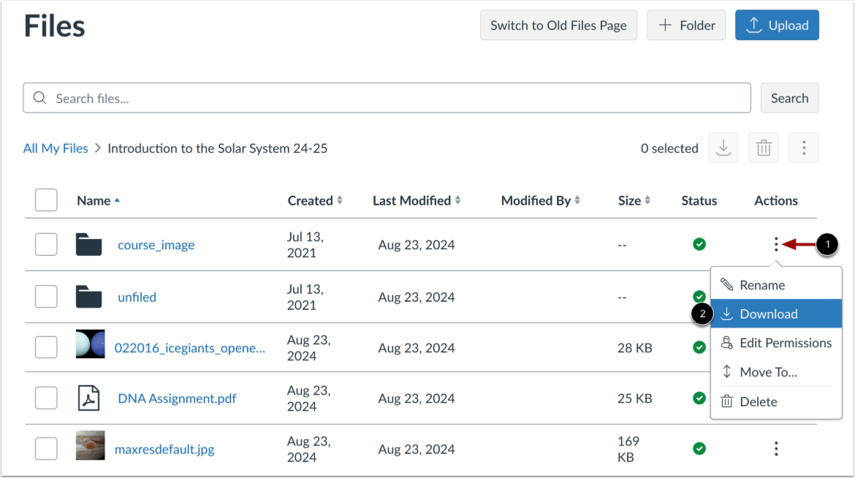
To download a folder, click the Options icon [1] and then click the Download link [2].
Open Folder ZIP File
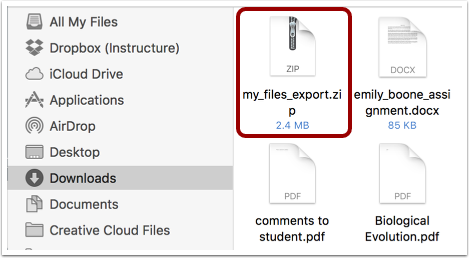
Folders download as ZIP files. To open the files within the ZIP file, either double-click the ZIP file (MAC users) or right-click the file and select Extract All (PC users).
Bulk Download Files or Folders
To bulk download files or folders, click one or more checkboxes [1].
To download all files and folders, click the All checkbox [2]. Alternatively, press Command+A (MAC users) or Control+A (PC users).
Then, click the Download icon [3].
The progress bar displays [4].
Open ZIP File
Bulk-downloaded files are saved as ZIP files. To open the files within the ZIP file, either double click the ZIP file (MAC users) or right-click the file and select Extract All (PC users).