If your course has enabled Microsoft Education, you can create a document, slide presentation, or spreadsheet in your OneDrive and then create a hyperlink to that document anywhere you can use the Rich Content Editor in Canvas. Several features in Canvas support the Rich Content Editor, including Announcements, Assignments, Discussions, Pages, and Quizzes.
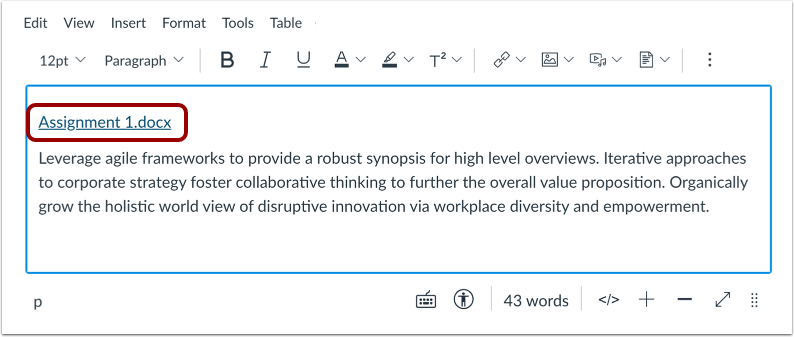
When files are linked in the Rich Content Editor, the link displays the exact name of the file. Please ensure your file names are correct before linking a file.
Notes:
- If you cannot view the Microsoft Education option in the Rich Content Editor LTI Tools menu, you can still include your file by creating a hyperlink or publishing your Microsoft Education content to the web and pasting the embed code in the HTML editor.
- PDF files added through Microsoft Education that cannot be previewed in Sharepoint are not supported to preview in Canvas. To preview the PDF files, you will need to add them to course files and link to them in the Rich Content Editor.
Open Rich Content Editor
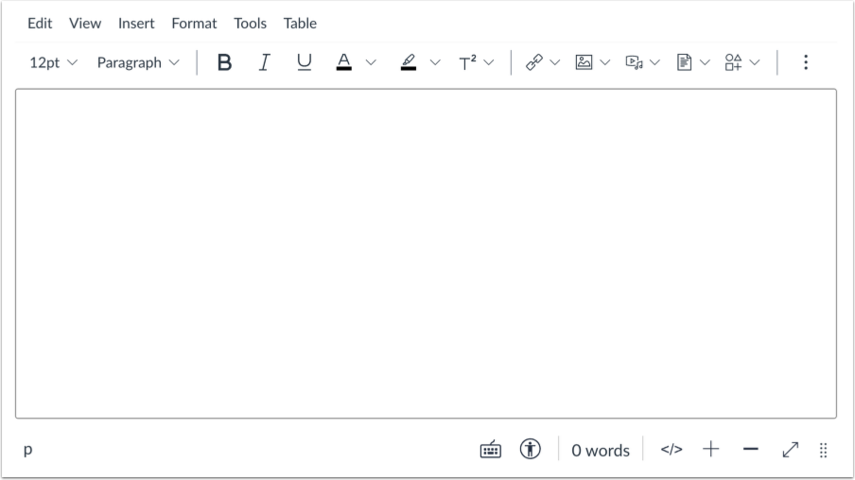
Open the Rich Content Editor when using one of the Canvas features which support the Editor.
Note: The Rich Content Editor supports keyboard shortcuts. To view the Keyboard Shortcuts menu, click the Keyboard icon or press ALT+F8 (PC keyboard) or Option+F8 (Mac keyboard).
Open Apps
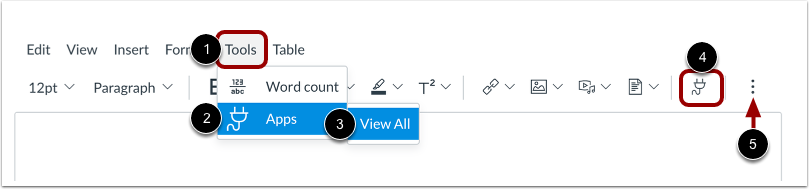
You can view a list of external tools from the menubar. Click the Tools link [1]. Navigate to the Apps option [2], then select the View All option [3].
Alternatively, you can view your apps from the toolbar. In the toolbar, click the App icon [4].
Note: To view the App icon, you may have to click the Options icon [5].
View Recently Used Apps
If you have previously used an external app from the Rich Content Editor, you can quickly open recently used apps.
To view recently used apps, click the App icon [1]. Then select the app you want to open [2].
To view all apps, click the View All link [3].
Open Microsoft Education
Click the Microsoft Education link [1].
You can also filter menu options using the Search field [2].
Notes:
- If the Microsoft Education link does not display, the LTI may not be enabled in your course. You can still include your file by creating a hyperlink or publishing your content to the web and pasting the embed code in the HTML editor.
- The tools listed will depend on which tools are enabled by an institution. Contact your administrator to confirm which tools are available in your account or to request access to additional tools
Attach File
Locate the file you want to link and click the checkbox next to the file name [1]. Click the Link or Embed button [2].
View File Link
View the file link in the Rich Content Editor
Save Changes
Click the Save button.
Notes:
- The assignment, discussion, pages, and quizzes details pages may display a Save & Publishbutton.
- The Syllabus page displays an Update Syllabusbutton.
- Discussion replies display aReplybutton.
View Content
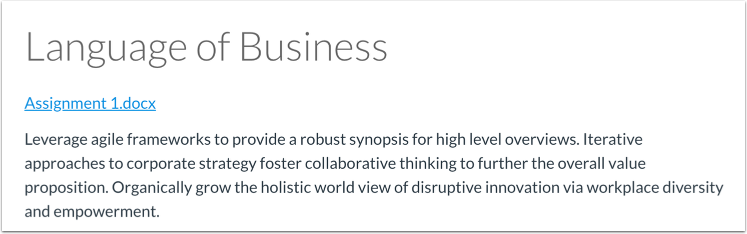
View the content.