The Student Inbox settings provides you with the ability to automate responses to messages and personalize your outgoing messages with a signature.
Note: The visibility of the auto response and signature features depends on the settings enabled by your admin.
View the video transcript
00:07: How do I manage my inbox settings as a student?
00:10: In global navigation click the inbox link
00:14: Click the inbox settings icon
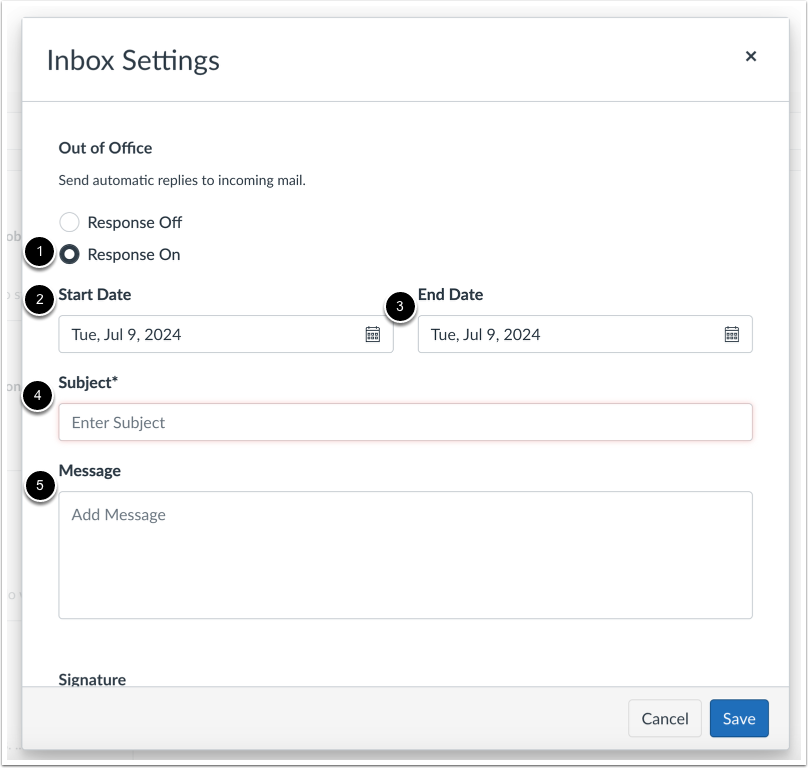
00:17: To create an auto response message select the response on radio button and
00:21: enter the start date and date subject and message.
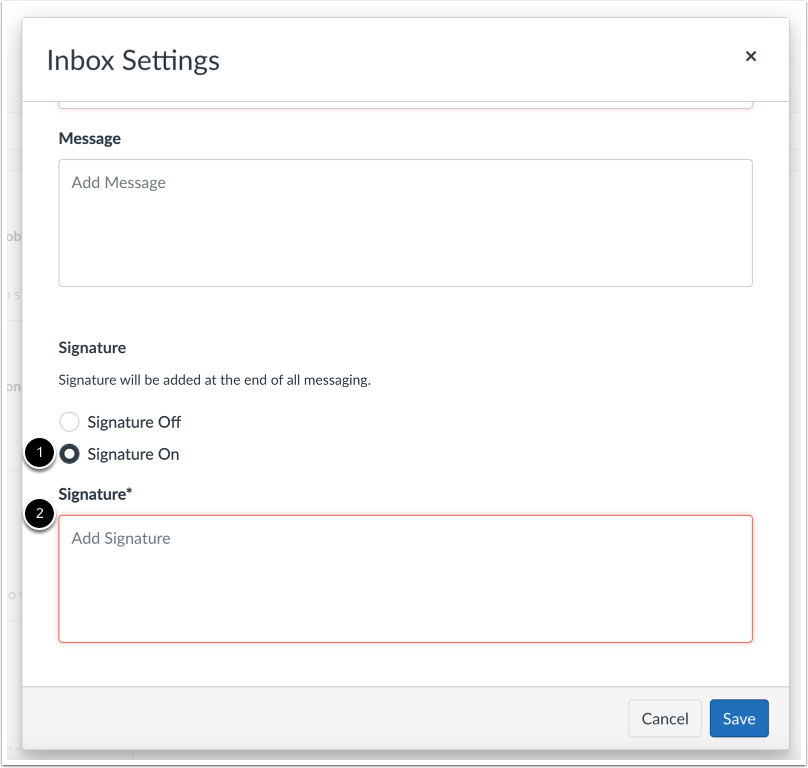
00:27: To create a signature select the signature on radio button and enter the desired
00:31: signature in the signature field.
00:34: Then click the save button to save your settings.
00:37: This guide covered how to manage the inbox settings as a student.
Open Inbox
In Global Navigation, click the Inbox link.
Open Inbox Settings
Click the Inbox Settings icon.
View Out of Office Settings
To create an auto-response message, select the Response On radio button [1] and enter the Start Date [2], End Date [3], Subject [4], and Message [5].
View Signature Settings
To create a signature, select the Signature On radio button [1] and enter the desired signature in the Signature field [2].
Save Settings
Then click the Save button to save your settings.