If you are an instructor and your course has sections, you can set different event dates for each section in the Calendar.
Notes:
View the video transcript
00:07: How do I set a different event date for each section in a course, calendar.
00:12: In global navigation. Click the calendar link.
00:16: Click the add icon.
00:18: Add a title and location for the event, the date, and time fields are automatically
00:22: populated based on the current date, but do not need to be removed.
00:27: In the calendar, drop-down menu, select the course, calendar for the event.
00:33: To add different dates. For each section, click the more options button.
00:38: Click the use of different date for each section, checkbox.
00:42: The default date is removed and replaced with all the sections in your course.
00:46: For each section type in a date or select a date by clicking, the calendar
00:51: icon, and specify the start and end time.
00:54: If you don't want one section to see the event, leave the date, and time Fields,
00:58: blank.
01:00: Click the create event button.
01:03: View the events in your course, calendar. Each section will have a separate calendar
01:07: event.
Open Calendar
In Global Navigation, click the Calendar link.
Add Event
Click the Add icon.
View More Options
Add a title [1] and location for the event [2]. The date and time fields are automatically populated based on the current date but do not need to be removed.
In the Calendar drop-down menu [3], select the course calendar for the event.
To add different dates for each section, click the More Options button [4].
Use Different Date
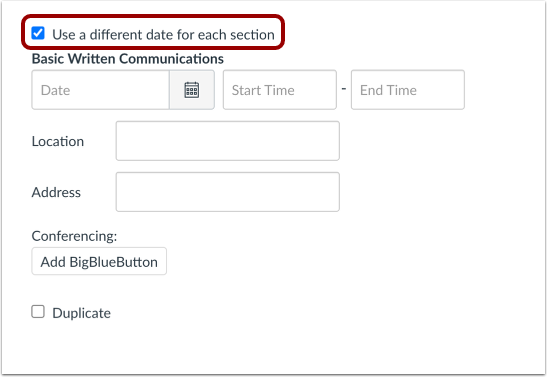
Click the Use a different date for each section checkbox.
Set Section Dates
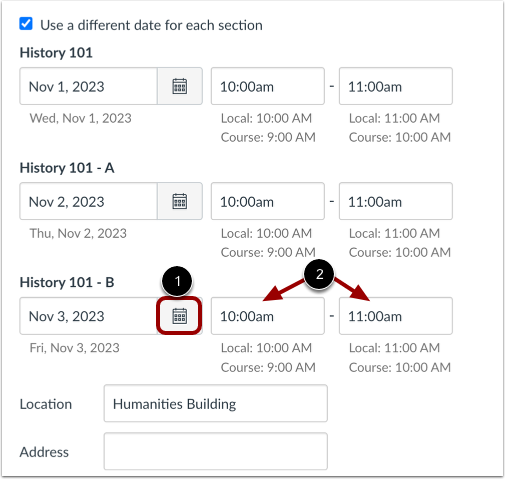
The default date is removed and replaced with all the sections in your course.
For each section, type in a date, or select a date by clicking the Calendar icon [1], and specify the start and end time [2]. If you don't want one section to see the event, leave the date and time fields blank.
Create Event
Click the Create Event button.
View Events
View the events in your course calendar. Each section will have a separate Calendar event.
Notes:
- Events that include a conferencing link in the description or location field display a Join button on students' List View Dashboard.
- You cannot edit the Location field when editing separate events. The Location field can only be edited by editing the main calendar event.