You can move and organize the files you have access to by dragging and dropping files or using the Move options for each file. Files are always organized in alphabetical order, so you are not able to rearrange the organizational structure of files, but to locate a file you can always sort files by column.
Learn how to view your user files, group files, and course files.
View the video transcript
00:07: How do I move and organize files?
00:10: In user or group files locate the file you want to move? Click
00:14: the line item for the file. To move the file via the
00:18: toolbar click the move button.
00:21: To move the file via file settings. Click the options icon then
00:25: click the move link.
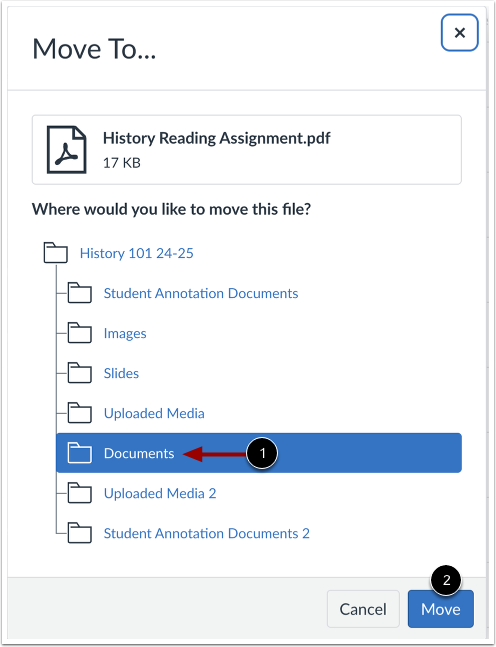
00:27: Select the folder where you want to move the file and click the move button.
00:32: You can also manage your files using a basic click and drag method.
00:36: Click the file name and drag the file to the desired folder.
00:39: Once you see the folder highlighted release your mouse, the file has been
00:43: moved. You can also move a file from the right pane to
00:47: the left pane.
00:50: To select multiple files, press the command key Mac or
00:54: the control key Windows while clicking the line for each file.
00:57: You want to select? To select all files click
01:02: the command + a keys Mac or the control plus a keys
01:06: windows. To select a range of files click the
01:10: first file you want to select hold down the shift key and then click the
01:14: last file you want to select. All files between the first and the last
01:18: file will be selected.
01:21: This guide covered how to move and organize files.
Open Files
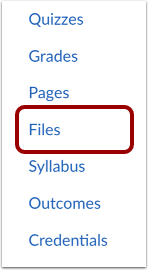
In Course Navigation, click the Files link.
Locate the file you want to move. Click the line item for the file [1].
To move the file via file settings, click the Options icon [2], then click the Move To... link [3].
Select the folder where you want to move the file [1] and click the Move button [2].
Move File via Drag and Drop
To move a file using drag and drop, click the file name, then drag it to the desired folder. When the folder is highlighted, release your mouse. The file will be moved.
Move Multiple Files
To move multiple files, click the checkboxes next to the files you want to move [1].
To select all files, click the Select All checkbox [2].
You can also use keyboard shortcuts to select files:
- To select all files, press Control+A (PC) or Command+A (Mac) keys simultaneously.
- To select individual files, press Control+Click (PC) or Command+Click (Mac) keys simultaneously.
- To select a range of files, press Shift+Click keys simultaneously.
- To deselect all files, press Control+Shift+A (PC) or Command+Shift+A (Mac) keys simultaneously.
Click the Options icon [3], then select Move To... link [4].