You can filter the conversations in your Inbox for easier organization, especially if you are enrolled in multiple courses. Filtering conversations allows you to selectively view conversation messages by course, inbox, or user.
View the video transcript
00:07: How do I filter conversations?
00:10: In global navigation click the inbox link
00:14: You can filter your inbox by types of courses your inbox may
00:18: contain the following options. Current courses in your favorites
00:22: menu other courses that you haven't favorited concluded courses
00:26: and current or concluded groups.
00:30: You can also filter by inbox type by default the inbox displays
00:34: all messages.
00:36: The unread filter displays all unread conversations in your inbox learn
00:40: how to view and manage unread messages.
00:44: The start filter displays all starred messages in your inbox start
00:48: messages are marked as important so you can locate them later.
00:51: Learn how to Star a message
00:54: The scent filter displays all your sent messages both to individual users
00:58: or multiple users. Sent messages also includes messages
01:02: sent from the gradebook.
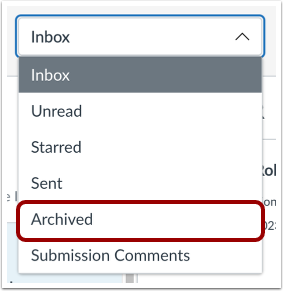
01:04: The archived filter displays all archived conversations.
01:07: Learn how to Archive a conversation.
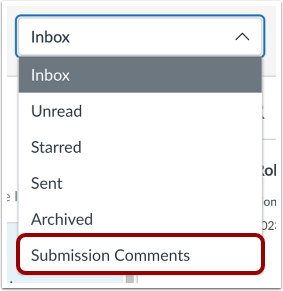
01:11: The submission comments filter displays all comments associated with course
01:15: assignments and feedback. Learn how to reply to submission comments
01:20: To filter by user type the name of a user in the filter field or
01:24: browse for the course group or user by selecting the address book
01:28: icon.
01:30: This guide covered how to filter conversations
Open Inbox
In Global Navigation, click the Inbox link.
Filter by Course
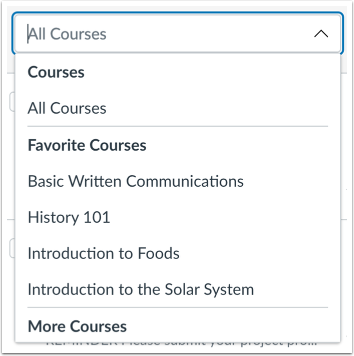
You can filter your inbox by types of courses. Your Inbox may contain the following options:
- Current courses in your Favorites menu
- Other courses that you haven't favorited
- Concluded courses
- Current or concluded groups
Note: You cannot send messages to users in concluded courses.
Filter by Inbox
You can also filter by Inbox type. By default, the Inbox displays all messages.
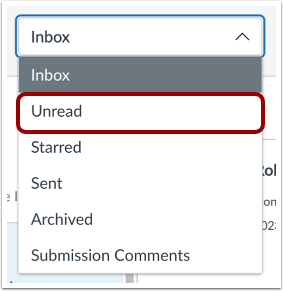
View Unread Messages
The Unread filter displays all unread conversations in your Inbox. Learn how to view and manage unread messages.
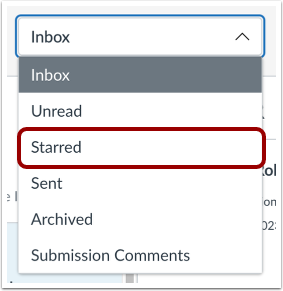
View Starred Messages
The Starred filter displays all starred messages in your Inbox. Starred messages are marked as important so you can locate them later. Learn how to star a message.
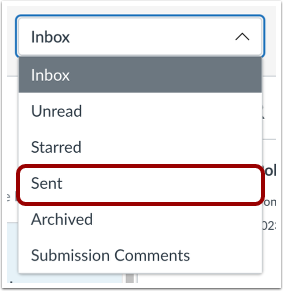
View Sent Messages
The Sent filter displays all your sent messages, both to individual users or multiple users.
Note: The Sent filter only includes sent messages from the first user to send a message in a conversation thread. Replies from recipients of the original message will appear in their Inboxes, but not in their Sent filters.
View Archived Conversations
The Archived filter displays all archived conversations. Learn how to archive a conversation.
Note: Sent messages cannot be archived. Additionally, archived messages do not include deleted messages, which are completely removed from the Inbox.
The Submission Comments filter displays all comments associated with course assignments and feedback. Learn how to reply to submission comments.
Filter by User
To filter by user, type the name of a user in the search field [1], or browse for the course, group, or user by selecting the Address Book icon [2].