View the video transcript
00:07: How do I add a to-do item in the calendar as a student?
00:11: In global navigation click the calendar link
00:15: Click any date on the calendar to add an event or click the arrows
00:19: next to the month name to navigate to a different month and select a date.
00:24: If you don't want to manually locate the date, you can click the add icon.
00:29: Click the to do tab
00:32: In the title field enter a title for the to do The
00:36: date field defaults to the current date to change the date when you want to complete
00:40: the item type the new date or select a date by selecting the calendar icon.
00:46: If you want to set a specific time for the item enter the time and the time field
00:50: if no time has entered the time field defaults to 11:59
00:54: p.m.
00:57: The to do will associate with your personal calendar by default if your calendar
01:01: is selected in the sidebar. You can also Associated to do with a specific
01:05: course to select a course calendar for your to-do item put the
01:09: calendar drop down menu.
01:12: In the details field any other details about your to-do item?
01:17: Submit to do item
01:20: View your to-do item in the calendar.
01:23: To edit or delete a to-do item click the name of the item and click
01:27: the edit button or delete button.
01:30: This guy covered how to add a to-do item in the calendar as a student.
Open Calendar
In Global Navigation, click the Calendar link.
Add Event
Click any date on the calendar to add an event [1]. Or, click the arrows next to the month name to navigate to a different month [2] and select a date.
If you don't want to manually locate the date, you can click the Add icon [3].
Add To Do Details
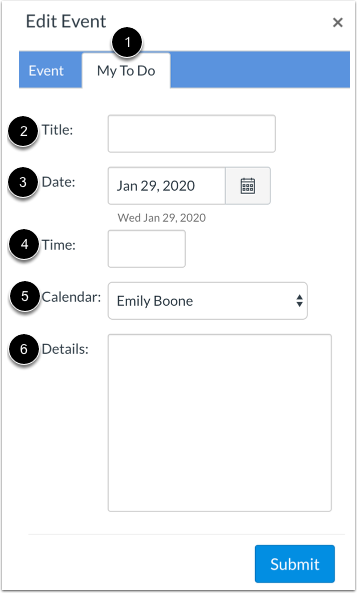
Click the My To Do tab [1].
In the Title field [2], enter a title for the To Do [2].
The Date field defaults to the current date [3]. To change the date when you want to complete the item, type the new date or select a date by selecting the Calendar icon.
If you want to set a specific time for the item, enter the time in the Time field [4]. If no time is entered, the Time field defaults to 11:59 p.m.
The To Do will associate with your personal calendar by default if your calendar is selected in the sidebar. You can also associate a To Do with a specific course. To select a course calendar for your To-Do item, click the Calendar drop-down menu [5].
In the Details field [6], add any other details about your to-do item.
Submit To Do
Click the Submit button.
View To Do
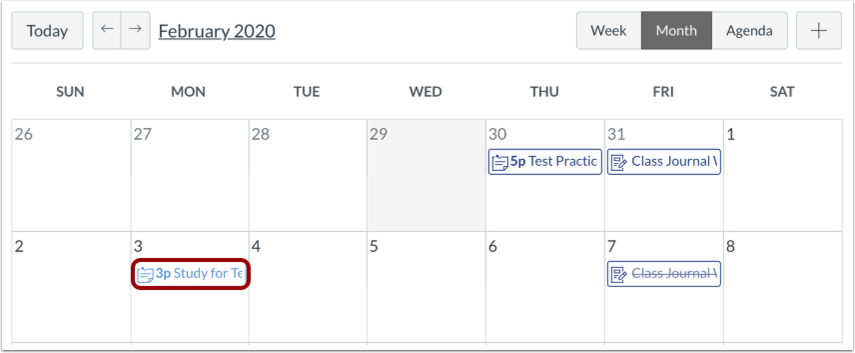
View your to-do item in the calendar.
You can also view your to-do item in the List View Dashboard.
Manage To Do
To edit or delete a to-do item, click the name of the item [1] and click the Edit button [2] or Delete button [3].