You can archive messages if you want to keep them but remove them from your Inbox.
Note: You cannot archive sent messages.
View the video transcript
00:07: How do I archive a conversation?
00:10: In global navigation click the inbox link
00:14: Select the conversation
00:17: To select multiple messages to Archive click the message check box or
00:21: press the command key Mac or the control key Windows
00:25: while clicking each message. You want to select You can also click
00:29: the check box or use the same keyboard command to deselect a message.
00:34: Click the archive icon.
00:37: To view archived messages click the inbox drop-down menu select
00:41: the archived link.
00:44: To unarchive a message click the message you want to unarchive? Click
00:48: the unarchive icon.
00:51: This guide covered how to Archive a conversation.
Open Inbox
In Global Navigation, click the Inbox link.
Select Conversation
Select the conversation.
Select Multiple Messages
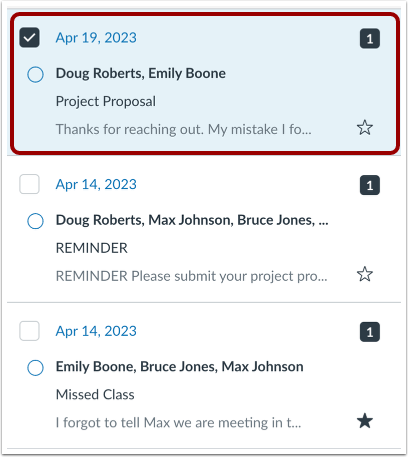
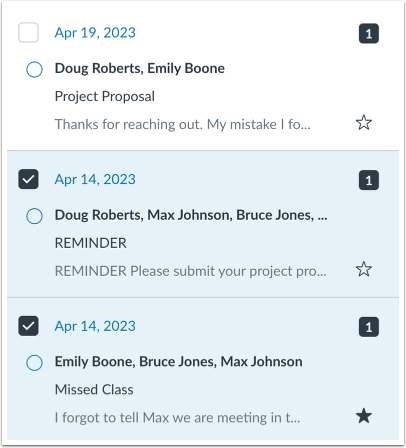
To select multiple messages to archive, click the message checkbox or press the command key (Mac) or the control key (Windows) while clicking each message you want to select. You can also click the checkbox or use the same keyboard command to deselect a message.
Archive Conversations
Click the Archive icon.
View Archived Conversations
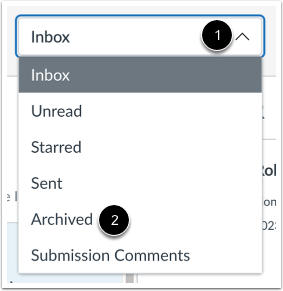
To view archived messages, click the Inbox drop-down menu [1]. Select the Archived link [2].
Unarchive Conversations
To unarchive a message, click the message you want to unarchive [1]. Click the Unarchive icon [2].